How does a sale flow from quote to payment?
Follow one sale through Sales, Inventory and Invoicing — quote, order, delivery, invoice and payment.
A sale passes through three apps: you quote and confirm it in Sales, the warehouse ships it in Inventory, and you bill and collect in Invoicing. Each step creates the next document for you, and the order keeps a link to all of them. This article walks the whole path; each stage links to a detailed article.
1. Quote the customer
Go to Sales → Quotes, click New, choose the Customer and add the products. To email it, open the menu next to the main button and click Send; the quote moves from Quote to Sent. Details: How do I create and send a quote?.
2. Confirm it as an order
When the customer agrees, click Confirm on the quote (more: How do I confirm an order?), or the customer accepts it online — see How do customers accept, sign and pay online?.
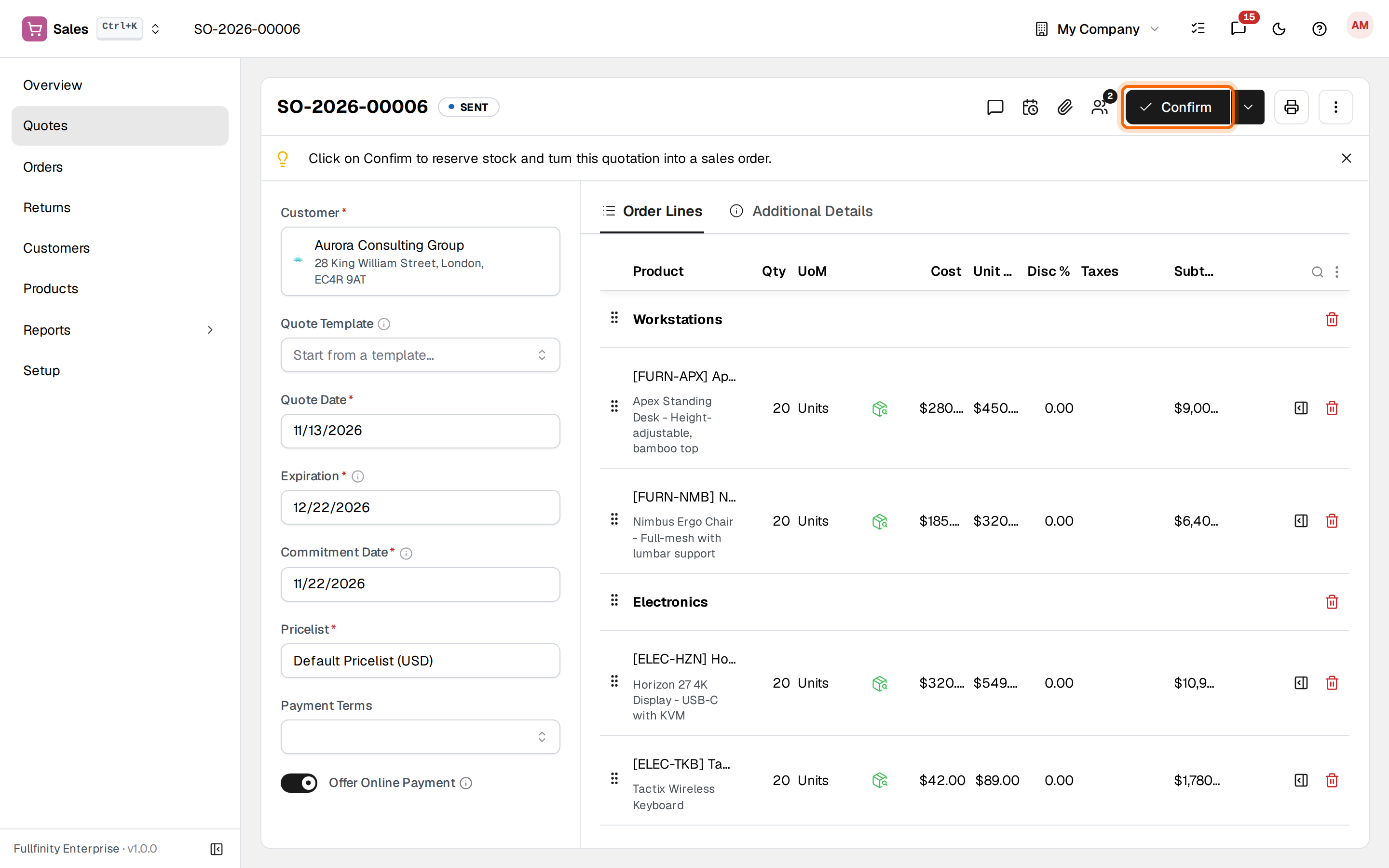
Confirming does several things at once:
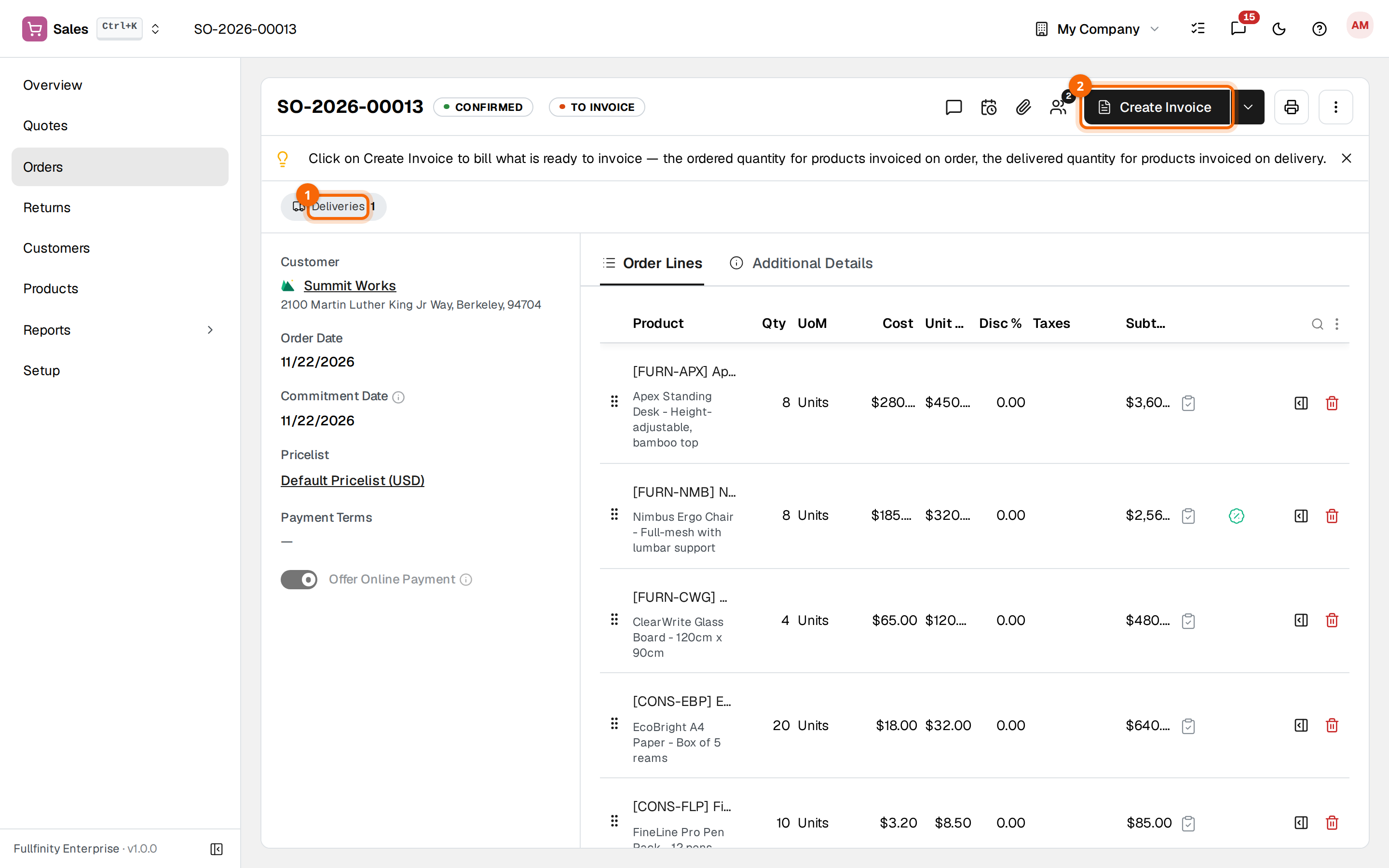
- The status becomes Confirmed and the record moves to Sales → Orders.
- Stock is reserved and a delivery is created in Inventory for every stocked product. The order shows a Deliveries button.
- An Invoice Status badge appears: To Invoice once there is something to bill.
3. Ship the goods
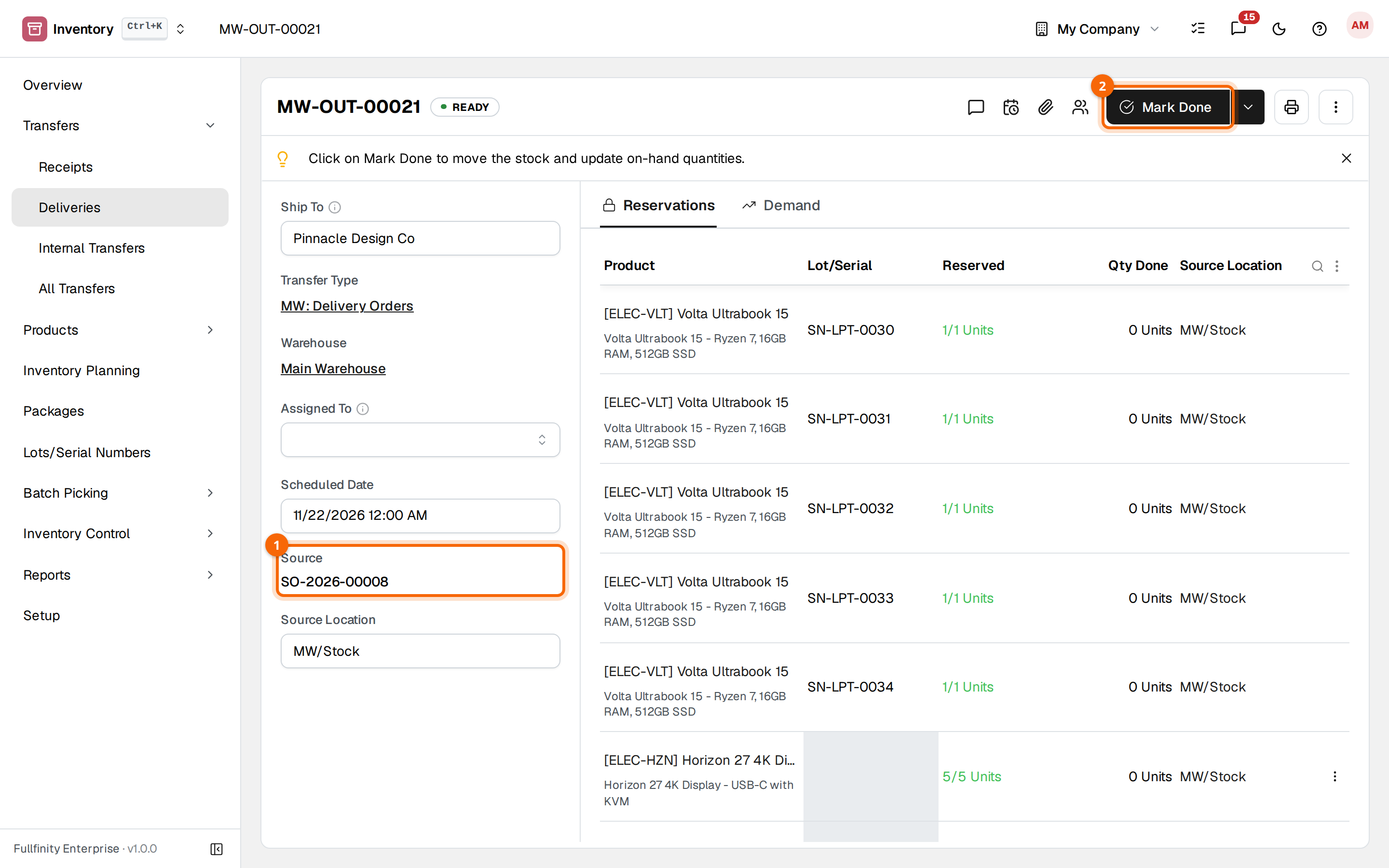
Click Deliveries on the order, or find the delivery under Inventory → Transfers → Deliveries — its Source is the order number. When the delivery is Ready, pick the goods and click Mark Done. Stock leaves the warehouse and the order's delivered quantities update.
4. Invoice the order
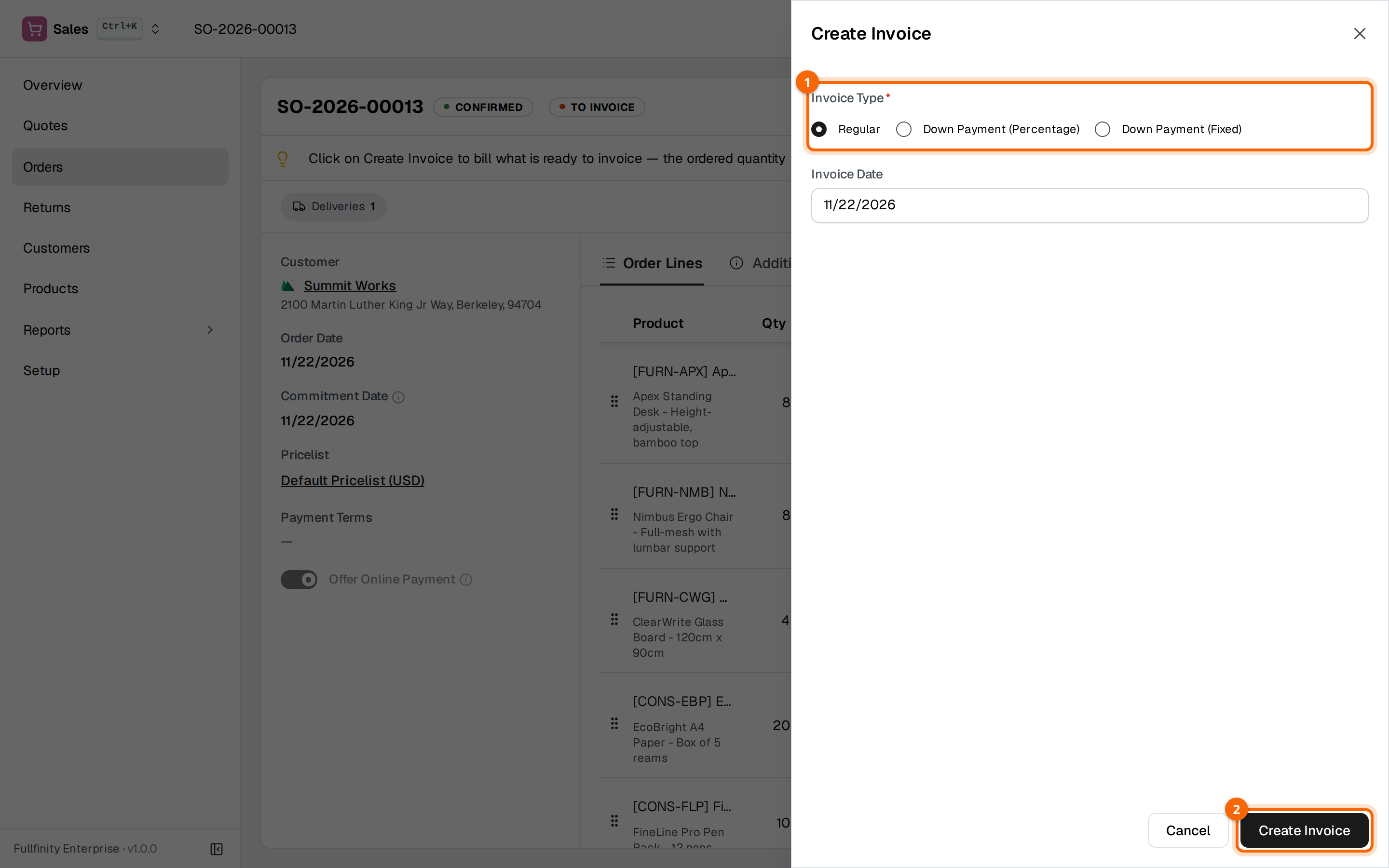
Back on the order, click Create Invoice. Leave Invoice Type on Regular to bill what is due, or choose a down payment, then click Create Invoice in the panel.
A Draft invoice opens. Check it and click Post, then send it to the customer — see How do I create and send a customer invoice?. Once posted, the order's status reads Fully Invoiced (or stays To Invoice if part is still unbilled).
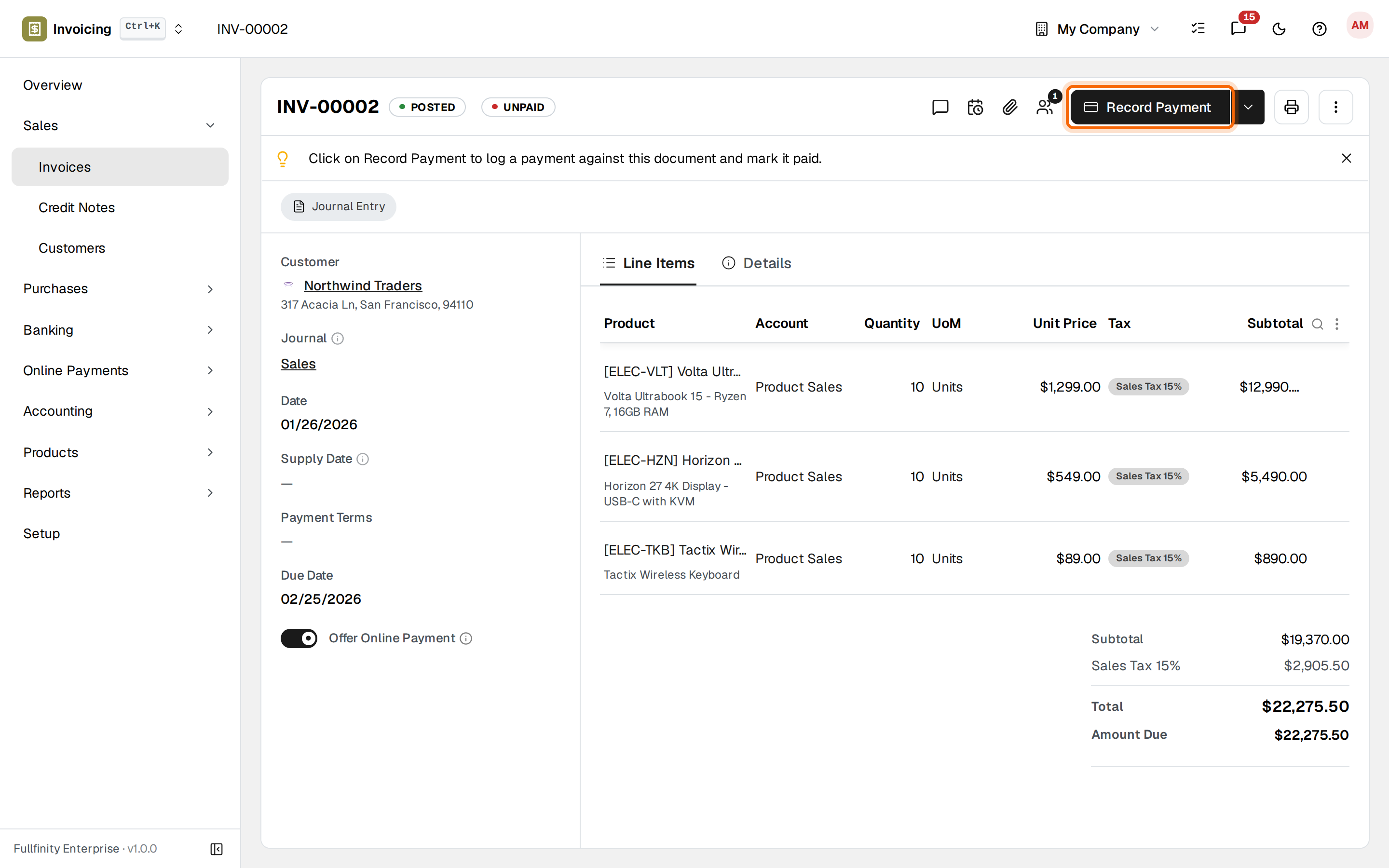
5. Record the payment
When the customer pays, open the invoice (from the order's Invoices button, or Invoicing → Sales → Invoices) and click Record Payment. The payment status moves from Unpaid to Paid. Details: How do I record a customer payment?.
6. Close the order
When everything is invoiced, the order offers Mark as Done. Click it to move the order to Done and take it off your open lists.
Related
Something came back? See How do I handle a customer return?.