How do I buy from a vendor for a specific customer order?
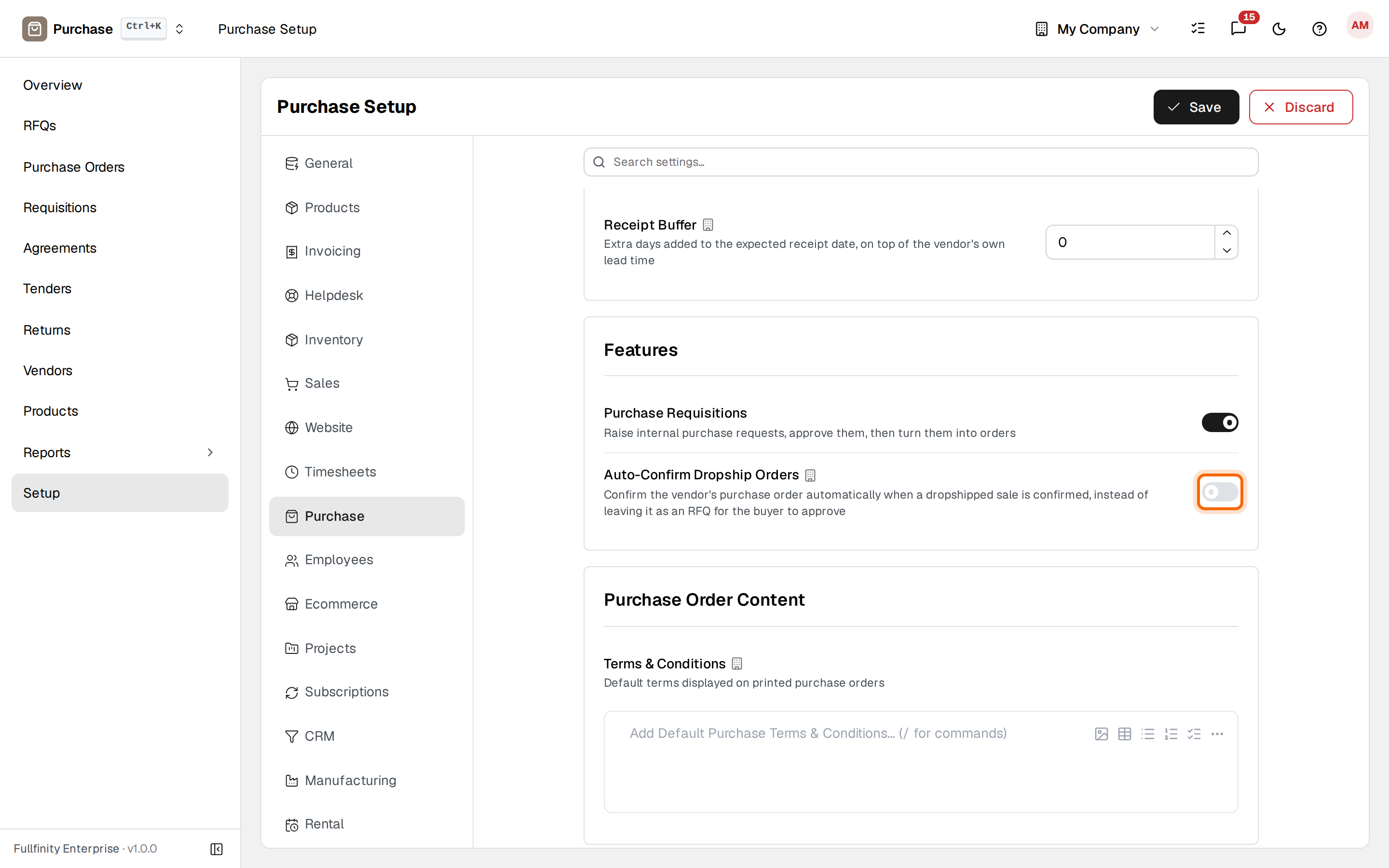
Have a confirmed sale raise the purchase for it automatically — bought in for that order, or shipped by the vendor straight to the customer.
Some products you don't keep on the shelf: you buy them when a customer orders them, or have the vendor ship them straight to the customer. Fullfinity can raise that purchase for you the moment you confirm the sale, and keeps the sale and the purchase linked.
1. Tell the product how it is supplied
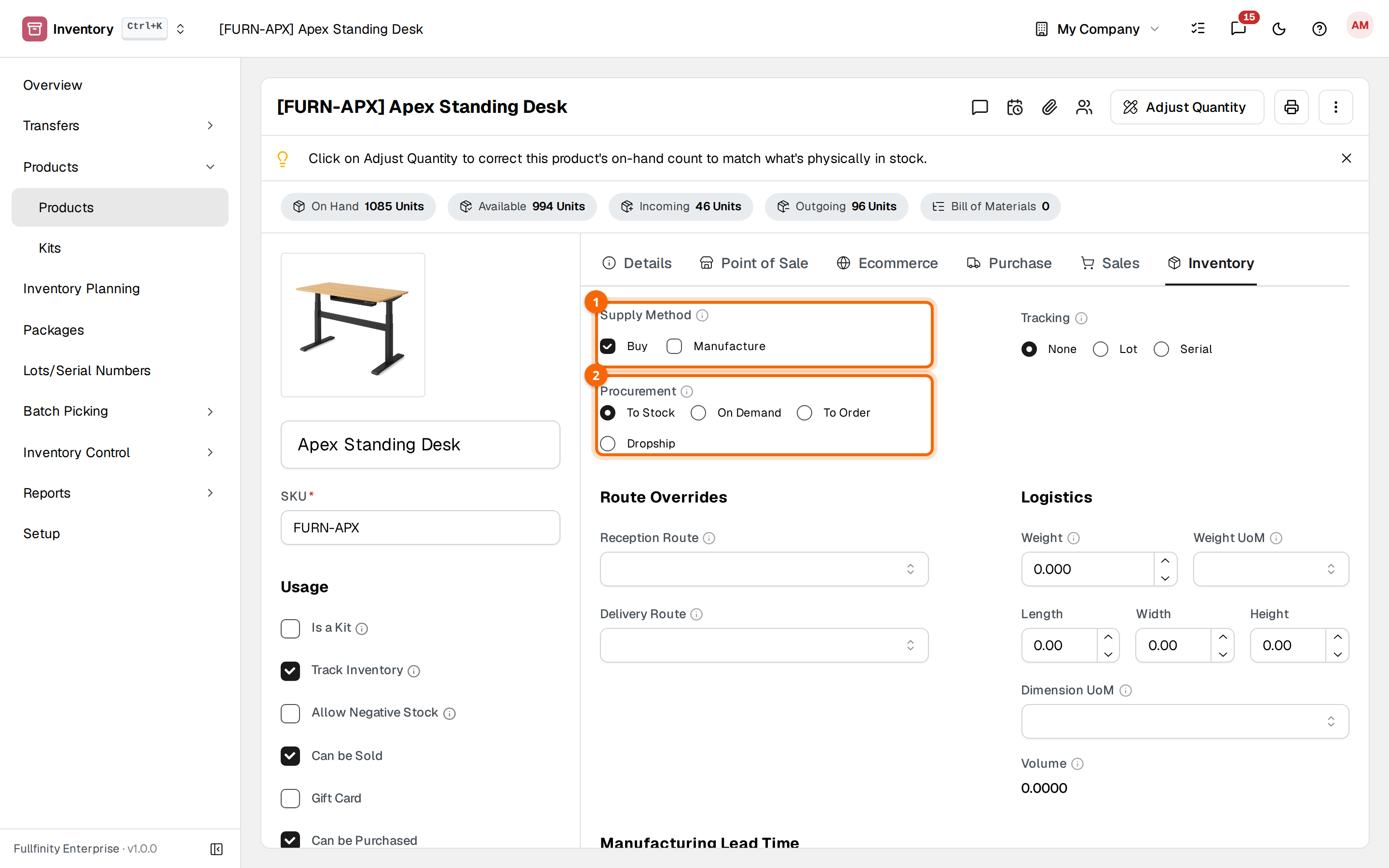
Open the product (Inventory → Products → Products) and go to its Inventory tab:
- Under Supply Method, tick Buy.
- Under Procurement, choose how a sale is supplied:
- On Demand — use stock you already have first, and buy only the shortfall.
- To Order — buy the full quantity for each order, never drawing on stock on hand. The units bought are the ones delivered to that customer.
- Dropship — the vendor ships directly to the customer; the goods never pass through your warehouse.
- To Stock — the usual: sell from stock, refilled by reorder rules. Nothing is bought for the order.
2. Confirm the sale
Quote and click Confirm as usual. What confirming creates depends on the procurement:
| Procurement | On confirm |
|---|---|
| On Demand / To Order | A delivery to the customer, plus an RFQ to the vendor for what must be bought. Its Source is the sales order number. |
| Dropship | No warehouse delivery for those lines. An RFQ to the vendor, with the customer's address as the delivery destination. |
The sales order shows a Purchases button, and the purchase order a Sale Order button, so either side can jump to the other.
3. Approve the purchase
Open the RFQ from the order's Purchases button (or Purchase → RFQs), check the price and click Confirm. From here it is an ordinary purchase — see How does a purchase flow from RFQ to payment?.
4. Receive, deliver, invoice
- On Demand / To Order: when the goods arrive, click Mark Done on the receipt. They are reserved for the customer's delivery, which you then ship as usual. With To Order, the customer gets exactly the units bought for them.
- Dropship: confirming the vendor's order creates a dropship transfer under Inventory → Transfers → All Transfers. Click Mark Done on it once the vendor has shipped; the customer's order then counts as delivered.
Invoice the customer from the sales order and record the vendor's bill from the purchase order, as with any sale and purchase.