How do I record a customer payment?
Mark a posted invoice as paid by recording the payment you received.
When a customer pays, record the payment against their invoice. The invoice's payment status then changes to Partially Paid or Paid by itself.
1. Open the invoice
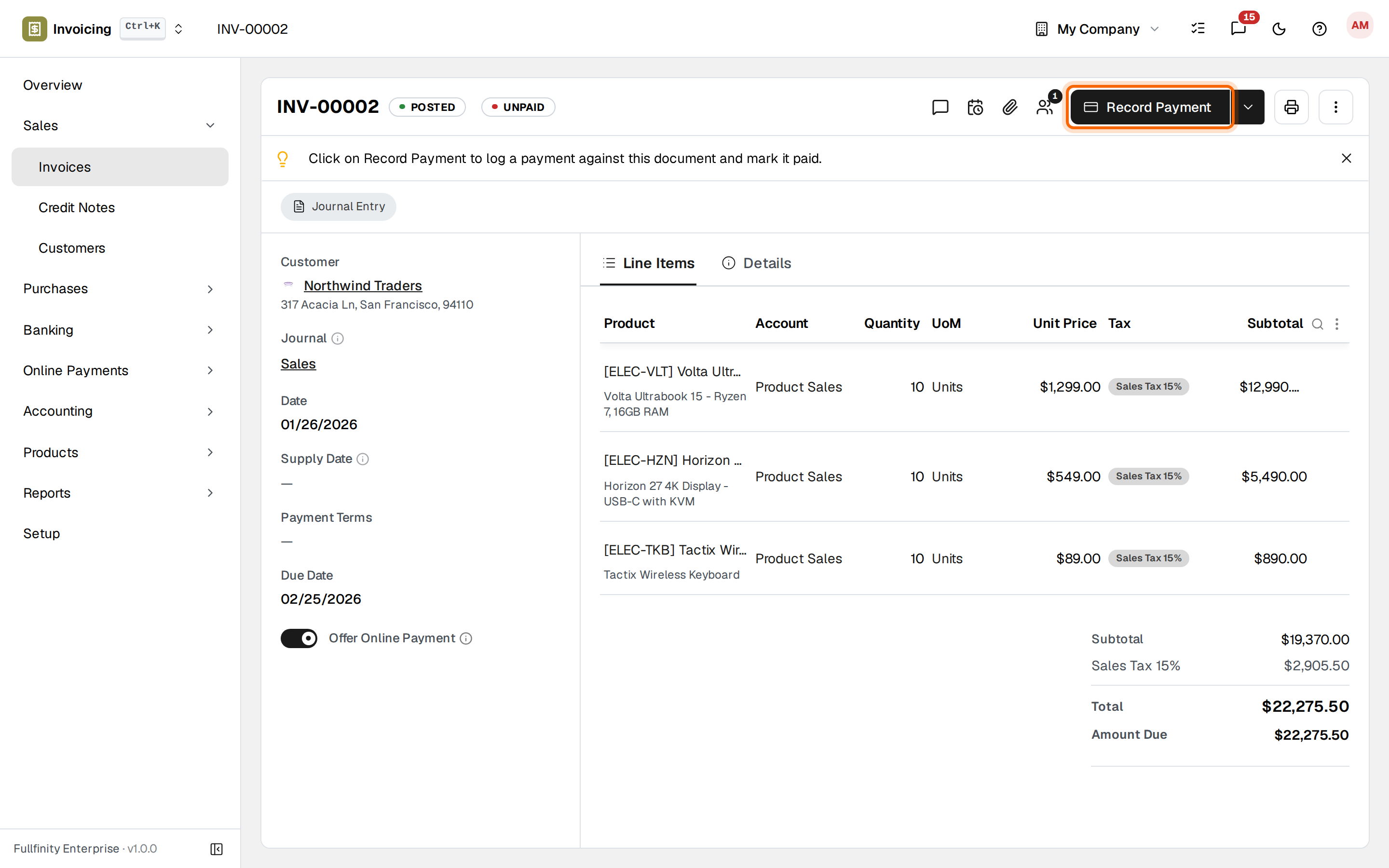
Go to Sales → Invoices, open the invoice and click Record Payment.
2. Enter the payment
- Amount — starts as the full amount due. Lower it for a part-payment.
- Date — when the money arrived.
- Payment Method — the bank or cash journal the money went into.
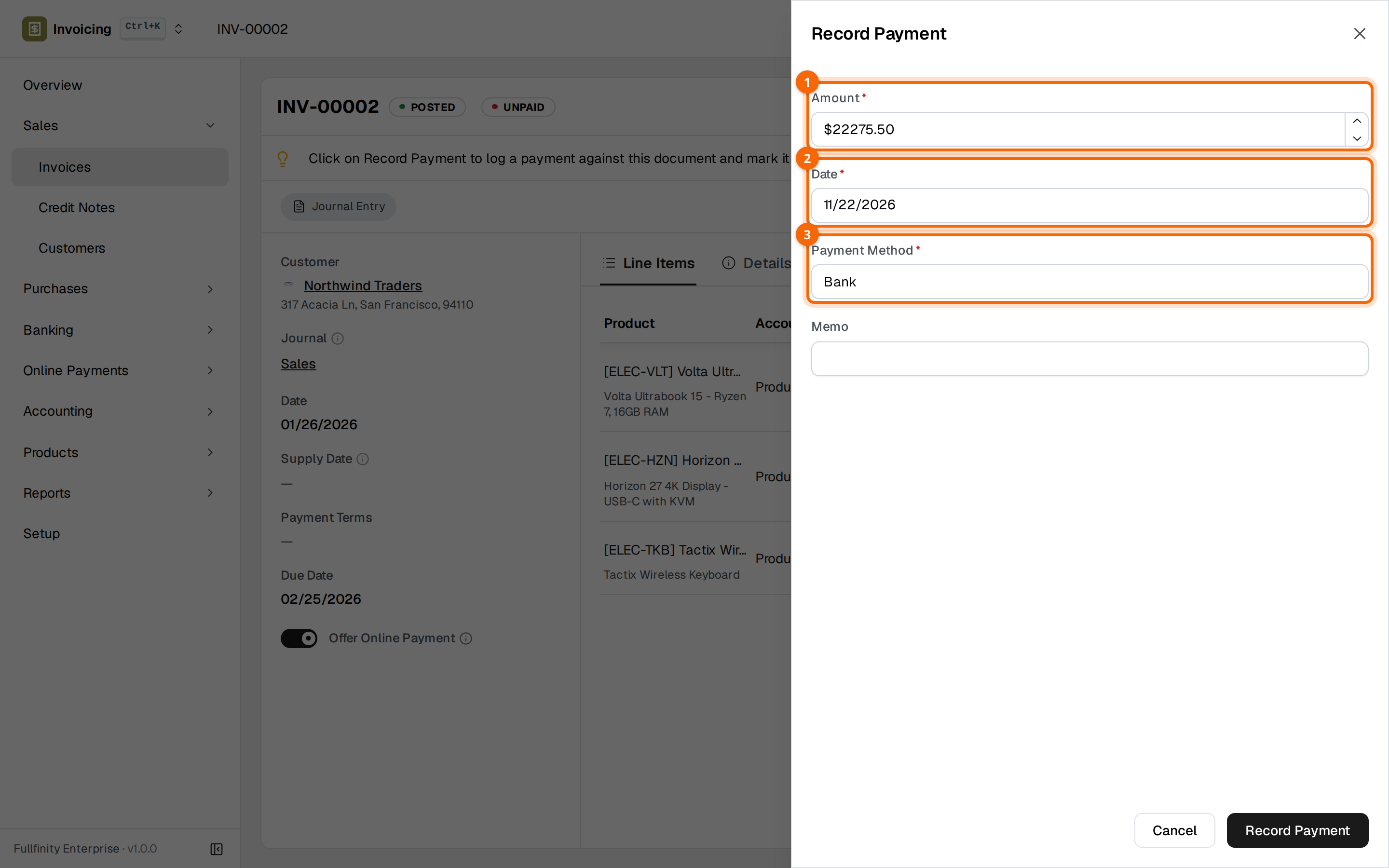
Add a Memo if you like, then click Record Payment.
When the customer paid a little less
If the amount is lower than what's due, the panel shows the Payment Difference. Leave it and the invoice stays Partially Paid. Or tick Write Off Difference, choose the Write-off Account (e.g. bank charges) and a Write-off Label, and the invoice is closed as Paid.
3. What changes
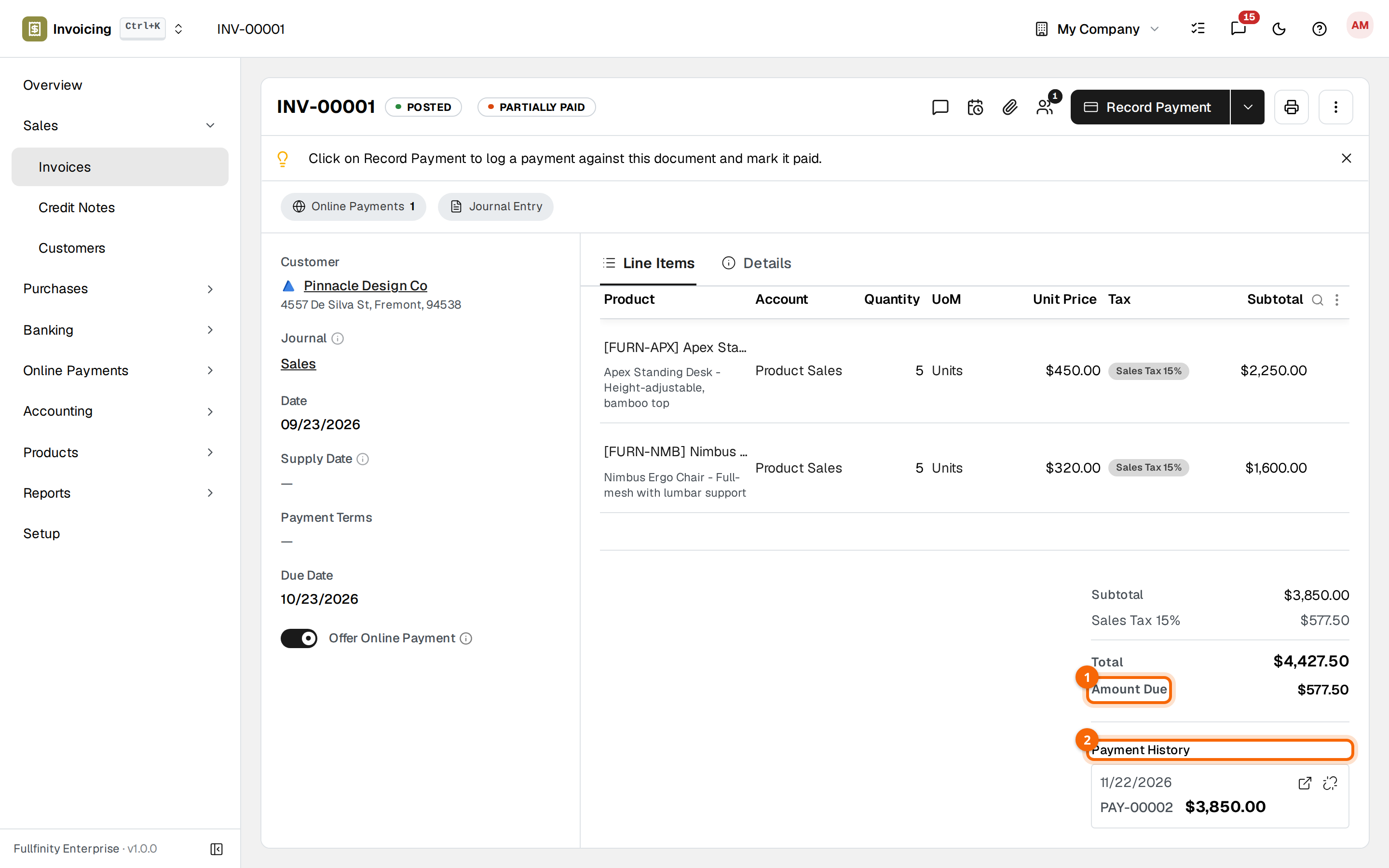
- The payment status moves to Paid or Partially Paid.
- The payment appears under Payment History on the invoice, and Amount Due drops.
- A payment is created in Banking → Payments with its own journal entry.
Got one payment for several invoices? See Record one payment against several invoices. Recorded it on the wrong invoice? See Undo a payment applied to the wrong invoice.