What happens after a customer orders on my website?
How a web order is paid, confirmed, delivered and invoiced — and which of those steps happen on their own.
When a shopper checks out on your online store, Fullfinity takes the payment and turns the cart into a confirmed sales order without anyone touching it. From there it follows the same path as an order your team entered: the warehouse ships it and you invoice it. This article shows what happens automatically and what you do.
1. The shopper fills a cart
Shoppers browse your Shop page, filter by category and open a product.
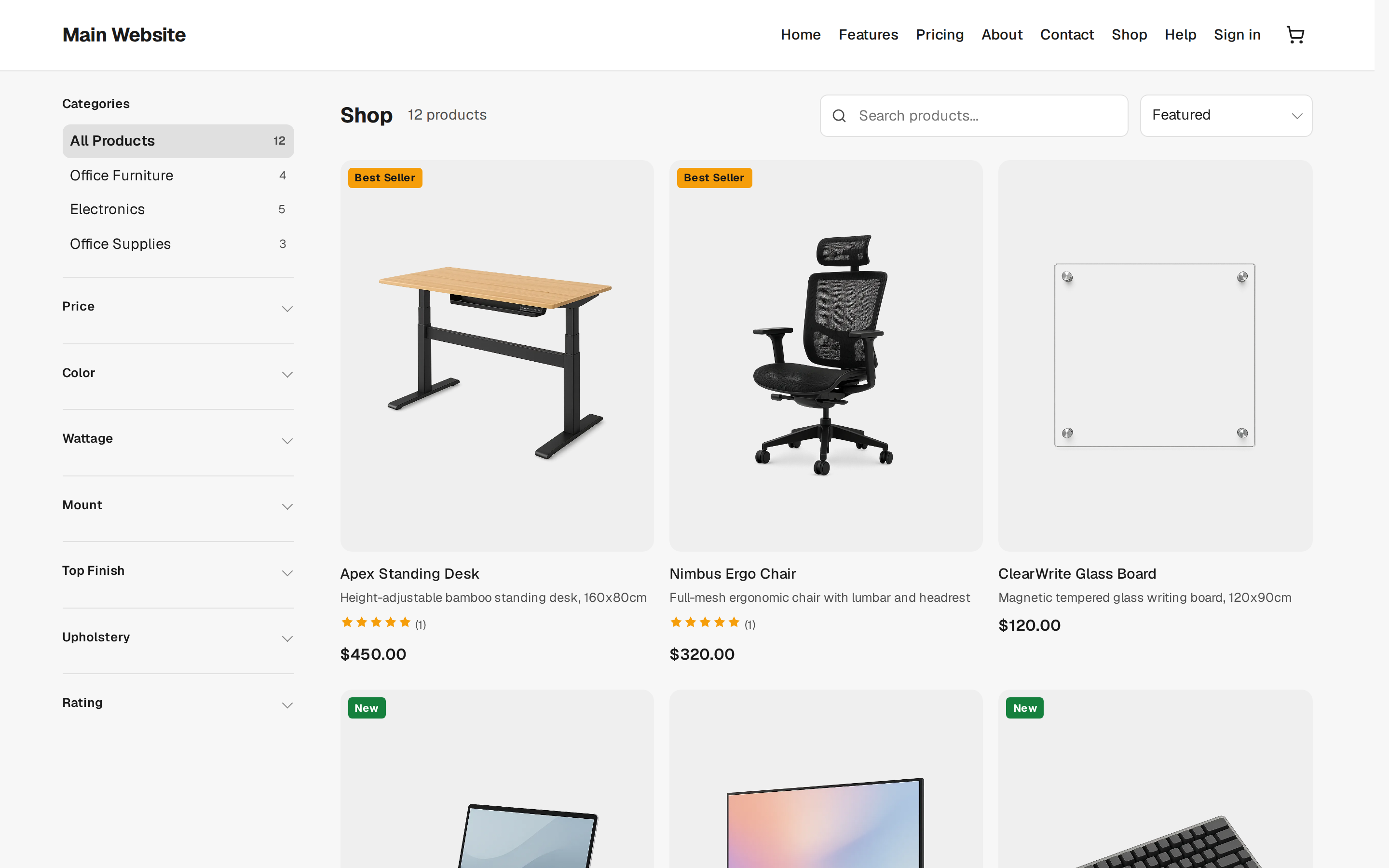
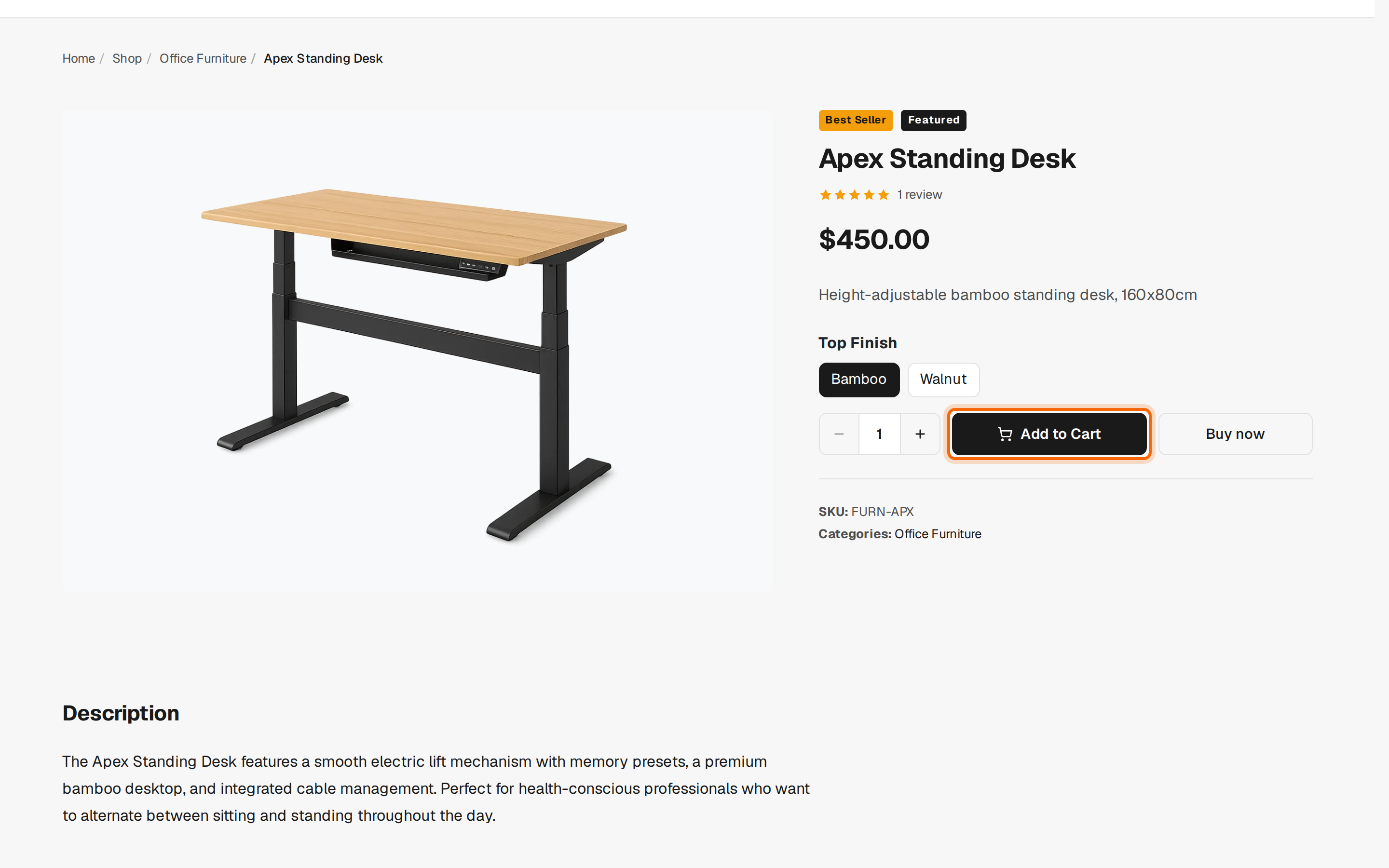
On the product page they choose any options (such as a finish) and a quantity, then click Add to Cart — or Buy now to go straight to checkout.
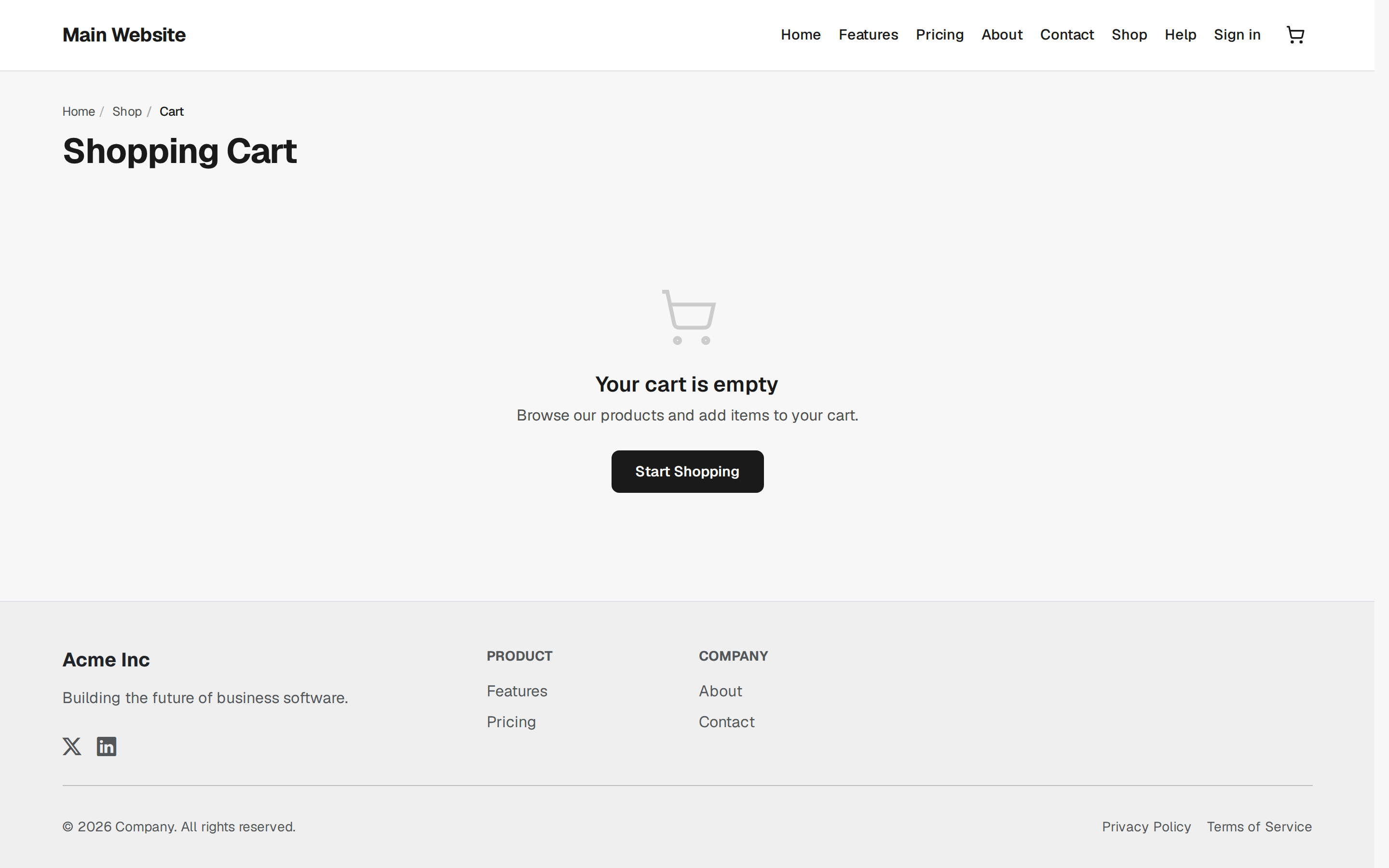
The cart icon in the header opens the Shopping Cart. Nothing reaches your sales orders while the shopper is still browsing: a cart only becomes an order once it is paid.
2. The shopper checks out and pays
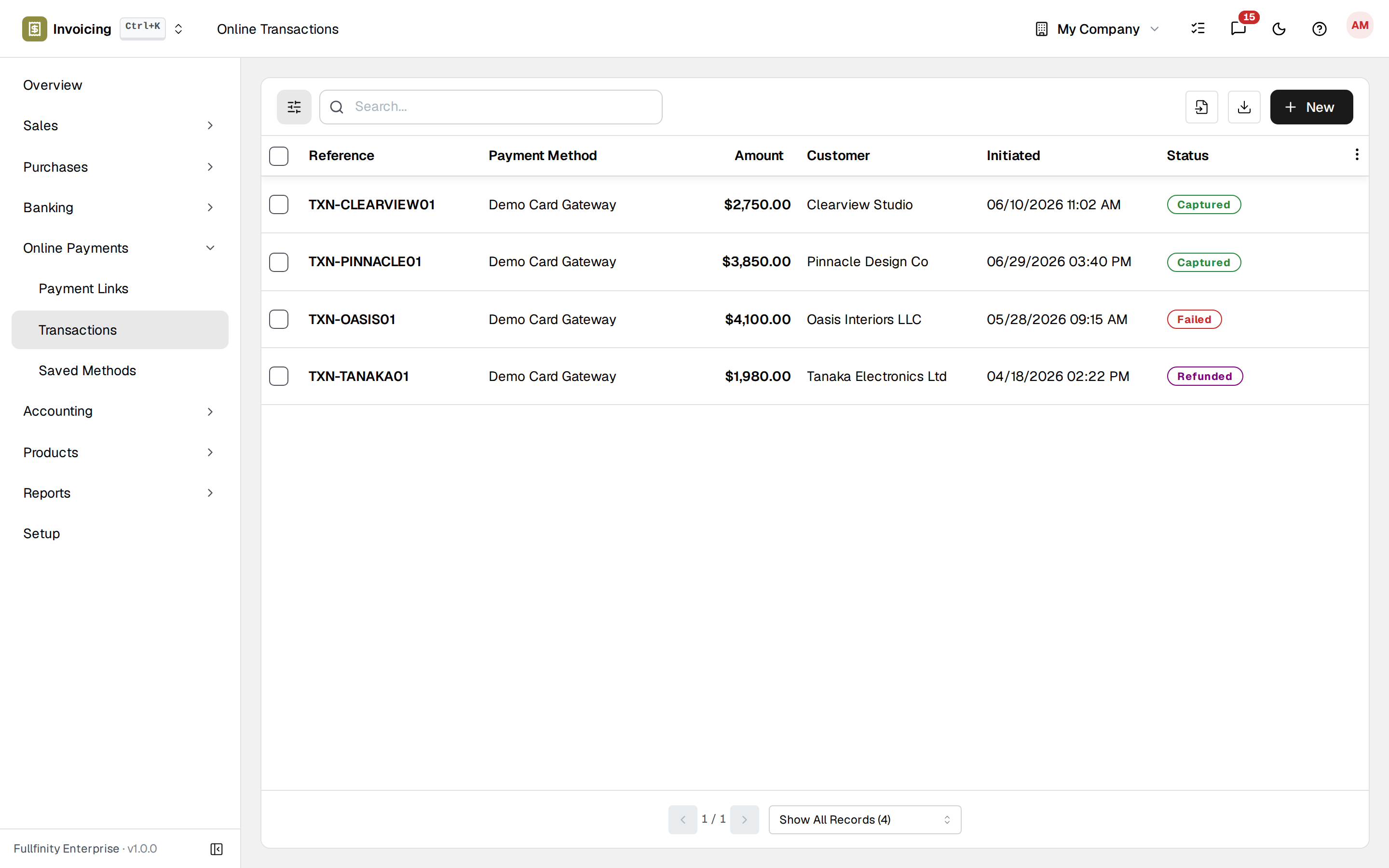
At checkout the shopper enters their addresses and pays. Every attempt is listed under Invoicing → Online Payments → Transactions, with its Status: Captured when the money is taken, Failed or Cancelled when it isn't.
3. The order is confirmed on its own
As soon as the payment is captured, Fullfinity:
- records the payment against the order, ready to settle its invoice later;
- confirms the order, which reserves stock and creates the delivery, exactly as clicking Confirm would.
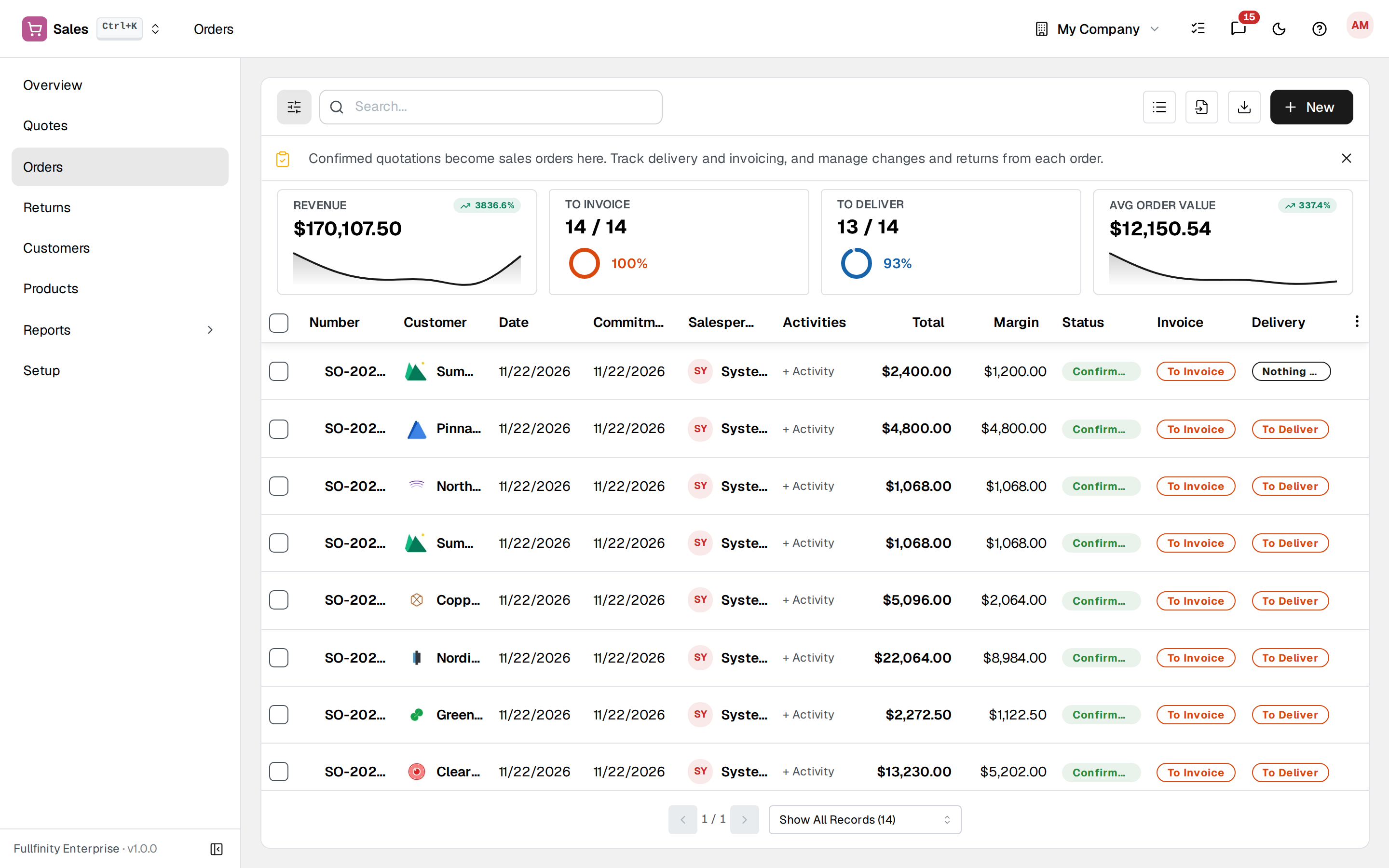
The order appears under Sales → Orders with a Source of Ecommerce (on its Additional Details tab). An unpaid or abandoned cart never becomes an order.
4. Ship it
The delivery waits under Inventory → Transfers → Deliveries, with the order number as its Source. Pick and pack the goods, then click Mark Done.
5. Invoice it
Open the order and click Create Invoice, then Post the invoice. Because the customer has already paid, the payment taken at checkout is applied when you post, and the invoice reads Paid straight away — there is no payment to record.
Related
The full order-to-invoice steps, with screenshots, are in How does a sale flow from quote to payment?. Setting up the store: How do I set up my online store?, How do I take payments online? and How do I charge shipping at checkout?.