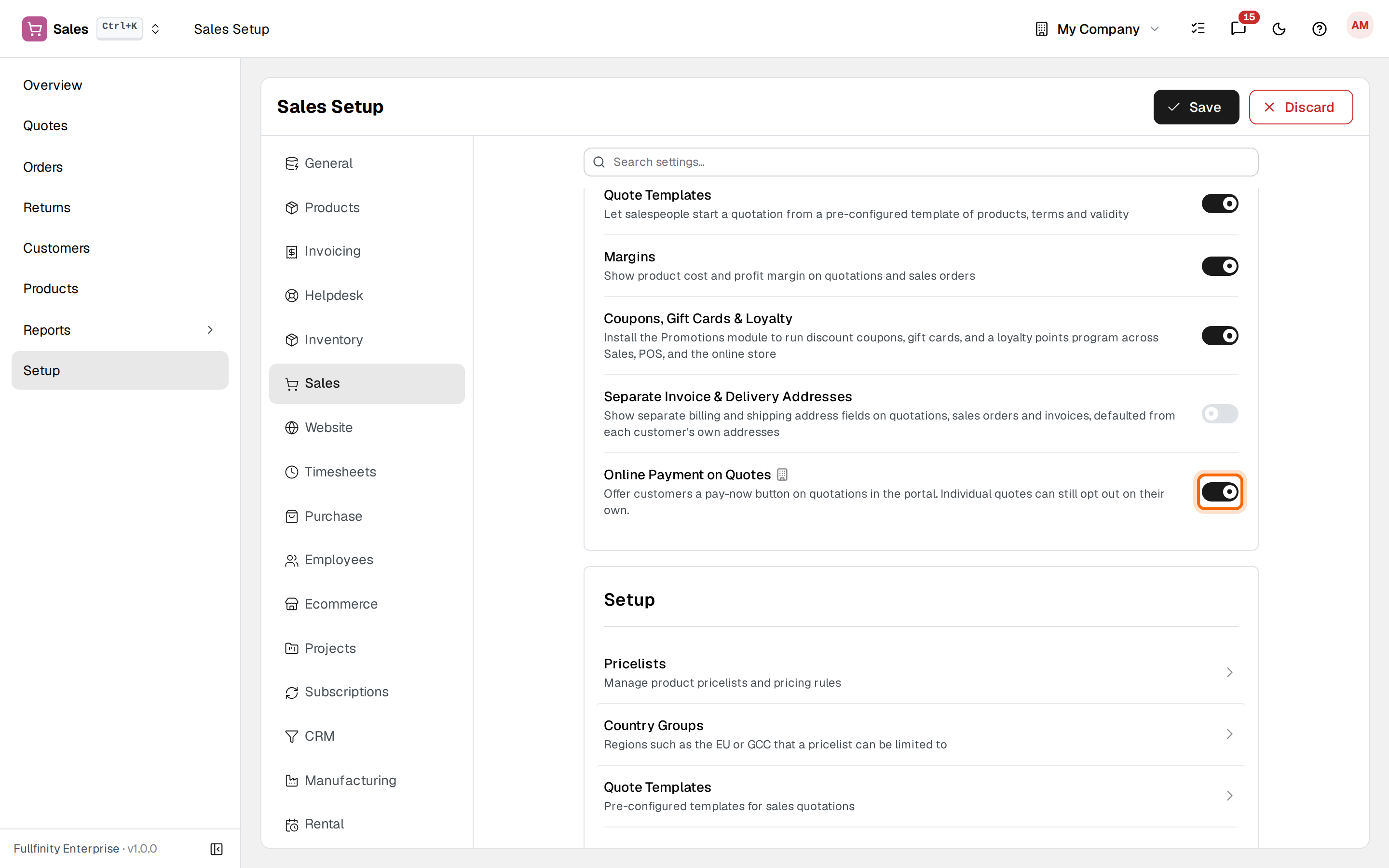
How do customers accept, sign and pay online?
Let customers sign a quote, pay it by card, and pay their invoices from the customer portal — and what each action changes on your side.
Instead of waiting for a signed PDF and a bank transfer, a customer can accept your quote with an on-screen signature, pay it by card, and later pay their invoices — all from the customer portal. Each action updates the order or invoice in Fullfinity straight away.
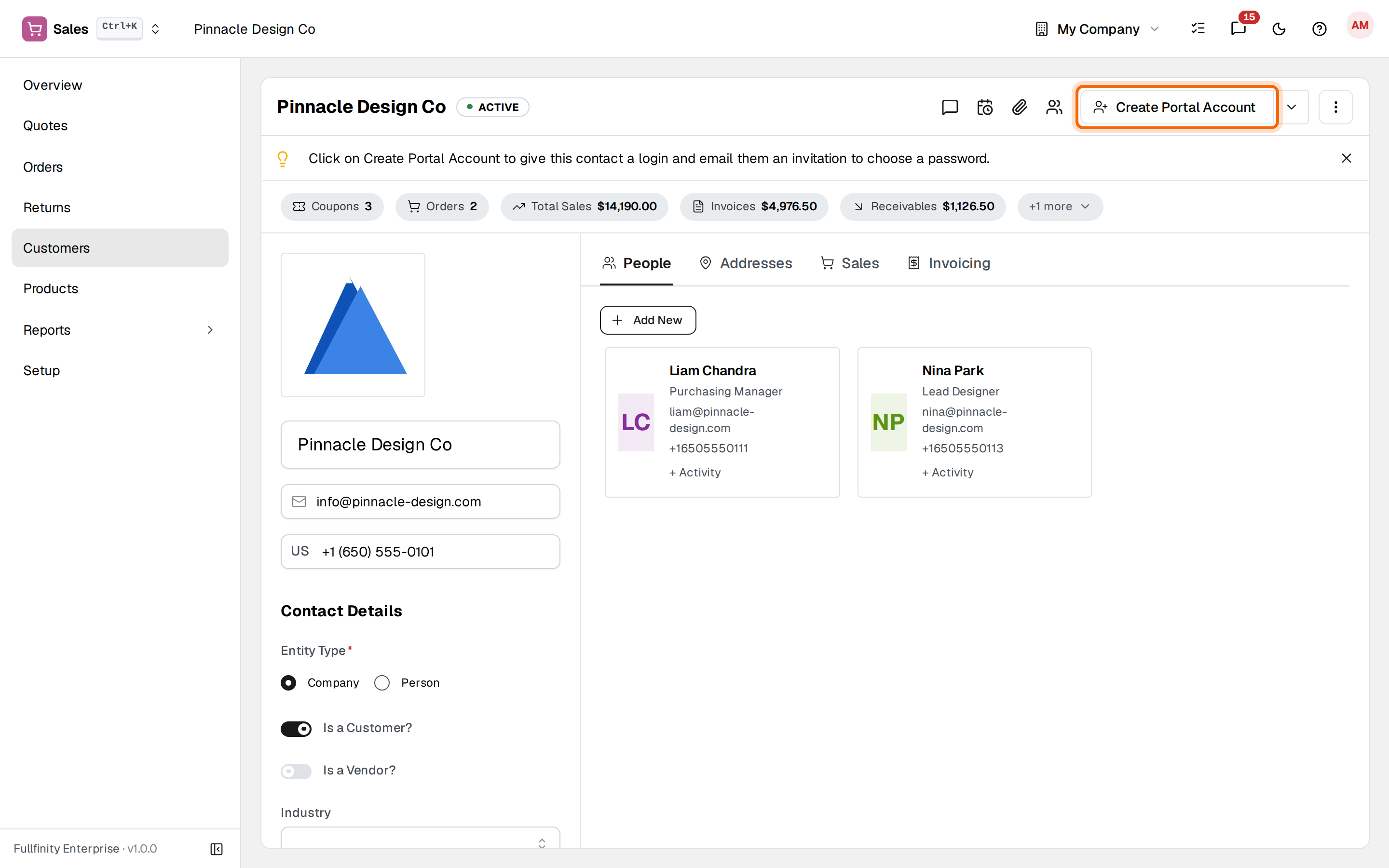
1. Optional: give the customer a portal login
The customer doesn't need a login to accept a quote: the View Online button in your email opens that quote, and they can sign and pay it right there. A login is for customers who want all their quotes, orders and invoices in one place — open the customer (Sales → Customers) and click Create Portal Account. They receive an email inviting them to choose a password.
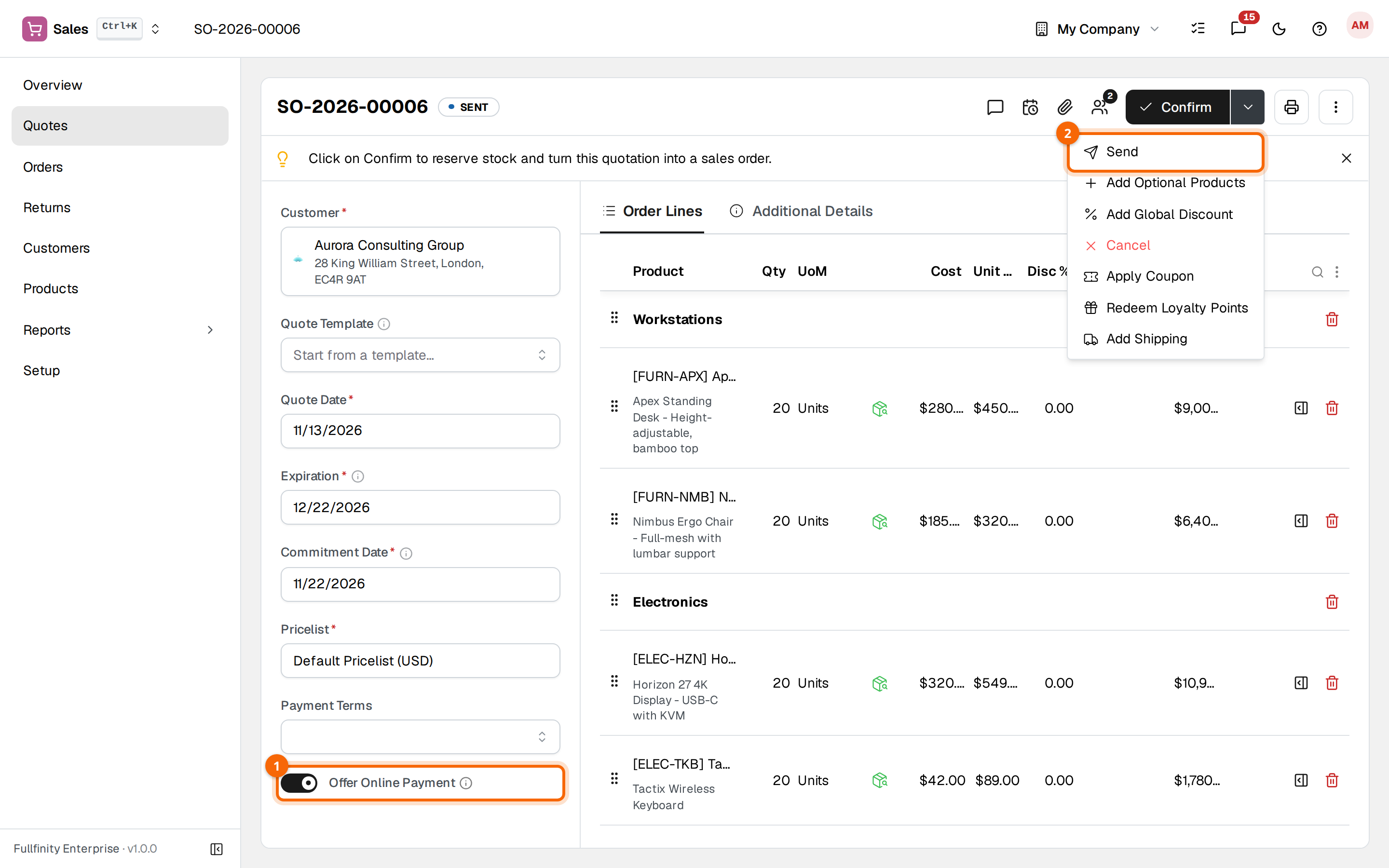
2. Send the quote
On the quote, check Offer Online Payment — switch it off for a deal that settles on account or by bank transfer; the customer can then still accept and sign, just not pay. Then open the menu next to Confirm and click Send. The email carries a View Online button, and the printed quote has a QR code to the same page.
3. The customer accepts
On the quote's page — opened from the email, or in the portal — the customer sees one of these buttons:
| Button | What the customer does | What changes in Fullfinity |
|---|---|---|
| Accept & Sign | Draws their signature and confirms. | The quote is confirmed as an order straight away. The signature, signer and date are kept on the order's Signature tab. |
| Accept & Pay | Signs, then pays the total by card. | The order is confirmed only once the payment succeeds, and the payment is recorded against it. If they abandon the payment, the quote stays open. |
Either way, confirmation does everything clicking Confirm does: stock is reserved and the delivery is created. You'll see the order under Sales → Orders.
4. The customer pays an invoice
When you post and send an invoice, a posted, unpaid invoice shows a Pay Now button in the portal. A successful payment is recorded on the invoice and its payment status becomes Paid — nothing to record by hand.
A customer without a portal login can still pay: on the posted invoice, click Payment Link to create a link you can send them. Collect Online lets you take the payment yourself, for example over the phone.
Related
Every online payment, successful or not, is listed under Invoicing → Online Payments → Transactions. The full order-to-payment path is in How does a sale flow from quote to payment?.