How do I confirm an order?
Turn an accepted quote into a sales order, and what changes once it is confirmed.
When the customer agrees to your quote, confirm it. Confirming turns the quote into a sales order: it reserves stock, starts the delivery, and makes the order ready to invoice.
Confirm the quote
Open the quote from Sales → Quotes and click Confirm.
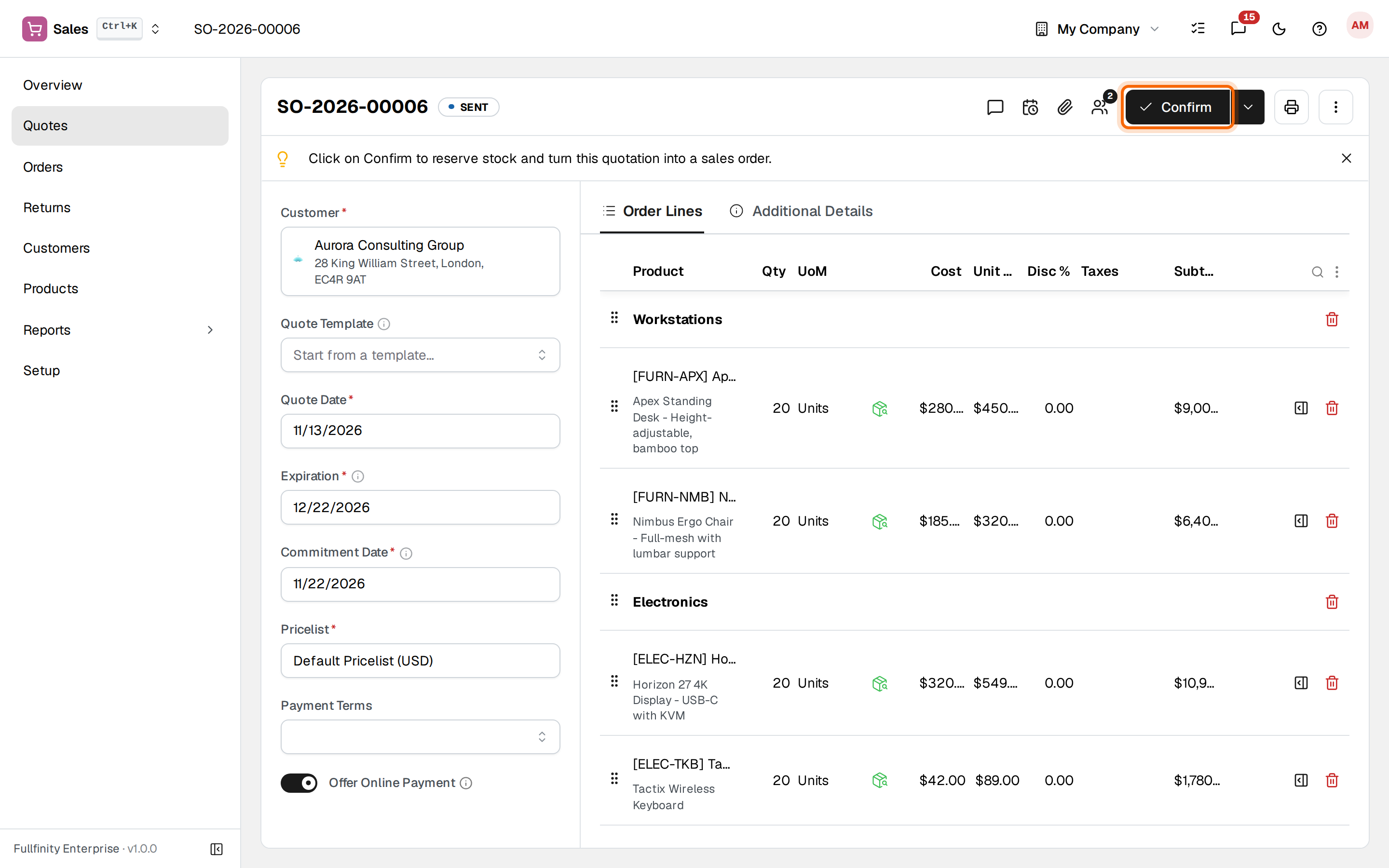
A quote needs at least one line to be confirmed. If the customer has a credit limit, confirming is refused when the order would take them over it.
What changes
The order moves to Sales → Orders with the status Confirmed, and a second badge shows its invoice status.
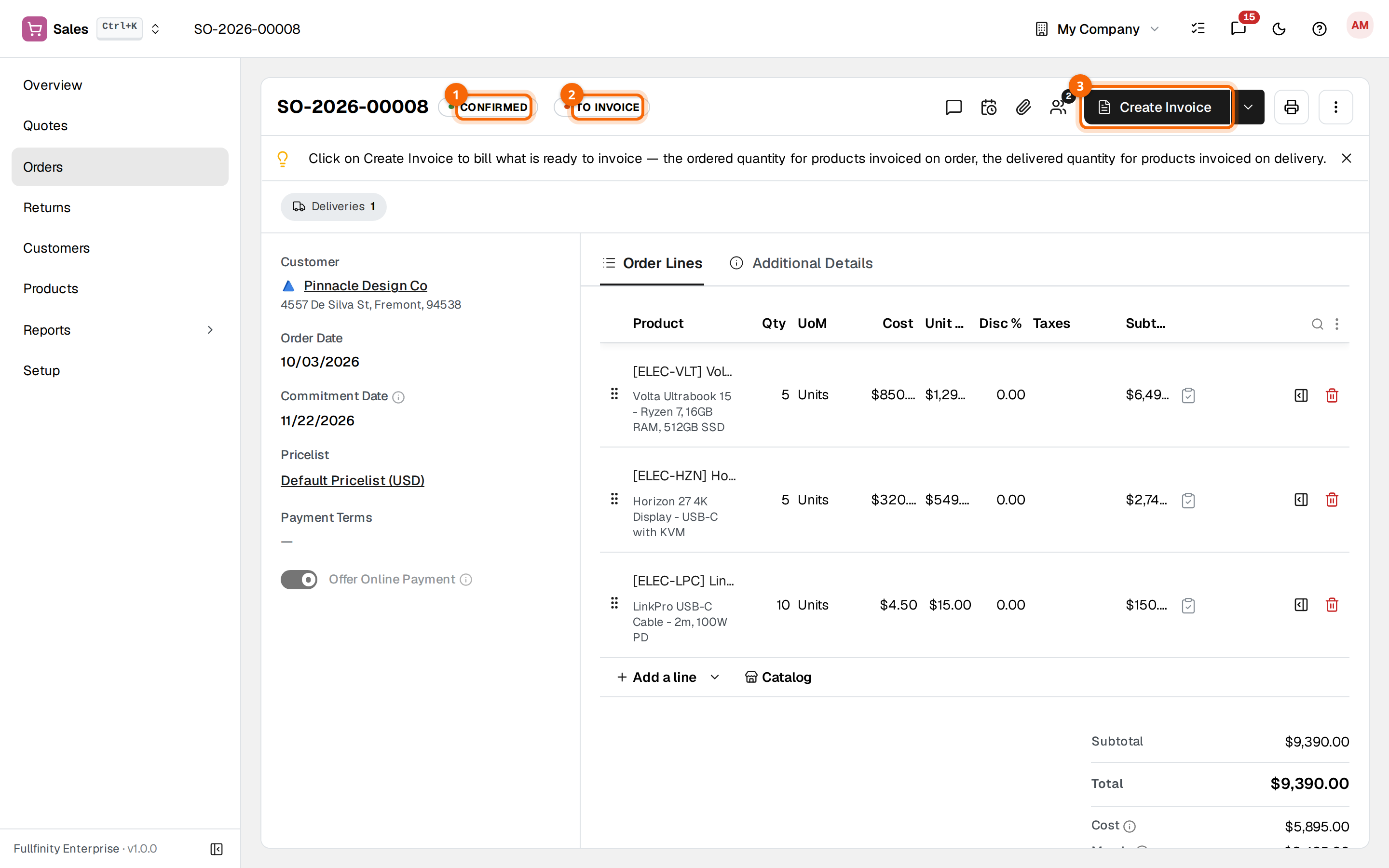
- Confirmed — the order is agreed. A delivery is created for the products you stock.
- The invoice status: To Invoice when there is something to bill, Nothing to Invoice when there isn't yet, Fully Invoiced when everything has been billed.
- Create Invoice — bill the customer. See How do I invoice a sales order?
The order's details — customer, dates, pricelist, payment terms — are now locked. You can still change the lines, the addresses and the terms, but a line can no longer be repriced once it has been invoiced.
The order statuses
| Status | Meaning |
|---|---|
| Quote | Being prepared. Edit freely. |
| Sent | Emailed to the customer, waiting for an answer. |
| Confirmed | Accepted. Deliver and invoice it. |
| Done | Closed. Click Mark as Done once everything is delivered and fully invoiced. |
| Cancelled | Voided. Reset to Draft reopens it as a quote. |