How do I create and send a quote?
Build a quote for a customer, email it, and let them accept and sign it online.
A quote is a price offer. You build it, email it, and once the customer agrees it becomes a sales order.
1. Start a new quote
Go to Sales → Quotes and click New (or click New Quotation on the Sales Overview).
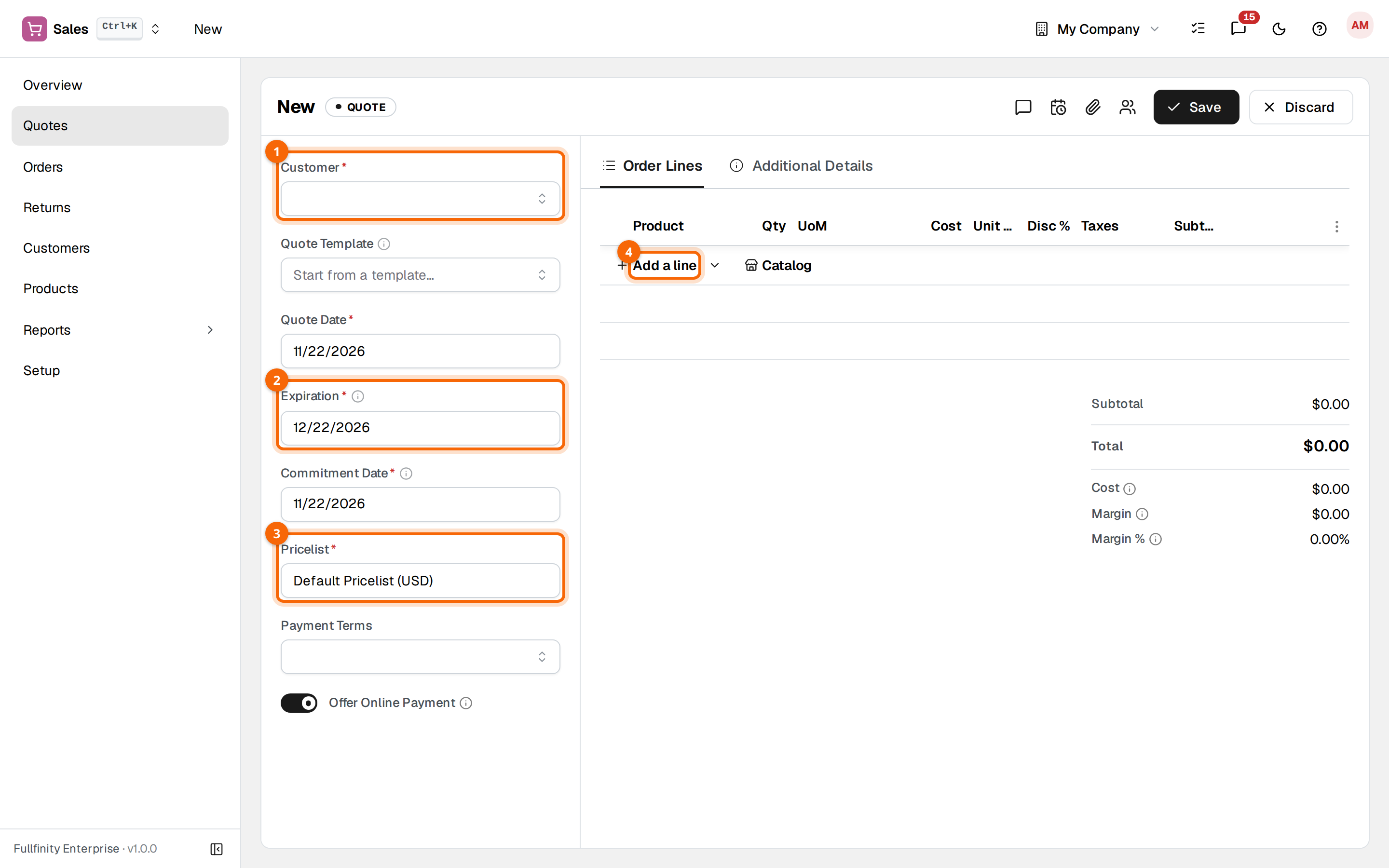
- Customer — who the quote is for. Their pricelist, payment terms and salesperson are filled in for you.
- Expiration — the last day the offer is valid. It starts 30 days out; change it if your offer runs shorter or longer.
- Pricelist — which prices to use. It comes from the customer, or your default pricelist.
- Click Add a line and pick a Product. Set the Qty; the Unit Price comes from the pricelist, and you can give a line discount in Disc %. Use Catalog to browse products and add several at once.
Also check:
- Quote Date — the date of the quote, today by default.
- Commitment Date — the delivery date you promise, worked out from your products' lead times.
- Payment Terms — when the customer has to pay.
The Subtotal and Total update as you go. Click Save. The quote gets its number and the status Quote.
2. Send it
Click the arrow next to Confirm and choose Send.
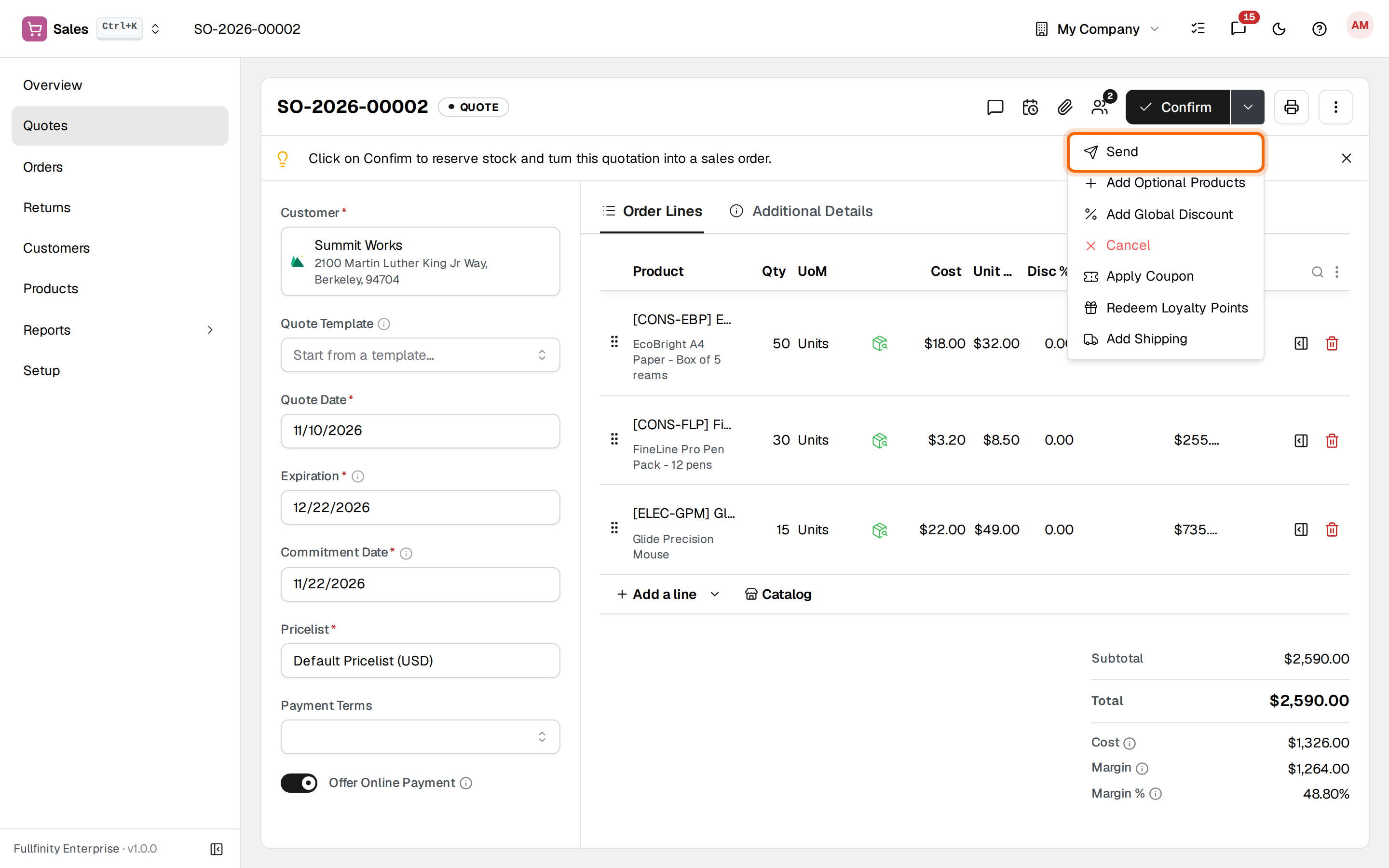
An email opens to the customer with the quote attached and a link to view it online. Check the message and send it. The quote's status changes to Sent.
3. The customer accepts online
From the link, the customer sees the quote in their portal and can download it, or click Accept & Sign to sign and accept it. If online payment is switched on (Offer Online Payment on the quote), they can also click Accept & Pay. Accepting confirms the quote into a sales order, and their signature is kept on the order's Signature tab. Once the quote's Expiration date has passed, Accept & Sign is no longer offered online; extend the Expiration and send it again, or confirm it yourself.
If the customer says yes by phone or email instead, confirm it yourself — see How do I confirm an order?