How do I ask for a down payment?
Invoice an advance on a confirmed order — a percentage or a fixed amount — and have it deducted from the final invoice automatically.
For a large or custom order you may want part of the money before you deliver. A down payment invoice bills that advance now; the final invoice later deducts it, so the customer is never billed twice.
Create the down payment invoice
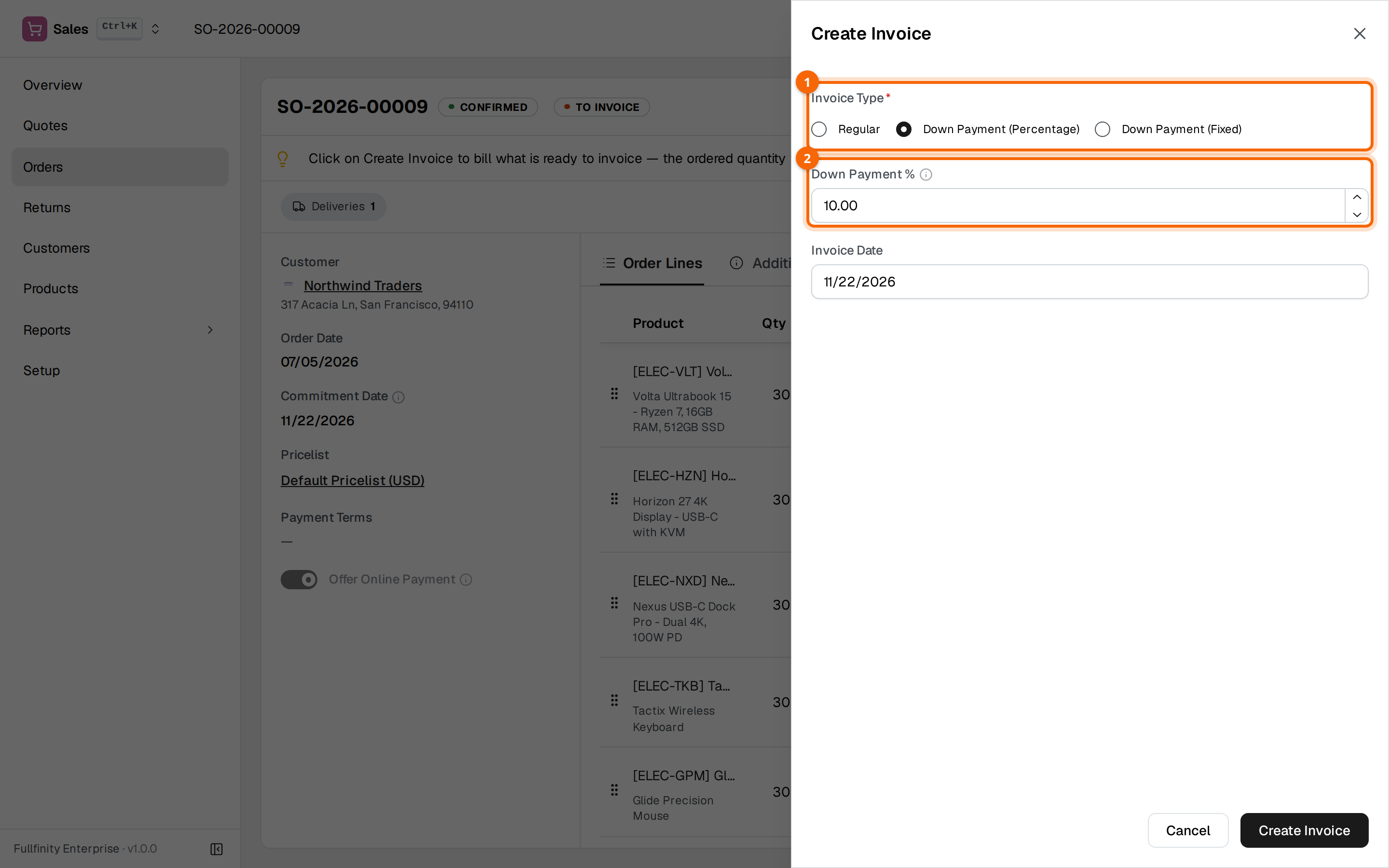
- Open the confirmed order from Sales → Orders and click Create Invoice.
- Under Invoice Type, choose:
- Down Payment (Percentage) and enter the Down Payment % (it starts at 10), or
- Down Payment (Fixed) and enter the Down Payment Amount.
- Check the Invoice Date and click Create Invoice.
A draft invoice opens with one line for the down payment. A percentage is taken from the order's total before tax, and the order's tax is added on top — so a 20% down payment on a taxed order bills 20% of the price plus its tax. Post the invoice and send it to the customer.
The final invoice
Once the down payment invoice is posted, the order shows the amount under Down Payments Invoiced. When you next click Create Invoice with Regular, the new invoice includes a line deducting the down payment, so the customer only pays the balance. If that invoice is smaller than the down payment — for example when you bill a partial delivery — only as much as it can absorb is deducted, and the rest is deducted from the next one.
An order with a posted down payment can't be cancelled; reverse the down payment invoice with a credit note instead — see How do I issue a credit note?