How do I run payroll for a month?
Create a pay run for the period, generate everyone's payslips, compute them and lock them.
A pay run pays everyone for one period at once. It goes Draft → Computed → Locked.
1. Create the run
Go to Payroll → Pay Runs and click New (or New Pay Run on Payroll → Overview).
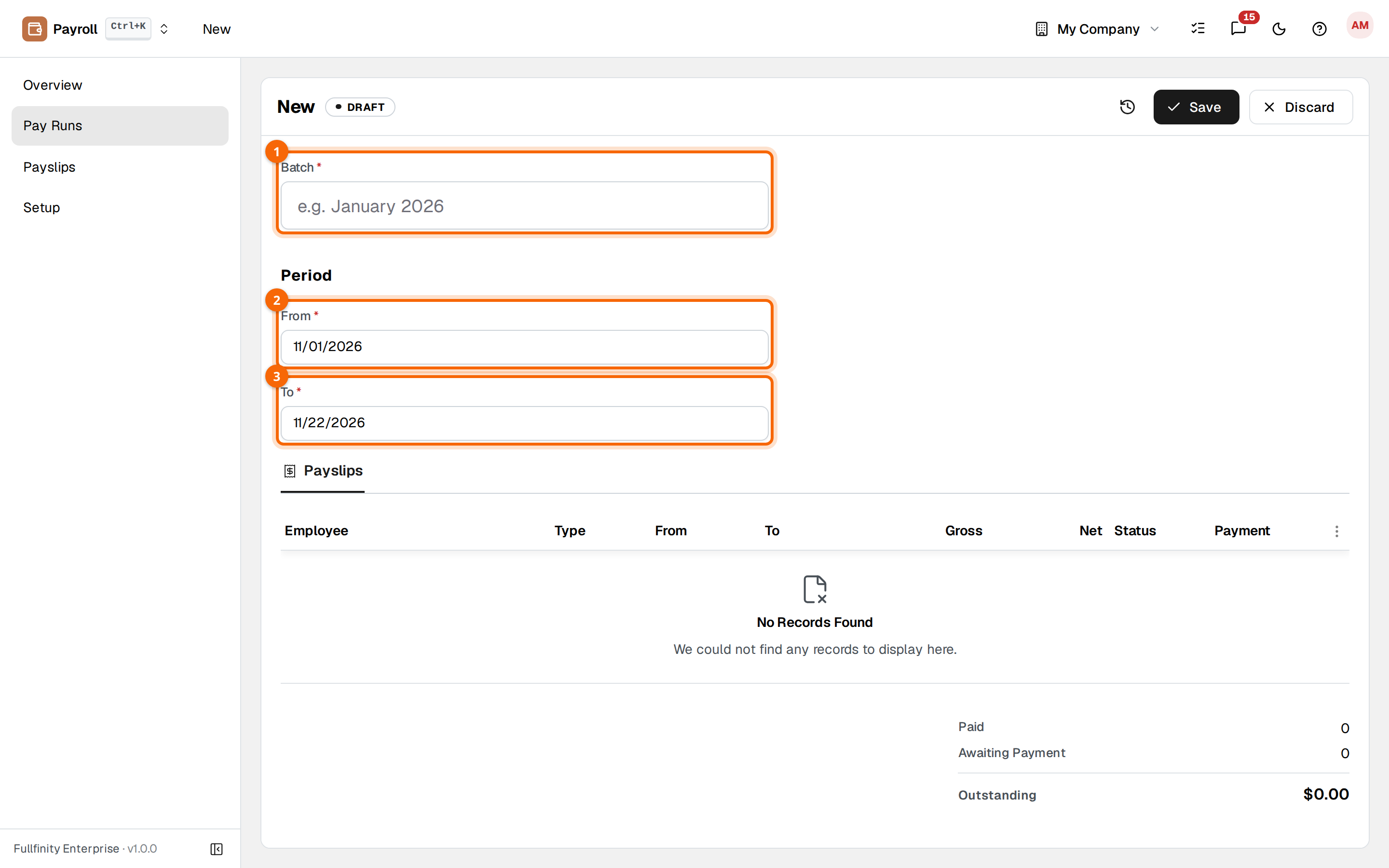
- Batch — its name, such as November 2026 Payroll.
- From — the first day of the period.
- To — the last day.
Click Save.
2. Generate and compute the payslips
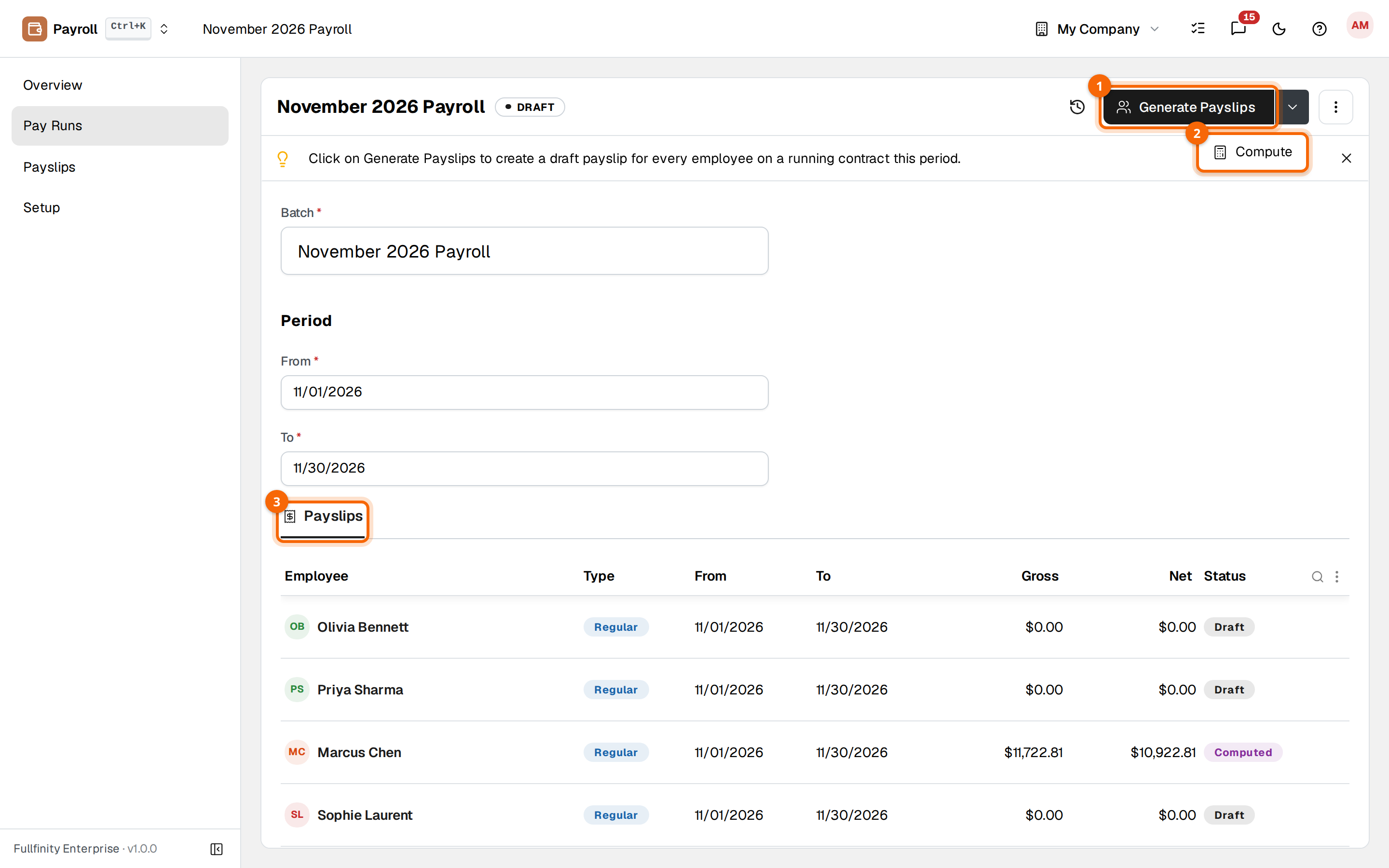
- Click Generate Payslips. A draft payslip is made for every employee with a running contract. While the run is a draft, clicking it again only adds the ones that are missing, such as someone whose contract started since.
- Click Compute (in the button's menu). Every payslip is worked out from its structure, contract, attendance, time off and overtime, and the run becomes Computed.
- Check the figures on the Payslips tab. To look at one in detail, or change something, open it from Payroll → Payslips — see What goes into a payslip? Compute again after any change.
3. Lock the run
When the figures are right, click Lock.
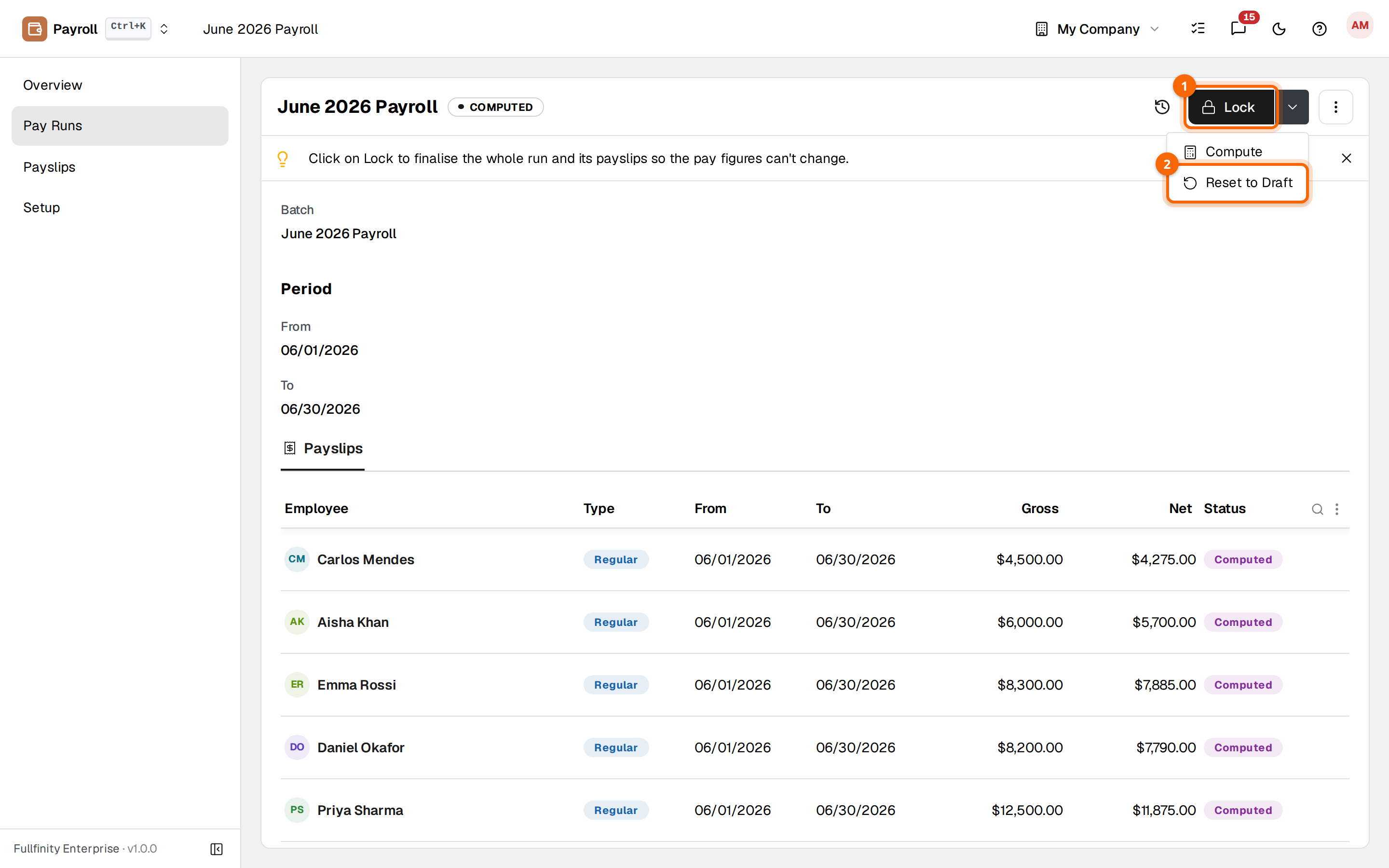
Not ready? To change something first — add an employee whose contract has started since, or an input on one payslip — open the menu beside Lock and click Reset to Draft: the run and its computed payslips go back to draft, ready for Generate Payslips and Compute again. A payslip already locked inside the run stays locked.
Locking locks every payslip in the run: its figures are final and it can be paid. A locked payslip can't be recomputed or edited; it can only be cancelled and redone — see How do I correct a payslip that is already locked?