How do I set up a terminal for employees to clock in and out?
Turn on the attendance terminal, give employees a PIN or badge, and pair a tablet so people can clock themselves in and out.
The attendance terminal is a page that runs on a shared device — a tablet on the wall by the door. Employees identify themselves and tap to check in, then again to check out. Nobody signs in to the terminal: the device is paired once and remembers it.
1. Turn the terminal on
Go to Attendances → Setup (HR Managers only).
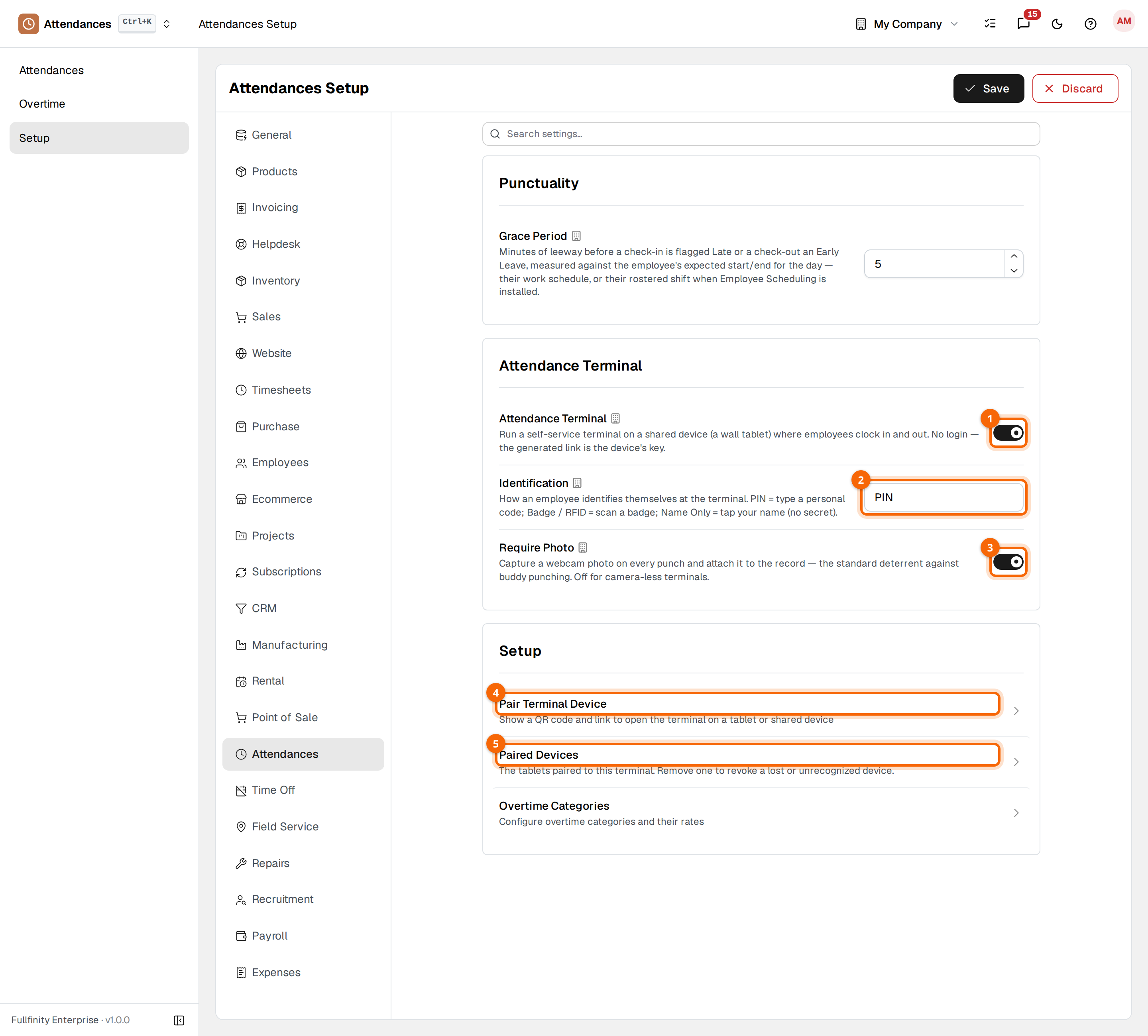
- Switch on Attendance Terminal.
- Choose how people identify themselves under Identification: PIN (they type a personal code), Badge / RFID (they scan a badge) or Name Only (they tap their name — easiest, but anyone can tap anyone's name).
- Require Photo takes a webcam photo with every check-in and check-out and keeps it on the attendance, so you can see who actually clocked in. Turn it off for a device without a camera — while it is on, a punch without a photo is refused.
Click Save. Each company has its own terminal and settings.
2. Give each employee a PIN or badge
Open the employee from Employees → Employees and go to the Attendance tab:
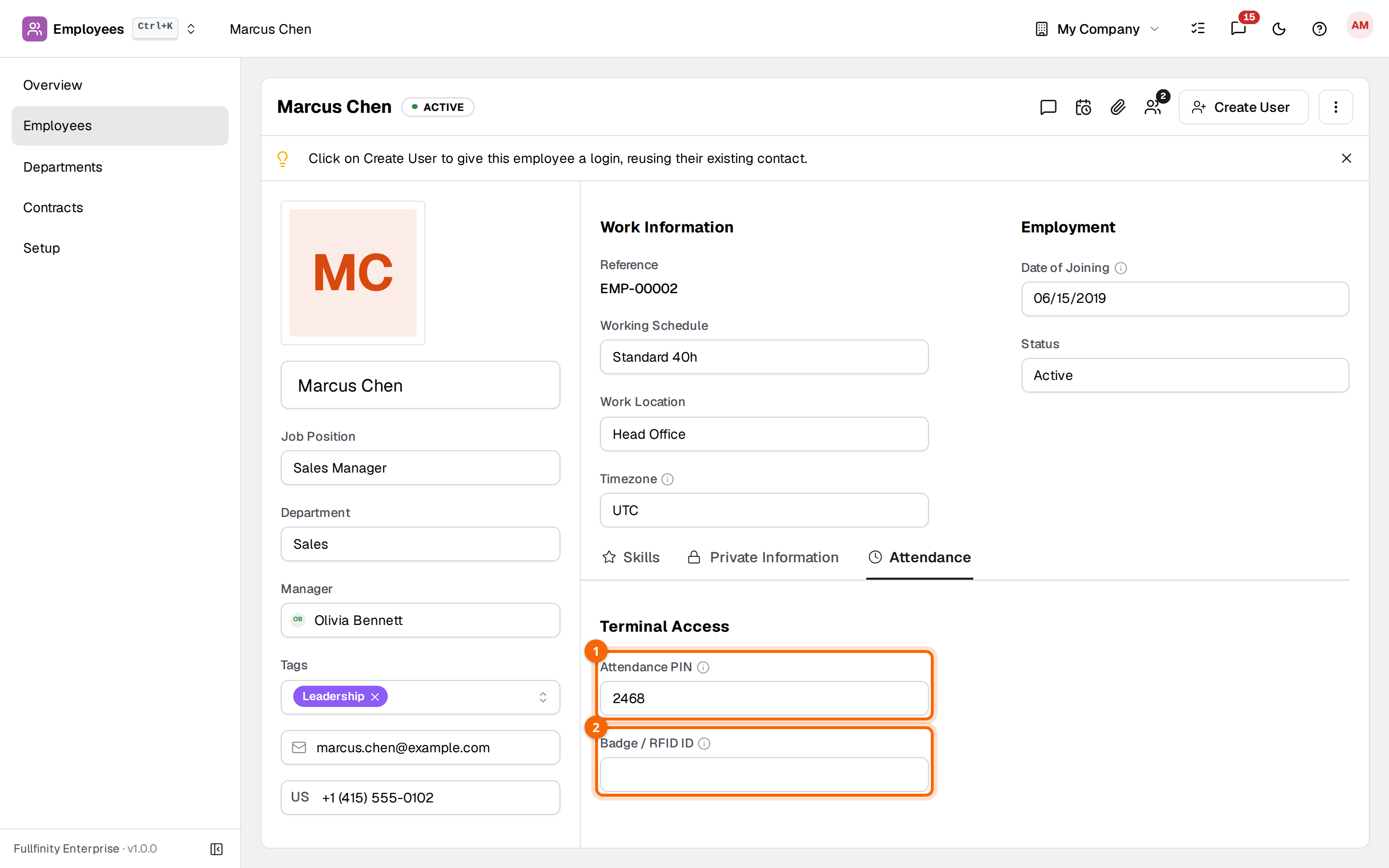
- Attendance PIN — the code they type at the terminal.
- Badge / RFID ID — the number their badge sends when scanned.
Each PIN and badge must belong to one person in the company; a duplicate is refused when you save.
3. Pair the tablet
Back in Attendances → Setup, click Pair Terminal Device. It shows a QR code and a Terminal Link.
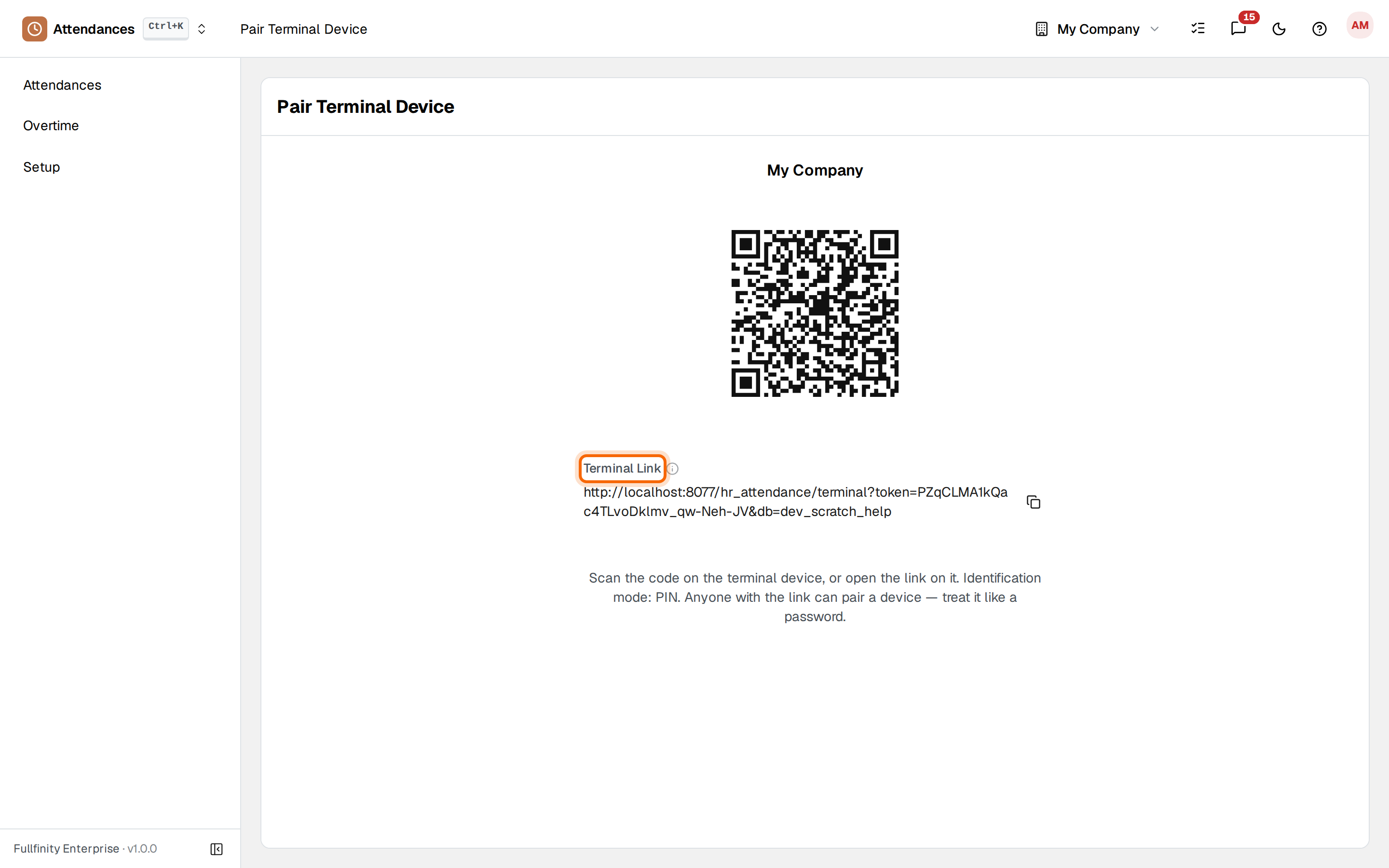
Scan the code with the tablet, or open the link in its browser. The tablet is paired and opens the terminal; leave it on that page. Treat the link like a password — anyone who opens it pairs their own device.
Every punch at the terminal becomes an attendance, exactly as if you had typed it in — see How do I record attendance?