How do I record attendance?
Add a check-in and check-out for an employee by hand, and see their worked hours and overtime.
An attendance is one stretch of work: when someone checked in and when they checked out. Employees usually clock in and out at a terminal (see How do I set up a terminal for employees to clock in and out?); you add or fill in attendances by hand when someone forgot, or when you keep times on paper.
Add an attendance
Go to Attendances → Attendances. The list shows everyone's attendances, newest first.
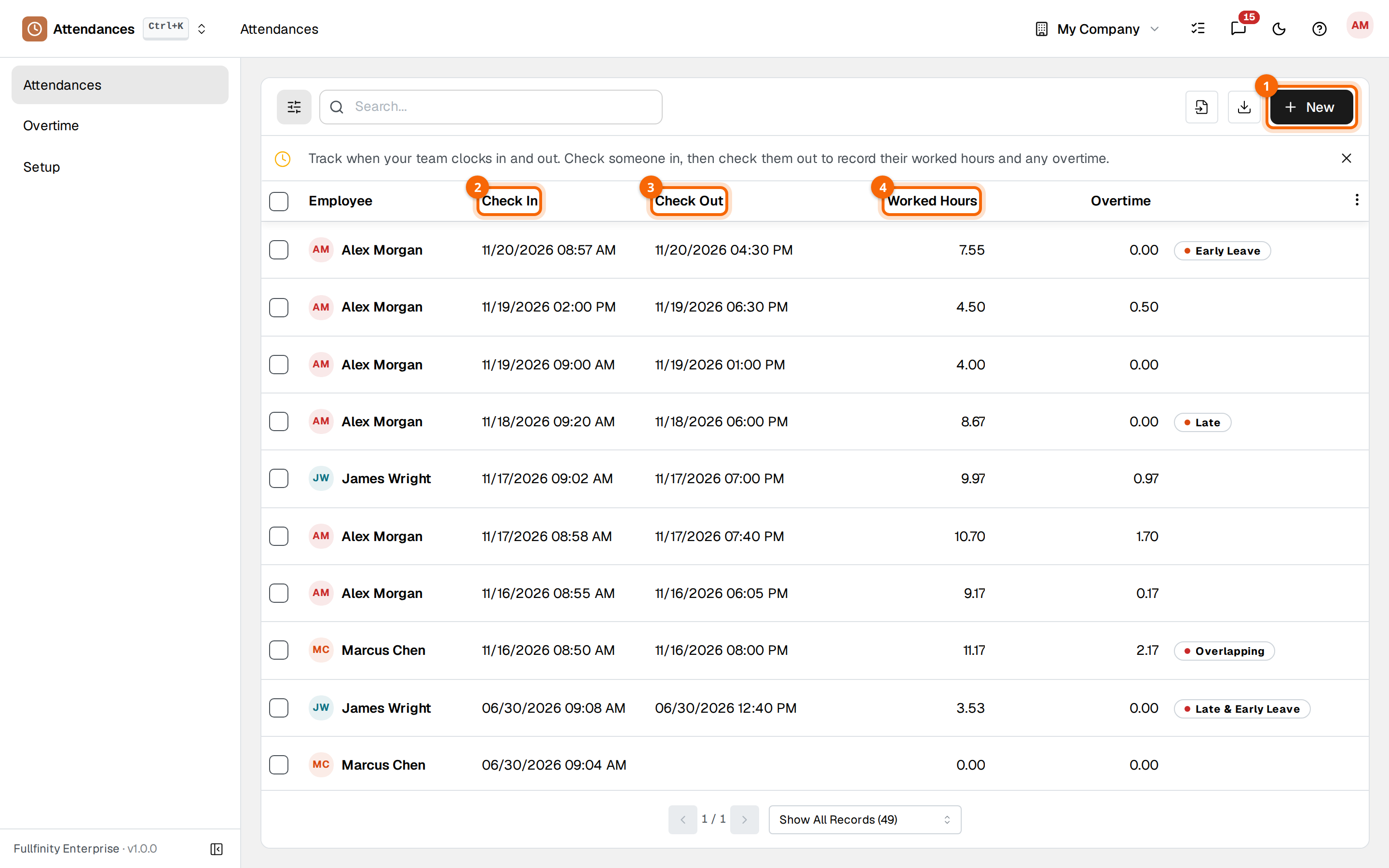
- Click New. A row opens at the top of the list.
- Pick the Employee and enter the Check In date and time.
- Enter the Check Out when they leave — or leave it empty while they are still at work, and fill it in later.
- Worked Hours and Overtime fill in by themselves once both times are there.
An employee can only be checked in once at a time: while one of their attendances has no check-out, a second one without a check-out is refused with This employee is already checked in. Use the Checked In filter to see who is at work right now (or forgot to check out).
How the hours are counted
- Worked Hours is the time between check-in and check-out.
- Overtime is the time worked beyond the employee's working schedule for that day. Breaks the schedule already has — a lunch hour between a morning and an afternoon — don't count as overtime, and if someone clocks out for lunch, the day's attendances are added up together. Work on a public holiday is all overtime.
- An employee with no Working Schedule on their record never gets overtime: there is nothing to compare against.
Whenever an attendance has overtime, an overtime claim is drafted for it automatically, for the manager to approve. See How is overtime counted and approved?
➡️ Related: How do I spot and correct attendance problems?