What goes into a payslip, and how do I add a one-off amount?
How a payslip's days, hours, overtime and lines are worked out, and how to add a bonus to one payslip.
Open a payslip from Payroll → Payslips. Everything on it is worked out when you click Compute; nothing is typed in by hand.
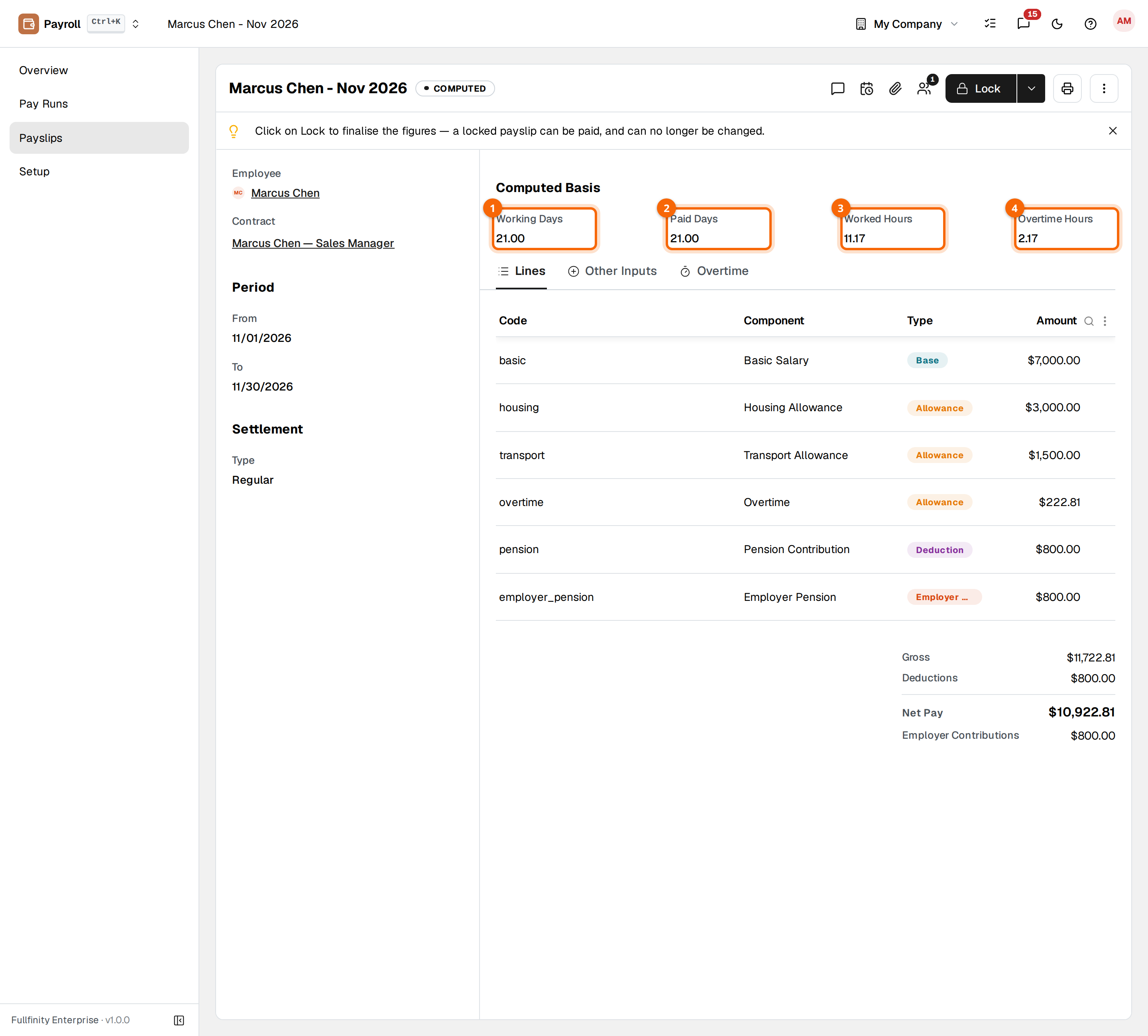
- Working Days — the days the employee's working schedule has in the period, less public holidays.
- Paid Days — working days less approved unpaid time off.
- Worked Hours — the hours on their attendances in the period.
- Overtime Hours — their approved overtime in the period.
The Lines tab lists each component of their salary structure with its amount, and the totals: Gross, Deductions, Net Pay (what they receive) and Employer Contributions. Compute refuses a payslip whose deductions are larger than its gross pay — check the structure.
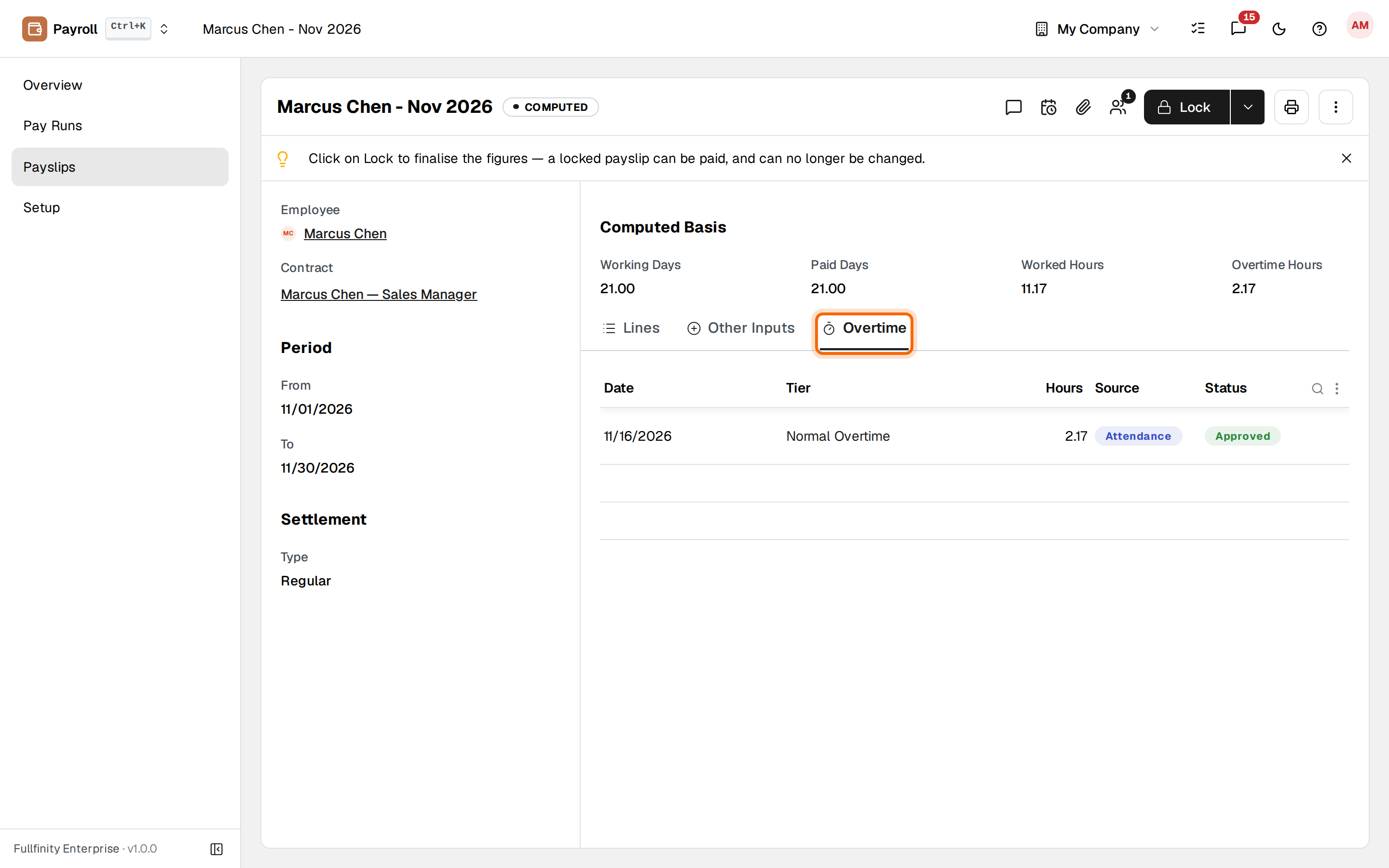
Overtime
The Overtime tab lists the approved claims this payslip pays, with each one's rate category. They are paid through the structure's overtime component — see How do I set up a salary structure?
Add a one-off amount
A bonus, a commission or a correction for one person goes on their payslip's Other Inputs tab: pick the Input, add a Description if you like, and type the Amount.
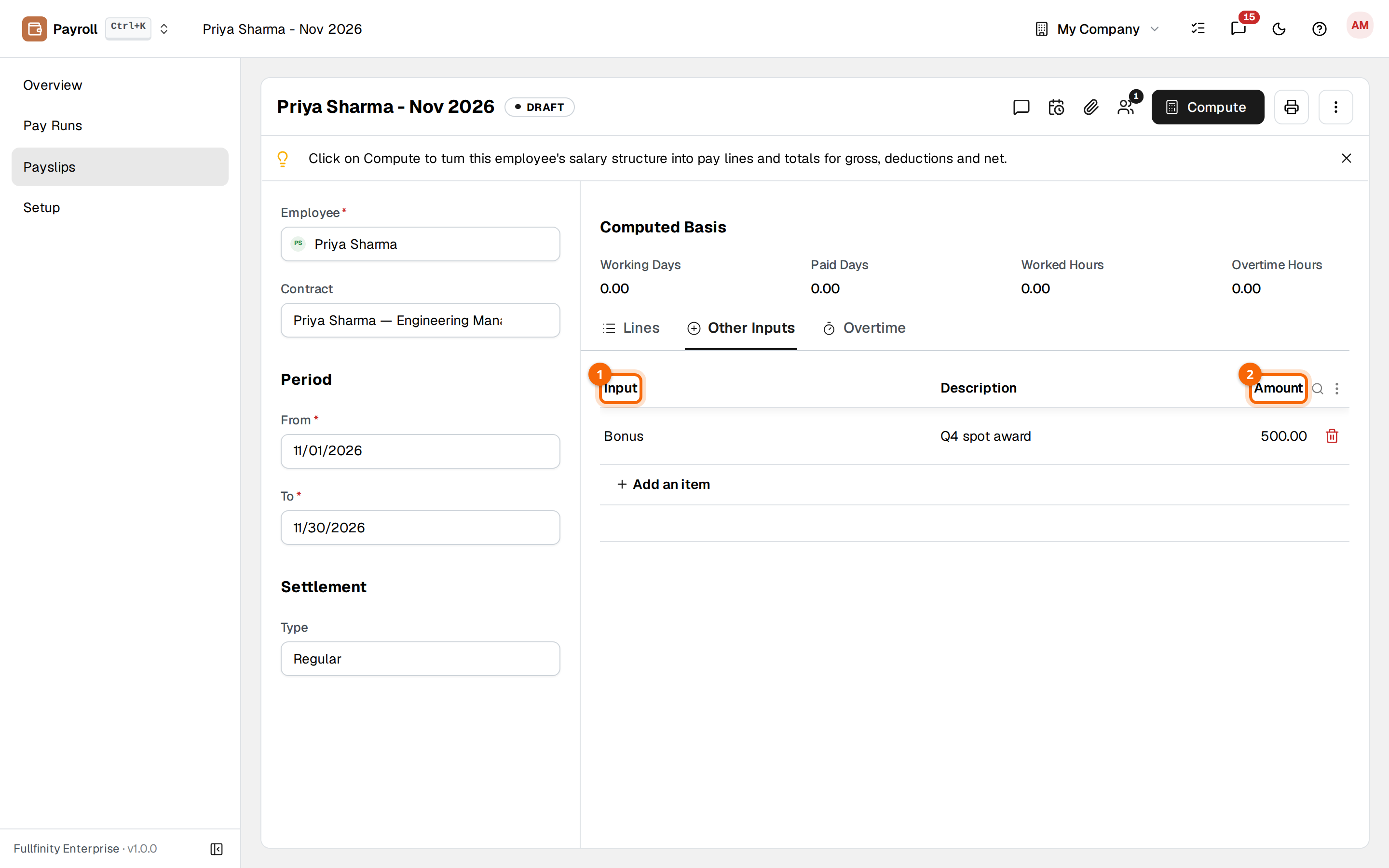
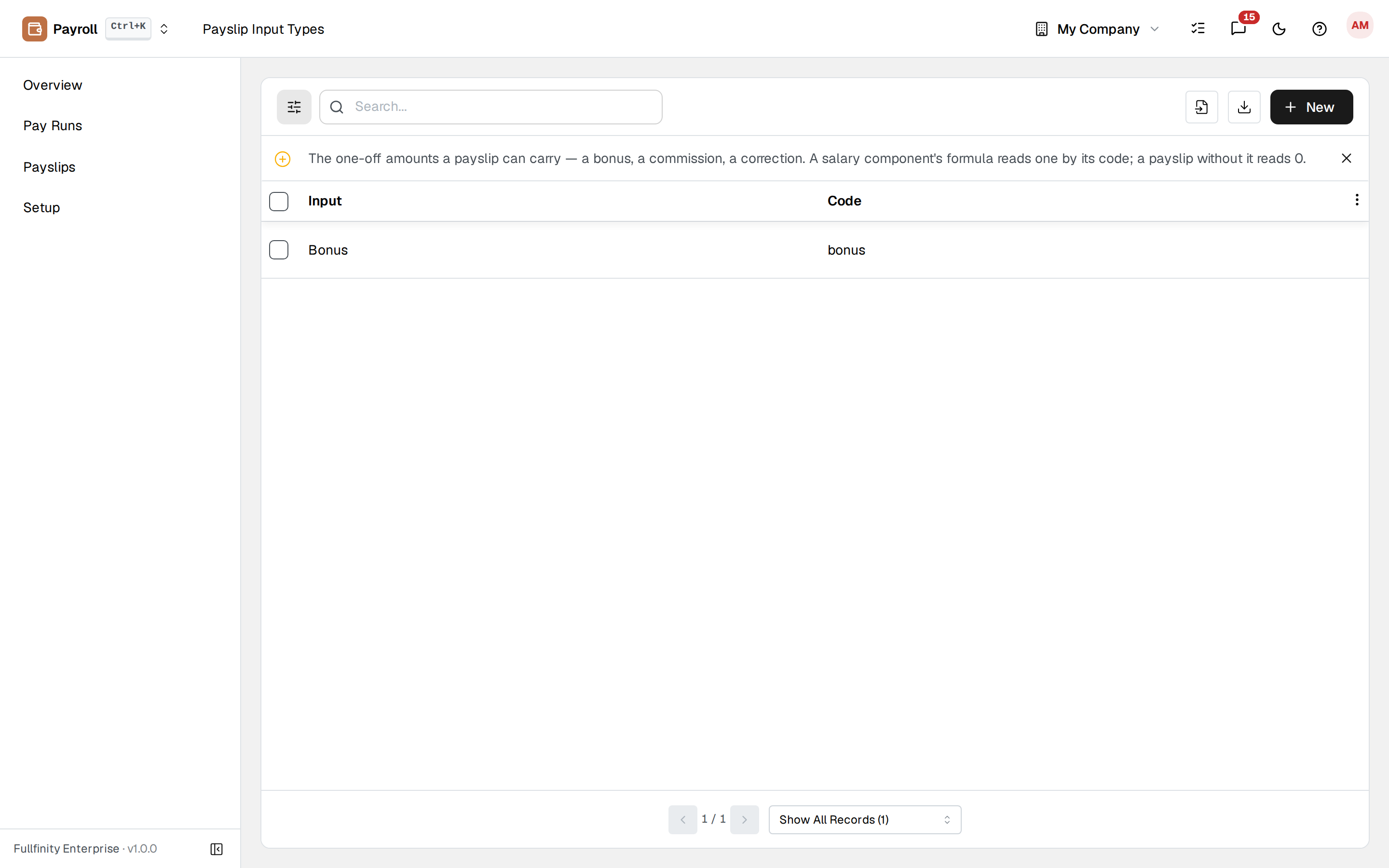
Each input type has a code that a component of the salary structure reads — a Bonus component with the formula bonus pays whatever the payslip's Bonus input says, and nothing on a payslip that doesn't have one. Bonus is ready to use; add your own under Payroll → Setup → Payslip Input Types.
Inputs can only be changed while the payslip is a draft. If it is already computed, open the menu beside Lock and click Reset to Draft:
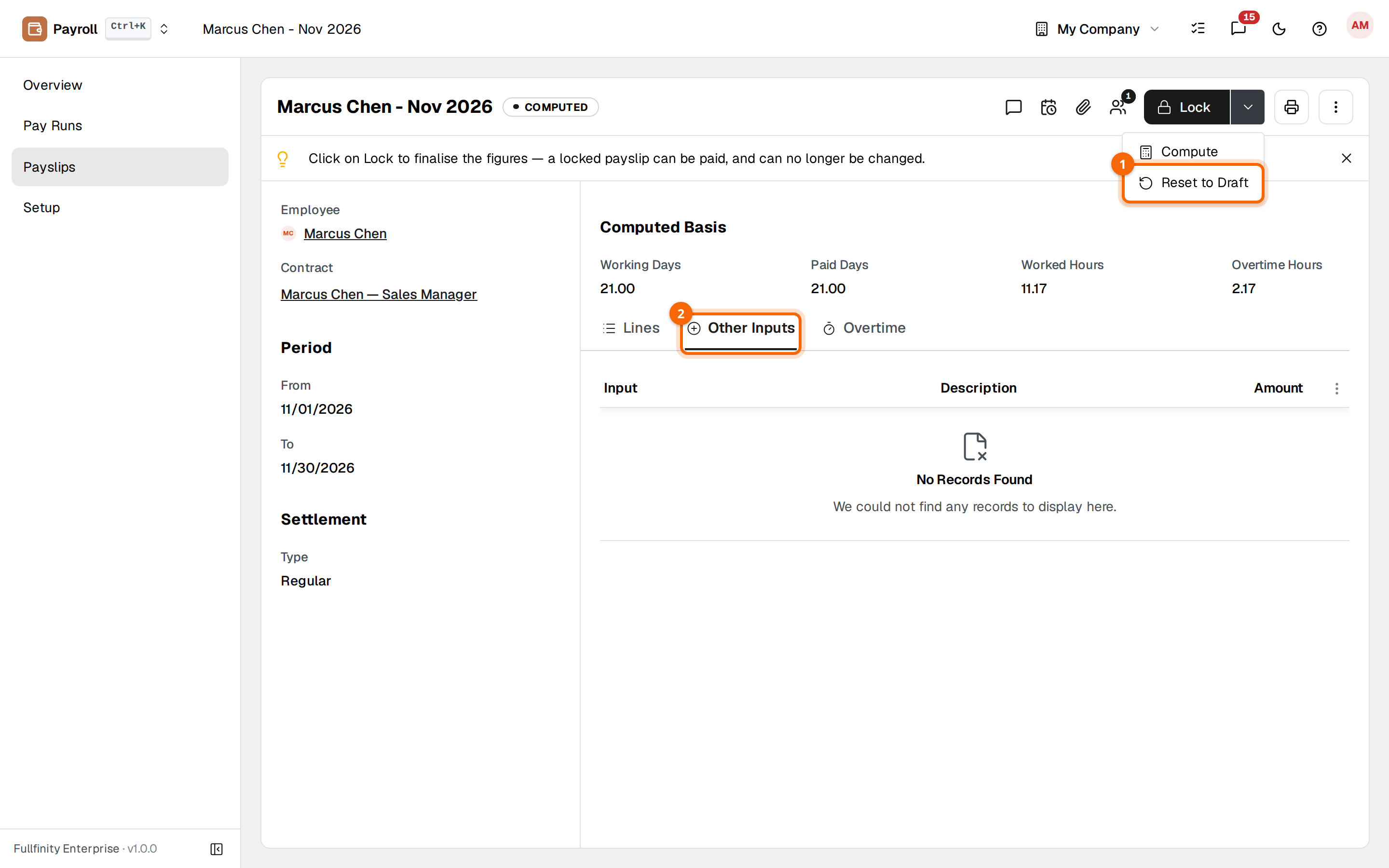
Add the input, then click Compute again.
Print it
Click the printer icon to download the payslip as a PDF for the employee. A payslip that isn't locked yet prints with a draft watermark.