How do I spot and correct attendance problems?
Find late arrivals, early departures, overlapping and impossible attendances, and correct them.
Attendances that look wrong are flagged in the list, so you can check them before they reach overtime and pay. A flag is only a warning: nothing is blocked.
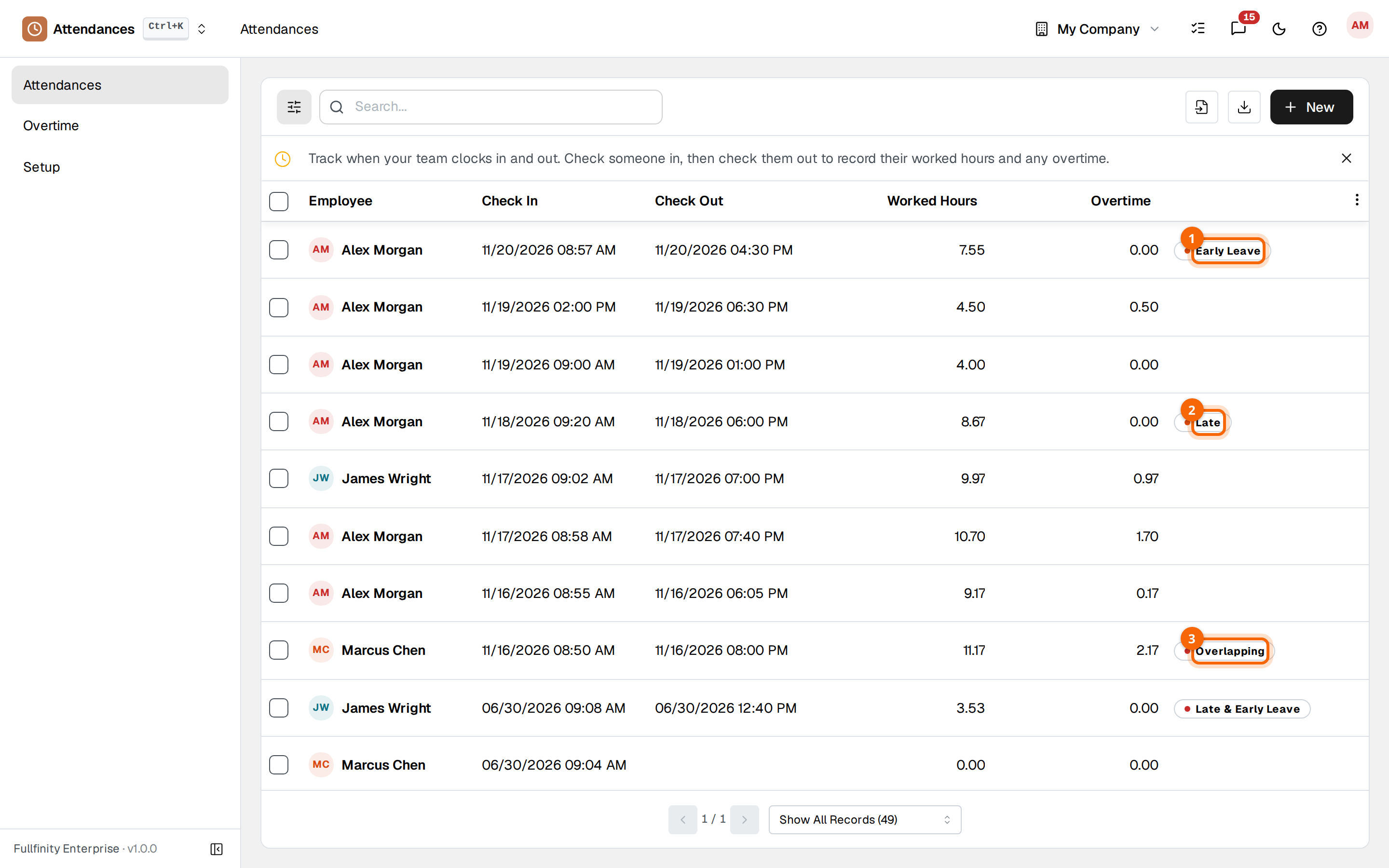
| Flag | What it means |
|---|---|
| Late | The day's first check-in is after the start of the employee's working schedule. |
| Early Leave | The day's last check-out is before the end of their schedule. |
| Late & Early Leave | Both. |
| Overlapping | Another attendance of the same person covers the same time — often an old check-in that was never checked out. |
| Reversed | The check-out is before the check-in. |
Late and Early Leave are judged on the whole day: someone who clocks out for lunch and back in an hour later is not flagged for it.
Find them
In Attendances → Attendances, open the filters and use Late, Early Leave or Any Anomaly, or group the list by Anomaly.
How much leeway
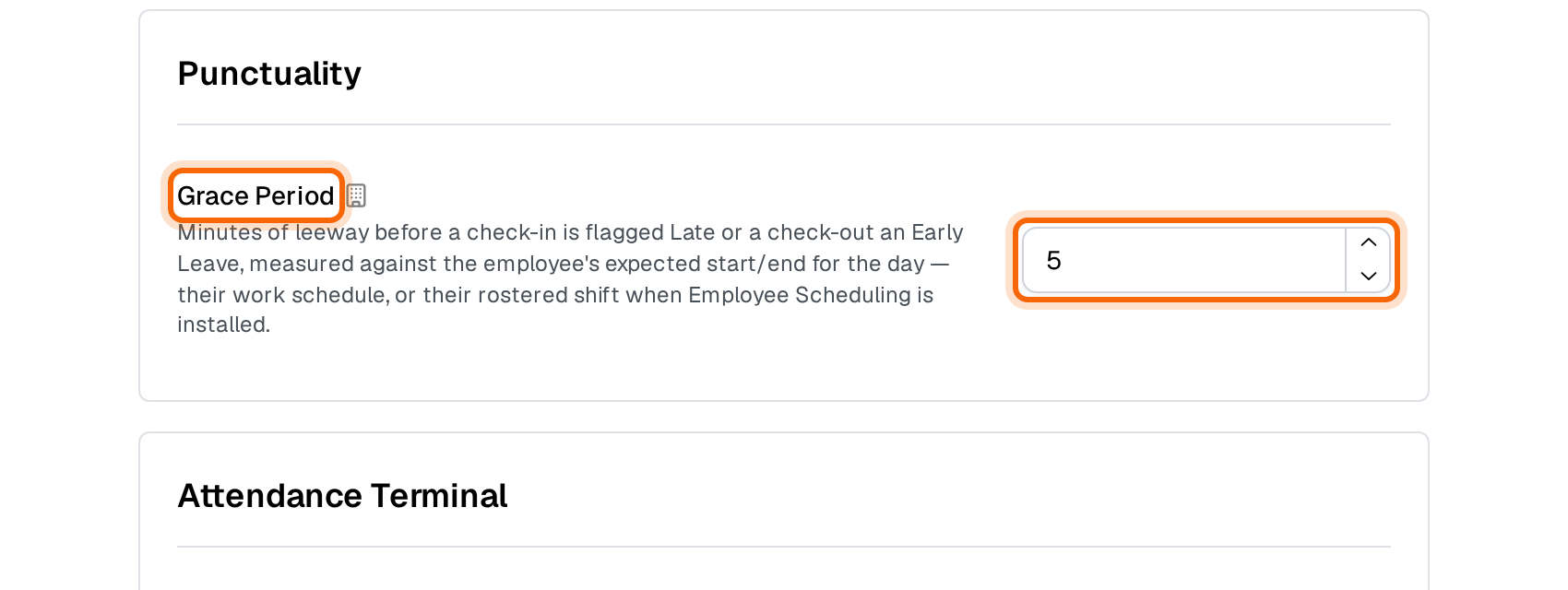
The Grace Period in Attendances → Setup is how many minutes late (or early) someone can be before they are flagged — 5 minutes unless you change it.
Correct an attendance
- Click the time that is wrong in the list and type the right one. To close a forgotten check-in, fill in its Check Out.
- Worked Hours, Overtime and the flag update straight away — for the other attendances of that day too.
- The overtime claim drafted from it follows the correction. Once a claim has been submitted, it is left alone: change its hours on the claim itself, or refuse it.
An attendance entered by mistake can be deleted; a claim drafted from it that was never submitted is deleted with it.