How do I work a ticket from new to solved?
Find your tickets on the board, answer the customer from the ticket, keep internal notes, move the ticket through its stages and close it.
A ticket's life is short: someone picks it up, answers the customer, perhaps asks a colleague, and closes it when the problem is solved. Everything happens on the ticket, so anyone who opens it later sees the whole story.
Find the tickets to work on
Open Helpdesk → Tickets. The board has a column per stage; each card shows the tags, the subject, the customer, the priority as stars, where the ticket came from, and the assignee's initials.
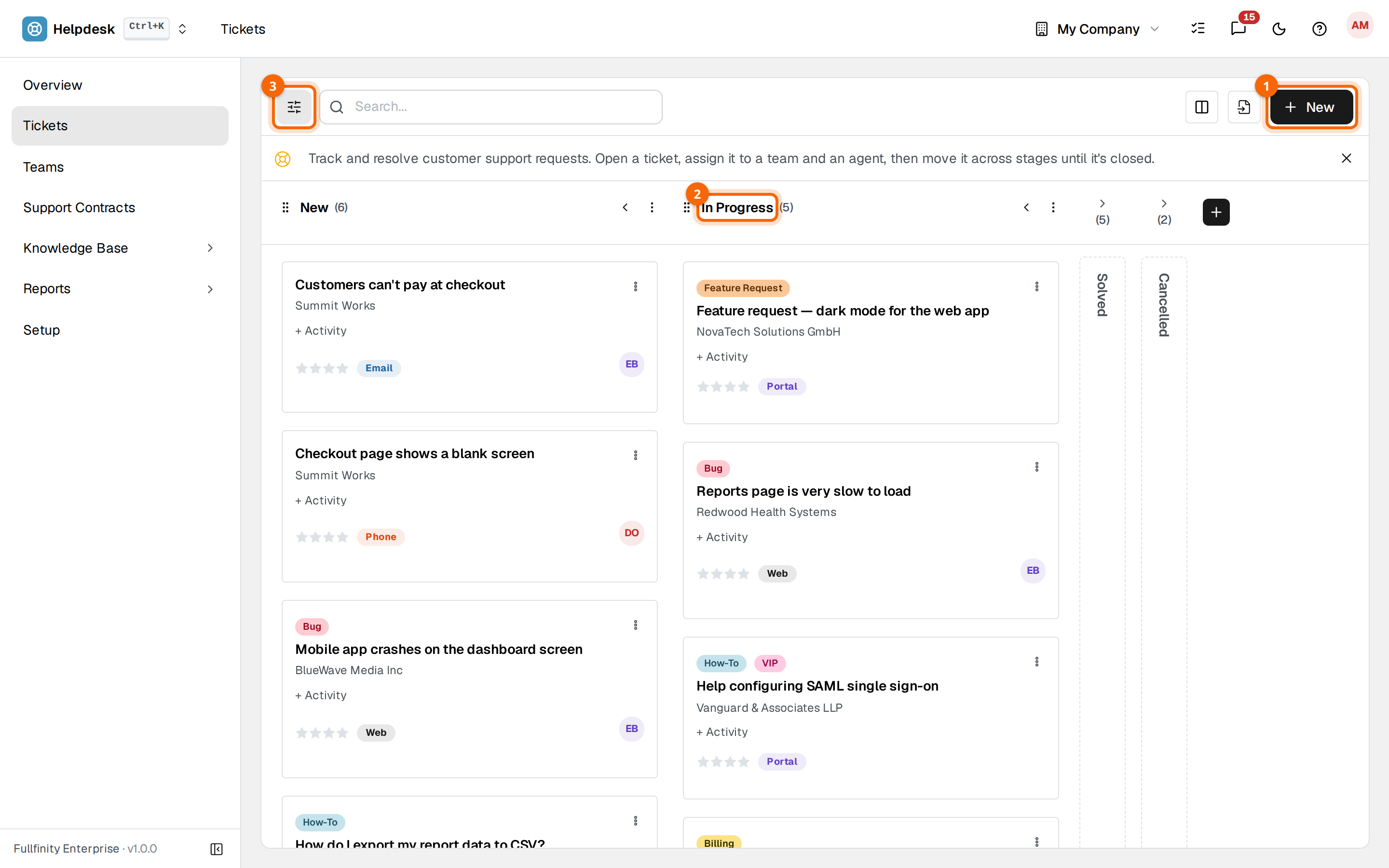
- New creates a ticket.
- Drag a card to another column to change its stage.
- The filter button narrows the board — My Tickets, Unassigned, Open, Closed, Urgent — or groups it by team, priority, assignee or channel.
Open the ticket
Click a card.
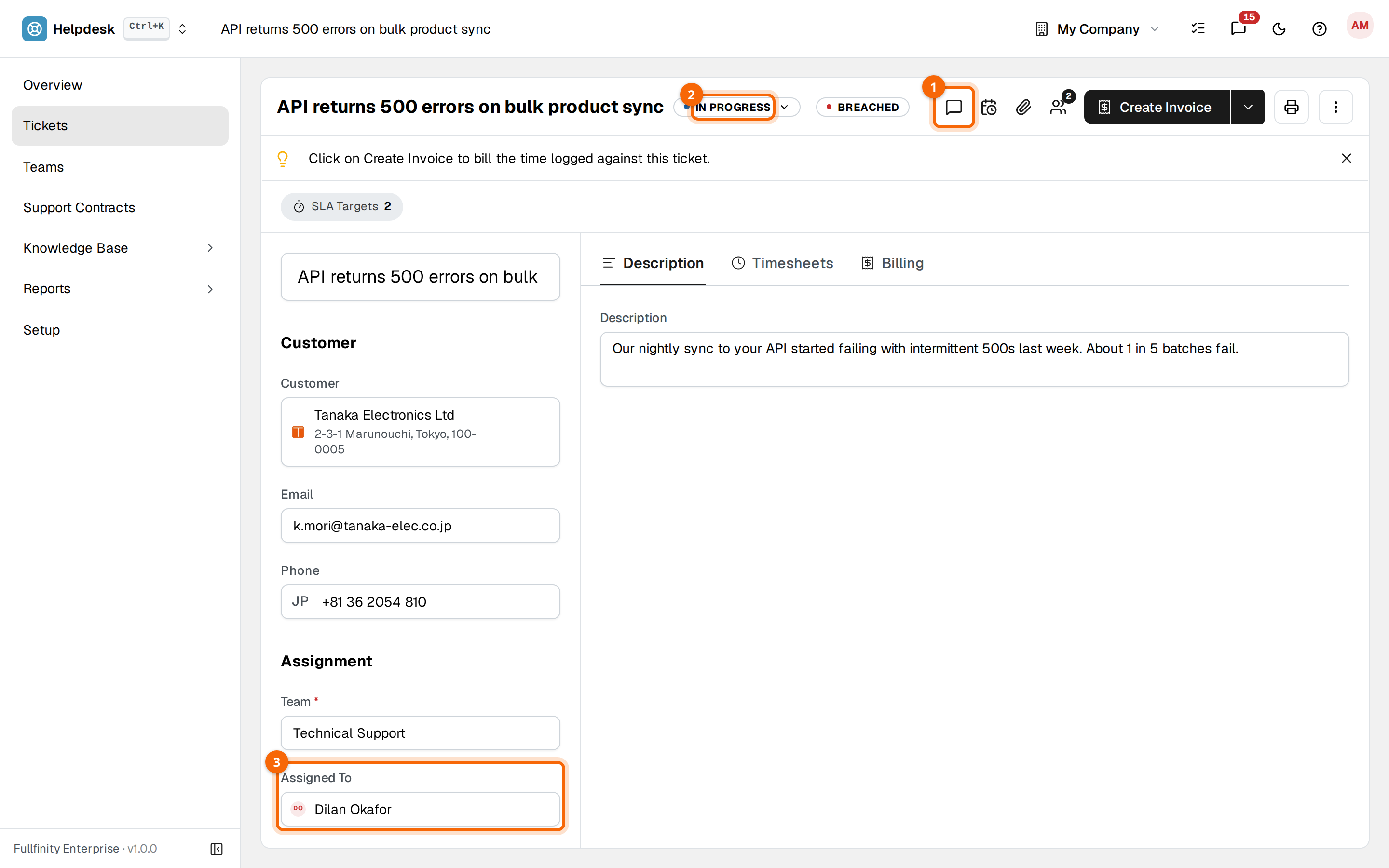
- Messages opens the conversation with the customer.
- The stage, at the top. Click it to move the ticket on.
- Assigned To — who is working it. Change it to hand the ticket over.
Answer the customer
Click Messages:
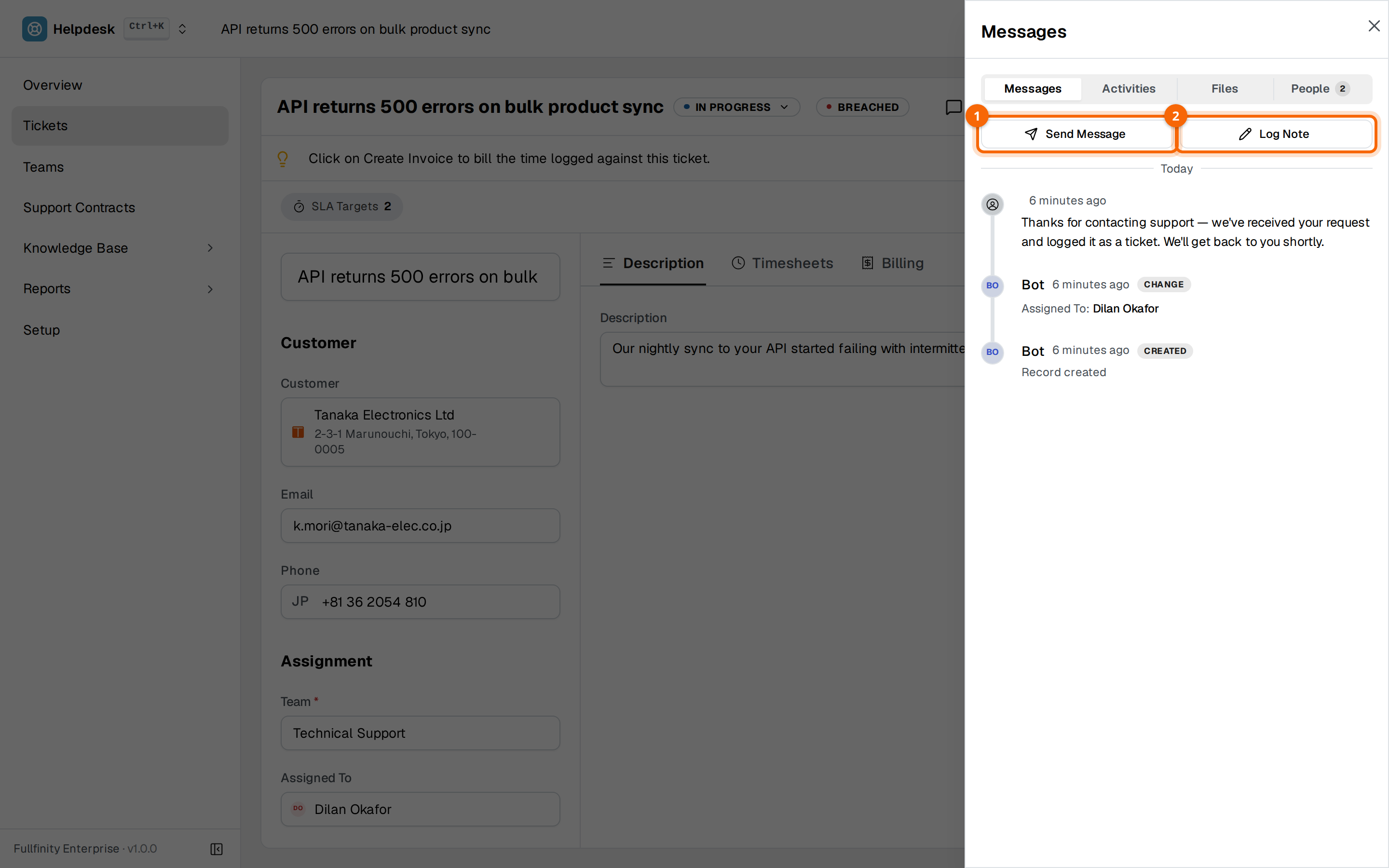
- Send Message — writes to the customer. They follow their own ticket, so they receive it by email, and it appears in their portal. Their reply lands back on the ticket.
- Log Note — an internal note for your colleagues. The customer never sees it; colleagues you @mention are notified.
Your first message to the customer matters: if nobody owns the ticket yet, it becomes yours, and you follow it from then on. If the team has service level targets, it is also the first response they measure.
Need a standard answer? Type / in the message — see How do I reply with canned responses? More about messages, notes and followers: How do I discuss a record with my team and the customer?
Move it through the stages
Click the stage at the top of the ticket and pick the next one — or drag the card on the board.
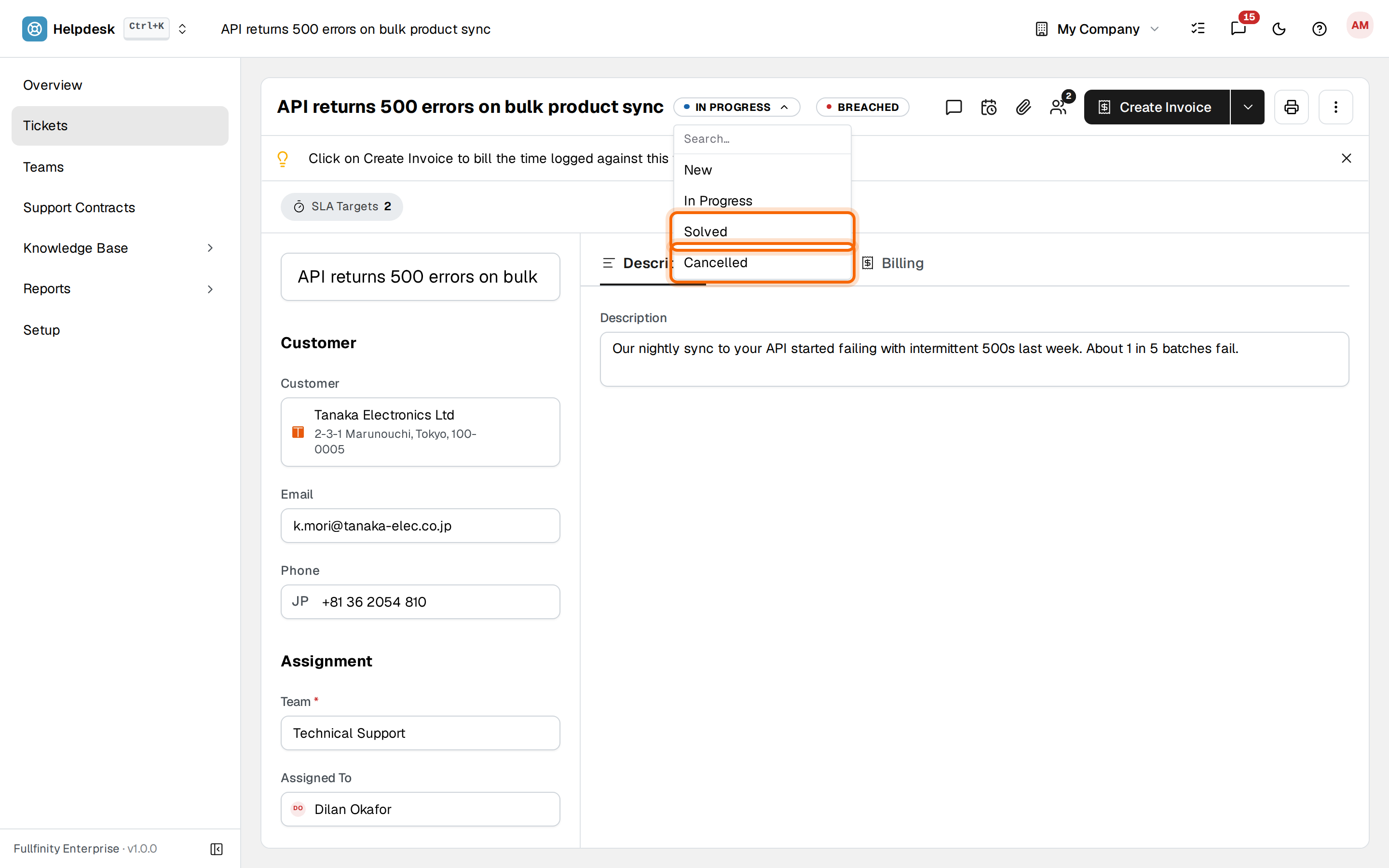
- Solved — the problem is fixed. This closes the ticket.
- Cancelled — there was nothing to do: a duplicate, spam, or a ticket for the wrong company. This closes it too.
From the board, the ⋮ on a card has Close, which moves the ticket to the first closing stage, and Assign, which hands it to the next person by the team's assignment method.
When a ticket is closed
- Fullfinity records when it was closed (Closed At), and it counts in Solved This Month on the Overview.
- If the customer replies, from the portal or by email, within the Reopen Window (days) set under Helpdesk → Setup, the ticket reopens in the first open stage. The customer can also click Reopen Ticket in their portal.
- If ratings are switched on, the customer is asked to rate their support — see How do I ask customers to rate their support?