How do I create a ticket?
Log a request that came in by phone or in person, with the customer, the team, its priority and what it is about.
Tickets from email and the portal create themselves. When a customer phones or stops by, create the ticket yourself so the request is tracked like any other.
- Open Helpdesk → Tickets and click New. (New Ticket on Helpdesk → Overview does the same.)
- Fill in the ticket:
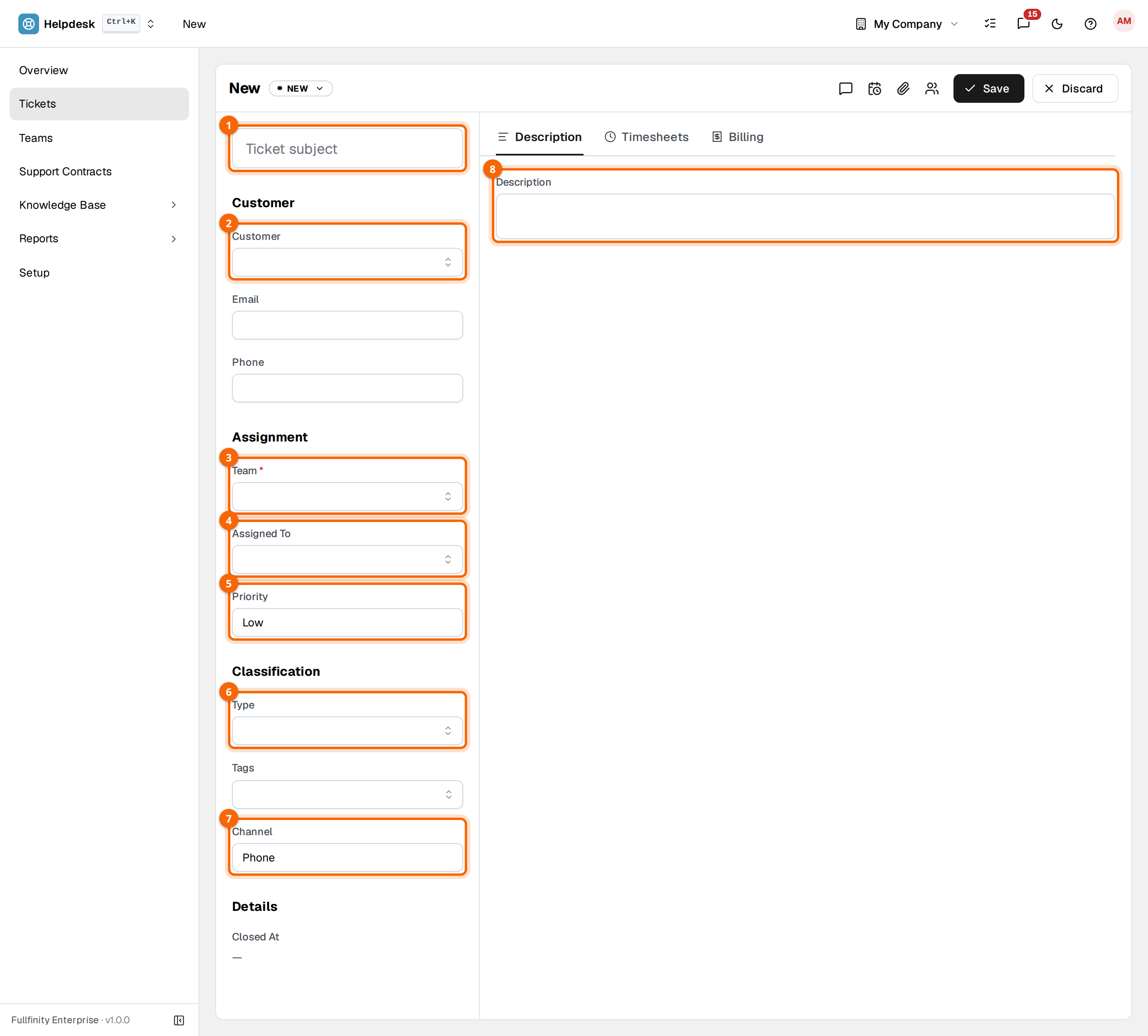
- The subject at the top — a short summary, such as Cannot log in after password reset.
- Customer — who the request is from. Add their Email and Phone below if they differ from the contact's own.
- Team — the queue that works the ticket. Required.
- Assigned To — leave it empty and the team's assignment method picks someone when you save (see How are new tickets assigned automatically?).
- Priority — Low, Medium, High or Urgent. It shows as stars on the board, and service level targets can depend on it.
- Type and Tags — what kind of request it is, and labels to sort by.
- Channel — how the request reached you; it starts on Phone.
- Description — what the customer told you.
Click Save. The ticket starts in the first stage, New. The customer and the person assigned follow it, so messages you send from it reach the customer — see How do I work a ticket from new to solved?
Was this article helpful?