How do I publish products and organize shop categories?
Put a product on your online store, write its shop description, and sort products into browsable categories.
A product appears in your online store once it is published to the website. Shop categories then let shoppers browse your catalog by department.
Publish a product
Go to Ecommerce → Products, open the product and click its Ecommerce tab.
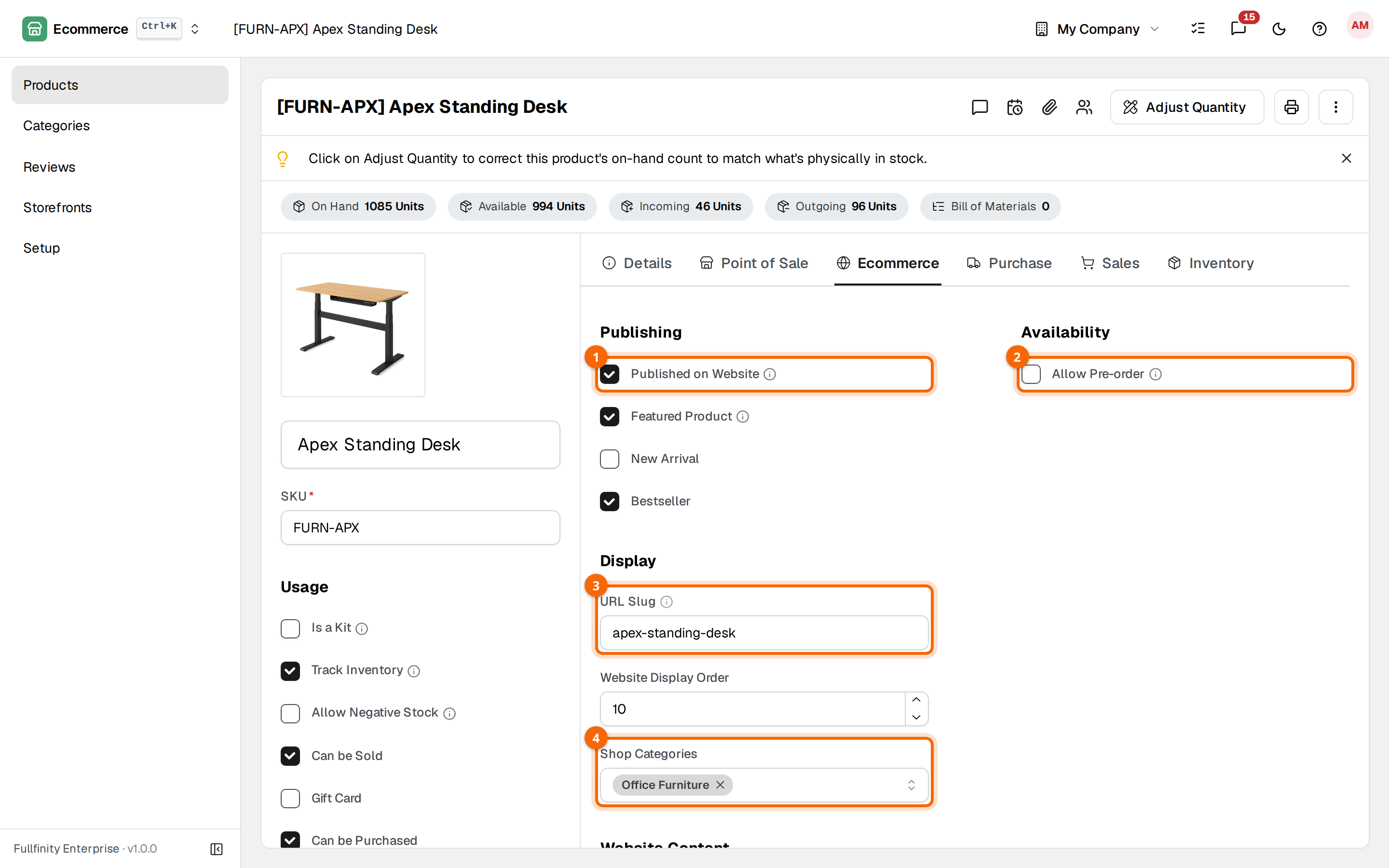
- Published on Website — tick to show the product in the shop.
- Allow Pre-order — let customers buy it even when it's out of stock (see out-of-stock items).
- URL Slug — the product page's address, for example apex-standing-desk. It's filled in from the name.
- Shop Categories — the categories the product is listed under.
The rest of the tab:
- Featured Product, New Arrival and Bestseller — put the product in the matching sections of your pages.
- Website Display Order — lower numbers are listed first.
- Short Description — the summary on product cards; Website Description — the full text on the product page.
- Meta Title, Meta Description, Social Share Image and Hide from Search Engines — how the product page appears in search results and when shared. Left empty, the product's name and short description are used.
- Additional Images — more photos for the product page gallery.
The product must also be ticked Can be Sold on its Details tab.
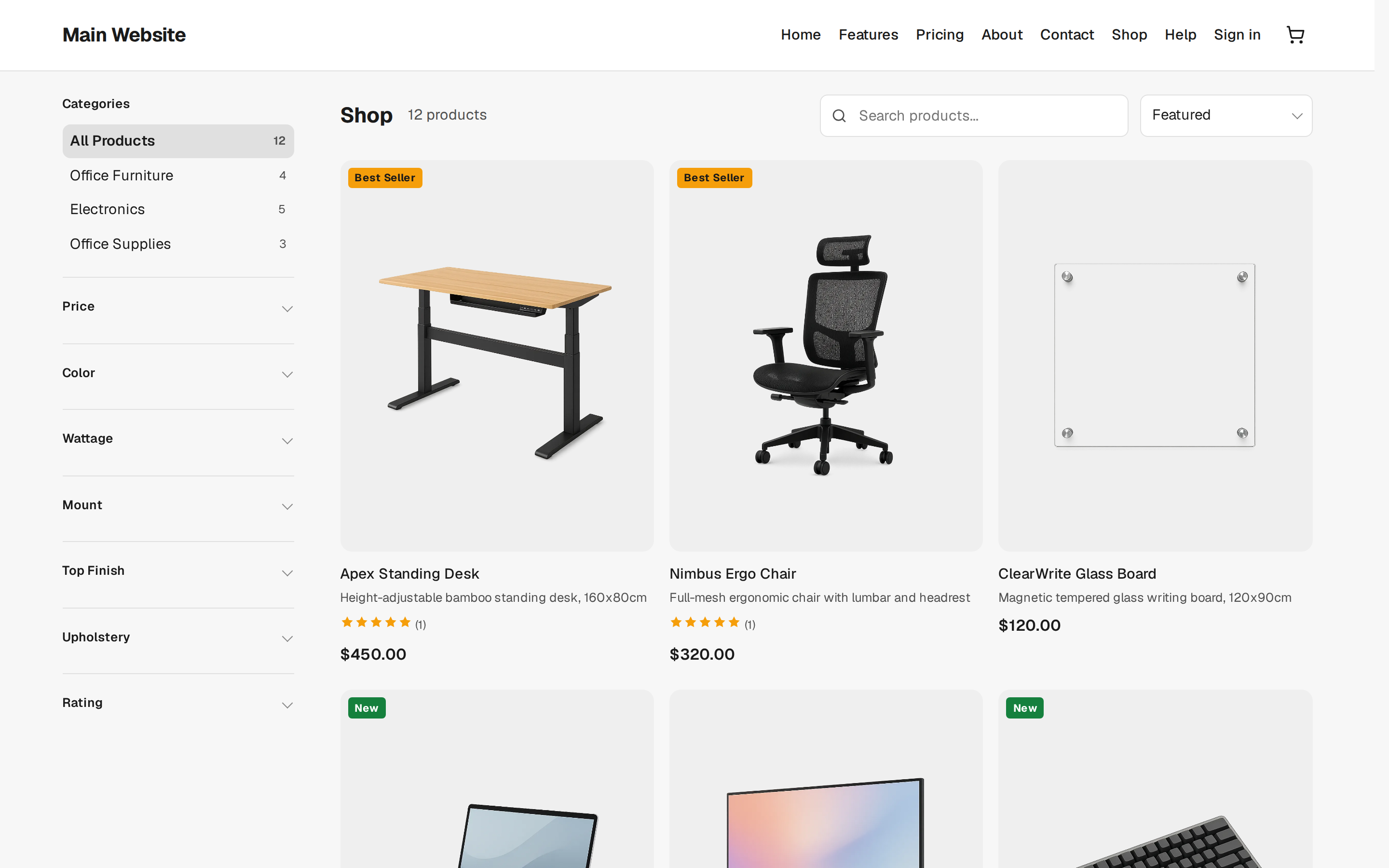
Once published, the product is listed in your shop, under the categories you gave it:
Create shop categories
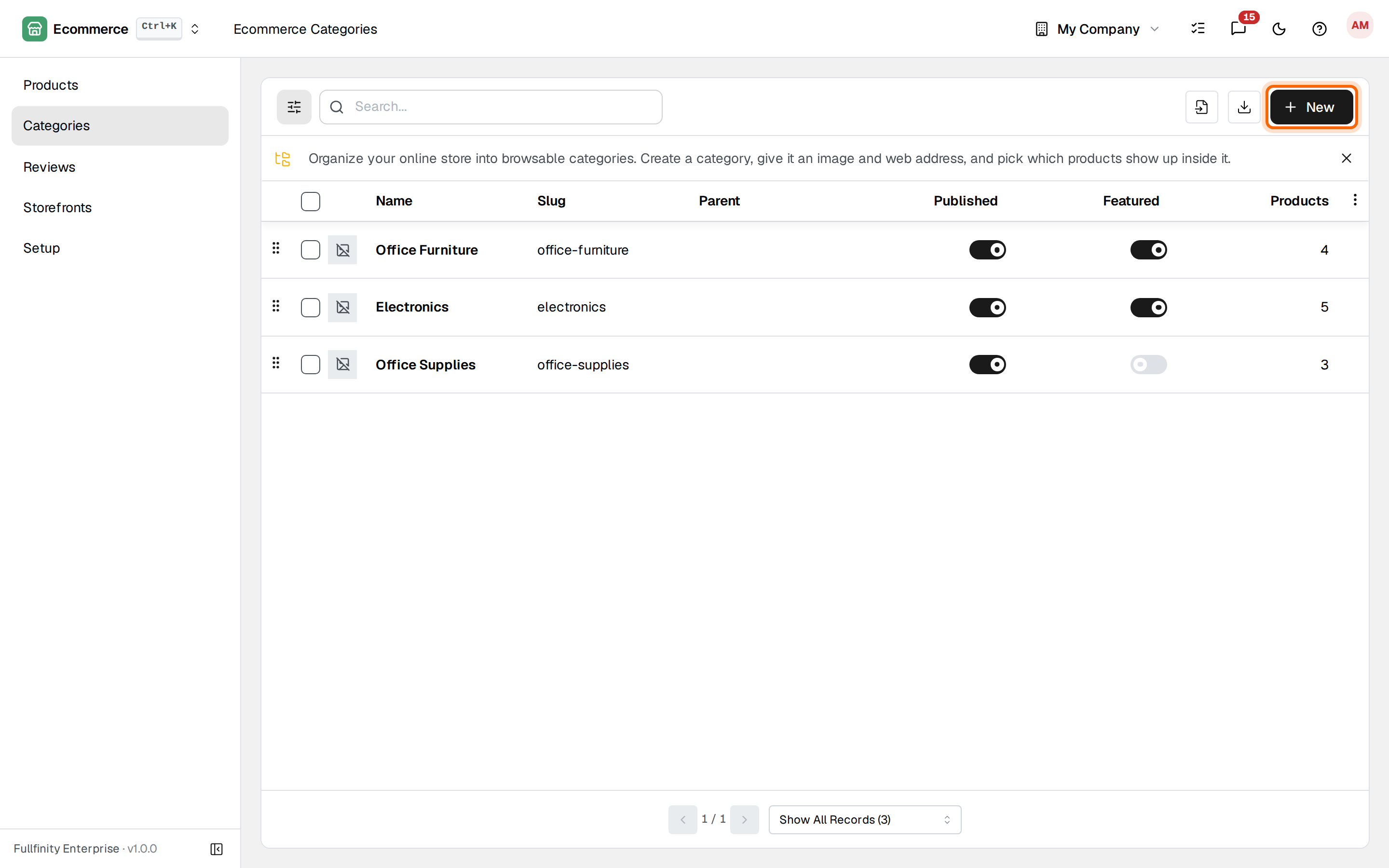
Go to Ecommerce → Categories and click New. Drag rows to set the order categories appear in.
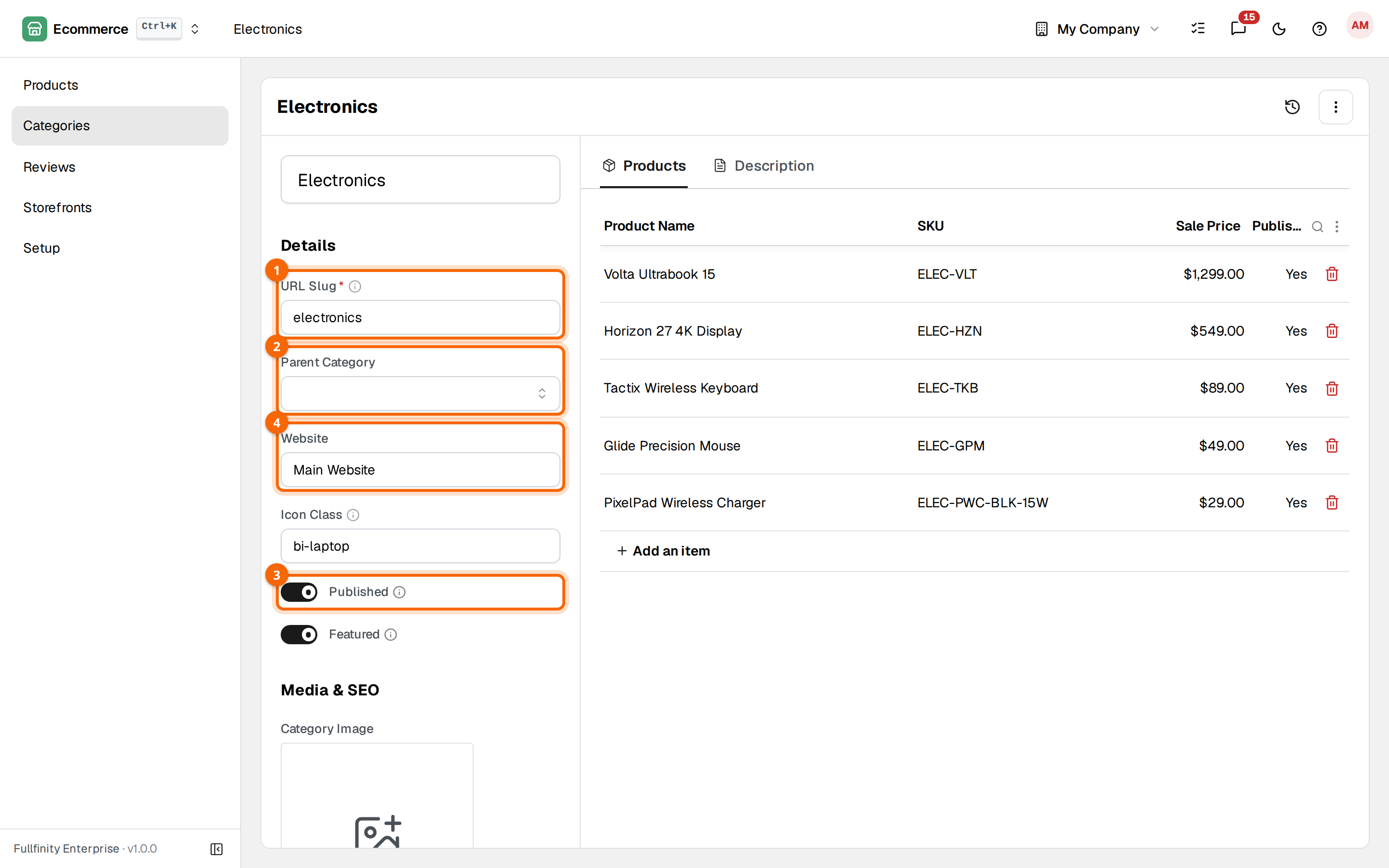
- URL Slug — the category page's address, for example mens-clothing.
- Parent Category — to nest it under another category.
- Published — show it on the website. Featured puts it in featured-category sections.
- Website — the storefront it belongs to. Leave it empty to show the category on every website.
Add an Icon Class if your theme shows category icons, a category Image, and how the page appears in search results and when shared (Meta Title, Meta Description, Social Share Image). The Description tab holds the text for the category page, and the Products tab lists the products in the category — add them there, or from each product's Shop Categories field.
Product missing from the shop? See Why isn't my product showing in the shop?