How do I set up my website and choose a theme?
Give your website its name, logo, domain and homepage, then pick the theme that sets its look.
Your website is one record that holds everything visitors see on every page: its name and logo, the address it lives at, its homepage and the theme that styles it. Set these once; the pages themselves are designed in the page builder.
1. Open your website
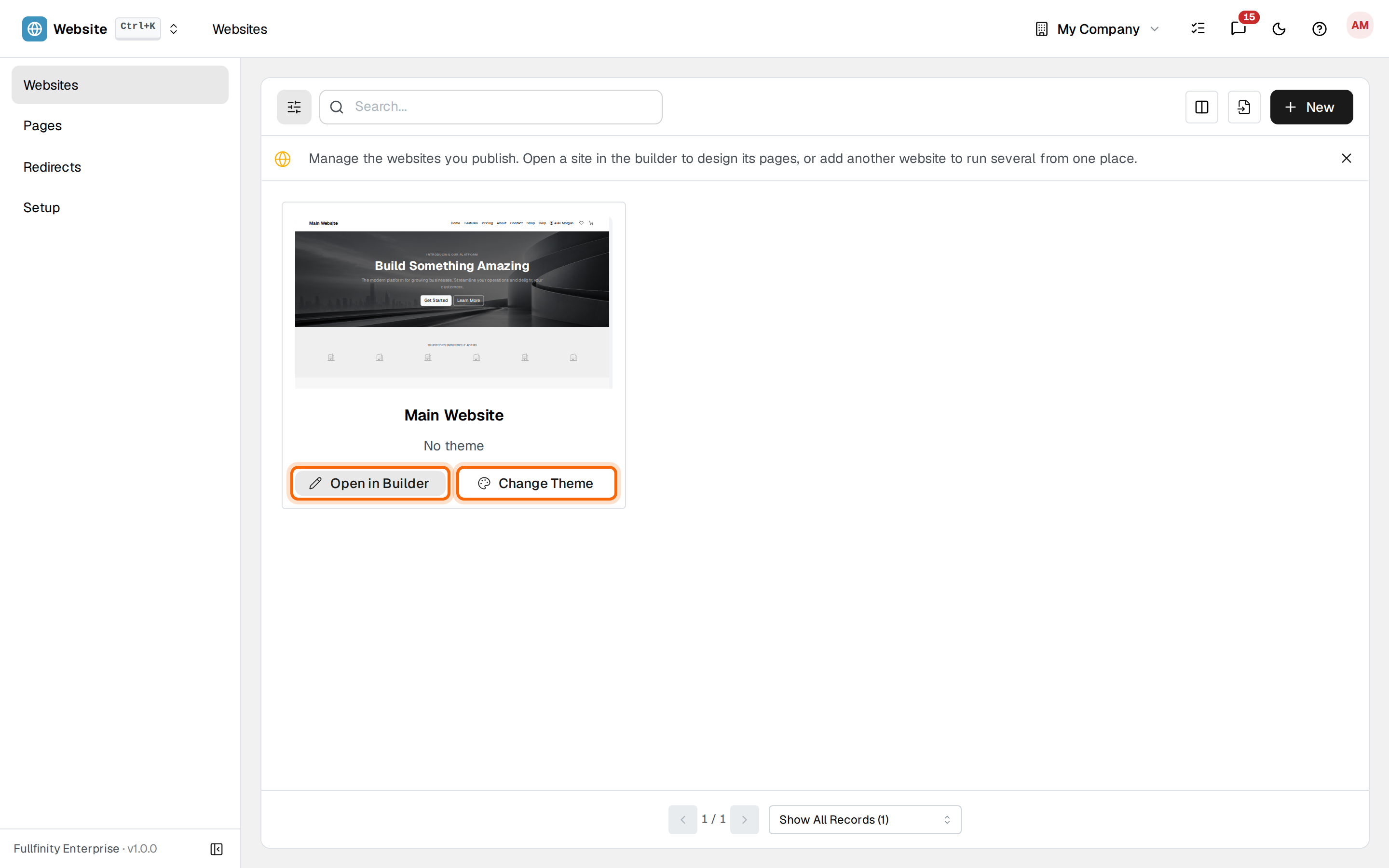
Go to Website → Websites. Each website is a card with a preview of its homepage. Click a card to open its settings, or click New to add another website — you can run several from one place. A new website gets its own home page straight away.
2. Fill in the basics
The panel on the left of the website holds its identity:
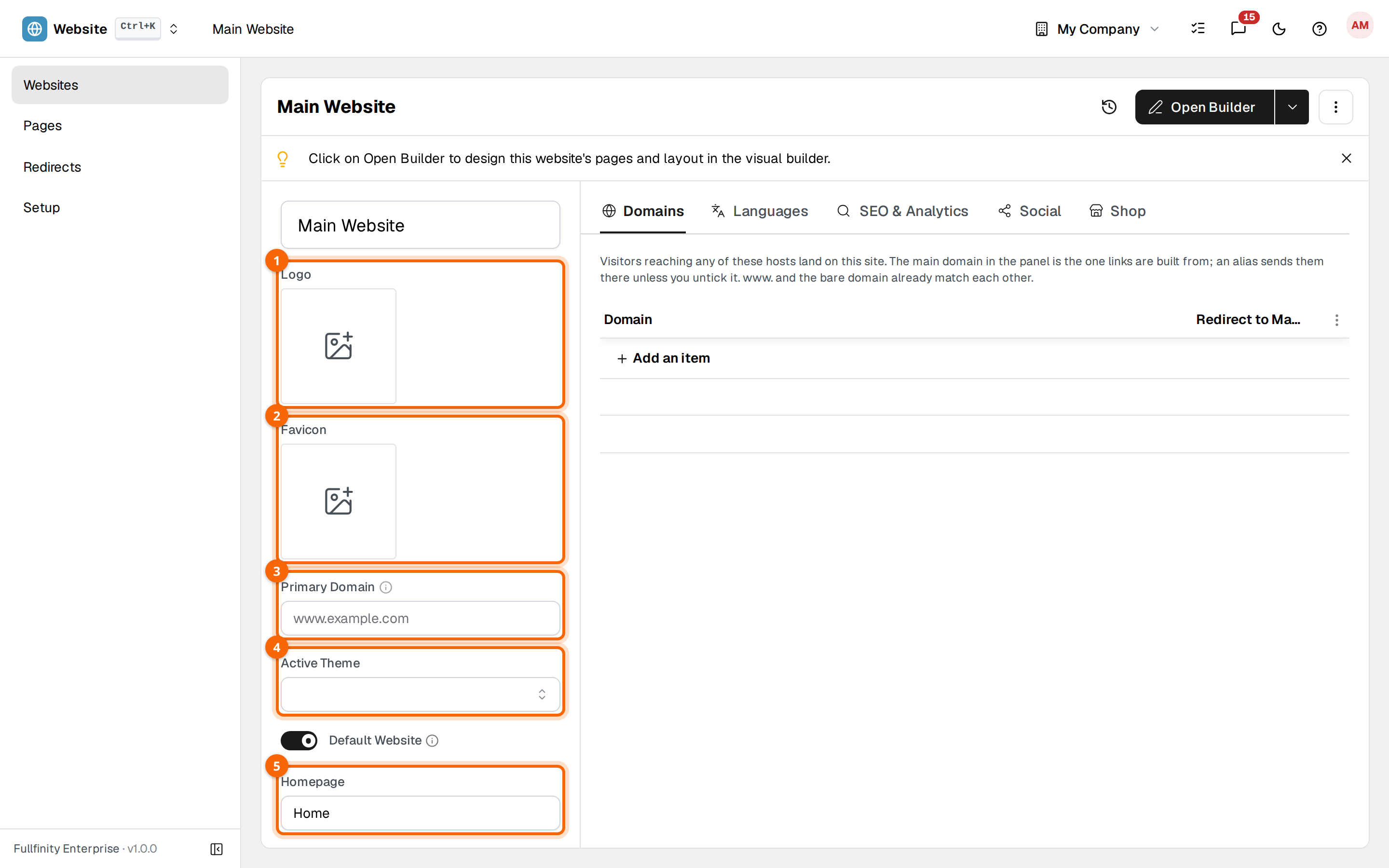
| Field | What it does |
|---|---|
| Logo | Shown in the site header. |
| Favicon | The small icon in the browser tab. |
| Primary Domain | The address links are built from, for example www.example.com. Add other addresses that should reach this site on the Domains tab; tick Redirect to Main Domain to send visitors on to the main one. |
| Active Theme | The theme that styles the site (see below). |
| Default Website | The site shown when a visitor's address matches no domain. One per company. |
| Homepage | The page shown at the site's root address. |
| Main Navigation Menu | The menu in the site header. |
| Header Template and Footer Template | The header and footer shown on every page, including sign-in pages. Leave the header empty to use the built-in navigation bar. |
The tabs on the right hold the rest: Languages (see How do I translate my website?), SEO & Analytics (the Default Meta Title, Default Meta Description and Default Social Share Image used by pages that don't set their own, and your Google Analytics ID), and Social (links to your social media pages).
3. Choose a theme
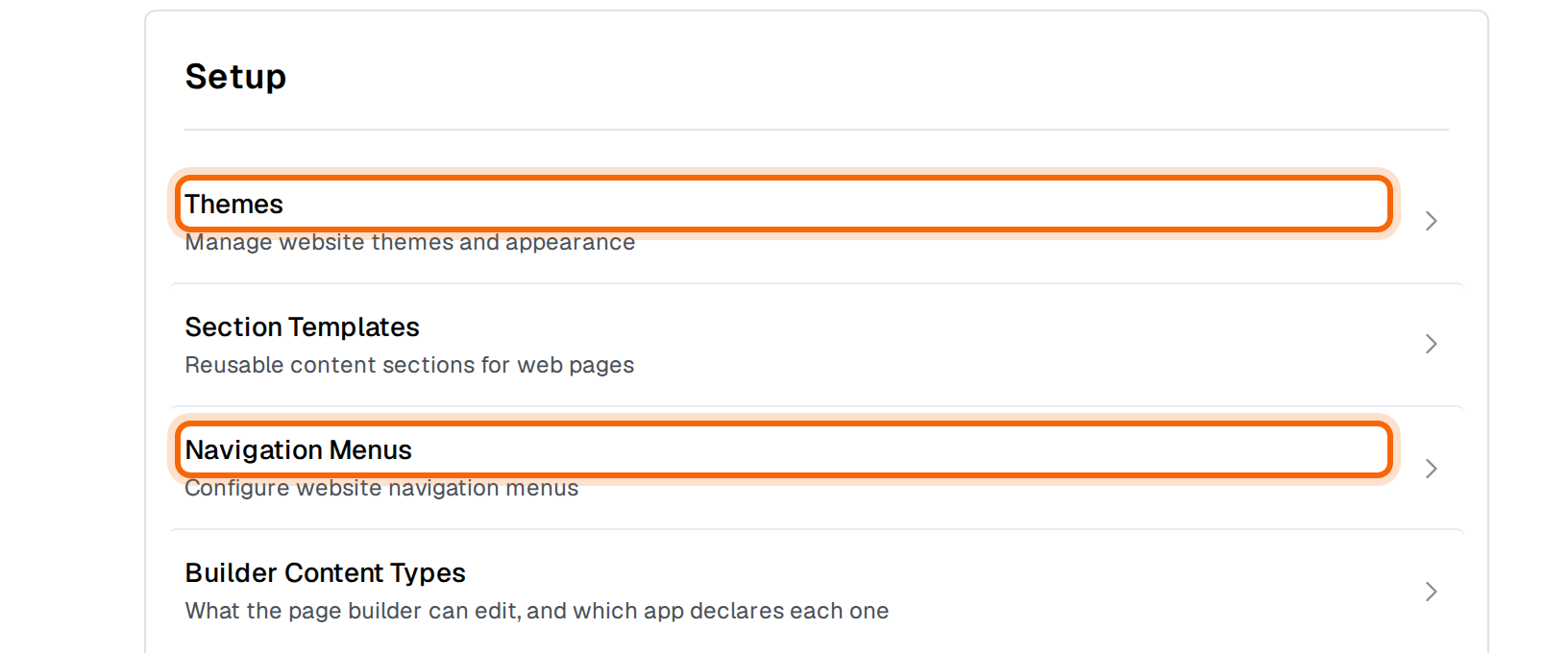
Click Change Theme on the website's card, or go to Website → Setup and click Themes.
- Click Preview on a theme to see its look and sample layouts in a new tab.
- When you've found the one you want, click Activate. If you run more than one website, choose which one under Select Website and click Activate Theme.
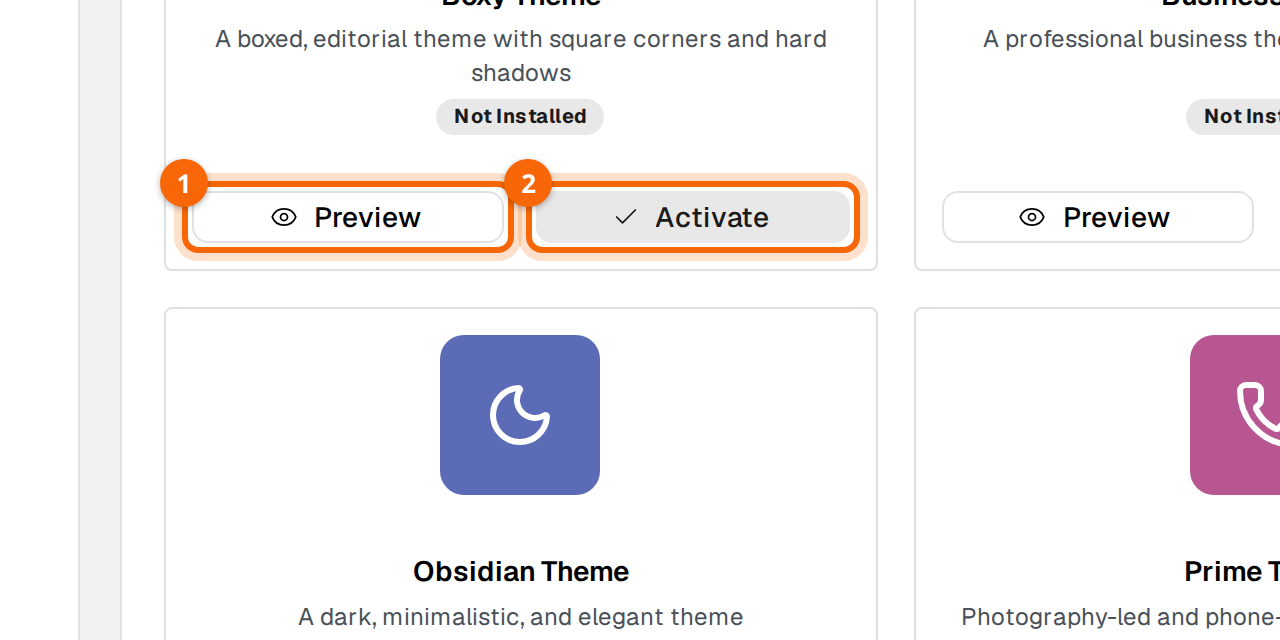
A theme that shows Not Installed is installed for you when you activate it. The theme already in use shows a Current Theme badge and its Activate button is greyed out.