Why isn't my product showing in the shop?
The checks to run when a product, variant or category is missing from your online store.
A product appears in your online store only when several settings agree. Work through these checks in order — the first one that fails is your answer.
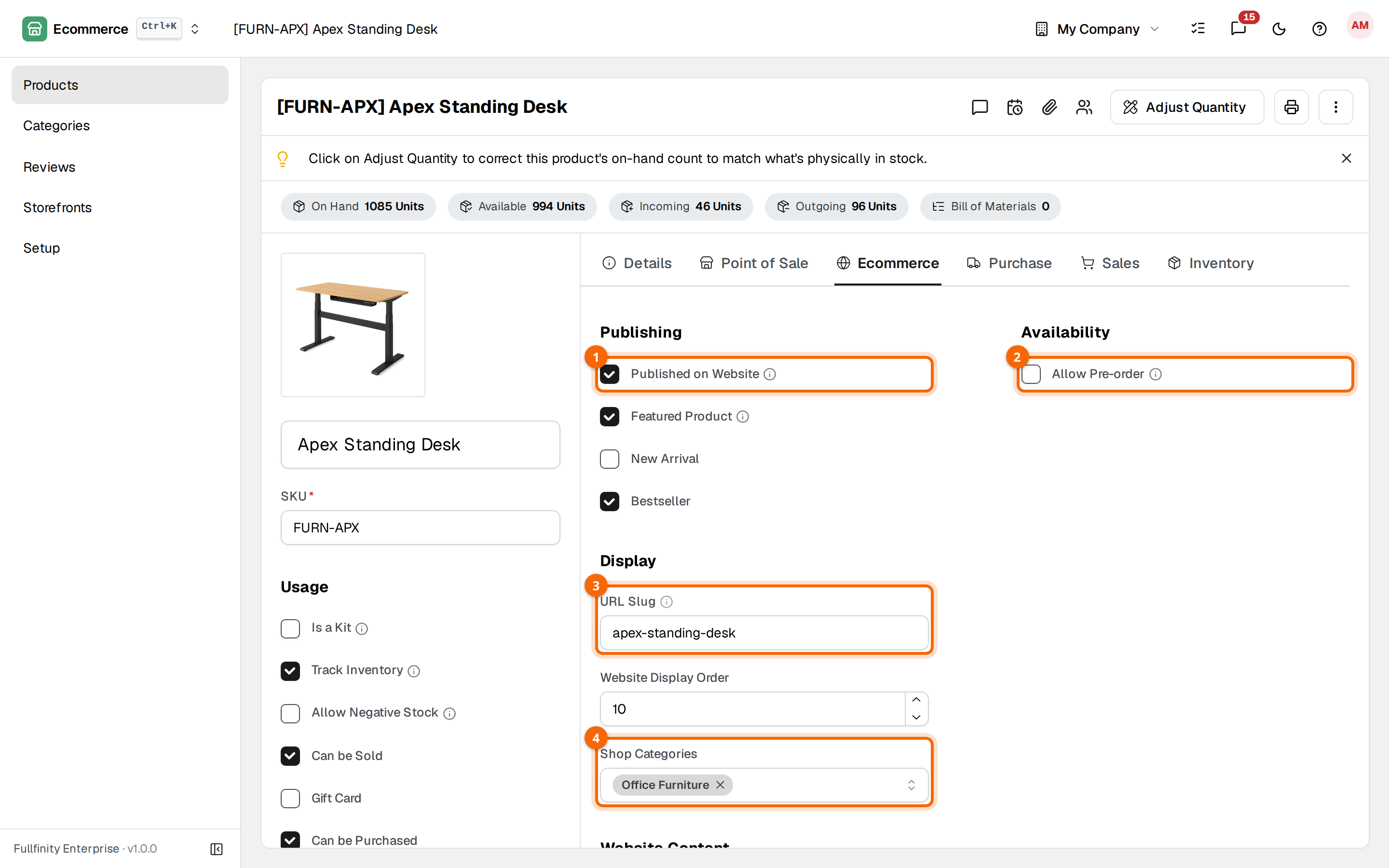
1. Is the product published?
Open the product from Ecommerce → Products and go to its Ecommerce tab. Published on Website must be ticked.
2. Can it be sold?
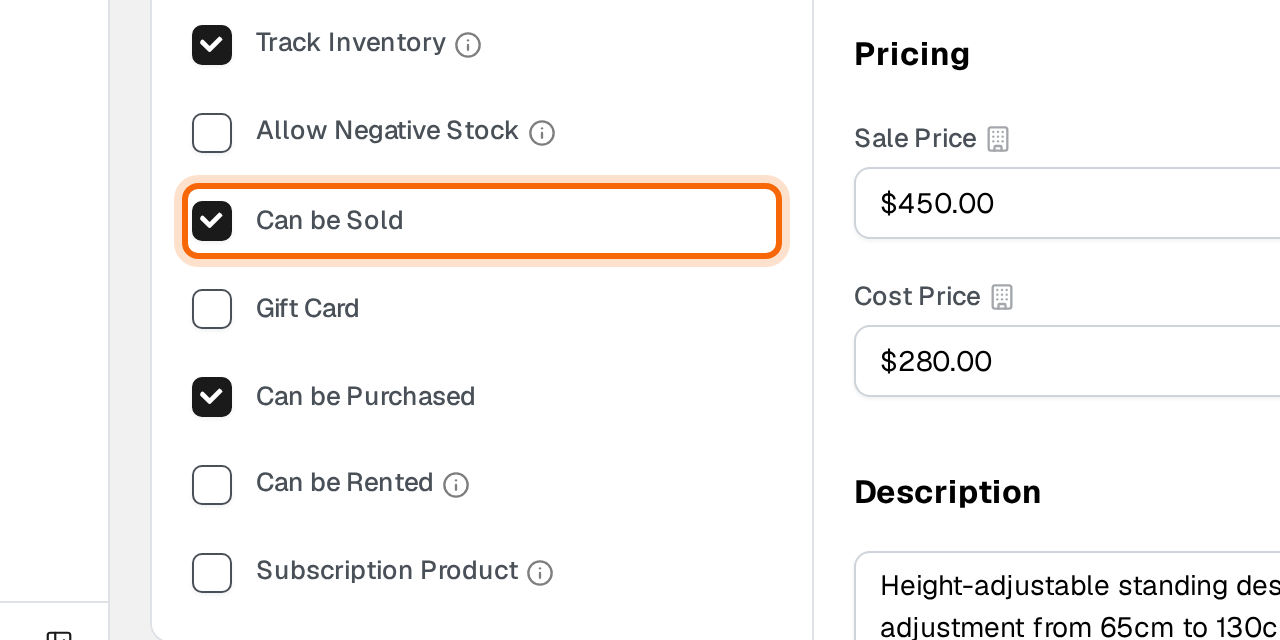
On the product's Details tab, Can be Sold must be ticked. A product used only for purchasing never appears in the shop.
3. Is it archived?
An archived product is hidden everywhere, including the shop. If you can't find it in the products list, look for it among archived records and unarchive it from the three-dot menu.
4. Is the shop switched on for this website?
In Ecommerce → Storefronts, open the website and check Shop Enabled on its Shop tab.
5. Missing from a category?
If the product shows in the shop but not in a category:
- add the category to the product's Shop Categories;
- in Ecommerce → Categories, make sure the category is Published and its Website is set to this storefront — a category with no website isn't listed in the shop.
6. Missing a variant?
A variant with Available Online unticked, or an archived variant, isn't offered. If Stock Management is on, a variant with no stock is shown but can't be selected — see How do I stop customers ordering items that are out of stock?
Visible but can't be bought?
- No price and no add-to-cart button for visitors: Sign In to See Prices is on for the storefront.
- An Out of Stock button: stock management is on and nothing is available. Receive stock, or tick Allow Pre-order.