How do I edit my pages with the page builder?
Add, rearrange and edit the sections of a page, and your site's header, footer and menu, with a live preview.
The page builder is where you design your pages. You see the page as visitors will, and change it section by section. Nothing goes live until you save.
Open the builder
- From Website → Websites, click Open in Builder on a website's card (or Open Builder on the website itself) to start on its homepage.
- From Website → Pages, open a page and click Open Page Builder to start on that page.
The builder opens full screen. Close it with the × in the top-right corner.
Find your way around
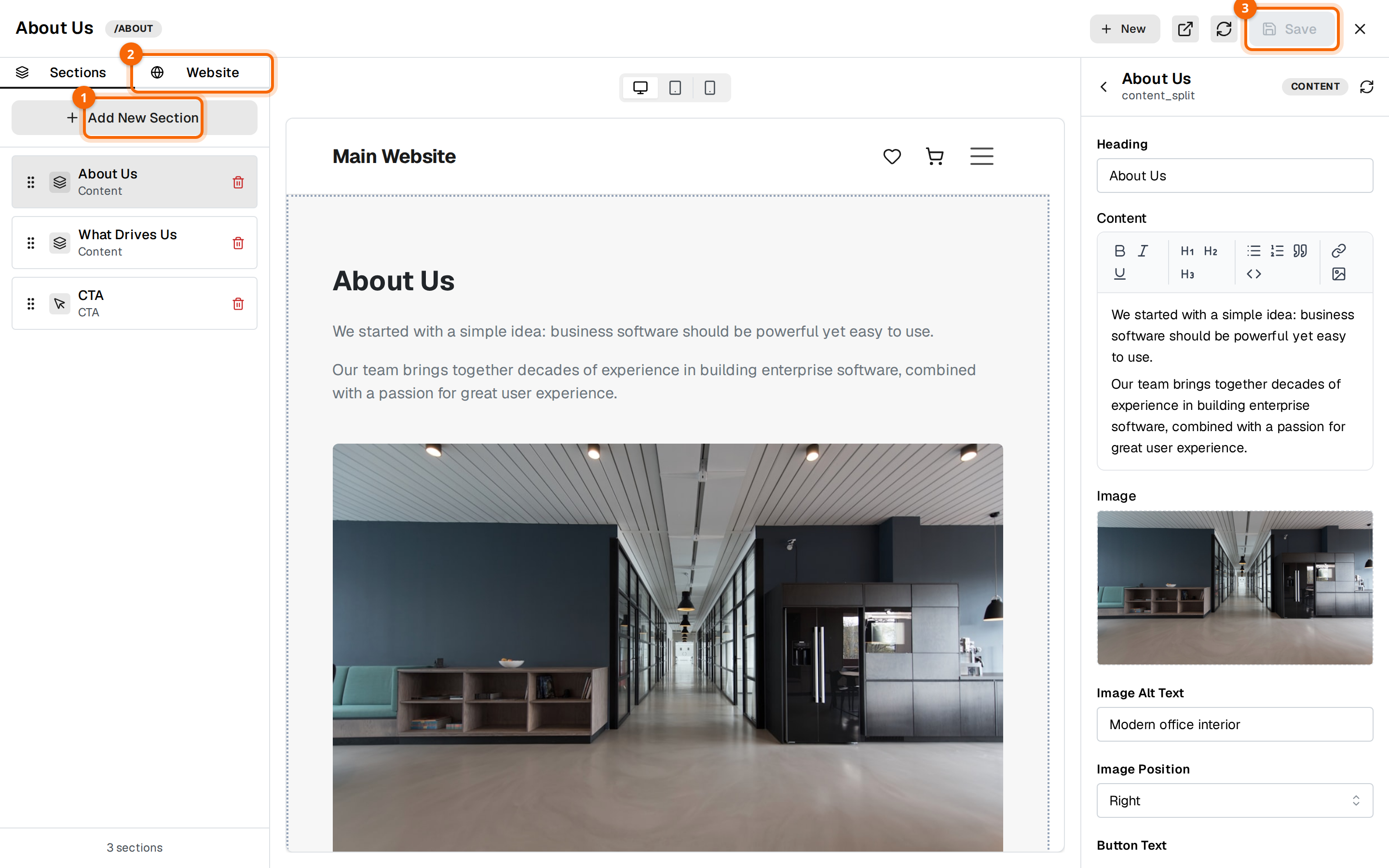
- Left panel, Sections tab — the sections that make up this page, top to bottom. Click Add New Section (1) to pick a new section from the library.
- Website tab (2) — settings that apply to every page of the site (see below).
- Center — the live preview. The three icons above it switch between desktop, tablet and phone widths.
- Right panel — the settings of whatever you selected.
- Save (3) — publishes your changes. It shows how many unsaved changes you have.
Edit a section
- Click a section in the left panel (the preview scrolls to it).
- Change its text, images, buttons and layout in the right panel. The preview updates as you type.
- Drag a section by its handle to move it up or down the page, or click the bin icon to remove it.
- Click Save.
Use the circular-arrow icon at the top of the right panel to put a section back to its default settings. Some sections are part of the page itself (the product grid on your shop page, for example) — they show a lock and can't be moved or removed.
Change the site's header, footer and menu
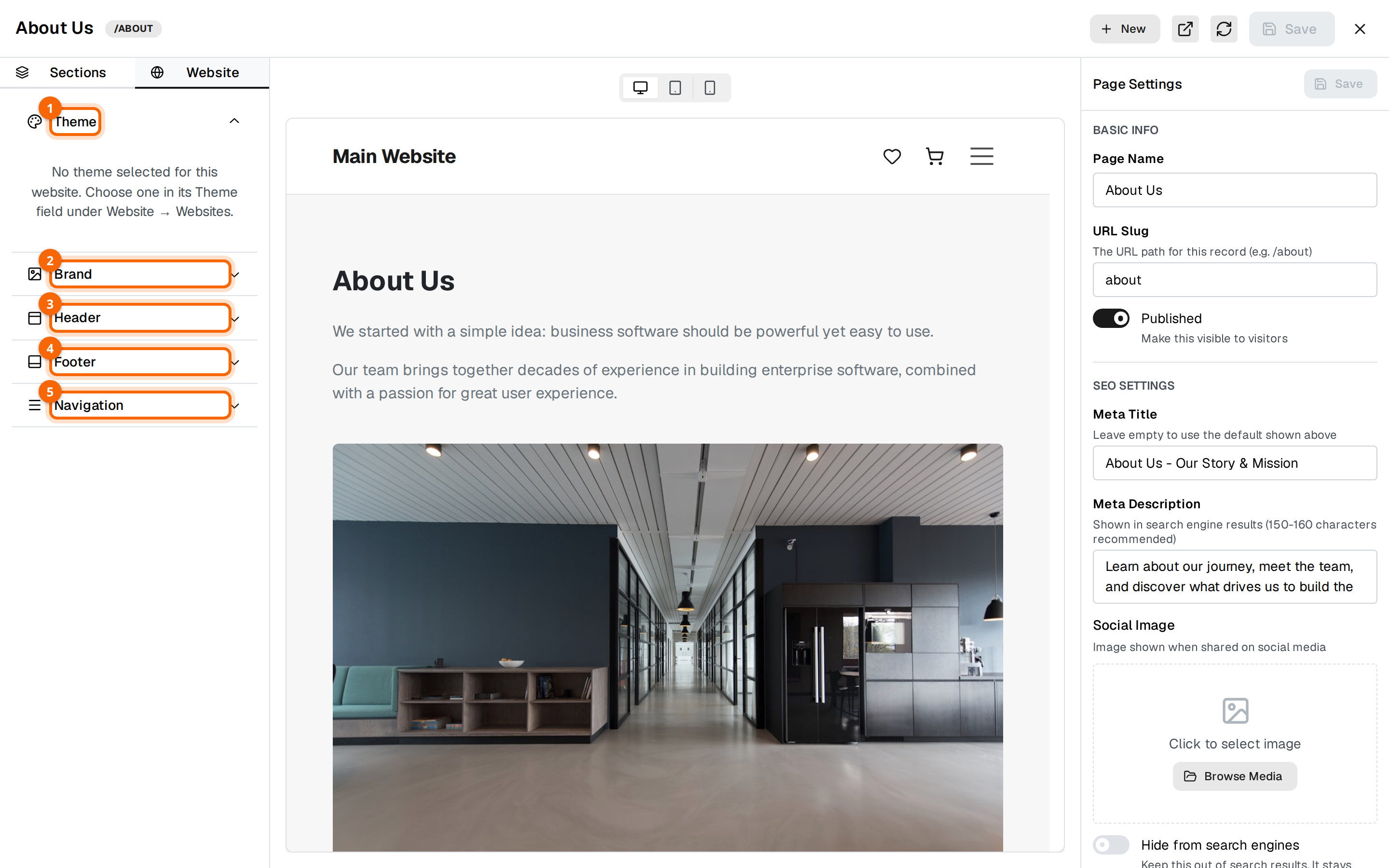
Open the Website tab. Each heading opens a group of settings that applies to the whole site:
| Group | What you change |
|---|---|
| Theme | The theme's colours, fonts and style options. |
| Brand | Your logo and brand details. |
| Header | The header layout and its options. |
| Footer | The footer's content and link columns. |
| Navigation | The links in your main menu. |
Apps you install can add their own groups here too (the blog, for example, adds its own settings).
Change the page's own settings
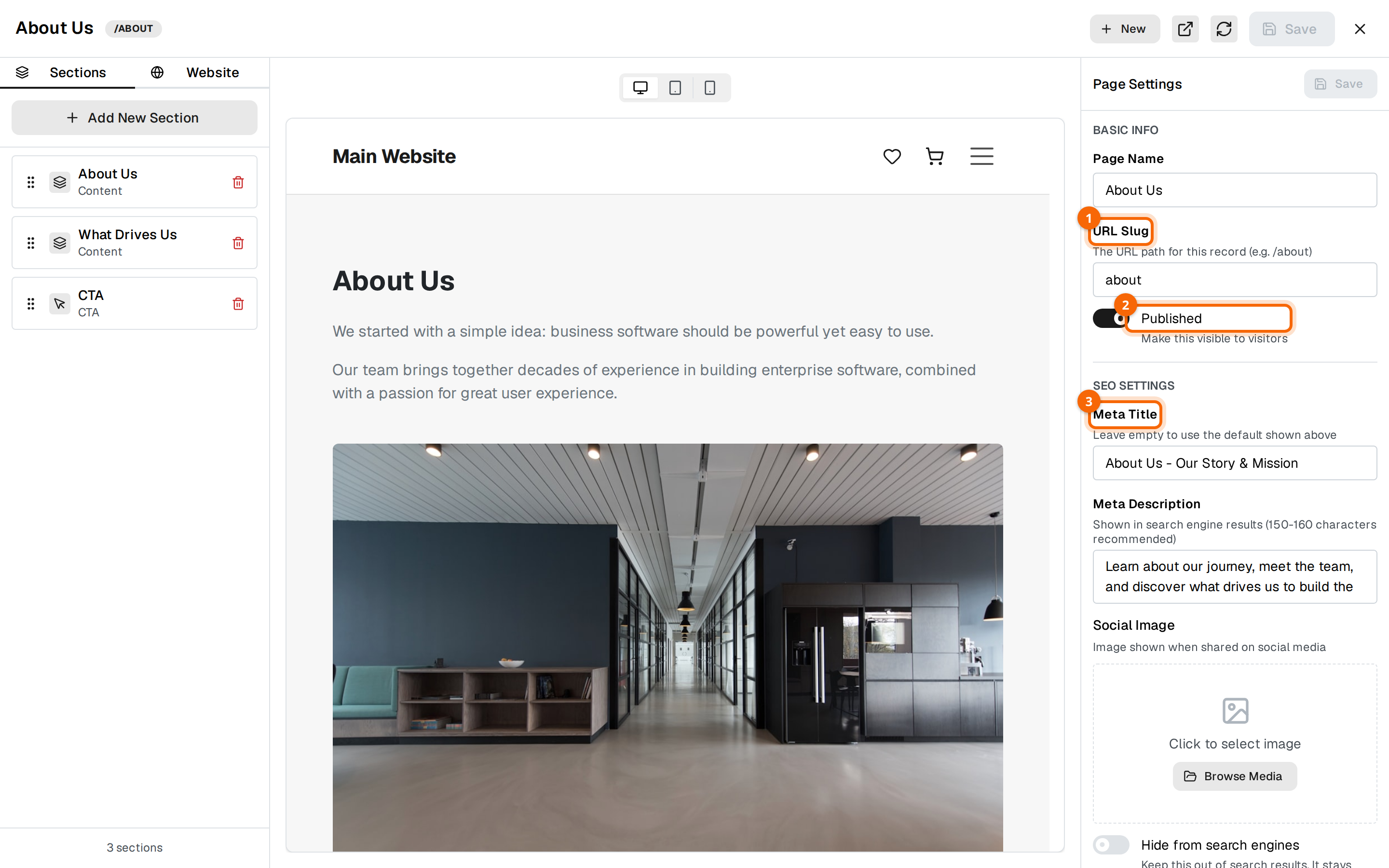
Click the back arrow at the top of the right panel (or click away from any section) to see the page's settings: its Page Name, URL Slug, whether it is Published, and its Meta Title, Meta Description and Social Image for search engines and social media. Click the Save button at the top of that panel to keep them.
To check the real thing, click the open-in-new-tab icon next to Save; the circular-arrow icon beside it refreshes the preview.