How do I translate my website?
Switch on the languages you sell in, offer them on your website, and translate its pages automatically or by hand.
Your website can be offered in several languages. Visitors switch language on the site, and each page shows its translated text. You choose the languages, then translate either the whole site at once or one page at a time.
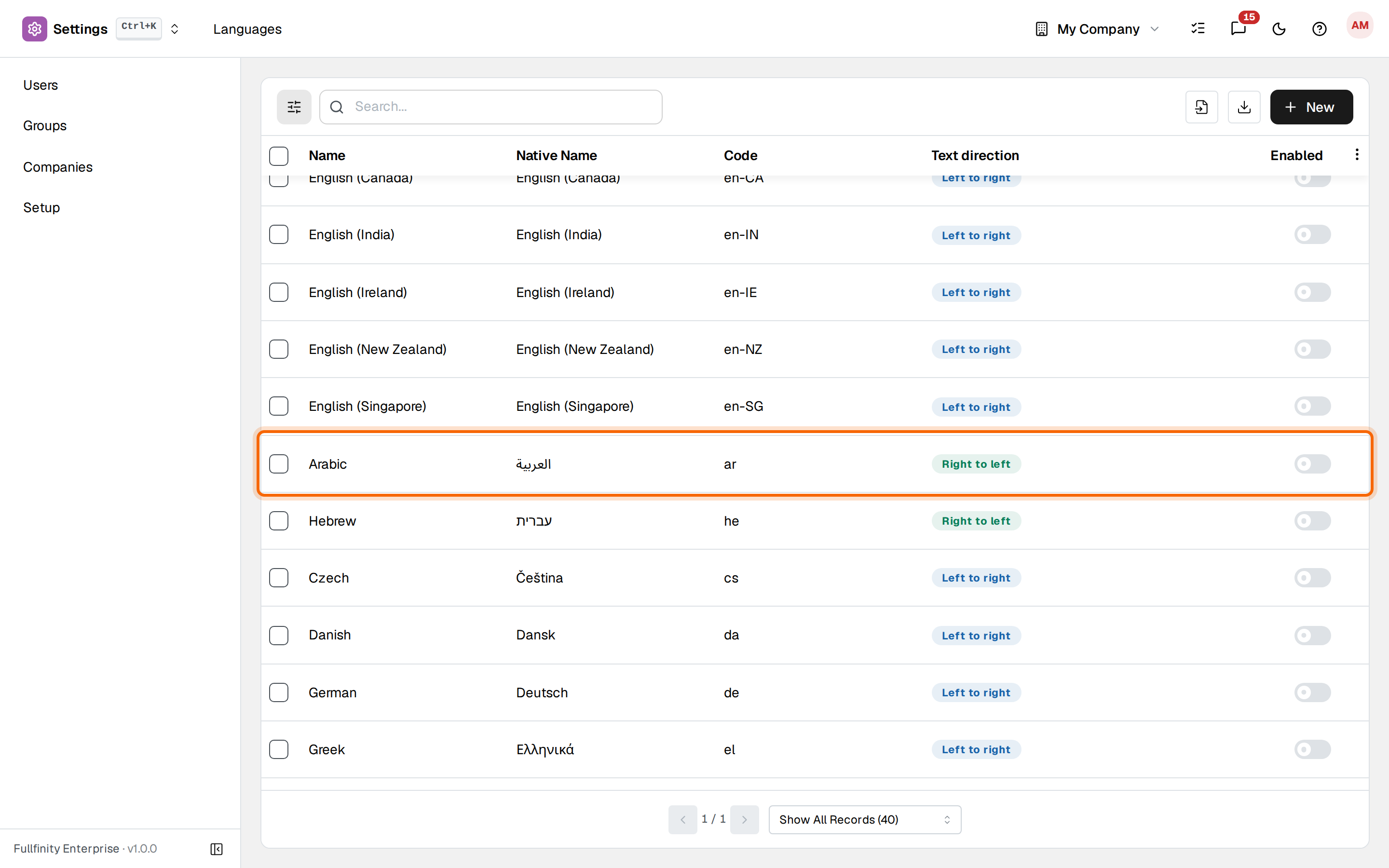
1. Switch on the languages
Go to Settings → Setup and click Languages. Turn on the switch at the end of each language's row that you want to use.
2. Choose which languages the website offers
Open your website from Website → Websites and go to its Languages tab.
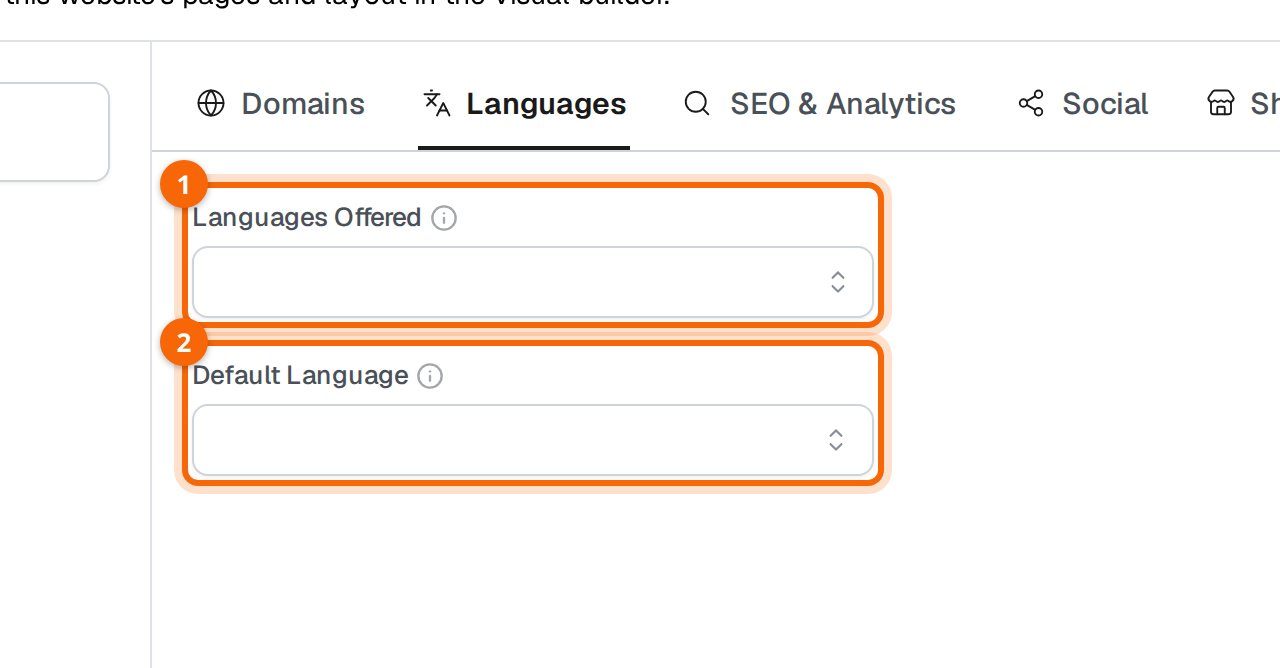
- Languages Offered — the languages a visitor can switch this site into. Leave it empty to offer every language you switched on.
- Default Language — the language a visitor gets when their browser asks for one this site doesn't offer. Empty means English.
Two websites can offer different languages — useful when each one sells into a different market.
3. Translate the content
The whole site at once
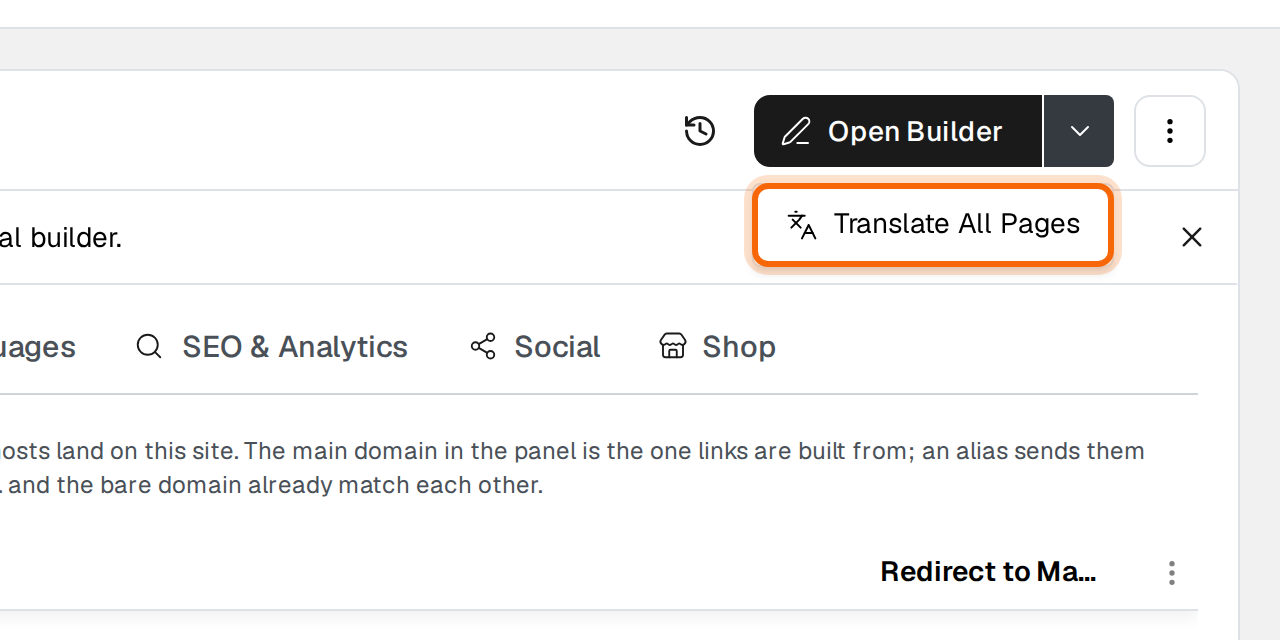
On the website, open the menu next to Open Builder and click Translate All Pages. Fullfinity translates the text of every page, the footer and your shop's content into each language you switched on, and tells you how many translations it created. Text that is already translated is left as it is, so you can run it again after adding pages.
One page
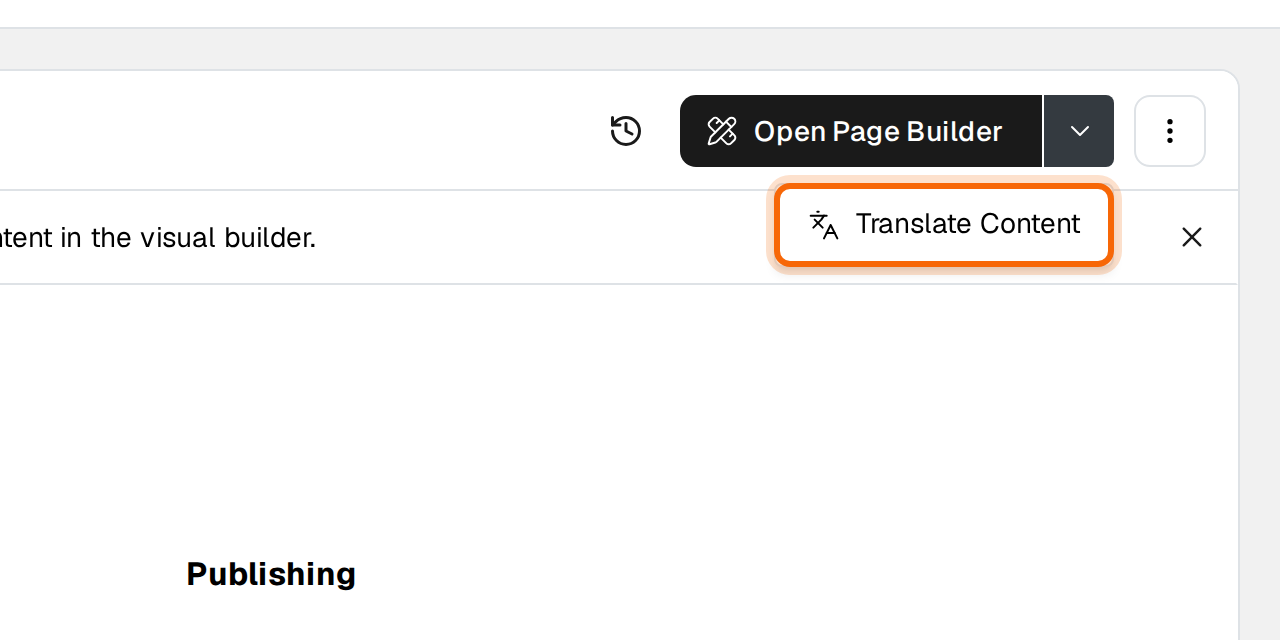
Open the page from Website → Pages, open the menu next to Open Page Builder and click Translate Content. It translates that page's sections and its search engine text.
By hand, in the page builder
With more than one language switched on, selecting a section in the page builder shows a row of language codes (EN, AR, …) above its settings. Pick a language and type that language's text; the original stays as the grey placeholder and is not changed. Click Save when you're done.