How do I add and organize website pages?
Create a page, give it a web address, put it in your menu, publish it and set what search engines show.
Every page of your website — Home, About Us, Contact — is a record under Website → Pages. Create pages there or straight from the page builder, then decide which are published and which appear in your menu.
Create a page from the page builder
- Open the page builder (see How do I edit my pages with the page builder?).
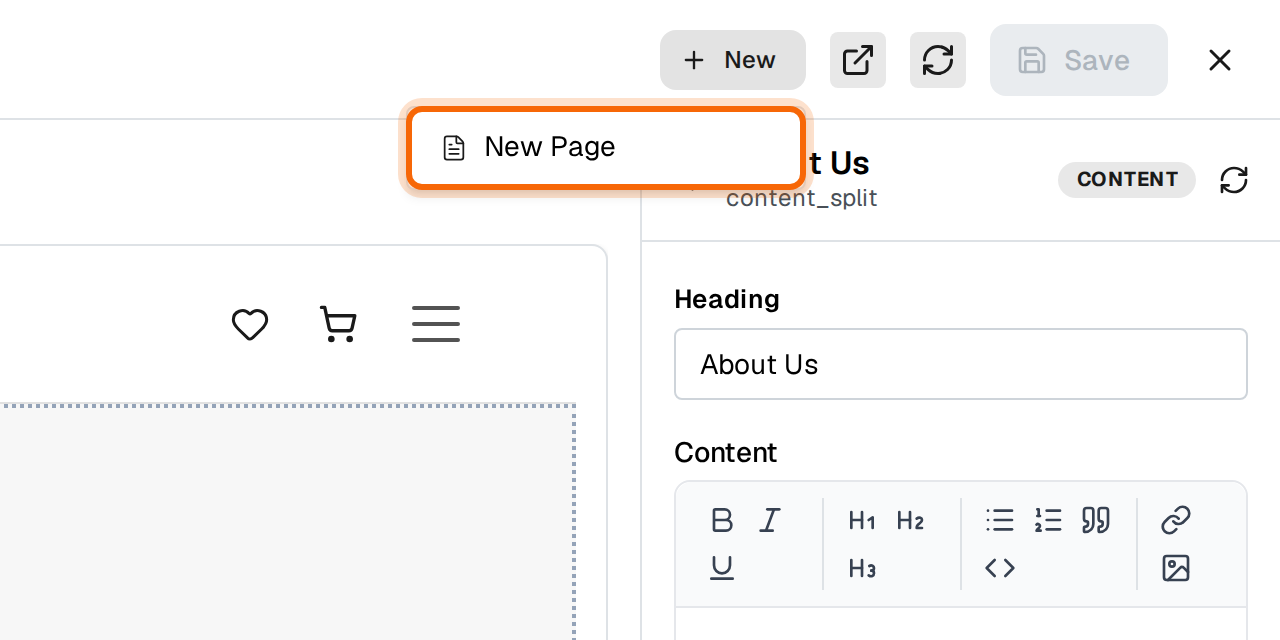
- Click New at the top, then New Page.
- Type the page's name. The URL Slug is filled in from it — change it if you want a different address.
- Tick Add to navigation menu to add it to the end of your site's main menu.
- Click Create. The new page opens in the builder, ready for sections.
A page created this way starts unpublished, so visitors don't see it until it's ready.
Manage your pages
Go to Website → Pages to see every page with its address, its website and whether it is published. Click New to create a page here instead.
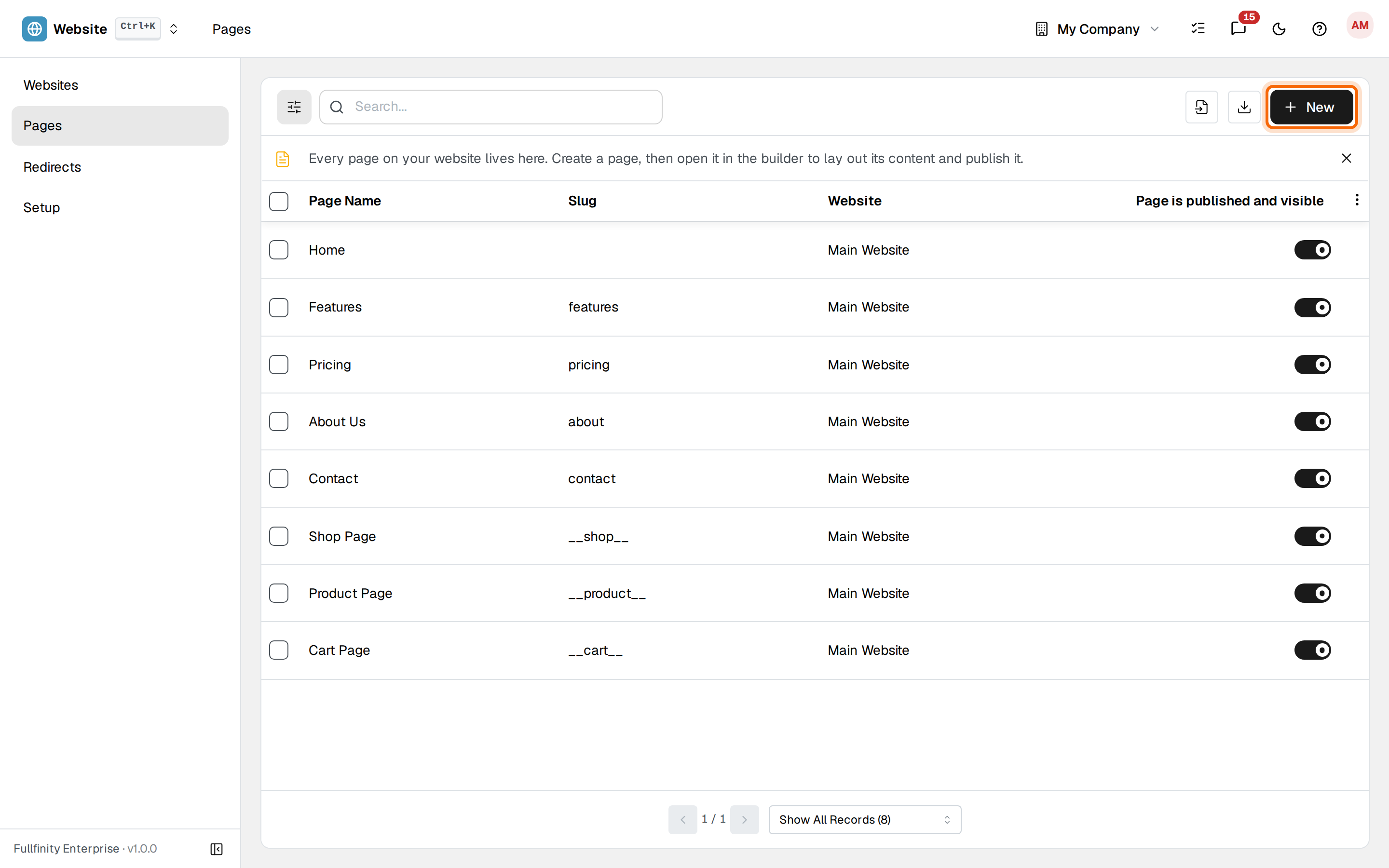
Open a page to change it:
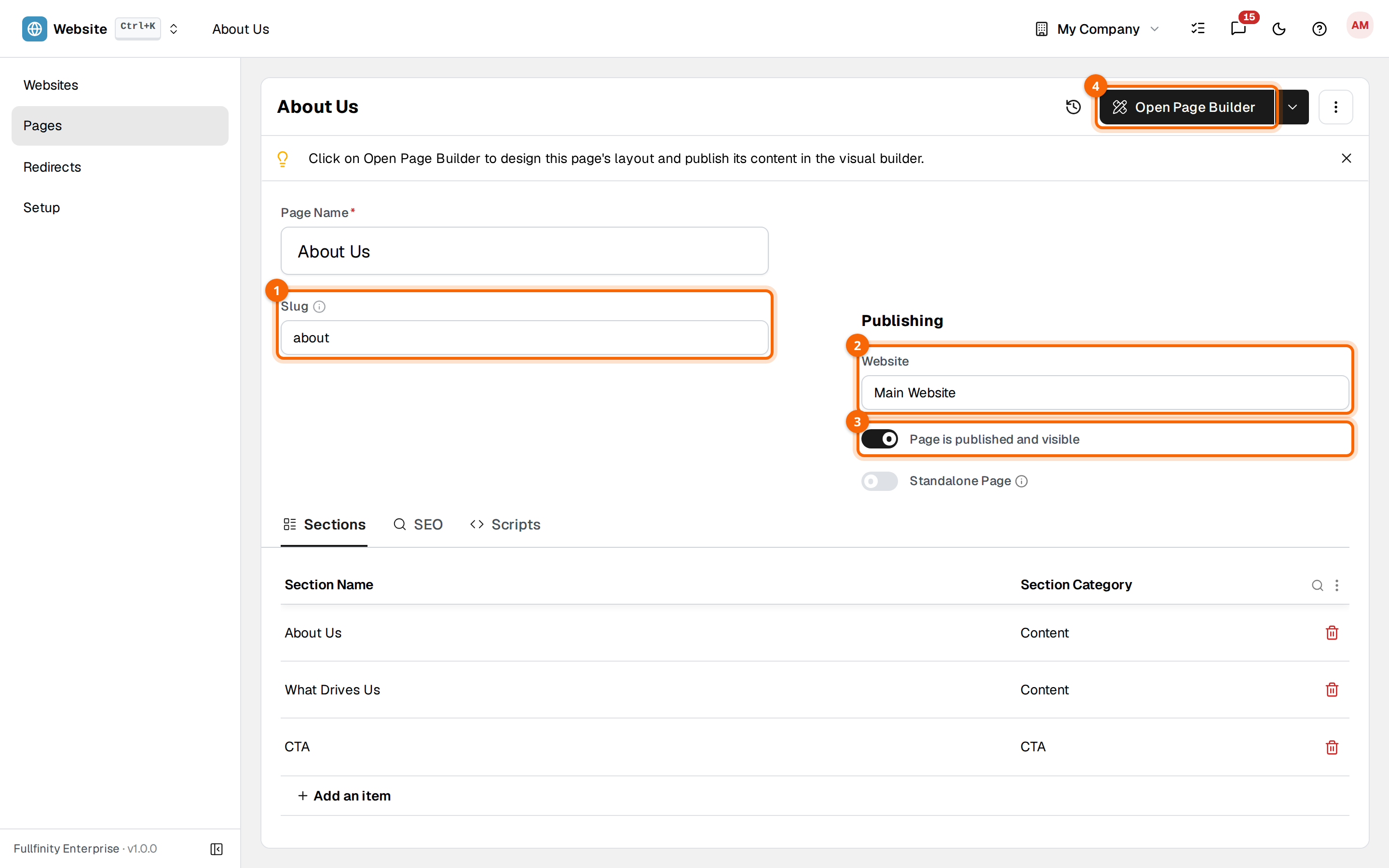
- Slug — the page's address after your domain: about makes /about. Leave it empty only for the homepage. Each address can be used once per website, and a few addresses the app uses itself (such as shop) can't be taken.
- Website — the site the page belongs to. Every page needs one.
- Page is published and visible — switch on to show the page to visitors.
- Standalone Page — hides the site's header and footer, for a page with one job such as a campaign landing page.
- Open Page Builder — design the page's content.
Set what search engines show
On the page's SEO tab:
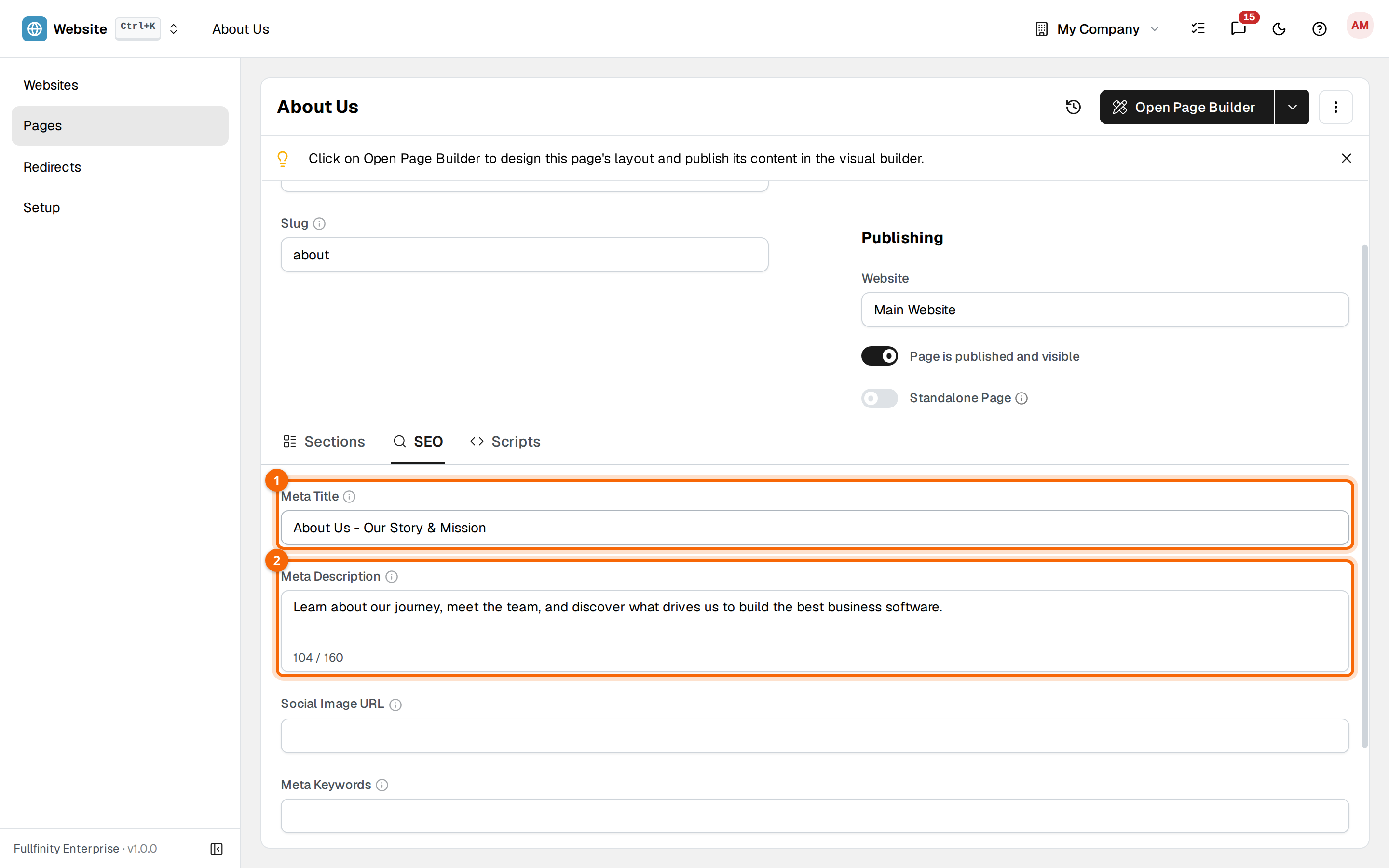
- Meta Title — the title in the browser tab and search results. Empty, the page name is used.
- Meta Description — the text under the title in search results; around 155 characters.
- Social Image URL — the picture shown when the page is shared.
- Canonical URL — the preferred address, when the same content is reachable at more than one.
- No Index — ask search engines to leave this page out of their results.
Organize your menu
Change the order and labels of your menu links in the page builder's Website tab, under Navigation. To manage several menus, go to Website → Setup and click Navigation Menus.