Why can't I produce this manufacturing order?
The order isn't started, its components haven't reached production, or a component is short — what each case looks like and what to do.
The button you need depends on where the order is. Find your case below.
There is no Produce button
- The order is Draft. Click Confirm first.
- The order is Confirmed. Click Start Production; Produce appears once the order is In Progress.
- The order is Done or Cancelled. There is nothing left to produce. A cancelled order can be reopened with Set to Draft.
- Components are still being staged. If your warehouse brings components to production in two or three steps, Produce appears when they have arrived. Click Component Picking and finish the earlier transfers.
Produce says a component is short
With Block Production When Short on, the order can't be produced while a component isn't in stock where production takes it from. The message names the components.
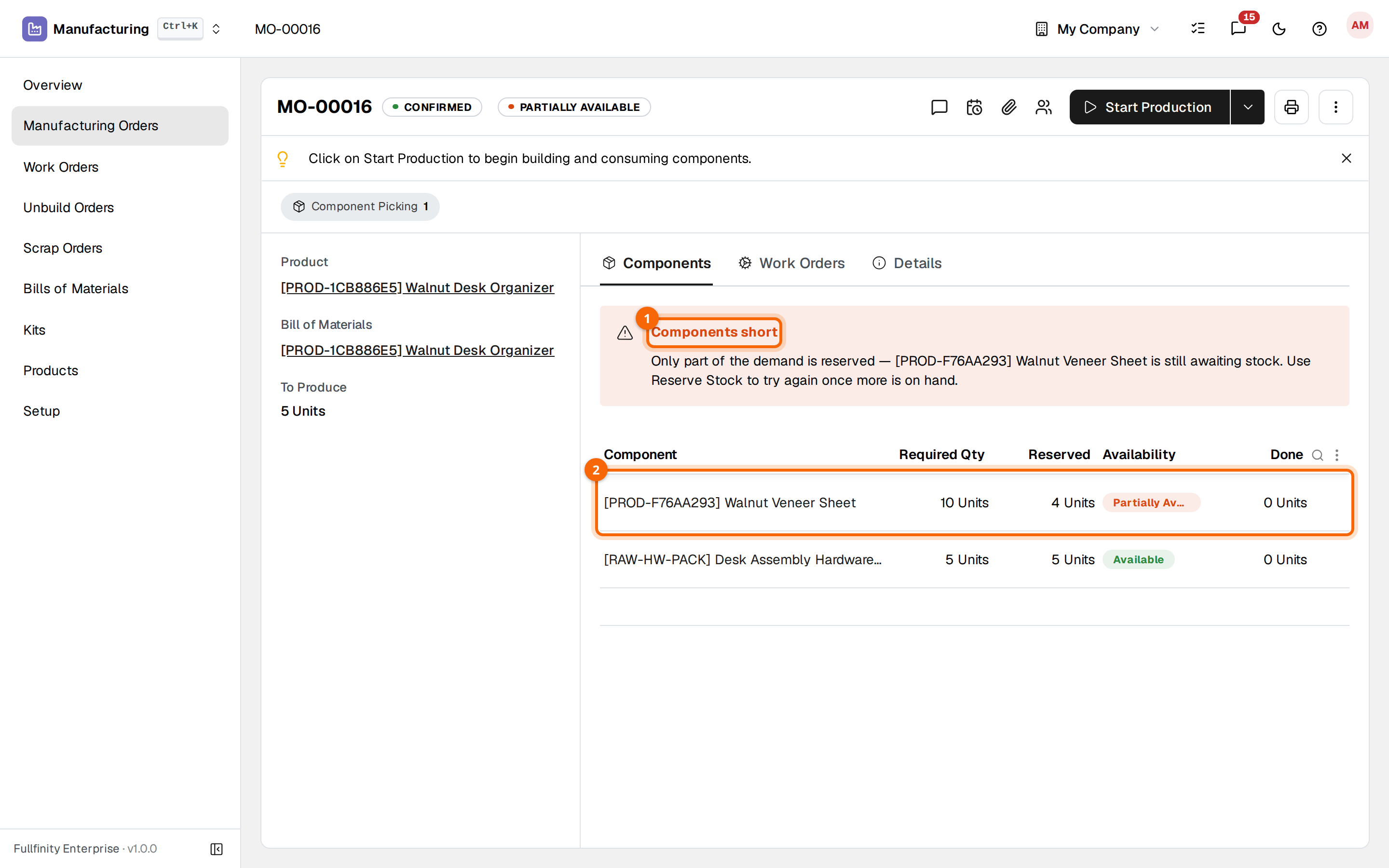
- Receive or move in the missing stock, then click Reserve Stock on the order.
- Or, if you really used less, lower To Consume for that component in the Produce panel.
- Or produce part of the order now — see How do I produce part of an order and finish the rest later?
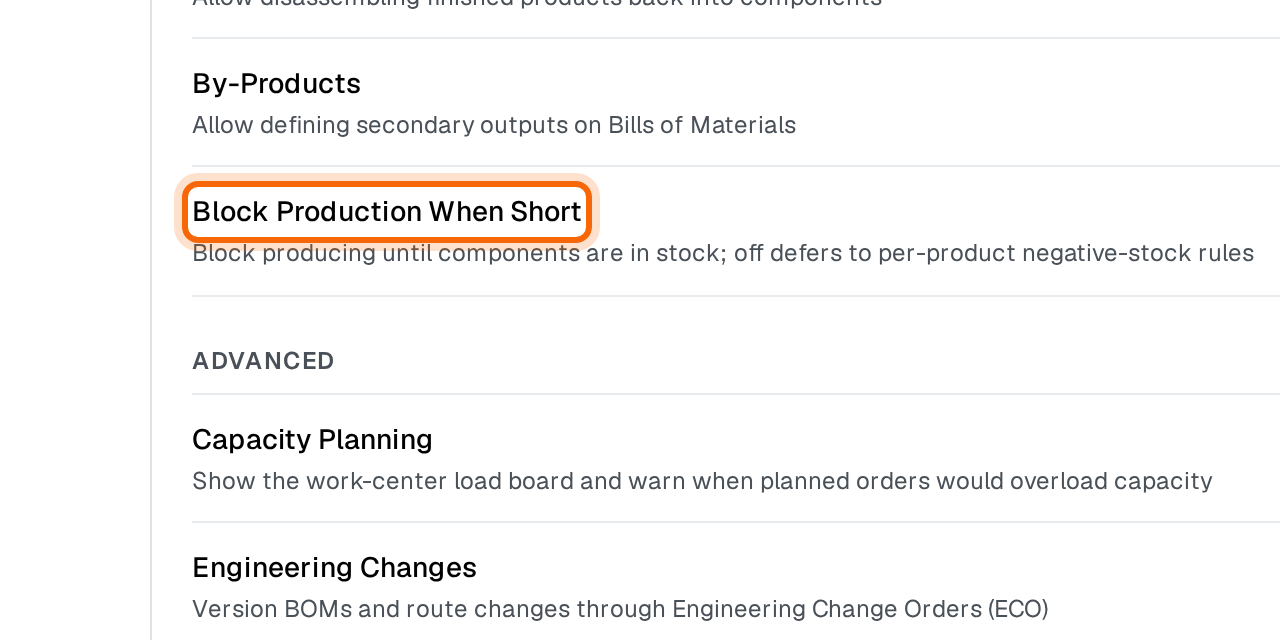
A manager can turn Block Production When Short off in Manufacturing → Setup. Production then goes ahead and a short component goes below zero — but only if its product has Allow Negative Stock on; otherwise it is still refused.
Produce says a component is still on order
A component supplied To Order is only ever taken from the supply bought or made for this order, never from other stock on the shelf. Its row in the Produce panel shows On Order until that supply arrives.
Produce asks for a lot
A lot-tracked component without enough reserved stock needs a lot chosen in its Lot/Serial column. See How do I manufacture with lots and serial numbers?