How do I add operations and work instructions to a bill of materials?
Describe the steps a product is built in, where each happens, how long it takes and what the operator should do.
Operations are the steps a product goes through — cut, assemble, inspect. Each one happens at a work center and becomes a work order on every manufacturing order, so you can plan the time and follow the work.
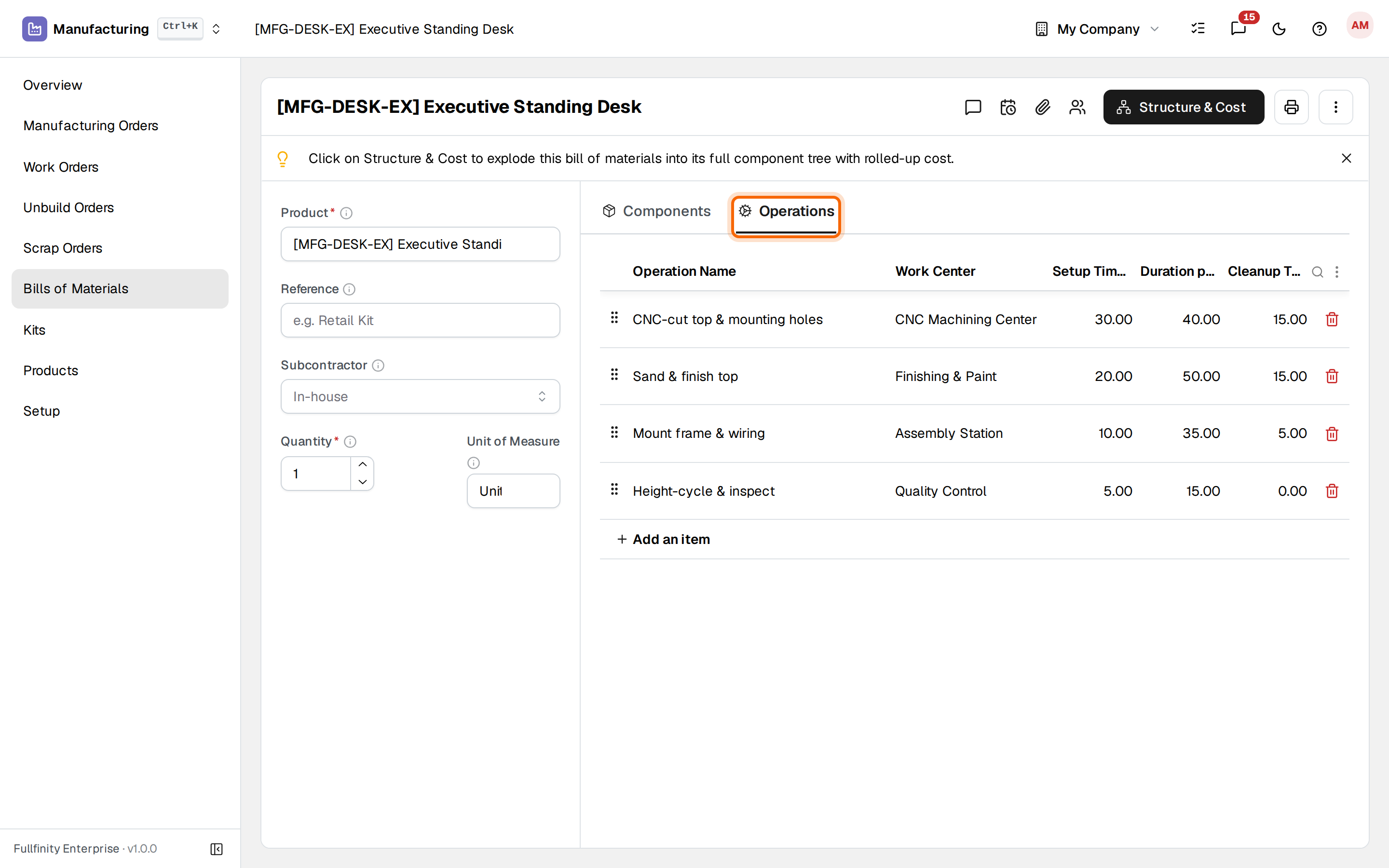
- Open the bill of materials and go to the Operations tab. Click Add an item.
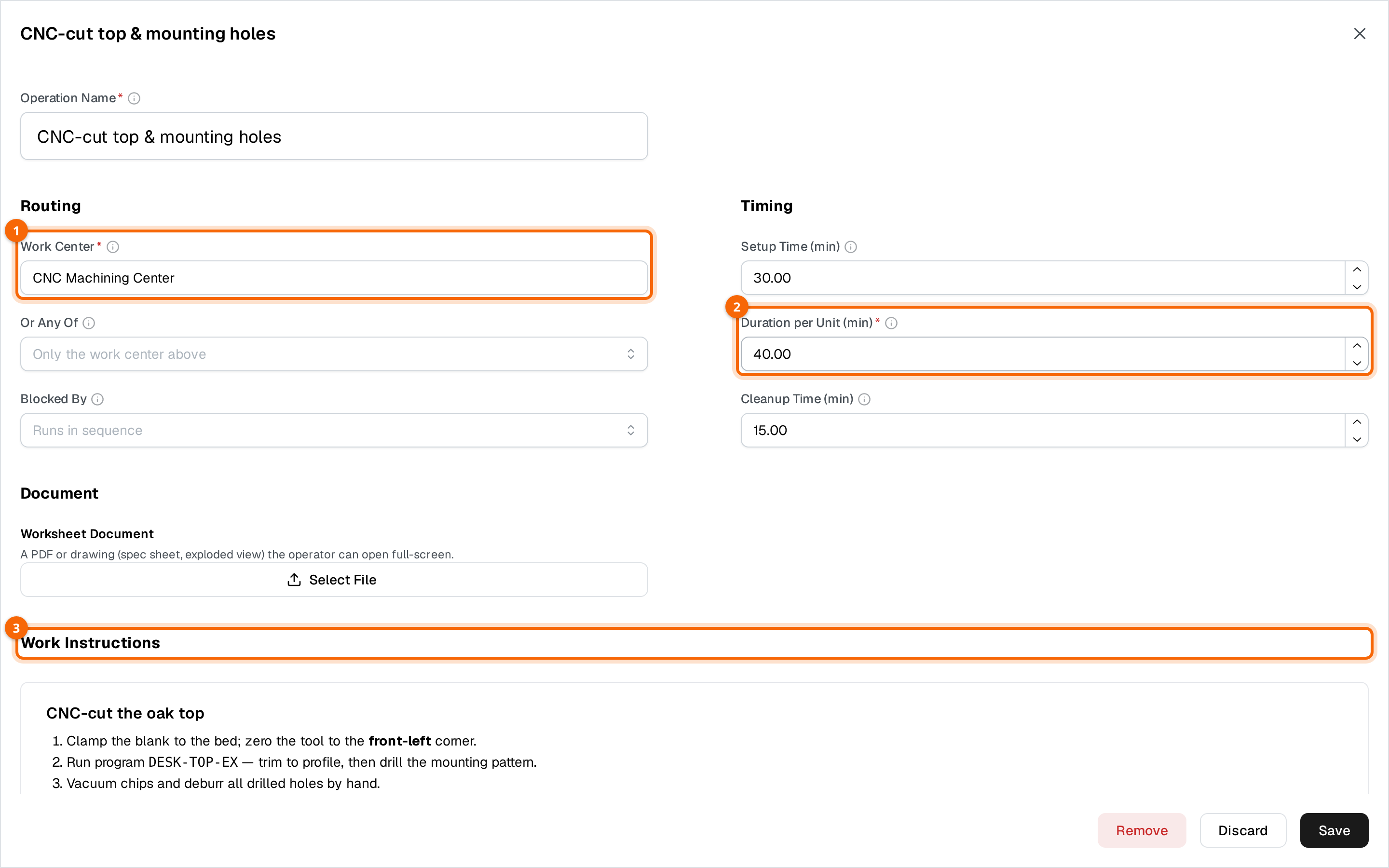
- Enter the Operation Name and choose the Work Center (1).
- Enter the times: Setup Time (min) and Cleanup Time (min) once per run, and Duration per Unit (min) (2) for each unit made.
- Write the steps under Work Instructions (3), or attach a drawing as the Worksheet Document. Operators see them on the work order.
- Click Save. Add the next operation the same way.
Operations run in the order they're listed; drag a row to reorder them.
Steps that run side by side
- Blocked By — name the operations that must finish before this one can start. Once one operation names another, any operation with nothing in Blocked By may run alongside the others.
- Or Any Of — other work centers that can do the same job. Planning gives the operation to whichever is free first.
Consume a component at a step
On the Components tab, set a component's Consumed in Operation to the step that uses it. It is then taken from stock when that work order is marked Done, instead of when the whole order is produced.
Was this article helpful?