How do I create and confirm a manufacturing order?
Say what to build and how many, then confirm the order to set its components aside and plan its work.
A manufacturing order says what to build and how many. Confirming it sets the components aside and, with work orders on, plans each operation.
Create the order
- Go to Manufacturing → Manufacturing Orders and click New — or click New Manufacturing Order on Manufacturing → Overview.
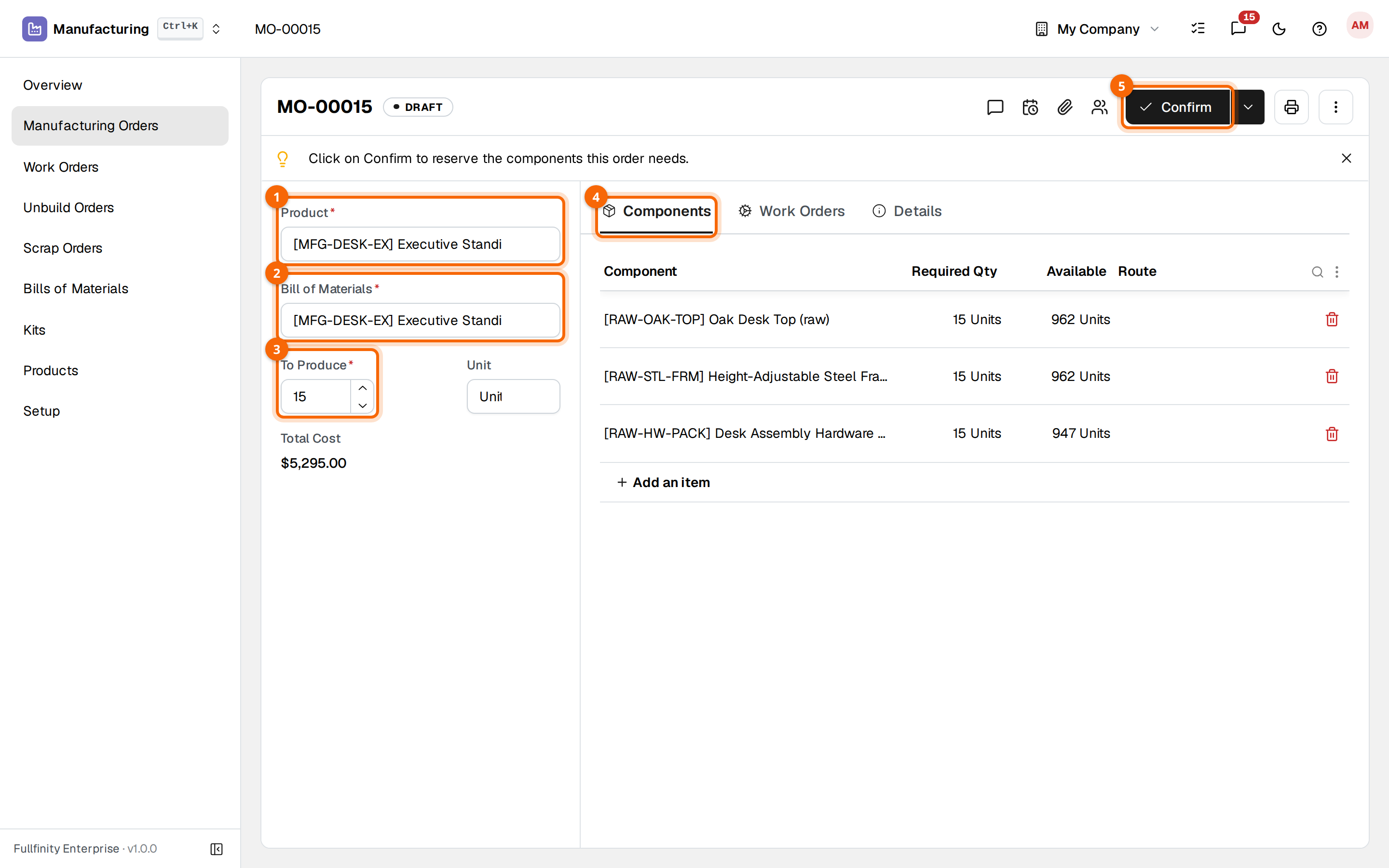
- Choose the Product (1). Only products with a bill of materials are offered, and their bill fills in the Bill of Materials (2).
- Enter how many To Produce (3). The Components tab (4) shows what that takes, and how much of each is Available.
- Optionally, on the Details tab, set the Deadline the goods are needed by and the Scheduled Start.
- Click Confirm (5).
What confirming does
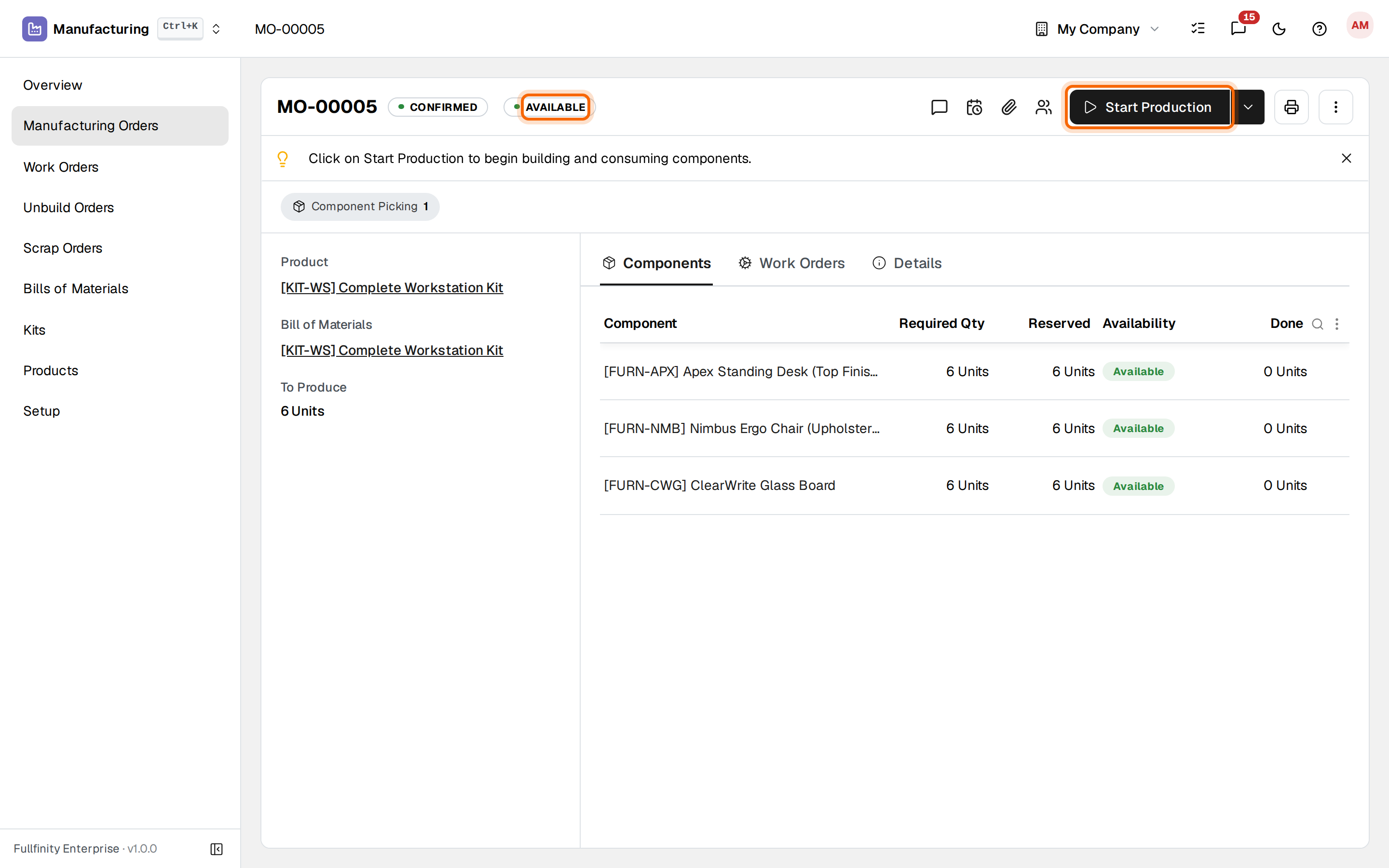
- The order becomes Confirmed and its components are reserved. The badge beside the status says whether all of them are: Available, Partially Available or Awaiting Stock.
- A Component Picking button opens the transfer that brings the components to production.
- With work orders on, the Work Orders tab lists one work order per operation.
- A component made in-house and supplied On Demand raises its own manufacturing order for what's missing; open it from Child MOs.
Change or cancel
Only a Draft order can be edited. To stop one, open the order's action menu and click Cancel: its components are released. A cancelled order can be reopened with Set to Draft.
Was this article helpful?