How do I lock a period so nothing more posts into it?
Set a lock date so entries on or before it can no longer be posted or cancelled — after you close a month or file a tax return.
Once a month is closed or a tax return filed, the figures must stay as they are. A lock date makes sure they do: no journal entry dated on or before it can be posted or cancelled, whichever document it comes from.
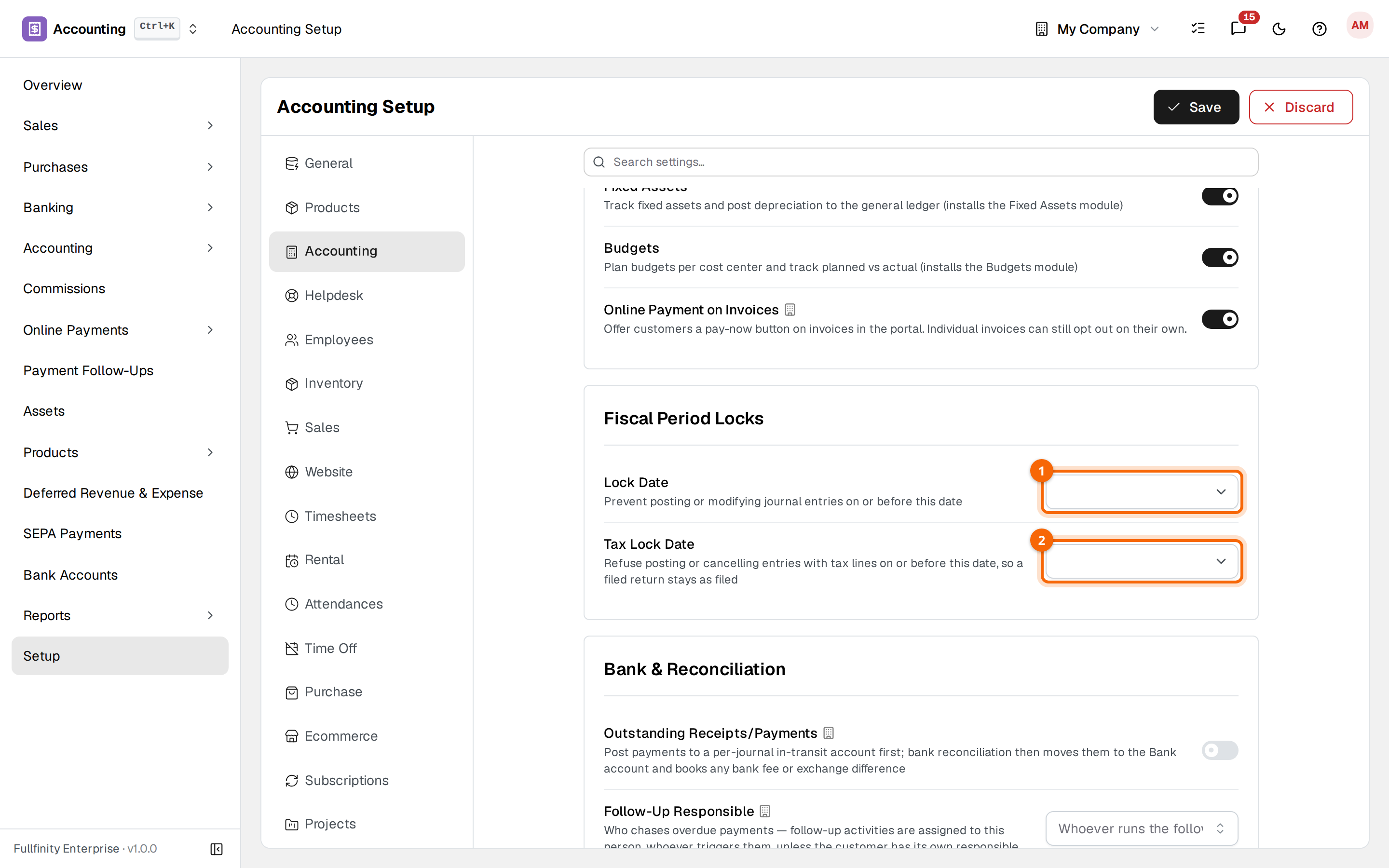
Set the lock dates
- Click Setup in the left menu and stay on the Accounting tab.
- Under Fiscal Period Locks, set Lock Date — the last day of the period you've closed, such as the last day of last month.
- Set Tax Lock Date — the last day of the period covered by your last tax return.
- Click Save.
What the lock stops
- Posting an invoice, bill, payment or journal entry dated on or before the lock date.
- Cancelling one dated on or before it — taking it out of closed books changes them just as much.
The Tax Lock Date is checked separately, and only for entries with tax on them — invoices, bills and journal entries with tax lines, the figures a tax return is built from. An entry without tax, such as a bank fee or a salary accrual, can still be posted into a tax-locked period; the Lock Date is what closes those. So you can lock tax up to the end of the last quarter while the books stay open until the end of last month — or the other way round.
Drafts dated in a locked period can still be edited; they just can't be posted until you change their date. Anything already posted stays exactly as it is.
Related: Why can't I post into this date? · Close the month