How do I set up payment follow-up levels?
Decide when overdue customers are reminded, whether the email goes out on its own, and who is given the task of chasing them.
Follow-up levels are the steps you take with a customer who hasn't paid: a friendly reminder, a firmer one, a final warning. Each level says how many days after the due date it starts and what it does — send an email, create a task for someone, or both.
1. Open the follow-up levels
Click Setup in the left menu. On the Accounting tab, click Follow-Up Levels in the Setup panel.
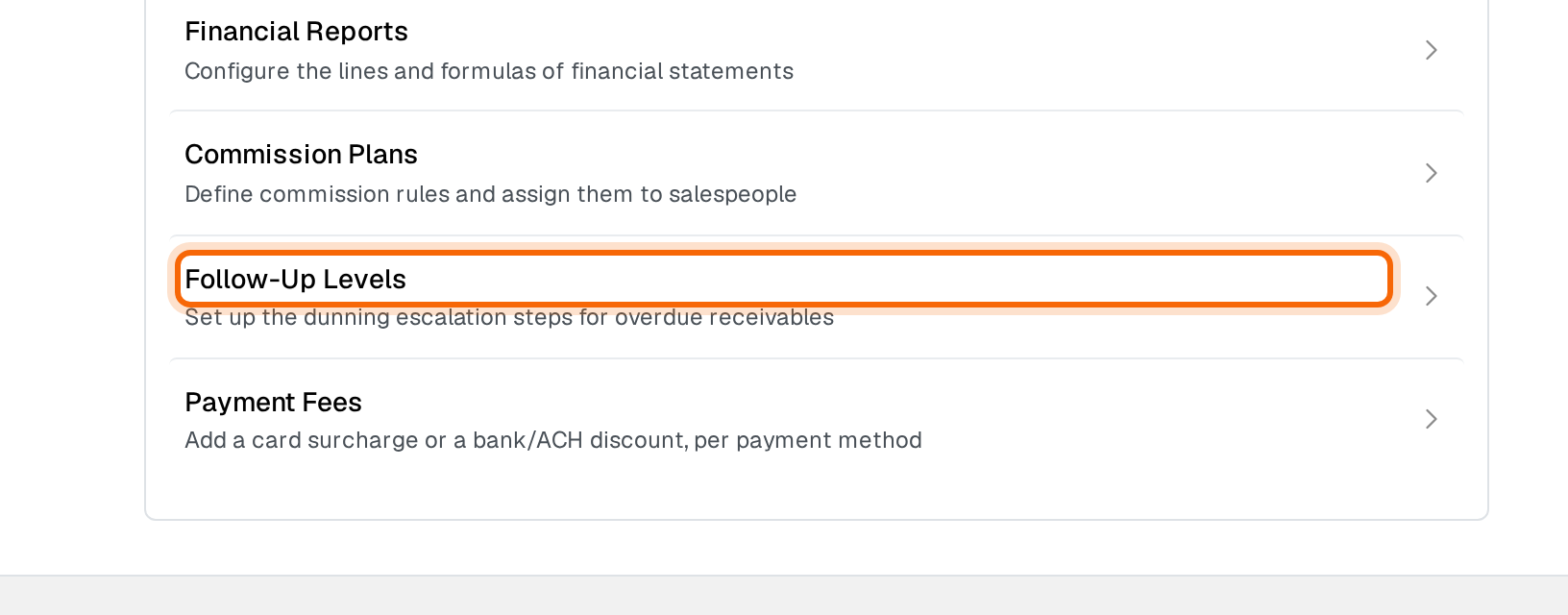
Three levels come ready to use: First Reminder (15 days after the due date), Second Reminder (30 days) and Final Warning (60 days). Change them, switch one off by archiving it, or click New to add your own.
2. Set what a level does
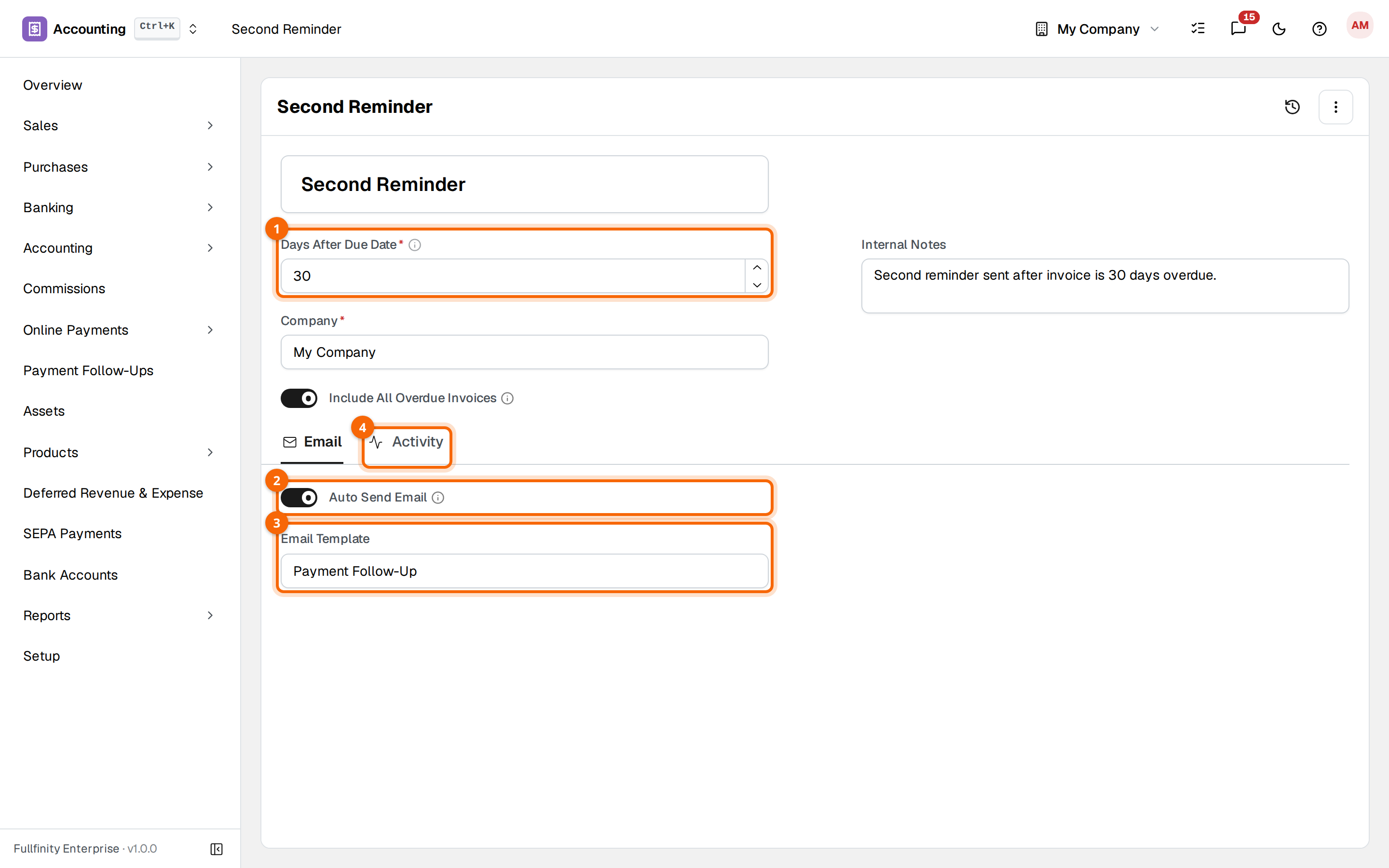
- Days After Due Date — when the level starts, counted from the due date of the customer's oldest overdue invoice.
- Auto Send Email — on: the reminder is emailed automatically by the daily follow-up run. Off: the customer waits on the worklist until someone clicks Process.
- Email Template — the email that's sent. The shipped Payment Follow-Up template states the customer's outstanding balance and how many days the oldest amount is overdue. Below it, the email lists the overdue invoices.
- Include All Overdue Invoices — on: the email lists every overdue invoice. Off: only the invoices overdue long enough to have reached this level — a Final Warning at 60 days then names just the invoices that are 60 days late.
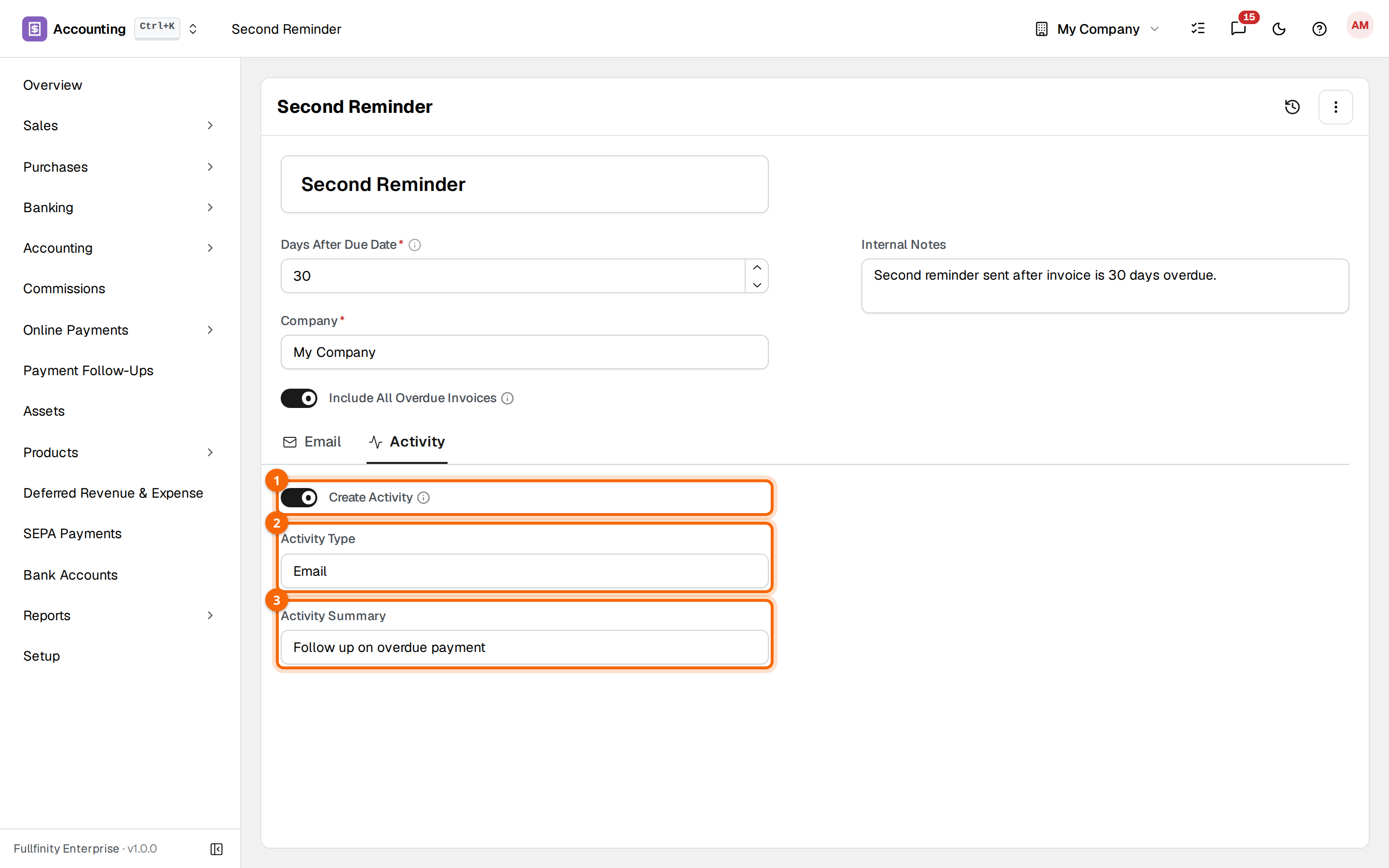
- Activity tab — to give someone a task as well.
On the Activity tab, switch on Create Activity and choose the Activity Type and Activity Summary. The activity is put on the customer, due three days later.
Levels run in order of their Days After Due Date. A customer whose oldest invoice is 45 days overdue is at Second Reminder (30 days) and moves to Final Warning at 60.
3. Choose who chases payments
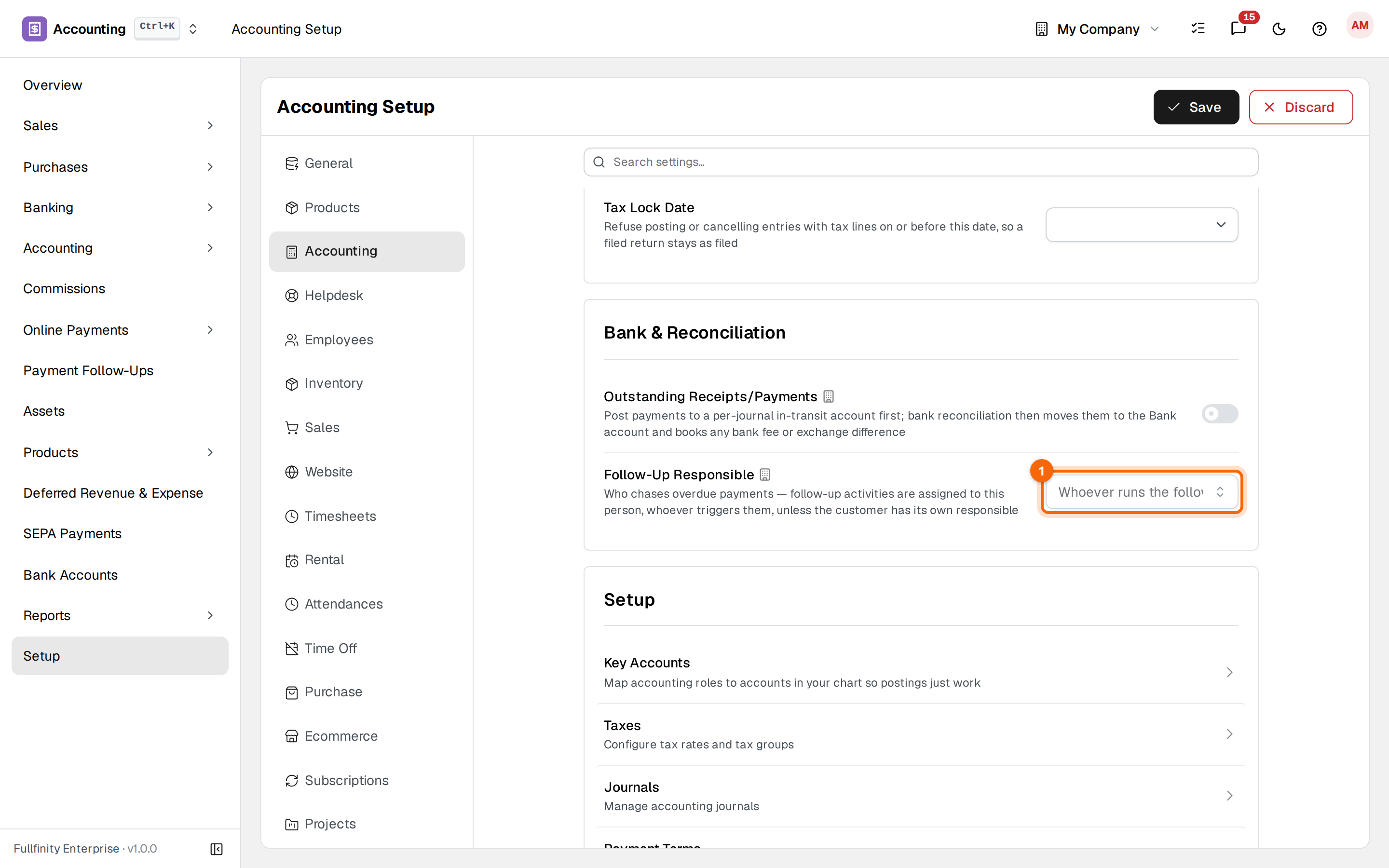
Back on the Accounting tab of Setup, set Follow-Up Responsible under Bank & Reconciliation. Every follow-up activity is assigned to this person, whoever runs the follow-up. Left blank, it goes to whoever clicks Process — or, for the daily run, to the system user. Click Save.
A customer can have its own: set Follow-Up Responsible on the customer's form, on the Invoicing tab. Activities for that customer go to that person instead.
Related: Send payment follow-ups