How do I reconcile my bank account?
Match each bank statement line to the payment it is, book bank charges and other lines straight to an account, then mark the statement reconciled.
Reconciling proves that your books and your bank agree. Each line on the bank statement is either the bank's side of a payment you've already recorded — so you match it to that payment — or something only the bank knows about, such as a fee, which you categorize to an account. When every line is done, the statement is reconciled.
1. Open the reconciliation screen
- Go to Banking → Bank Reconciliation.
- Choose the bank journal in the first box.
- Optionally pick a Period, and show only Unmatched lines.
- Click Auto-Match to let Fullfinity match what it's sure of.
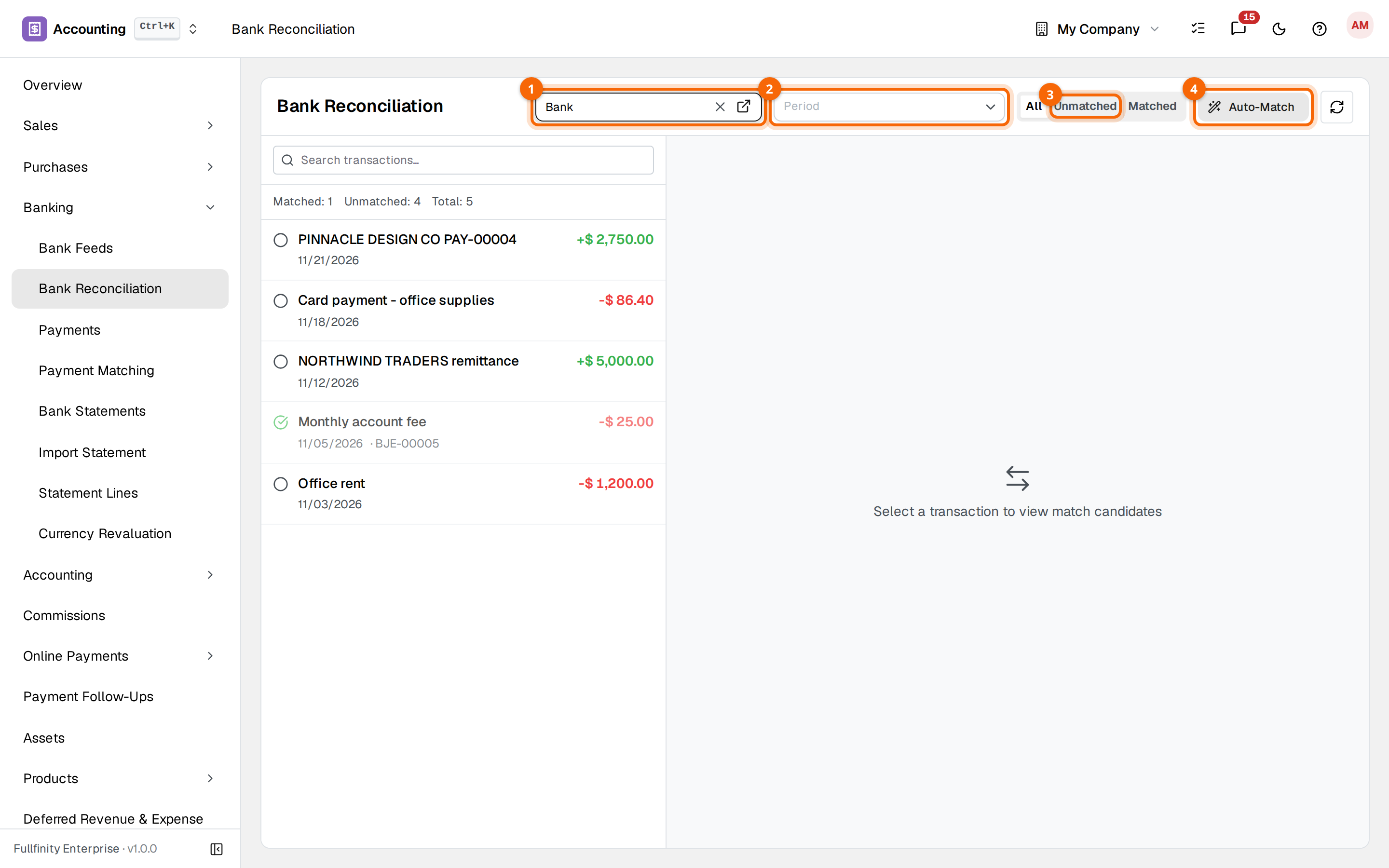
Auto-Match matches a line to a posted payment of exactly the same amount on that journal: first where the contact is the same, then where the line's description or reference contains the payment's number, then on amount alone. A payment is used once. Lines it matches turn green; the count of matched and unmatched lines is at the top of the list.
2. Match a line by hand
Click an unmatched line. The right-hand panel shows Match Candidates: posted payments on the same journal that aren't matched yet, best first, with a score for how closely the amount, contact, date and reference agree. Tick the payment that this line is and click Match Selected.
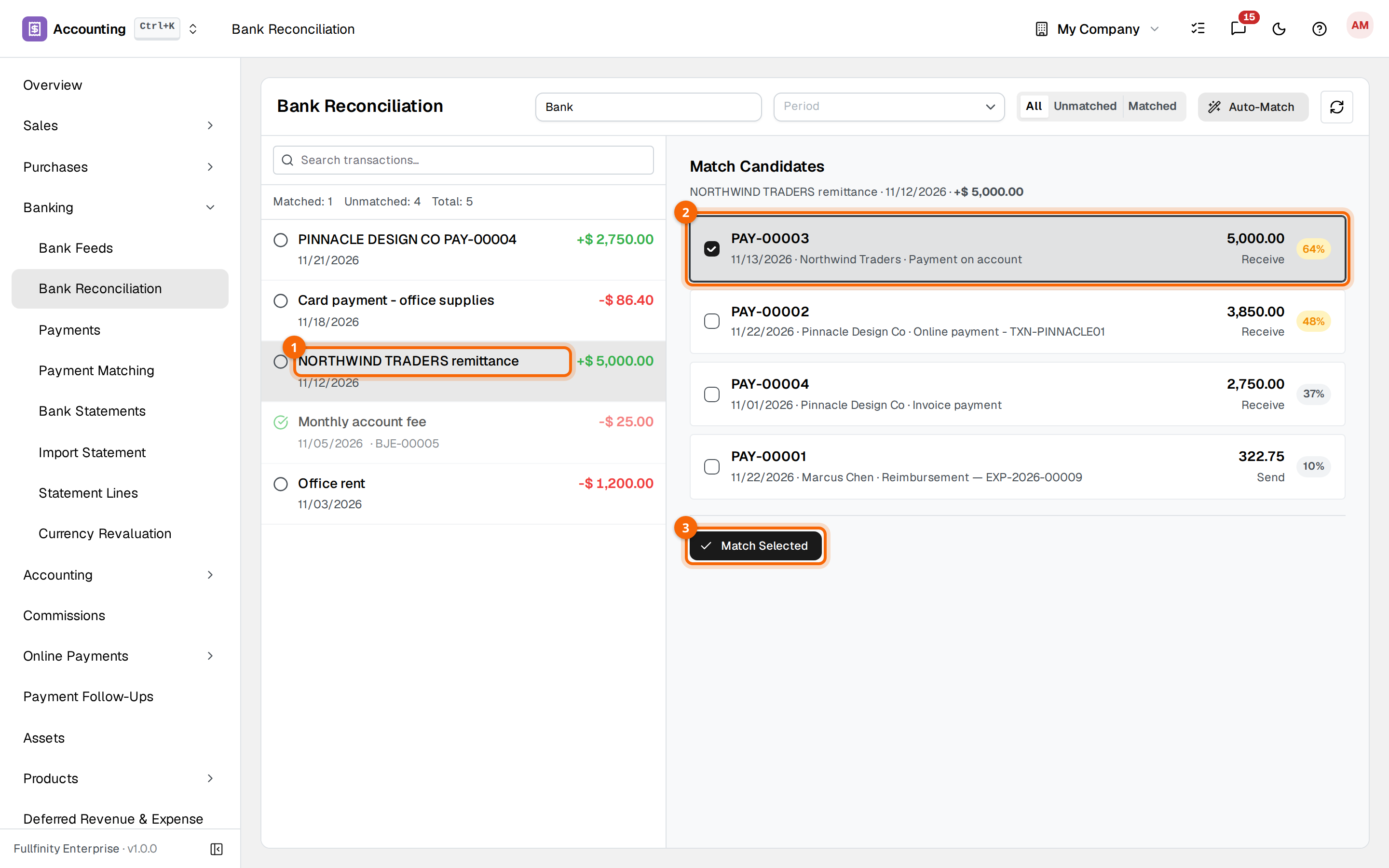
If the amounts differ slightly — the bank took a fee from a transfer, or an exchange rate moved — the panel says so, and the difference is booked to your bank charges account when you match.
3. Categorize lines that aren't payments
Bank fees, interest, a card purchase you haven't entered as a bill — these have no payment to match. Book them straight to an account, right on the reconciliation screen:
- Click the unmatched line.
- Under No payment behind it? in the right-hand panel, choose the Account — the income or expense account, such as Bank Charges. Add the contact if there is one.
- Click Categorize.
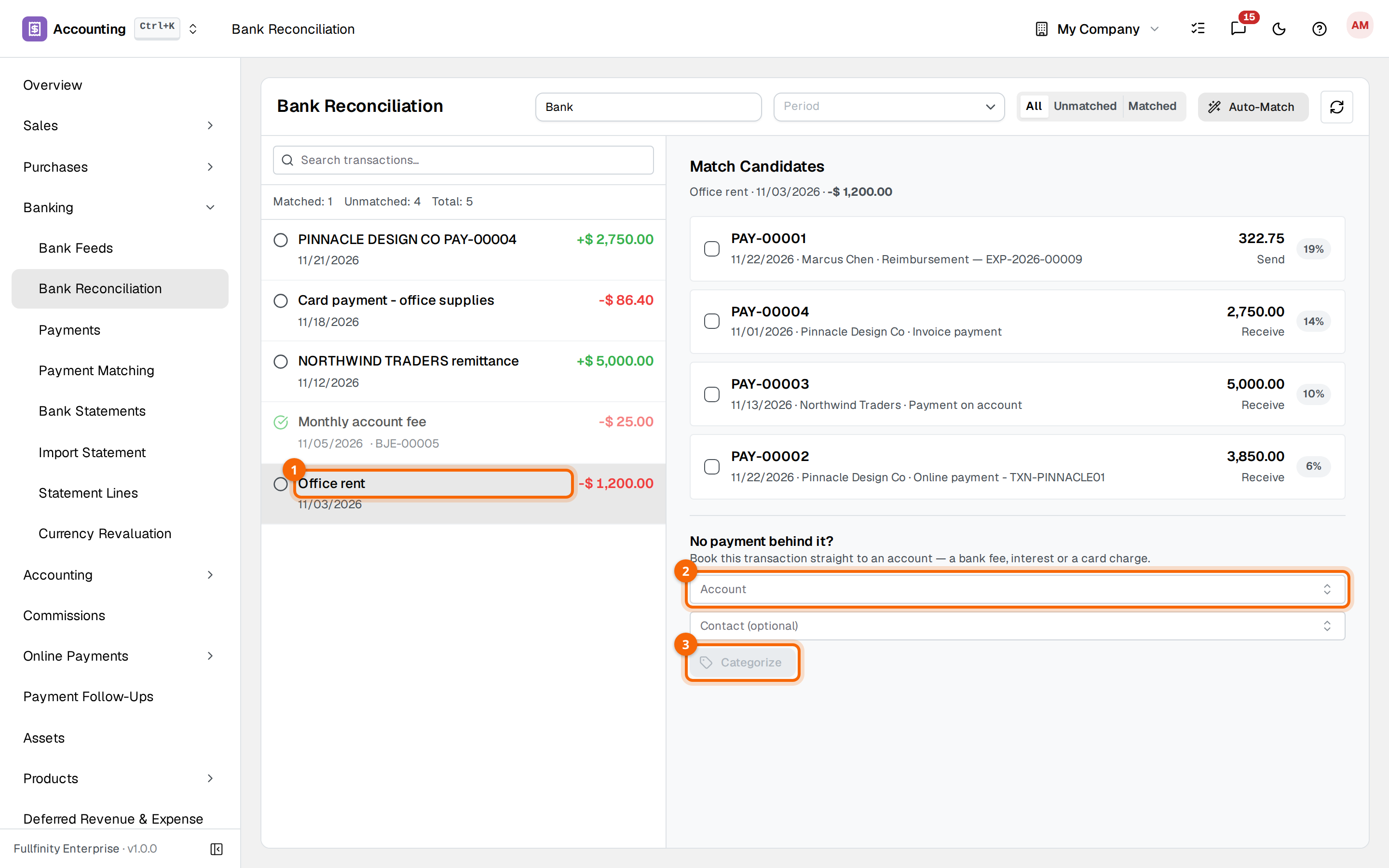
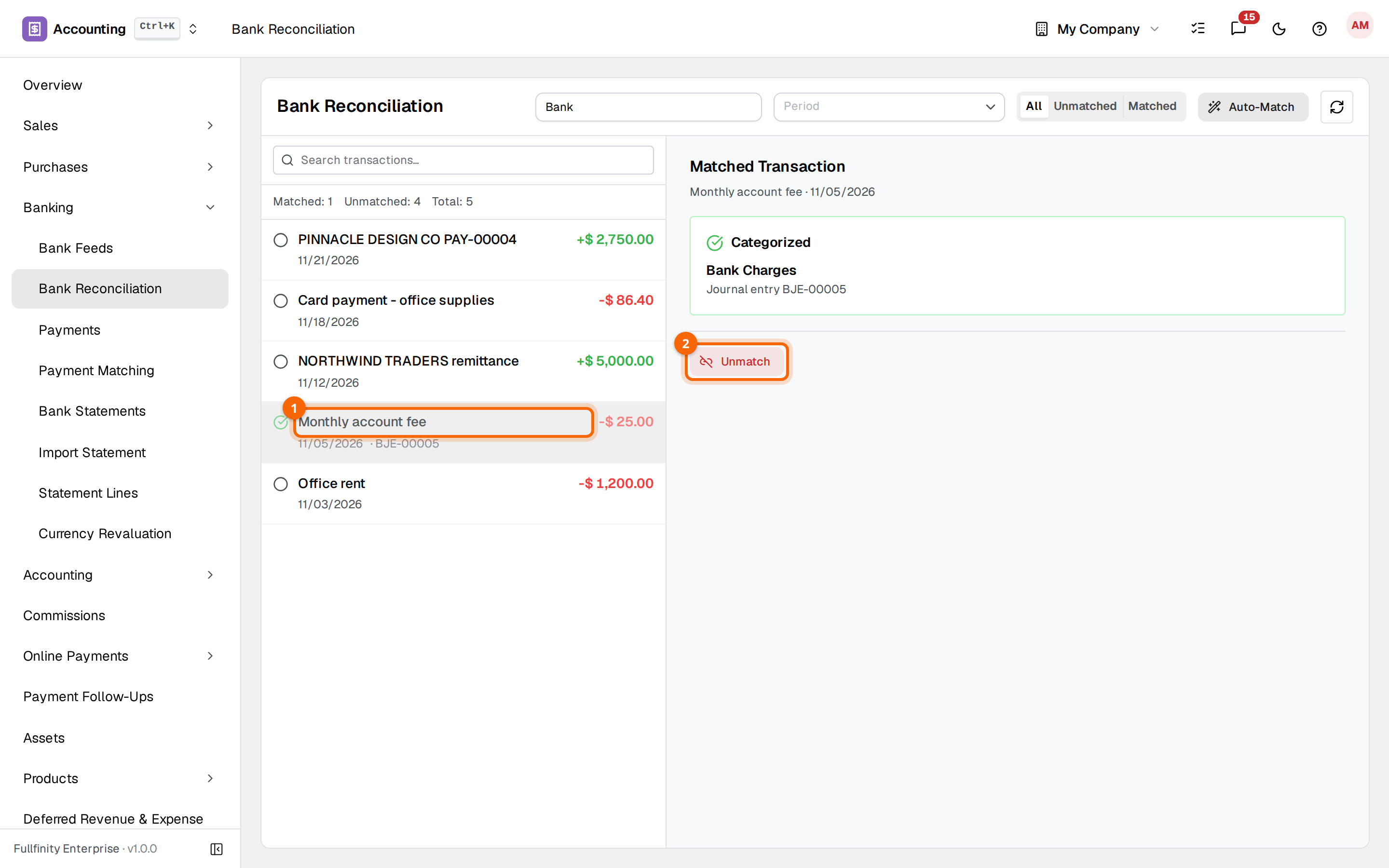
Fullfinity posts a journal entry between the bank account and that account, and the line becomes Matched. Clicking it shows Categorized, with the account and the journal entry.
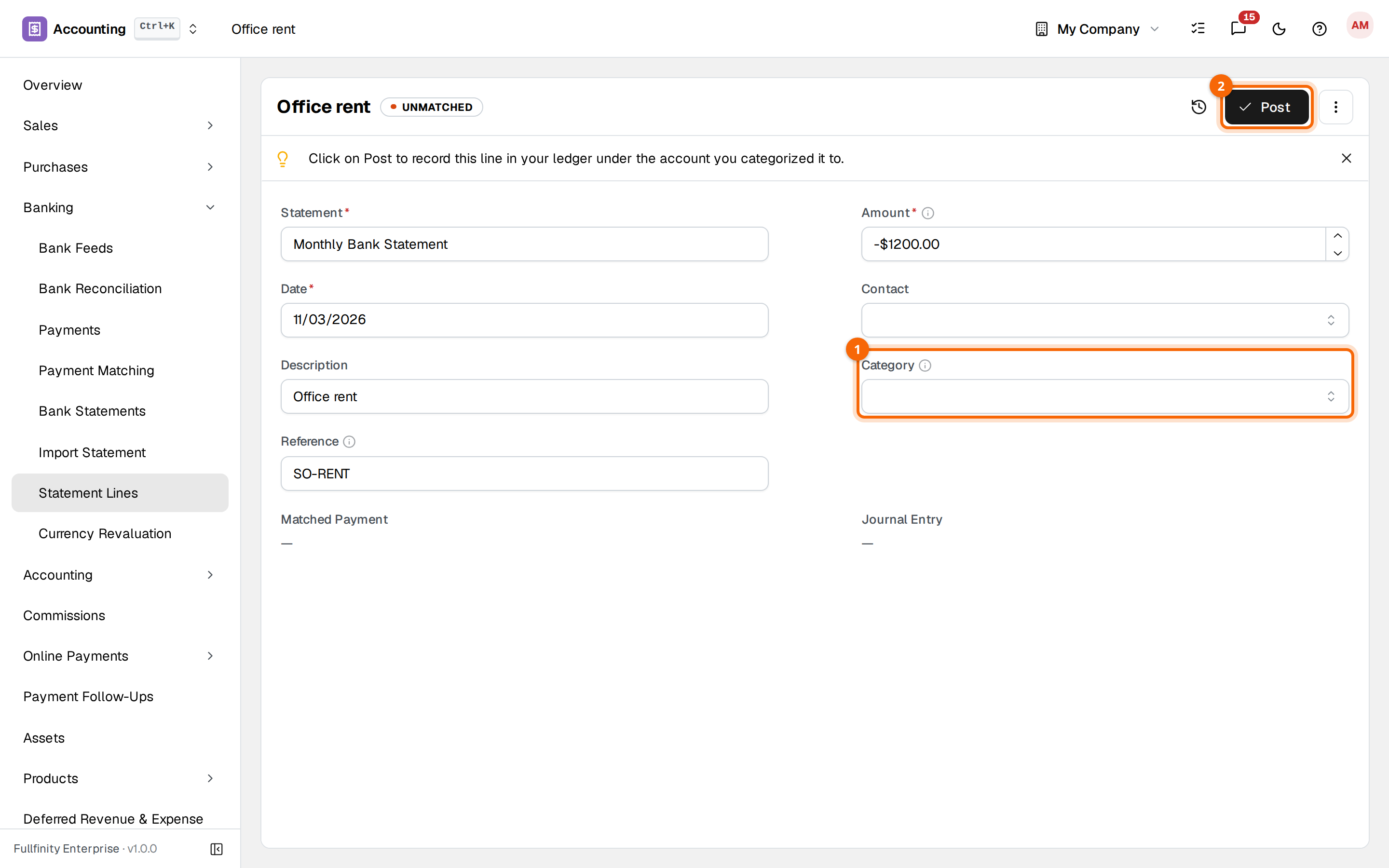
You can do the same from the line itself: go to Banking → Statement Lines, open the line, set Category and click Post.
4. Undo a match
Click the matched line on the reconciliation screen and click Unmatch. For a line matched to a payment, the match is removed and the payment can be matched again. For a categorized line, its journal entry is cancelled. Either way the line is Unmatched again.
5. Mark the statement reconciled
Open the statement from Banking → Bank Statements. When every line is matched, click Mark Reconciled; the statement moves to Reconciled. If a line is still unmatched, Fullfinity says how many are left. Reset to Draft reopens a statement.
Before you do, compare its balances — see Why doesn't my bank balance match?
Related: Match payments to invoices