How do I match payments to the invoices they pay?
For one customer or vendor, settle open invoices against the payments and credit notes that pay them, and write off a small difference.
A payment recorded on account, a credit note, or a payment that covered several invoices can leave invoices showing as unpaid while the money is already there. Payment Matching lists one customer's or vendor's open items side by side so you can settle them against each other.
1. Choose the contact
- Go to Banking → Payment Matching.
- Choose the customer or vendor in the first box.
- Optionally narrow it to one control account (receivable or payable) in the second box.
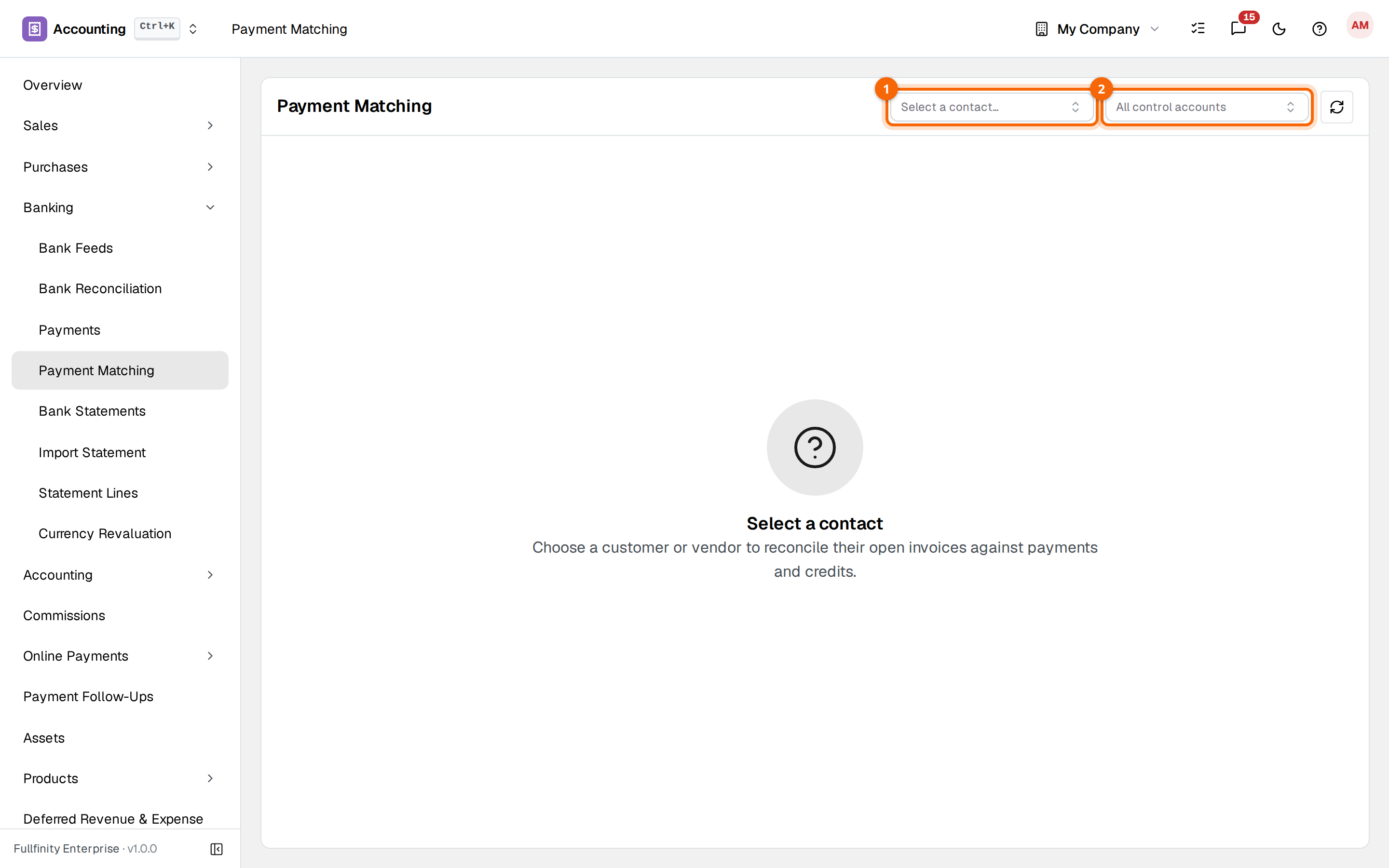
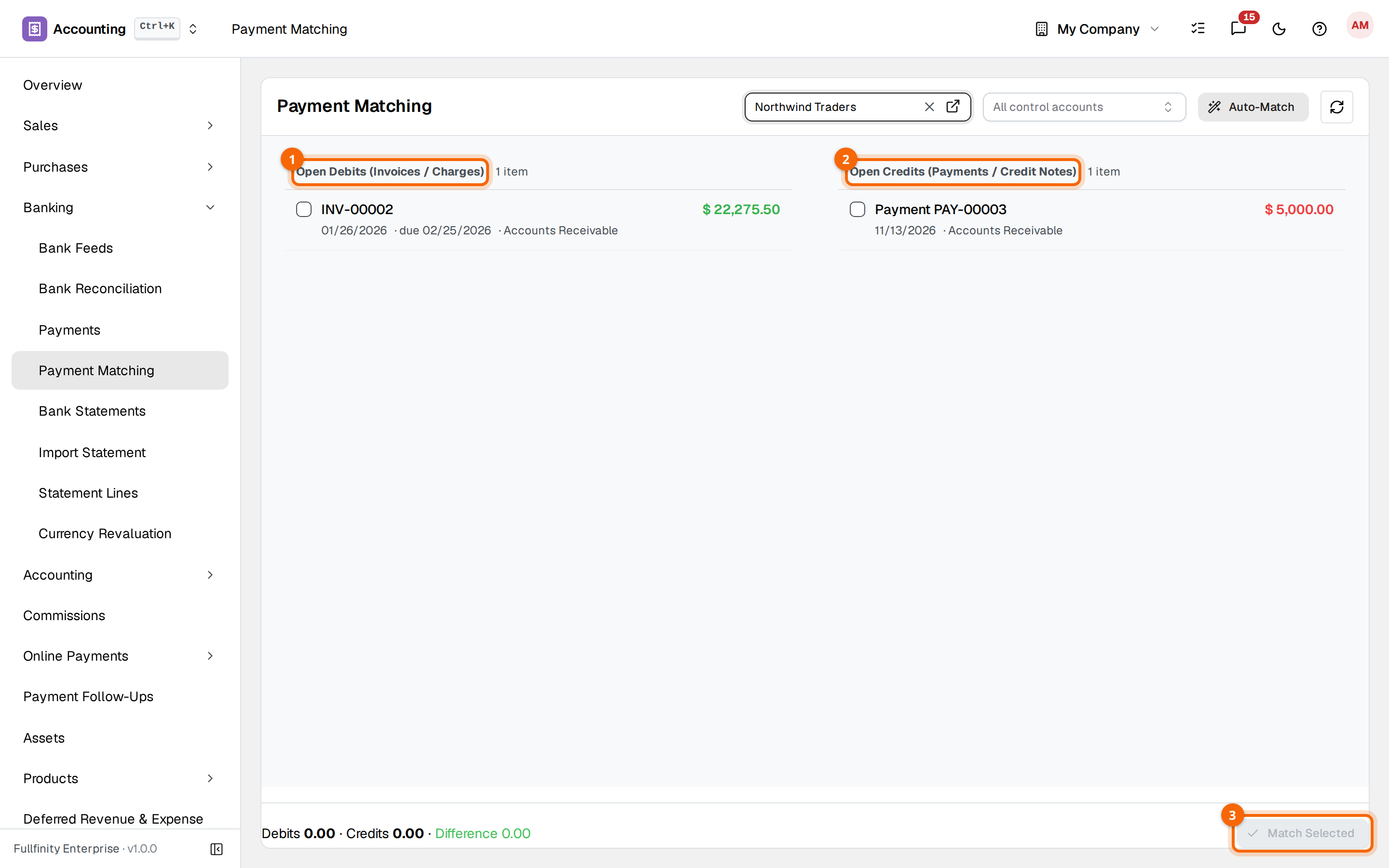
The left panel lists what they still owe (invoices and charges, with their due dates) and the right panel what they've paid or been credited (payments and credit notes), each with its amount still open.
2. Match them
- Auto-Match settles everything it can for this contact, oldest first, within each control account, and tells you the amount reconciled. A difference that's left stays open.
- To choose yourself, tick items on both sides. The bar at the bottom shows the debits, the credits and the difference. Click Match Selected.
Matched invoices become Paid or Partially Paid straight away.
3. Write off a small difference
When the invoices you ticked add up to more than the payments — a customer short-paid by a few cents, or deducted a bank fee — choose an account in Write off difference to…. The button becomes Match & Write Off: the invoices are settled in full and the difference is booked to that account.
Related: Record a customer payment · Apply a credit note