How do I set up a forum on my website?
Create a forum, choose whether it is a discussion board or a Q&A, who can read and post, and how closely posts are reviewed.
The forum lives on your website at /forum. It can hold several forums side by side — a support Q&A, an open community board, an announcements channel — and each one has its own rules. Installing the app adds a Forum link to your website's menu.
1. Create the forum
Go to Forum → Forums and click New.
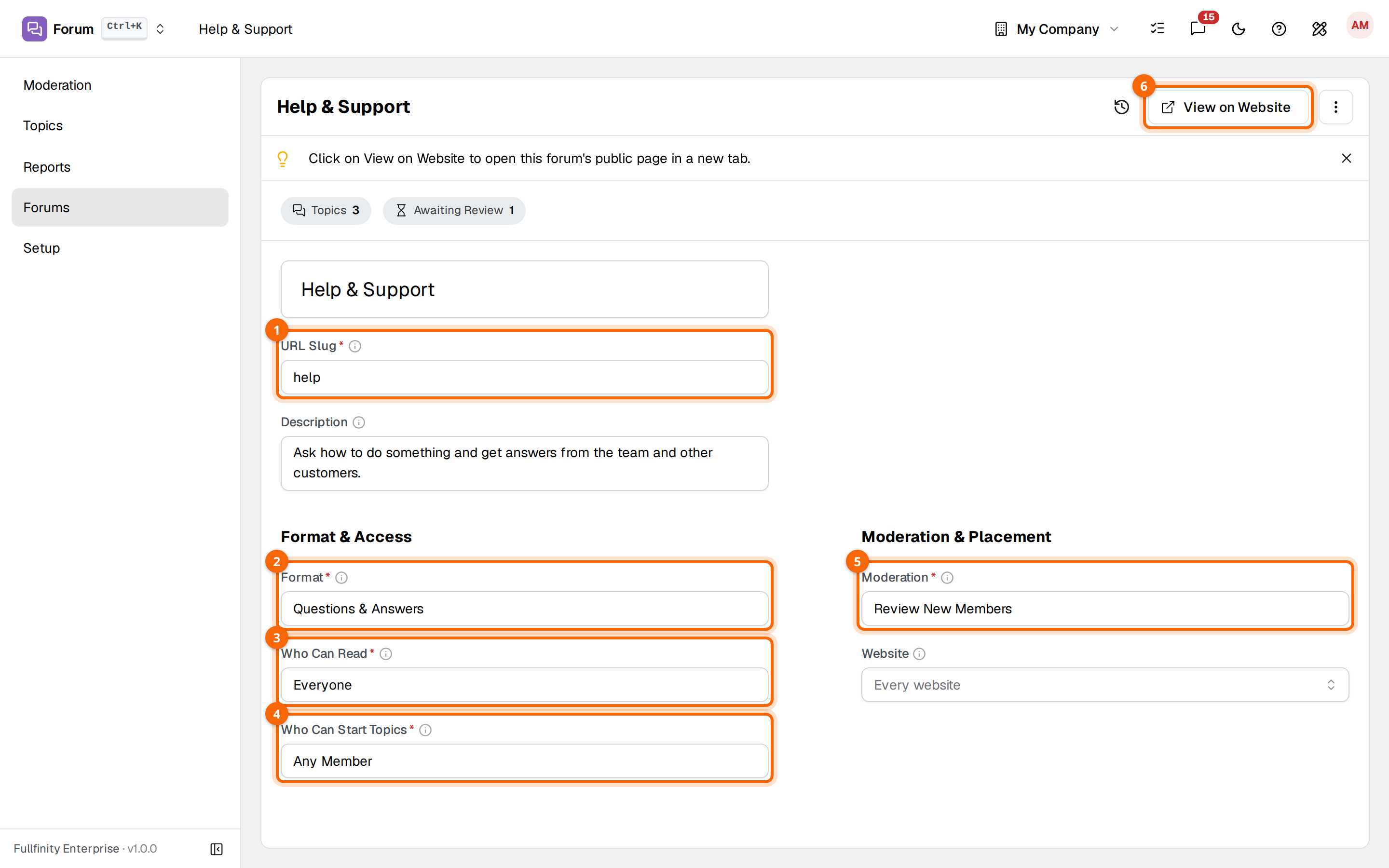
- Give it a name and a Description — shown under the name on the forum page. The URL Slug is its address (/forum/support); it is made from the name and doesn't change if you rename the forum later.
- Format:
- Discussions — replies read top to bottom in the order they were written. Members can like posts.
- Questions & Answers — replies are answers. Members vote them up or down, and the person who asked marks the one that solved it. See How do votes and accepted answers work?
- Who Can Read — Everyone, or Signed-in Members. A members-only forum is kept off the public site and out of search engines; a visitor who opens its link is asked to sign in.
- Who Can Start Topics — Any Member, or Moderators Only for an announcements board. Members can still reply.
- Moderation:
- Publish Immediately — every post appears at once.
- Review New Members — a member's posts wait for a moderator until one of them has been approved; from then on, they are trusted in every forum.
- Review Every Post — every post waits for a moderator.
- View on Website opens the forum's page in a new tab.
Leave Website empty to show the forum on all your websites, or pick one. Save.
2. Arrange the forums
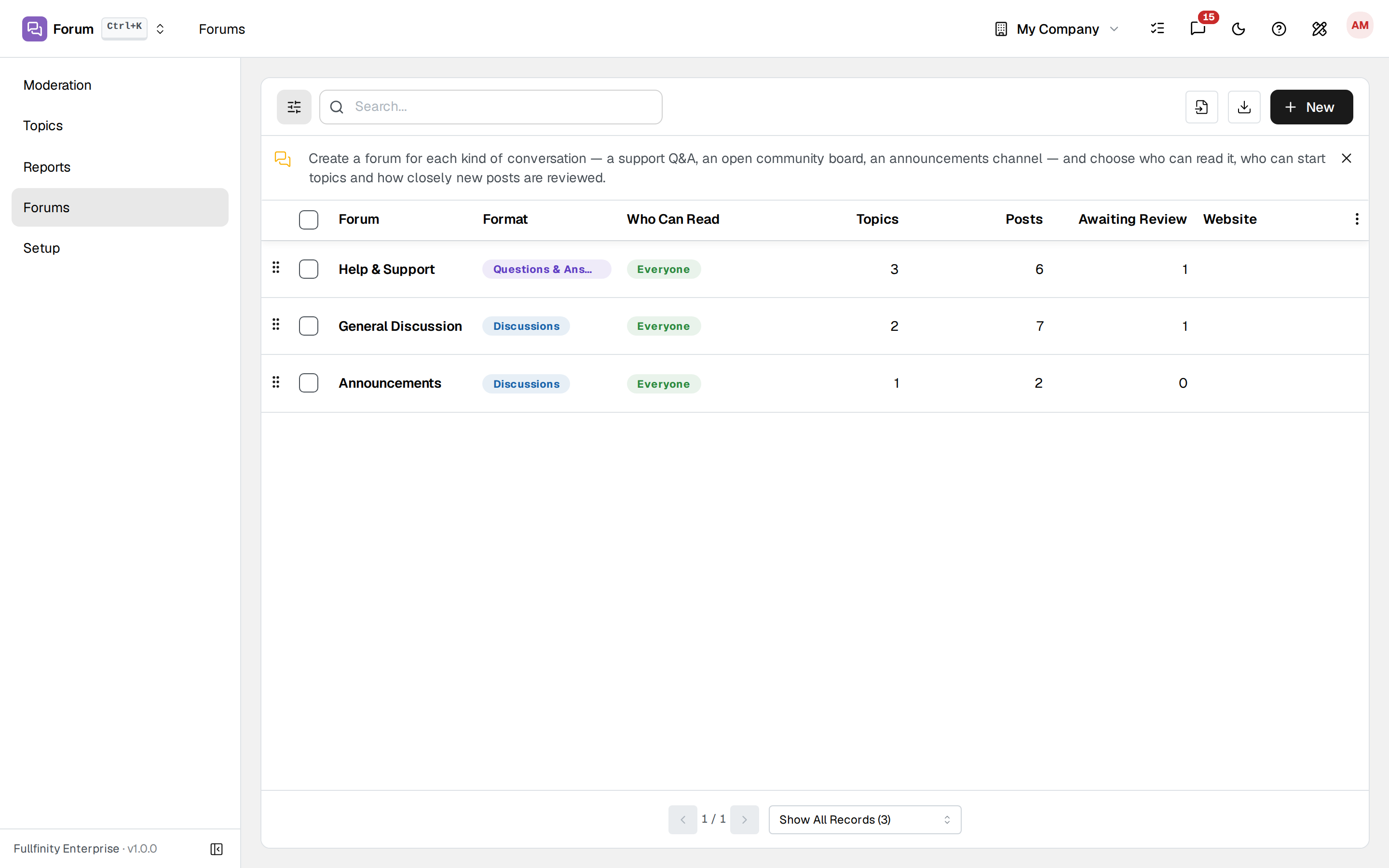
The Forums list shows each forum's Topics, Posts and posts Awaiting Review. Drag the rows to set the order they appear in on /forum. On a forum, the Topics button lists its topics. To retire a forum without losing its topics, archive it from the record's menu.
3. The forum page
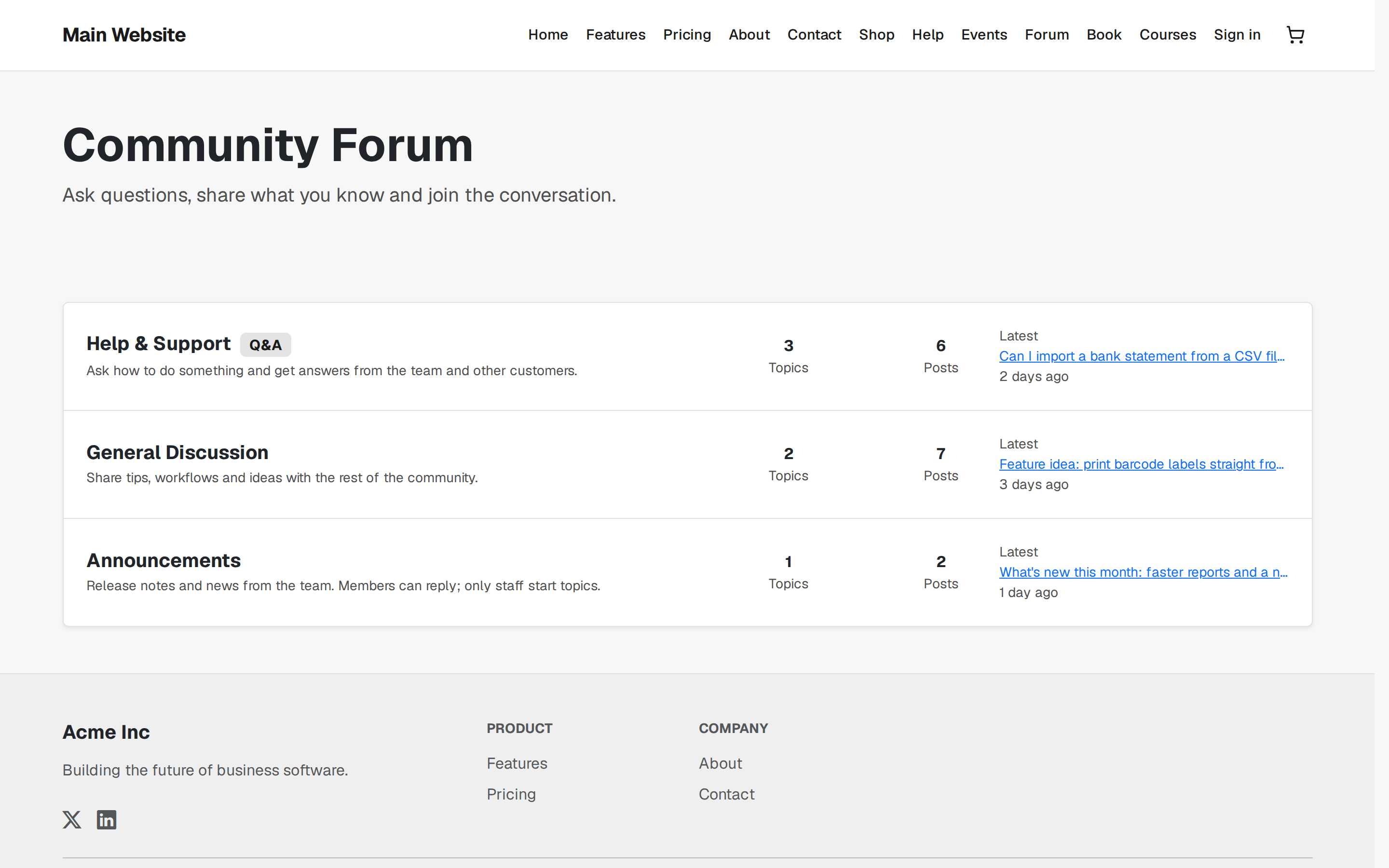
The /forum page lists your forums with their latest topic. It is an ordinary page of your website: open it in the page builder to change its heading or add sections around the list — see How do I edit my pages with the page builder?