How do I schedule a meeting?
Put a meeting on the calendar with a time, a place or video link, and the people coming.
A meeting is a time on the calendar with a title, a place (a room or a video link) and the people you are meeting. You are its organizer; the people you add as attendees see it on their calendar too.
1. Pick a time on the calendar
Open Meetings. It opens on the calendar, with the hours outside your working schedule shaded. Click a free slot (or drag across several) and a short form opens right there: give the meeting a title, check the Start Time and End Time, add the Attendees and save. That is all a meeting needs.
For everything else, open the meeting — or click New to start from the full form.
2. Fill in the meeting
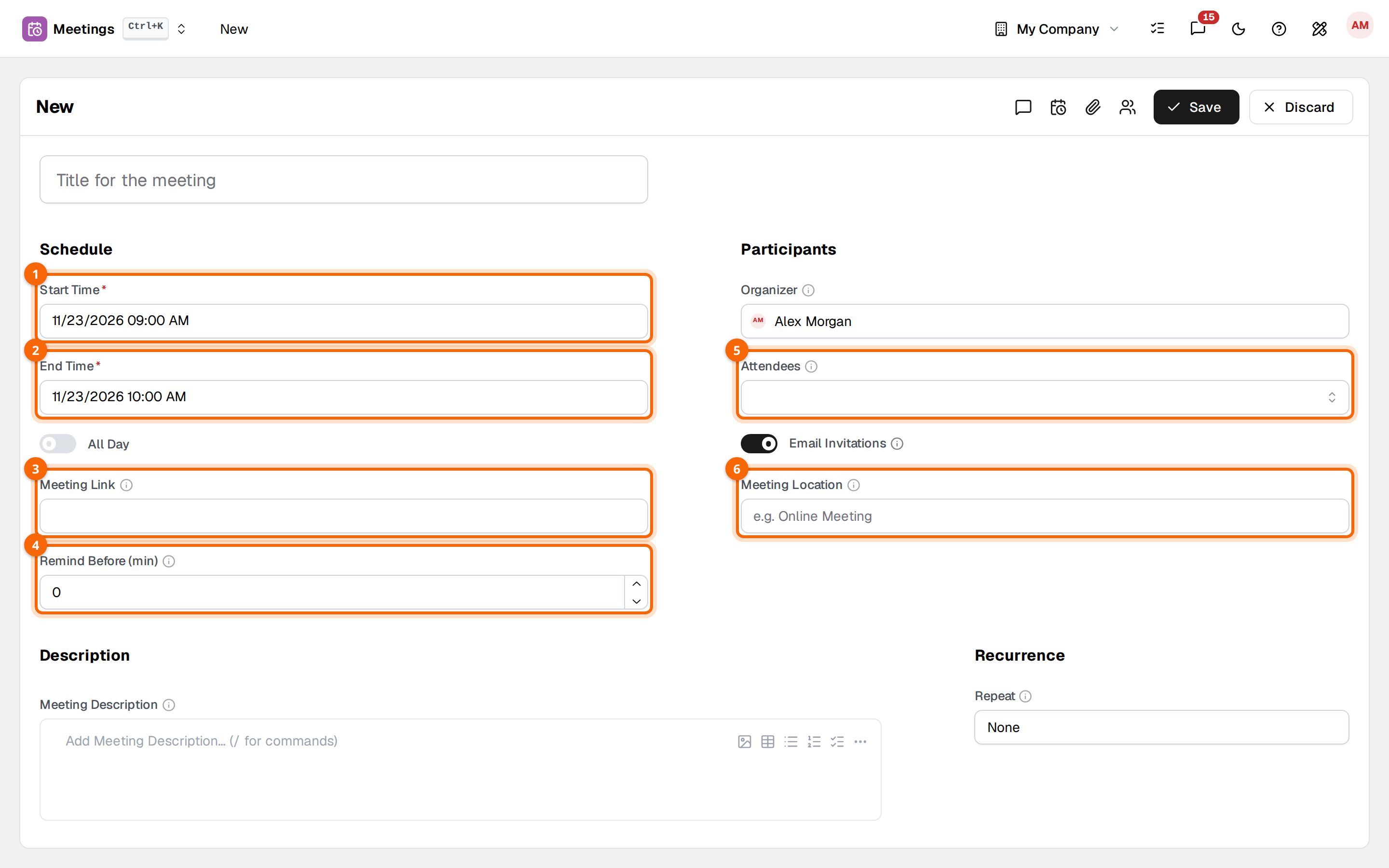
- Start Time — a new meeting starts at the next half hour.
- End Time — an hour after the start unless you change it. Move the start later than the end and the end follows it.
- Meeting Link — the video call address, if you meet online. It goes into the reminder email.
- Remind Before (min) — email the attendees this many minutes before the start. Leave it at 0 for no reminder. See How do I remind attendees before a meeting?
- Attendees — the people you are meeting: colleagues and customers alike, anyone with a contact. Each is emailed an invitation they can add to their calendar and answer — see How do I invite people and see who's coming?
- Meeting Location — a room or address, or Online Meeting.
Switch on All Day for something that takes the whole day, such as a site visit. Write the agenda under Description. Organizer is you; change it to hand the meeting to a colleague.
Save. The meeting is on the calendar, and on the calendar of every attendee who uses Fullfinity.
Find a meeting later
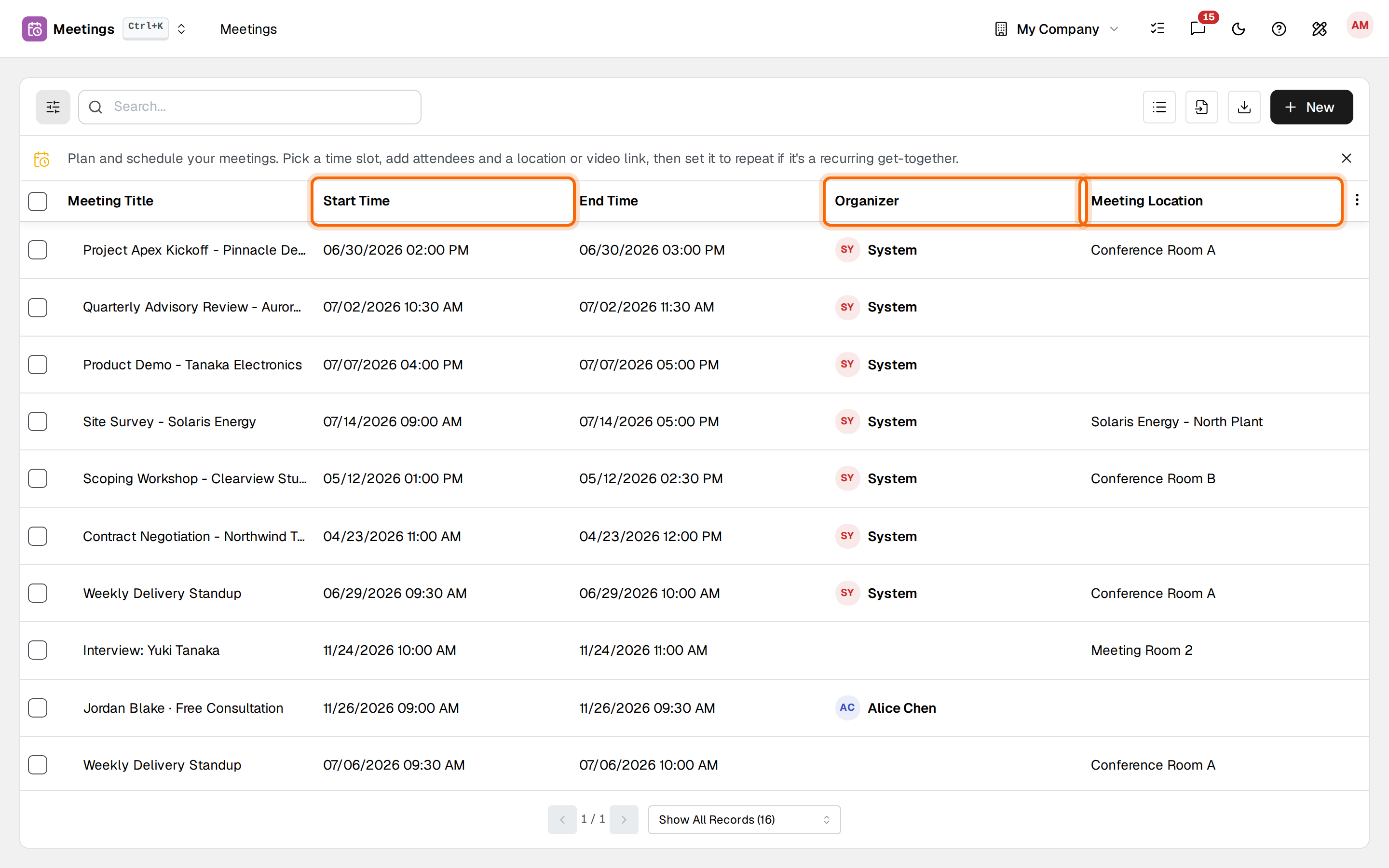
Switch to the list to see meetings in rows, with their times, organizer and place. The filters narrow it down: My Meetings (the ones you organize), Today, Upcoming, Past and Recurring.
➡️ Related: How do I invite people and see who's coming? · How do I set up a meeting that repeats?