How do I create a bill from a purchase order?
Turn a confirmed purchase order into a vendor bill for exactly what you owe — ordered or received, depending on the billing policy.
When the vendor's invoice arrives, create the bill from the purchase order rather than typing it in. The bill copies the products, prices and taxes, and the order keeps track of what has been billed so nothing is paid twice.
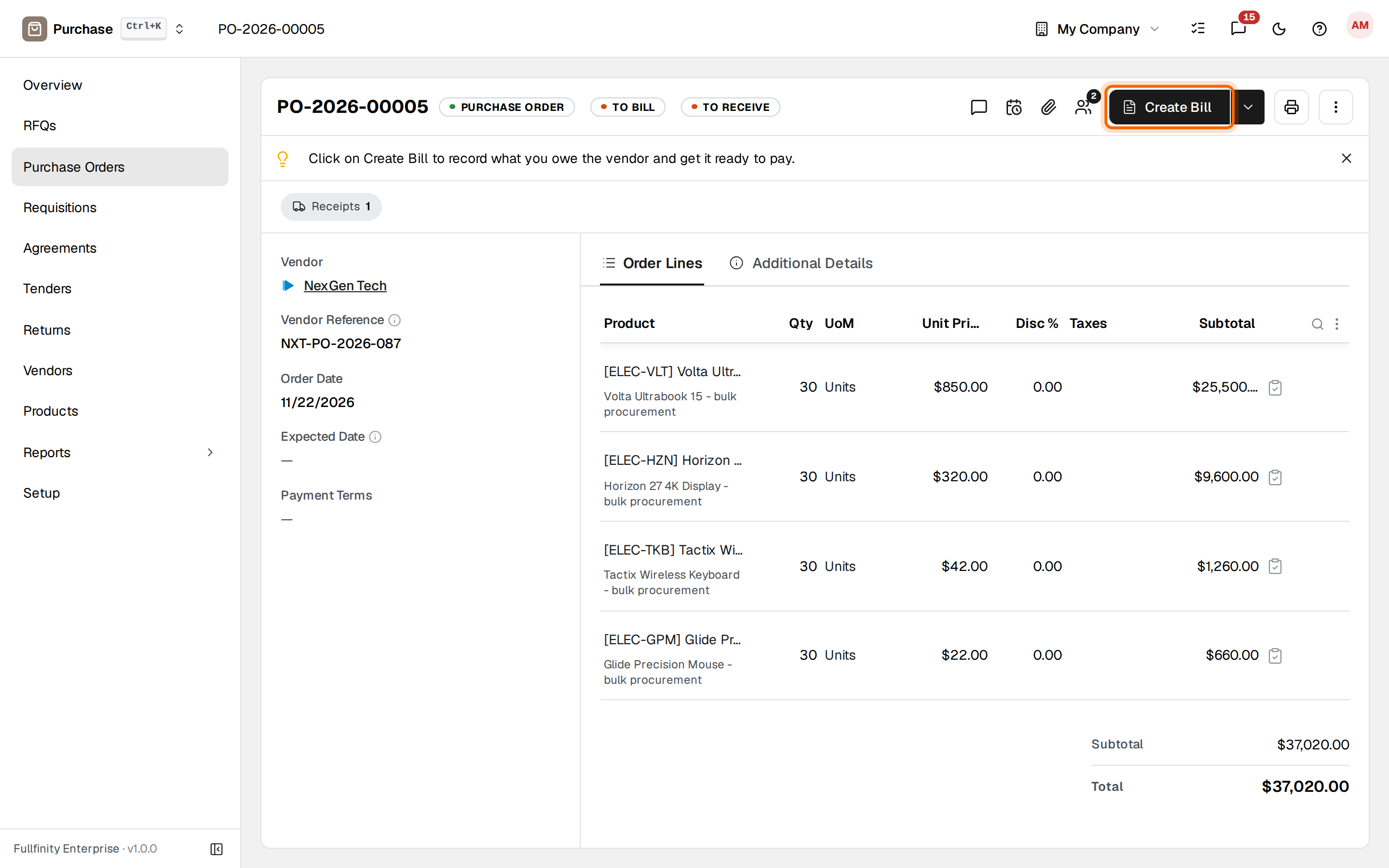
1. Click Create Bill
Go to Purchase → Purchase Orders, open the order and click Create Bill. The To Bill filter lists every order with something left to bill.
2. Fill in the bill details
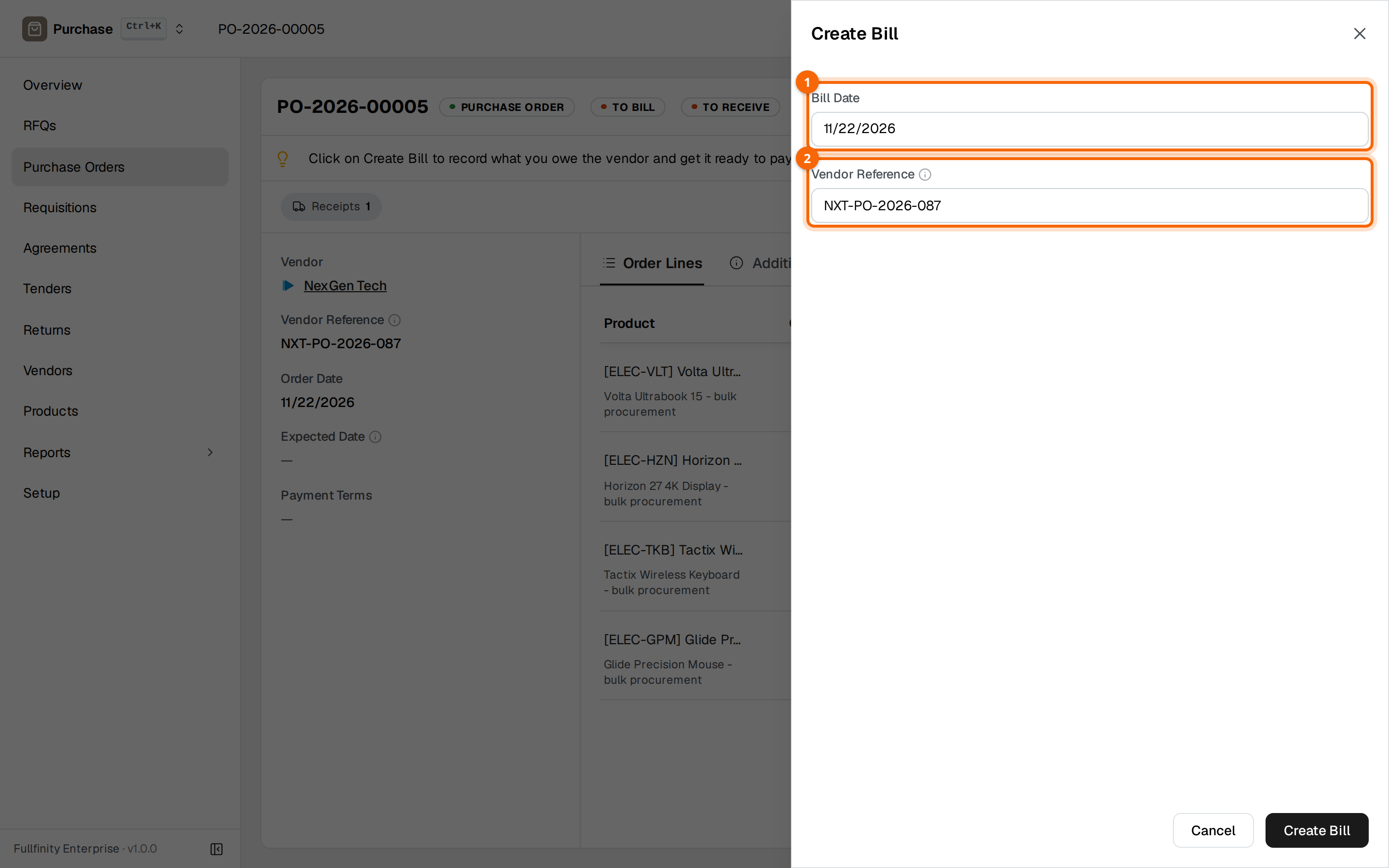
- Bill Date — the date on the vendor's invoice. Defaults to today; the due date follows the order's payment terms.
- Vendor Reference — the vendor's invoice number. It starts with the Vendor Reference recorded on the order, if there is one; if you leave it blank, the bill carries the purchase order's number instead.
Click Create Bill. The new vendor bill opens as a draft.
3. What goes on the bill
Each line is billed for what is billable and not yet billed:
- With Ordered Quantities, everything ordered.
- With Received Quantities, only what has been received so far. Bill again after the next delivery and the bill covers just the new arrivals.
Check the bill against the vendor's invoice and post it in Invoicing. Back on the order, a Bills button lists every bill raised from it, and Bill Status moves to Fully Billed once nothing is left.
4. Close the order
When an order is fully billed (and, with Inventory, fully received), it closes itself as Done when the last delivery arrives. If it doesn't, click Mark as Done. If the vendor will never deliver the rest, bill what arrived and click Close Short.
➡️ Related: Why can't I mark this order as done?