How do I create and send a request for quotation?
List what you want to buy from a vendor and email it to them for prices and a delivery date.
A request for quotation (RFQ) asks a vendor what they would charge for a list of products, and when they could deliver. It is the first stage of every purchase order — once the vendor agrees, you confirm the same document as an order.
1. Create the RFQ
Go to Purchase → RFQs and click New. (The Overview screen also has a New RFQ button.)
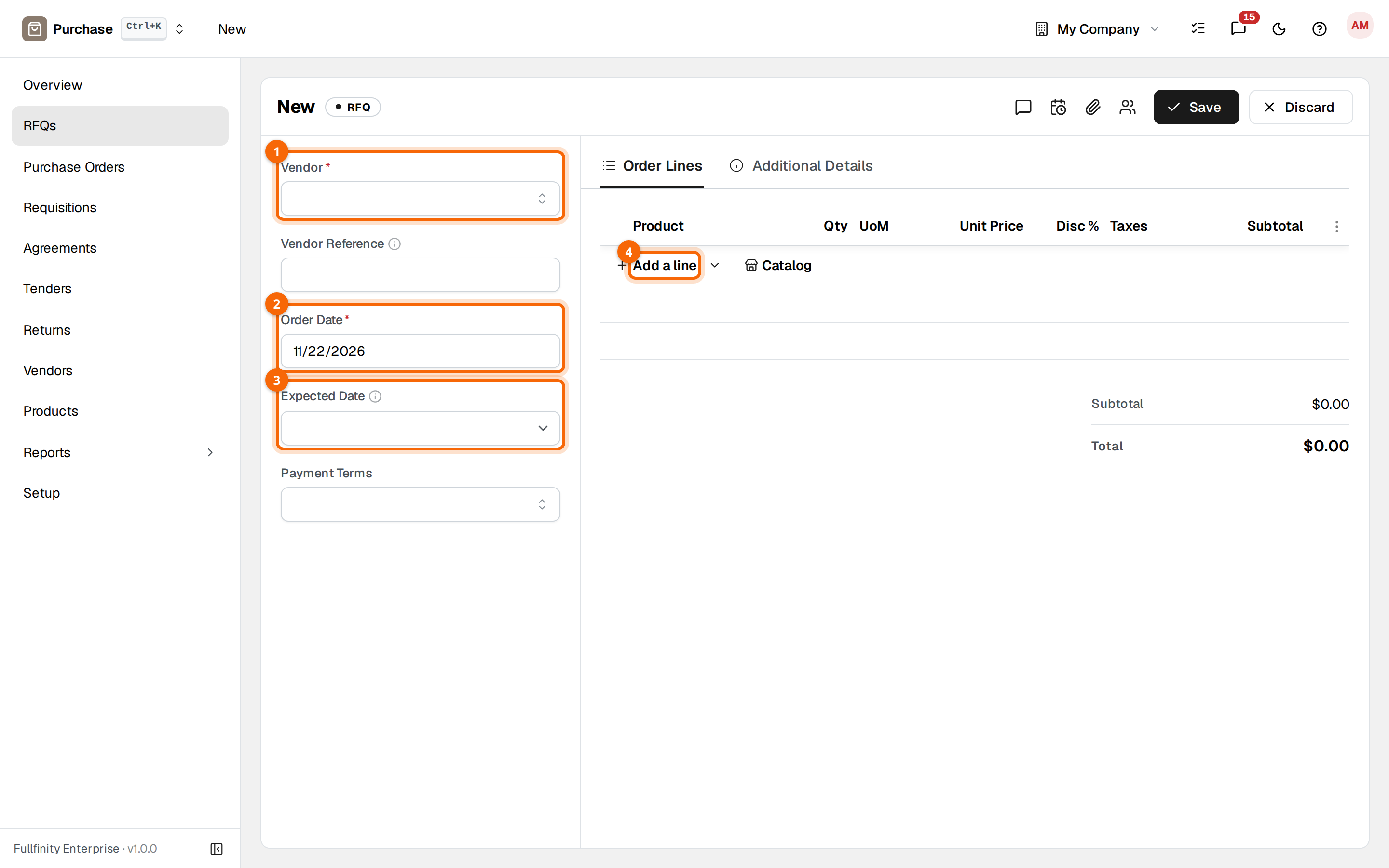
- Vendor — who you're asking. Required.
- Order Date — defaults to today.
- Expected Date — when you expect the goods. It fills in from the vendor's lead time for the products (plus your Receipt Buffer); you can overwrite it.
- On the Order Lines tab, click Add a line for each product, then enter the Qty. The Unit Price comes from the vendor's price list for that product, or from a running purchase agreement with this vendor, and you can change it.
Prefer browsing? Click Catalog next to Add a line to pick products from a grid of cards. A product that comes in several sizes or colours opens a quantity grid, so you can order the whole run on one screen.
Optionally fill in Payment Terms, and on the Additional Details tab the Buyer, Incoterm and Terms & Conditions. Then click Save.
2. Send it to the vendor
Open the arrow beside the main button at the top and choose Send.
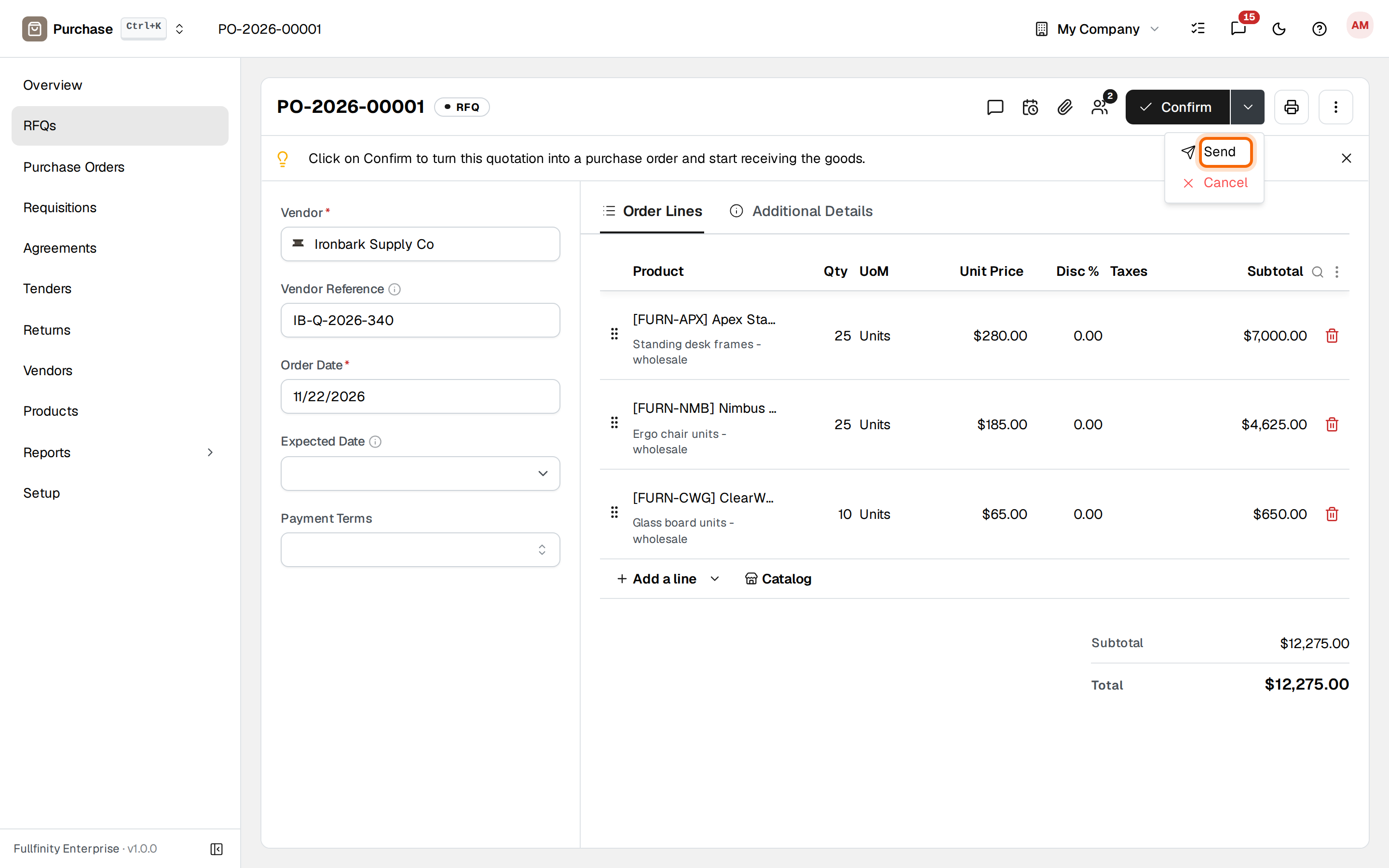
An email opens, addressed to the vendor's contact and with the RFQ attached as a PDF. Check it and send. The status changes from RFQ to Sent, so you can see at a glance which requests are waiting on a vendor. Changed something, or the vendor lost the email? Choose Send again — it stays Sent. You can print the RFQ yourself with the printer icon.
What the statuses mean
| Status | Meaning |
|---|---|
| RFQ | A draft request, not yet emailed. |
| Sent | Emailed to the vendor; waiting for their answer. |
| Purchase Order | Confirmed — you have committed to buy. |
| Done | Fully received and billed, and closed. |
| Cancelled | Dropped. Reset to Draft turns it back into an RFQ. |