How do I record the vendor's reply to an RFQ?
Let the vendor accept the RFQ in their portal, or enter their quote reference, prices and delivery date yourself before confirming.
Once you have sent an RFQ, the vendor answers in one of two ways: they accept it online, or they send you a quote by email or phone. Either way, the RFQ is where their answer belongs.
If the vendor accepts it in their portal
The vendor opens the request from the View Online button in your email, or — with a portal login — under Requests for Quotation in their portal. There they see the lines, totals and your terms, and can download the PDF. When they click Confirm Order, the RFQ becomes a Purchase Order straight away, exactly as if you had clicked Confirm yourself: the same checks apply (the vendor's minimum quantities, and what a purchase agreement has left), and with Inventory the receipt is created. You'll see the new status in Purchase → Purchase Orders.
If the vendor sends you a quote
Open the RFQ from Purchase → RFQs (it shows Sent) and copy their answer onto it:
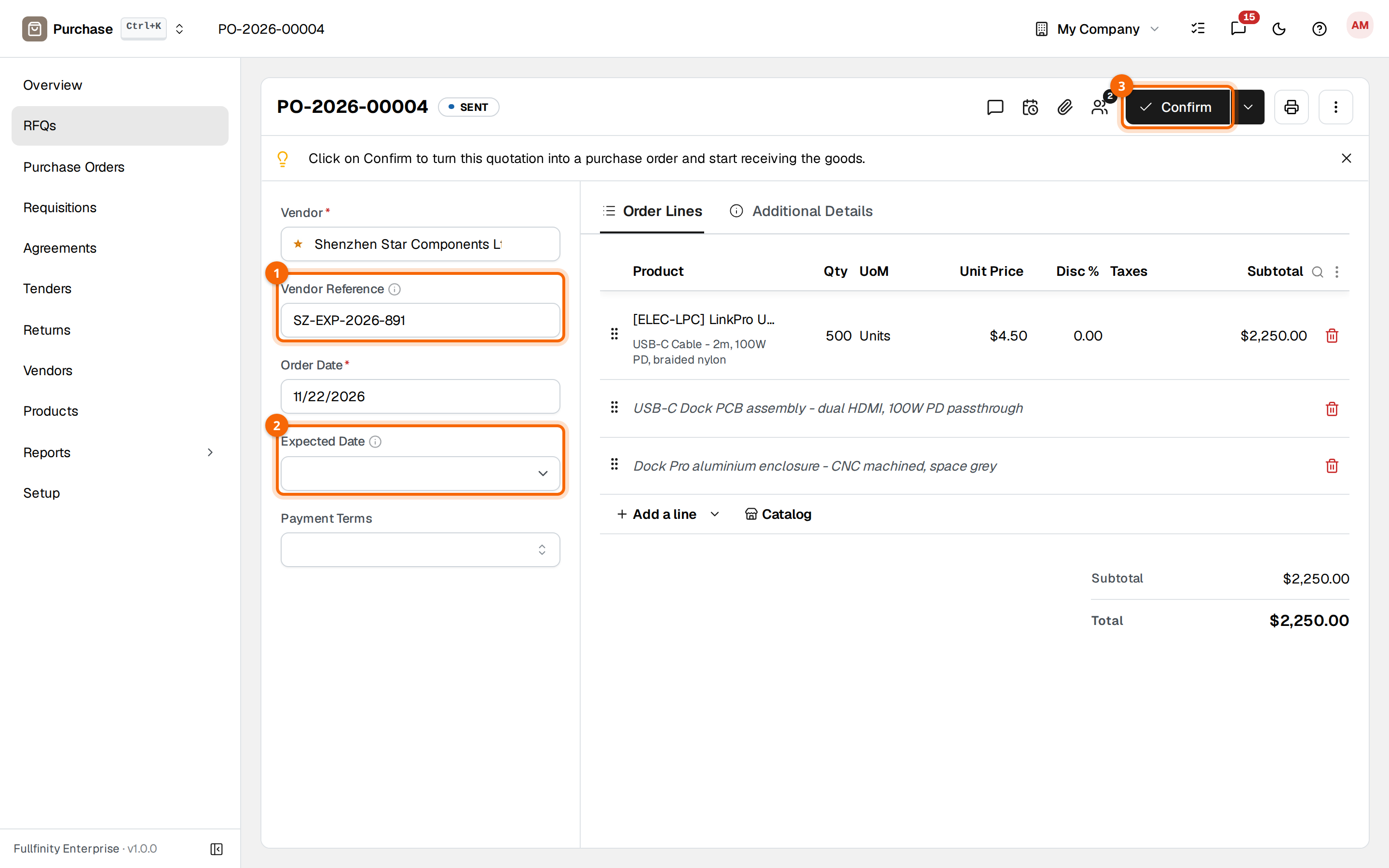
- Vendor Reference — the number on their quote or order confirmation, so you can find this order when they mention it.
- Expected Date — the delivery date they promised.
- Update the Unit Price, Disc % or Qty on the Order Lines if their quote differs, then click Confirm.
If the vendor declines, open the arrow menu beside the main button and choose Cancel. A cancelled RFQ can be reopened later with Reset to Draft.
➡️ What confirming does: How do I turn an RFQ into a purchase order?