Why can't I bill this order yet?
The Create Bill button depends on the order's status and its billing policy. Here's how to read both.
The Create Bill button only appears when there is something the vendor may bill. If it's missing, one of these is the reason.
Check the order's status
| Status | Can you bill it? |
|---|---|
| RFQ or Sent | No — it's still a request. Click Confirm first. |
| Purchase Order | Yes, while Bill Status is To Bill. |
| Done | No — it is closed and fully billed. |
| Cancelled | No. |
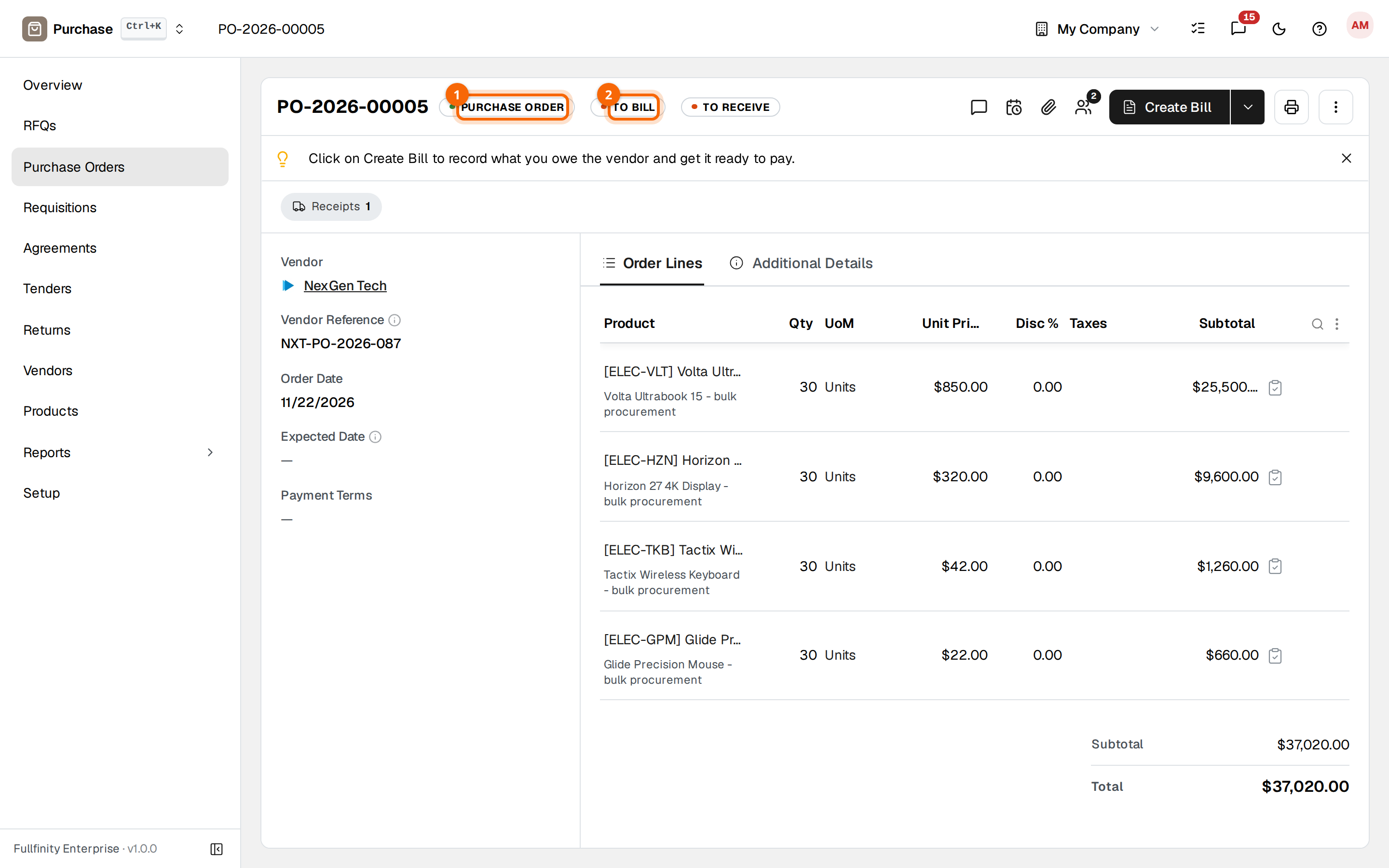
Check the Bill Status
Beside the status, Bill Status (the Billing column of the Purchase Orders list) says where billing stands:
- To Bill — there is something to bill. Click Create Bill.
- Fully Billed — everything billable has been billed. The Bills button shows the bills already made.
- Nothing to Bill — nothing is billable yet. Usually that's the billing policy (below).
Check the billing policy
Open the Additional Details tab and look at Billing Policy.
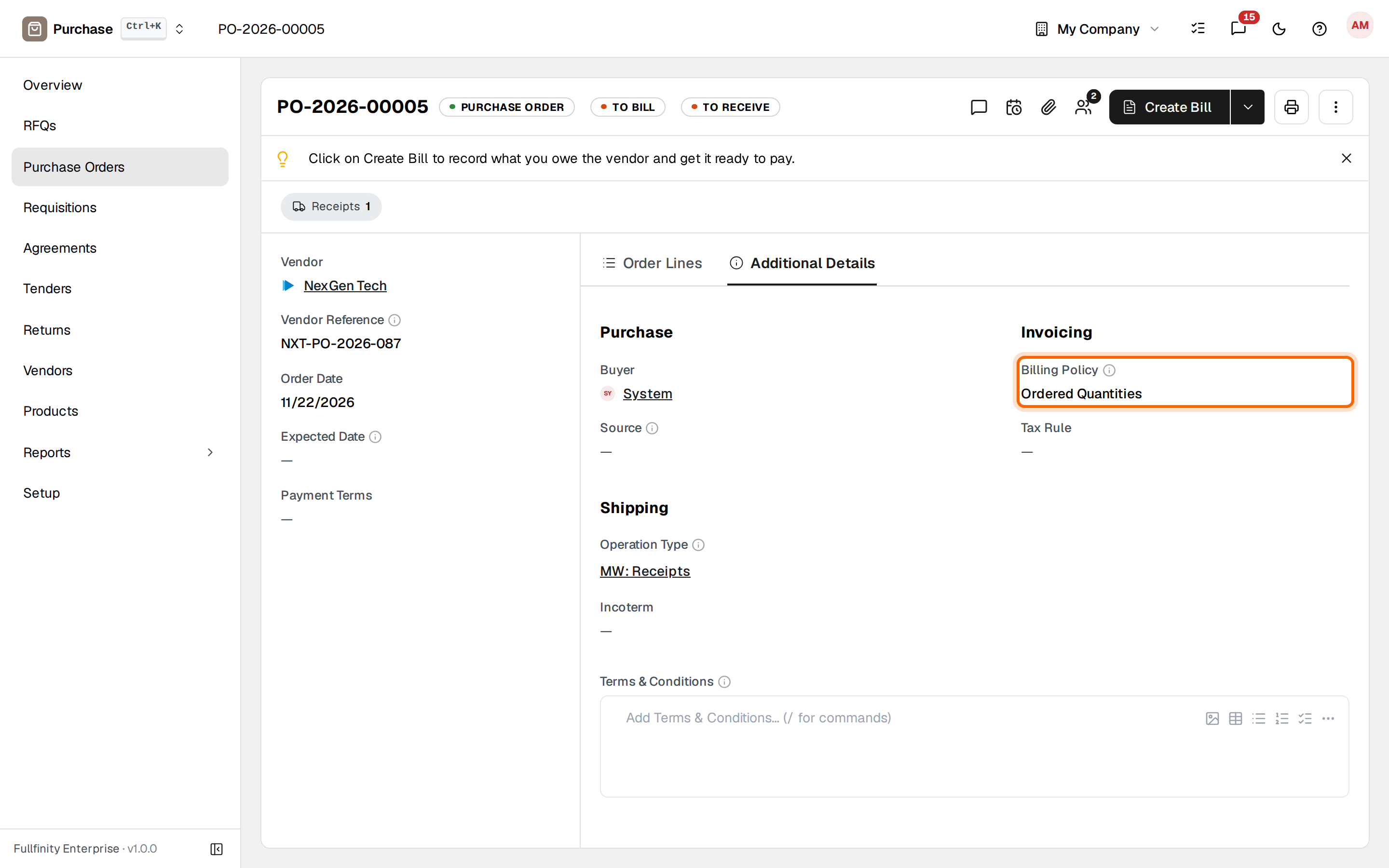
- Ordered Quantities — billable as soon as the order is confirmed.
- Received Quantities — only what has been received is billable. Until the goods arrive and the receipt is validated in Inventory, there is nothing to bill. After a partial delivery, only the delivered part can be billed.
A product can set its own Billing Policy on its Purchase tab, which wins over the order's for that product's lines. So one order can have lines billable now and others billable only on receipt.
Still stuck?
Click the small indicator at the end of a line on the Order Lines tab: it shows how much of that line was ordered, received and billed, and what is still to bill.
Was this article helpful?