How do I record cash taken out of the drawer, or check the shift so far?
Record cash paid into or out of the drawer during a shift, and print an X report of the shift so far without closing it.
Everything that isn't selling is behind the ⋮ button at the top right of the register:
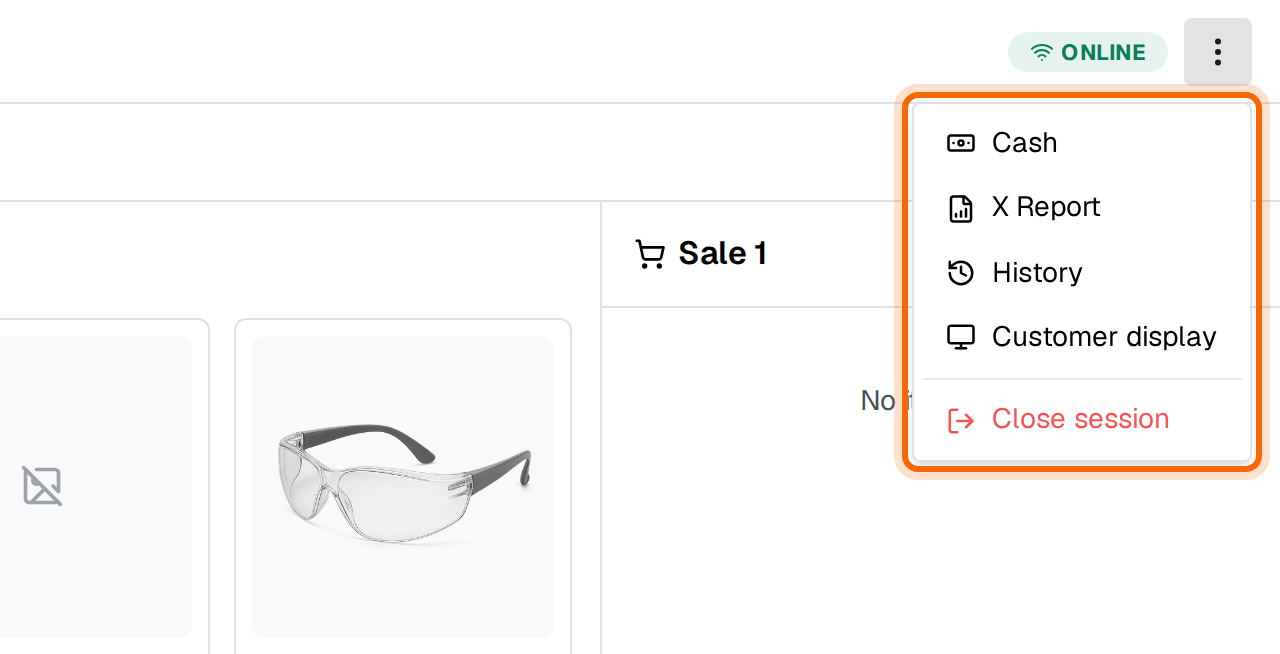
- Cash — record cash put into or taken out of the drawer.
- X Report — the shift's figures so far.
- History — past sales, to reprint a receipt or refund — see How do I refund a sale at the register?
- Customer display — connect a screen facing the customer, when the register has one.
- Close session — end the shift — see How do I close the register and count the cash?
Cash paid in or out
When cash leaves the drawer for something other than a sale — paying a supplier on the doorstep, taking notes to the safe — or you top up the float, record it so the cash count still adds up. Choose Cash:
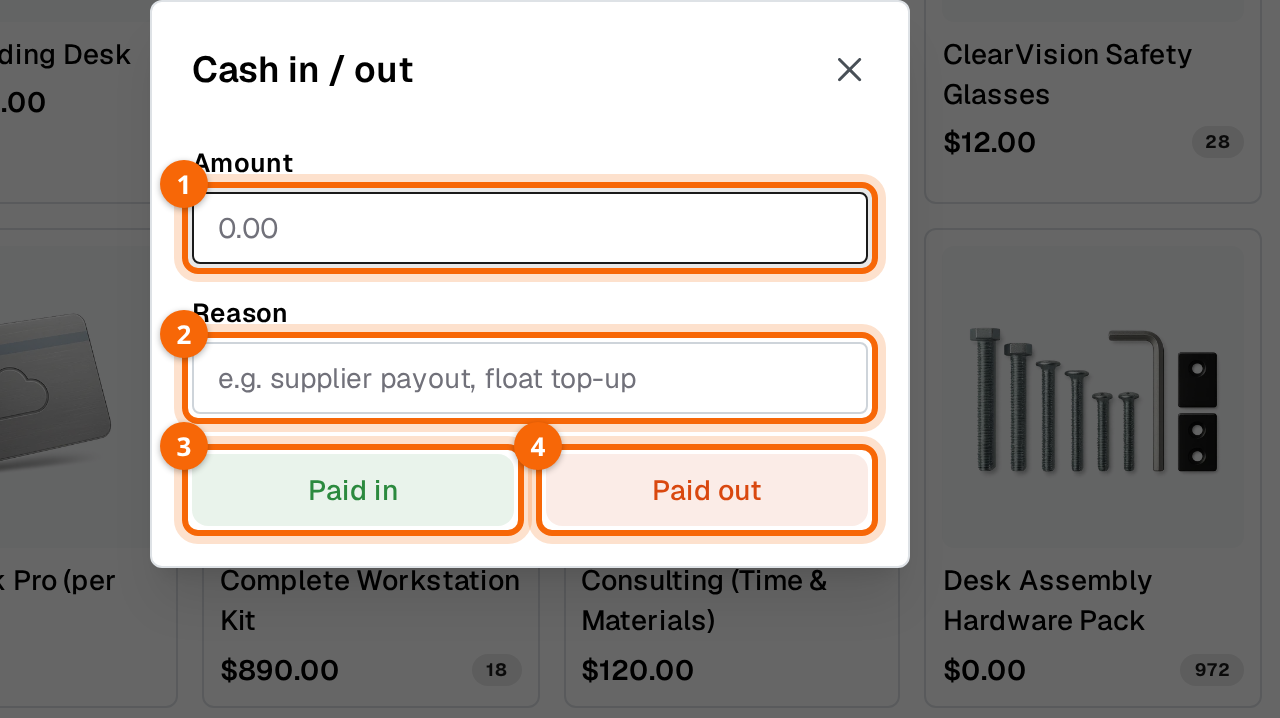
- Amount — how much.
- Reason — for example Float top-up or Cash drop to safe.
- Paid in — cash added to the drawer.
- Paid out — cash taken out.
The expected cash at closing goes up or down by the amount. Cash only appears on a register with Track Cash on.
The X report
Choose X Report to see the shift so far, without closing it:
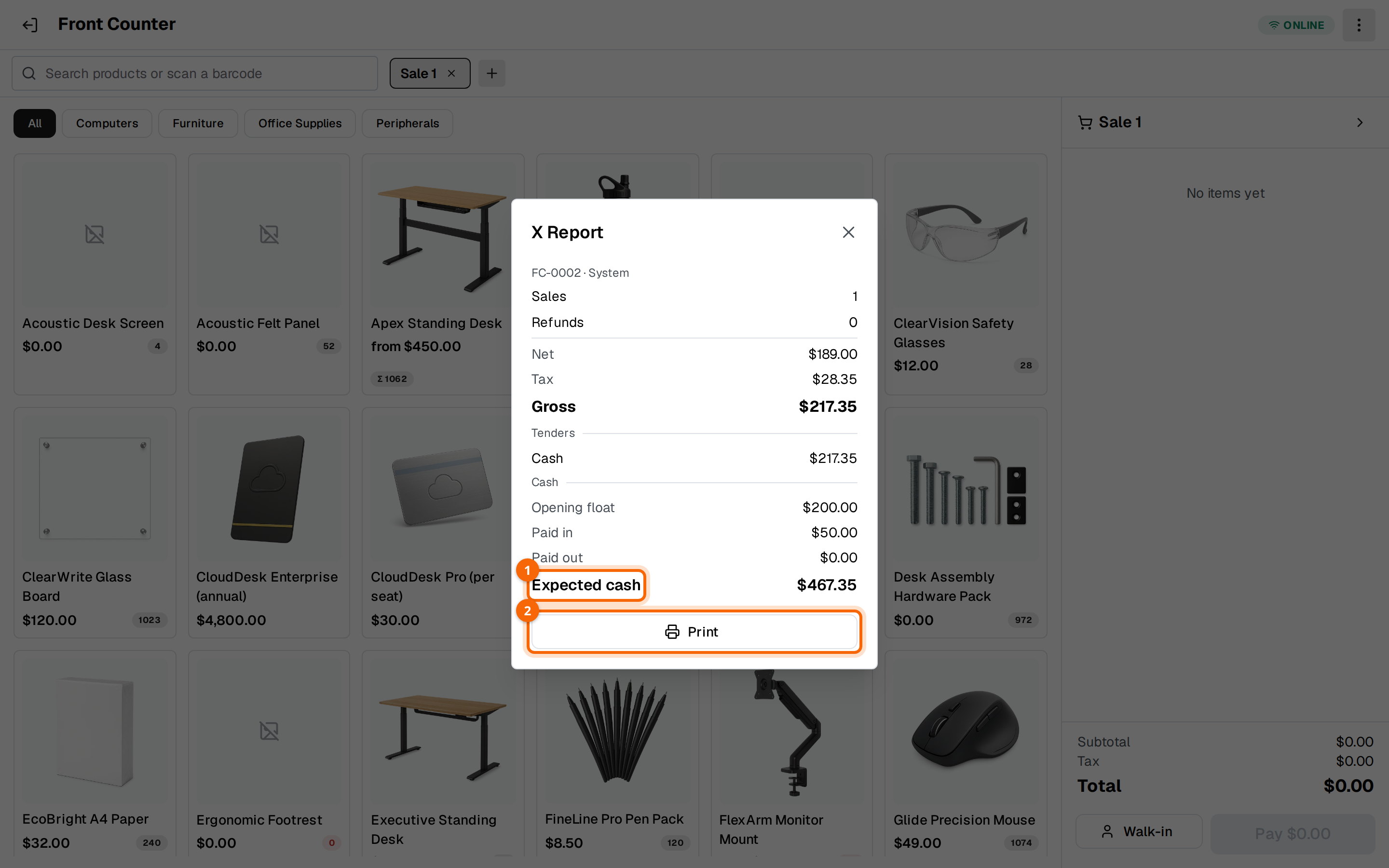
It shows the number of Sales and Refunds, the Net, Tax and Gross takings, the takings by payment method, and the cash: Opening float, Paid in, Paid out and the Expected cash the drawer should hold now (change already handed back is taken off). Click Print for a paper copy.