How do I put products on the register?
Make a product available at the register and group the register's product grid with categories of its own.
The register shows every product marked as available at the Point of Sale. Categories of their own group them into the buttons along the top of the register, independently of the categories you use for accounting and stock.
Make a product available
Go to Point of Sale → Products. This list shows exactly what your registers sell. To add one that isn't there, open it from Sales → Products and go to its Point of Sale tab:
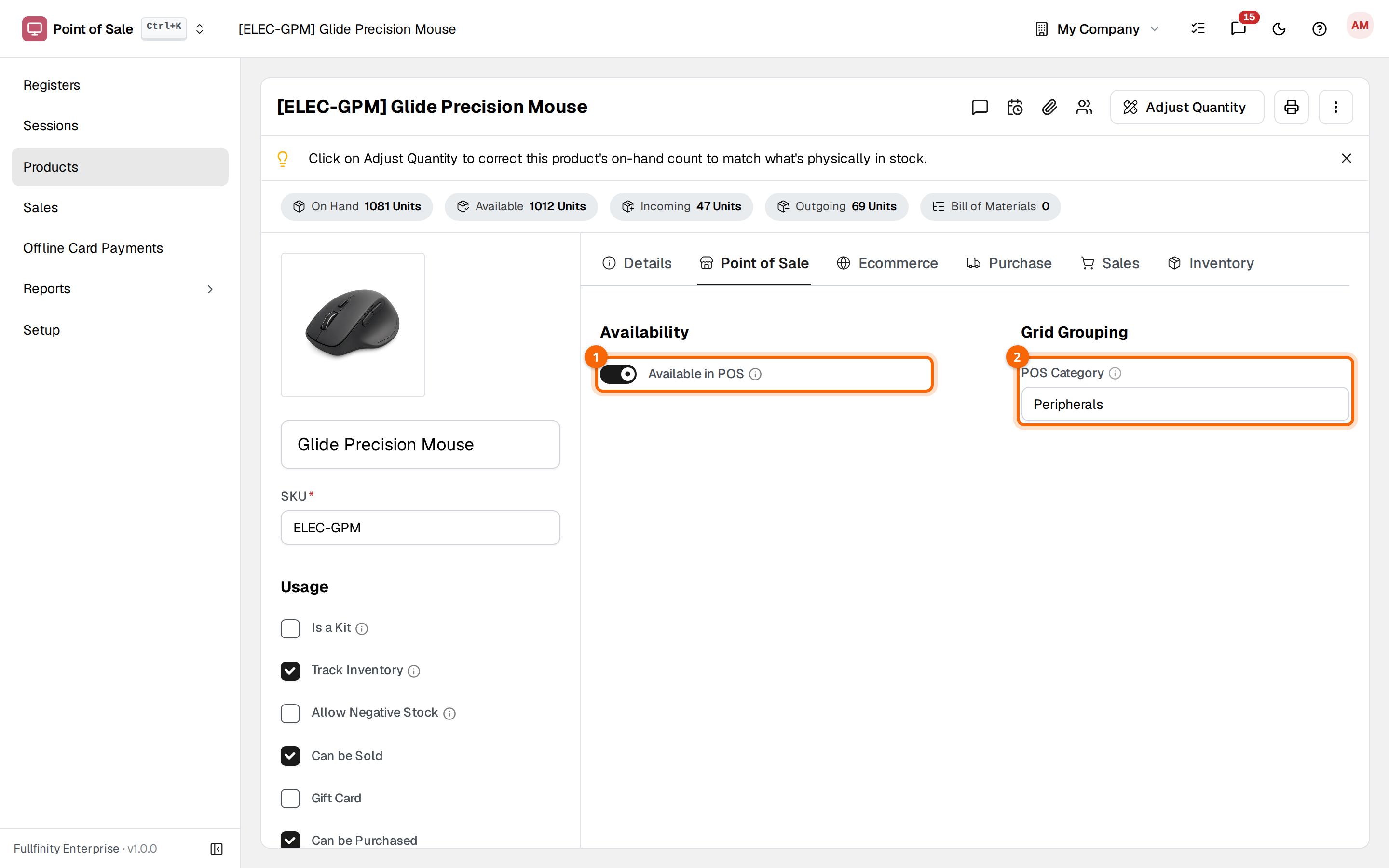
- Switch on Available in POS.
- Choose its POS Category — the register button it appears under. A product with none is still sold, searched and scanned; it just only appears under All.
Click Save. The product must also be one that Can be Sold. It is on the register the next time the register is opened or reloaded, at the price from the register's pricelist (or its sales price).
Create the register's categories
Go to Point of Sale → Setup and click Product Categories in the Setup section.
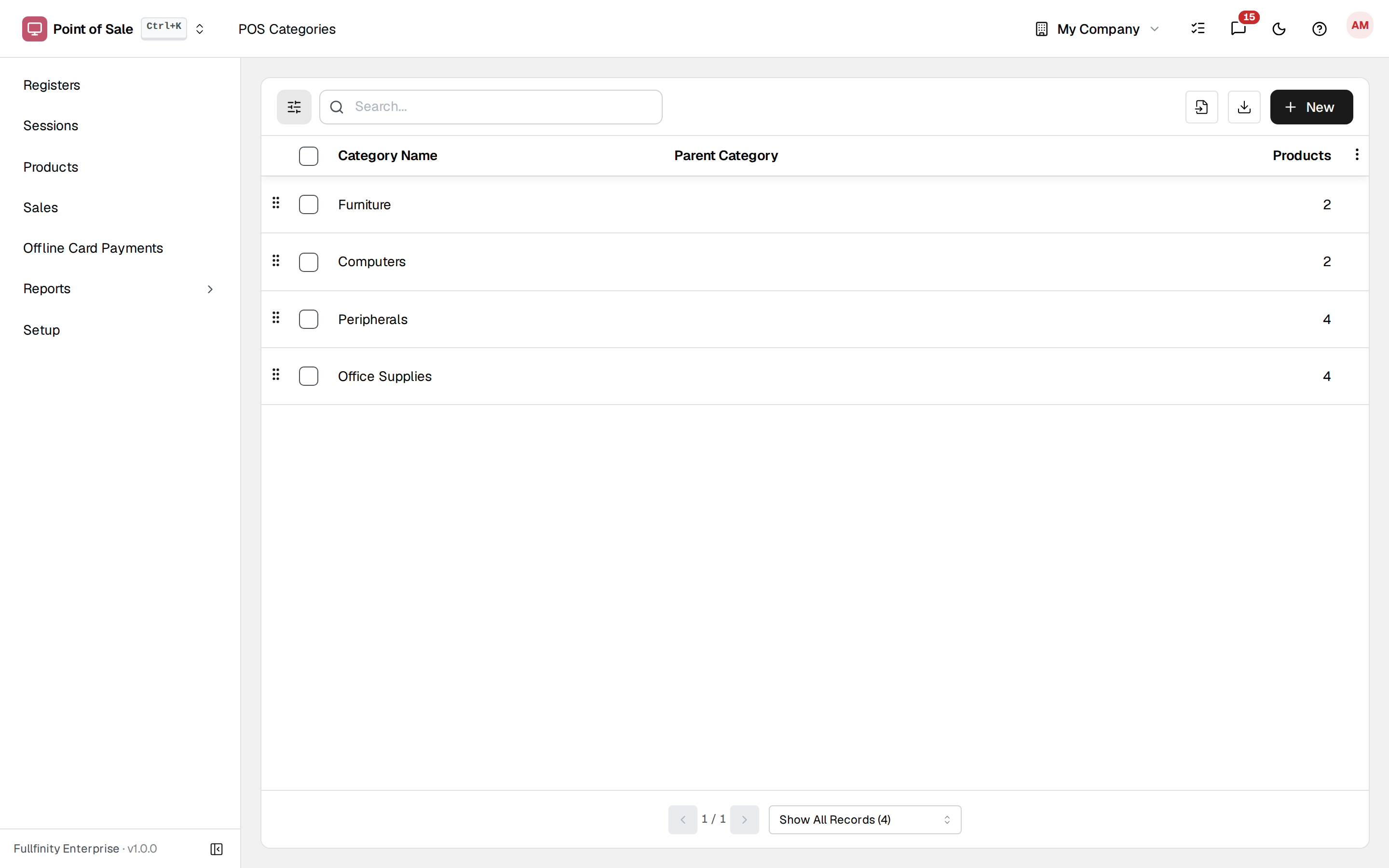
Click New, type the Category Name and, to nest it, a Parent Category. On the register, a top-level category is a button; choosing it shows a second row with its sub-categories. Drag the rows in the list by their handle to change the order of the buttons.
A product with several variants, such as a desk in two finishes, shows once on the register with a from price; tapping it asks which one. See How do I ring up a sale?
If a product still doesn't appear, see Why isn't a product on the register?