How do I work my sales pipeline?
Read the pipeline board, add opportunities, move them through the stages and keep every deal's details current.
The pipeline is a board of every open opportunity, one column per stage. Working it means keeping each deal in the right stage, with an up-to-date value and a next step.
Read the board
Go to CRM → Pipeline.
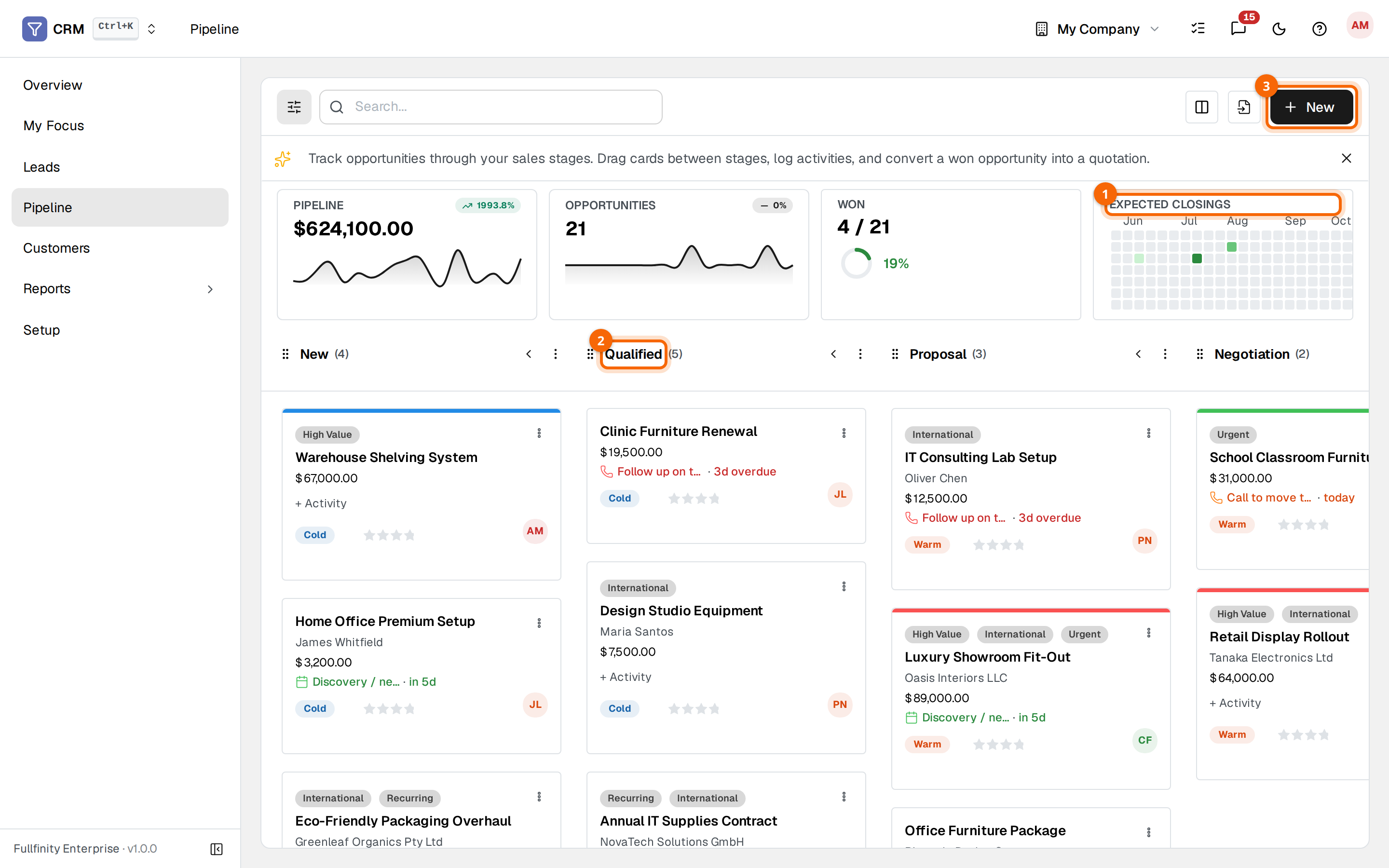
- The cards across the top sum up the pipeline: Pipeline (the total amount), Opportunities (how many), Won (how many of them are won) and Expected Closings (amounts by expected closing month).
- Each column is a stage, with the number of deals and their total amount in its header.
- New creates an opportunity.
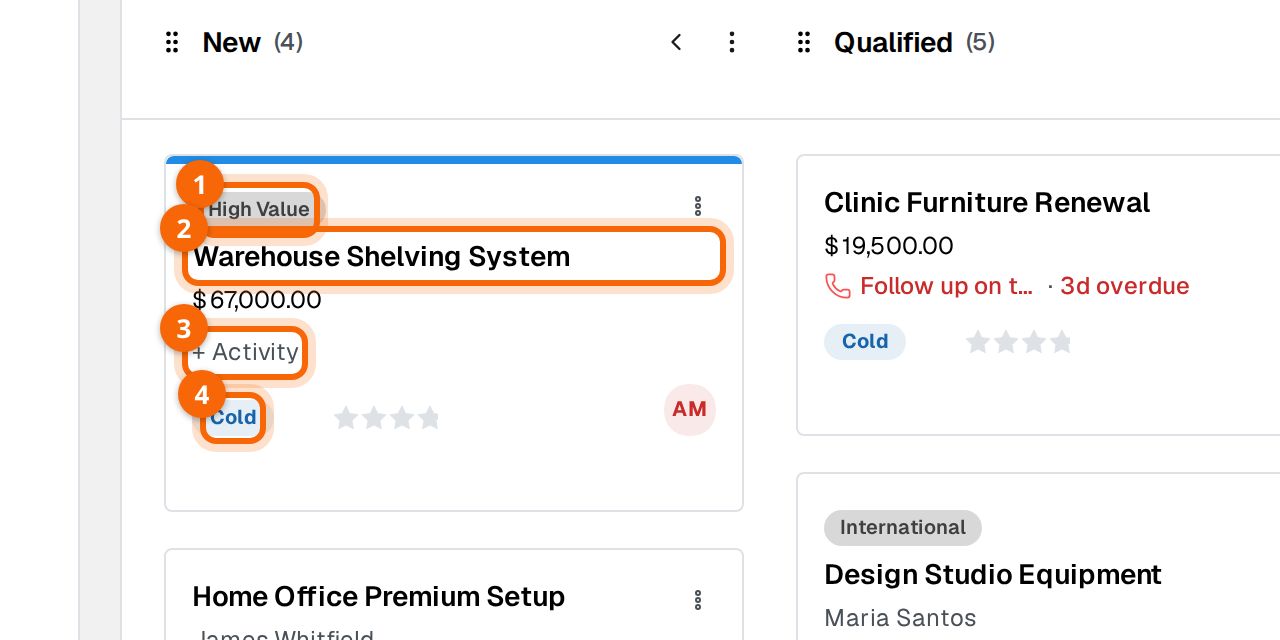
What a card tells you
- Its tags.
- The opportunity's name, with the customer and amount below.
- The next activity and when it's due — red when it's overdue. + Activity means nothing is planned: click it to schedule a call, email or meeting.
- The score label (Hot, Warm, Cold or Fresh), then the priority stars and the salesperson's initials.
The three-dot menu on a card lets you give it a cover colour, or delete a deal that was never real (a lost deal should be marked lost instead, so it stays in your reports).
Add an opportunity
Click New and fill in the name, customer, Amount, Expected Closing and Salesperson. It starts in the first stage.
Move a deal forward
Drag the card into the next column. Or open the deal and pick the stage from the stage badge at the top.
Keep the deal's details current
Click a card to open it. The panel on the left holds what the deal is worth:
- The stage, at the top.
- Amount — the full value of the deal.
- Probability — how likely it is to close. Picking a stage sets it to that stage's probability; change it if you know better.
- Weighted Revenue — the amount multiplied by the probability, worked out for you. The pipeline's forecasts add these up.
- Expected Closing — when you expect to win it.
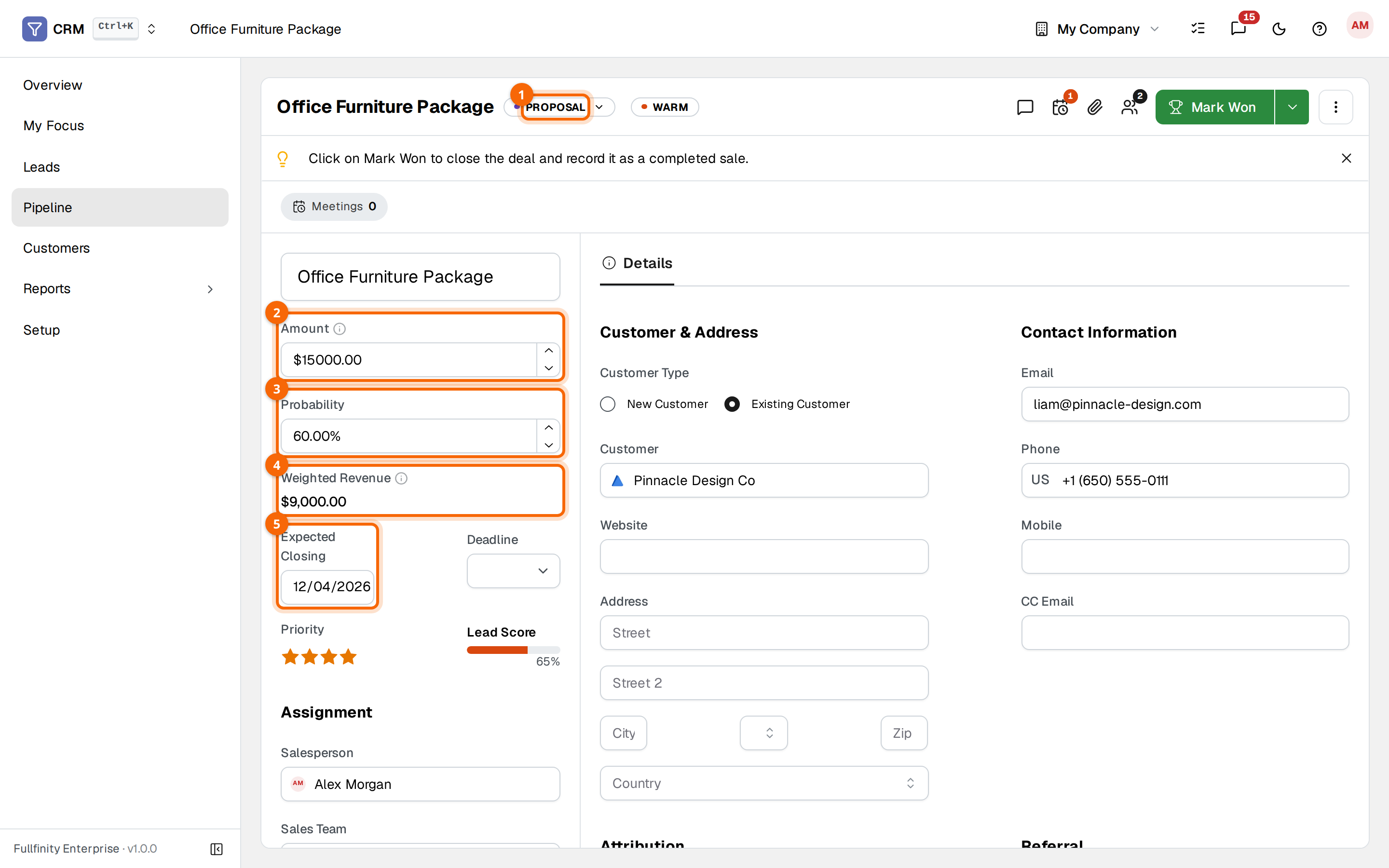
The Details tab holds the customer, address and contact details, and Attribution (Source, Campaign). The icons beside the buttons at the top open the deal's messages, activities, attachments and followers.
Find the deals you need
- Type in Search, or open the filters and pick My Opportunities, Unassigned, Hot Leads, Needs Attention and more.
- Group the board by Salesperson, Source or Score Category instead of Stage.
- Switch to the list to edit Stage, Tags or Salesperson on many deals at once.
Related: How do I plan my day with My Focus? · How do I mark a deal won or lost?