How do I set up CRM?
Shape your pipeline stages, tags and sales teams, and decide whether you qualify leads first and who new leads go to.
CRM works out of the box with a ready-made pipeline, but a few minutes of setup makes it match how your team actually sells: the stages a deal moves through, the tags you sort deals by, who sells together, and who picks up new leads.
Open CRM → Setup. The CRM tab of the setup screen holds every CRM setting. Change what you need and click Save.
Decide how leads come in
Under Lead Management:
- Use Leads — switch this on if enquiries should wait in a separate Leads list until someone has checked them, and only then move into the pipeline. With it off, everything you create is an opportunity straight away, and the Leads menu is hidden. See How do I qualify a lead into an opportunity?
- Auto-Assign — switch this on to share new leads out among your salespeople in turn instead of giving each one to whoever created it (see below).
On the same panel, Default Stage sets the stage new leads and opportunities start in — leave it blank to start them in the first stage of their team's pipeline — and Default Tags are added to every new one.
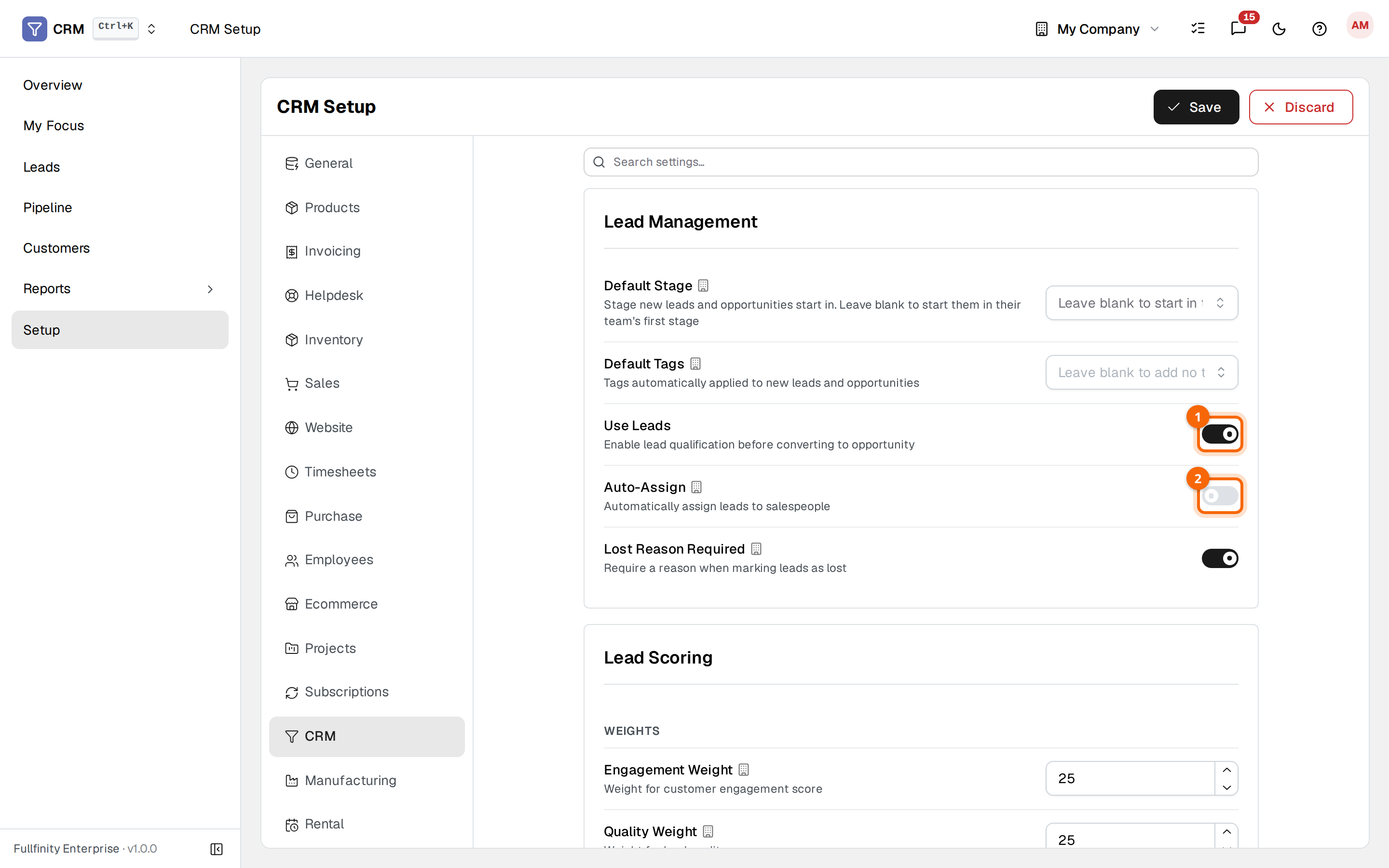
Lost Reason Required, on the same panel, has its own article: How do I require a reason when a deal is lost? The Lead Scoring panel below it is explained in How does lead scoring work?
How Auto-Assign picks a salesperson
With Auto-Assign on, a new lead that has no Salesperson goes to the next member of a sales team, round the team in turn. The team it uses is:
- the lead's own Sales Team, if one is set;
- otherwise the first team you belong to that has members;
- otherwise the first team with any members at all.
A lead that already has a salesperson keeps them — auto-assign only fills a blank. That is why, while it is on, a new lead form starts with Salesperson empty.
Shape your pipeline: stages, tags and teams
Scroll to the Setup panel at the bottom of the tab. Its links open the lists CRM is built from:
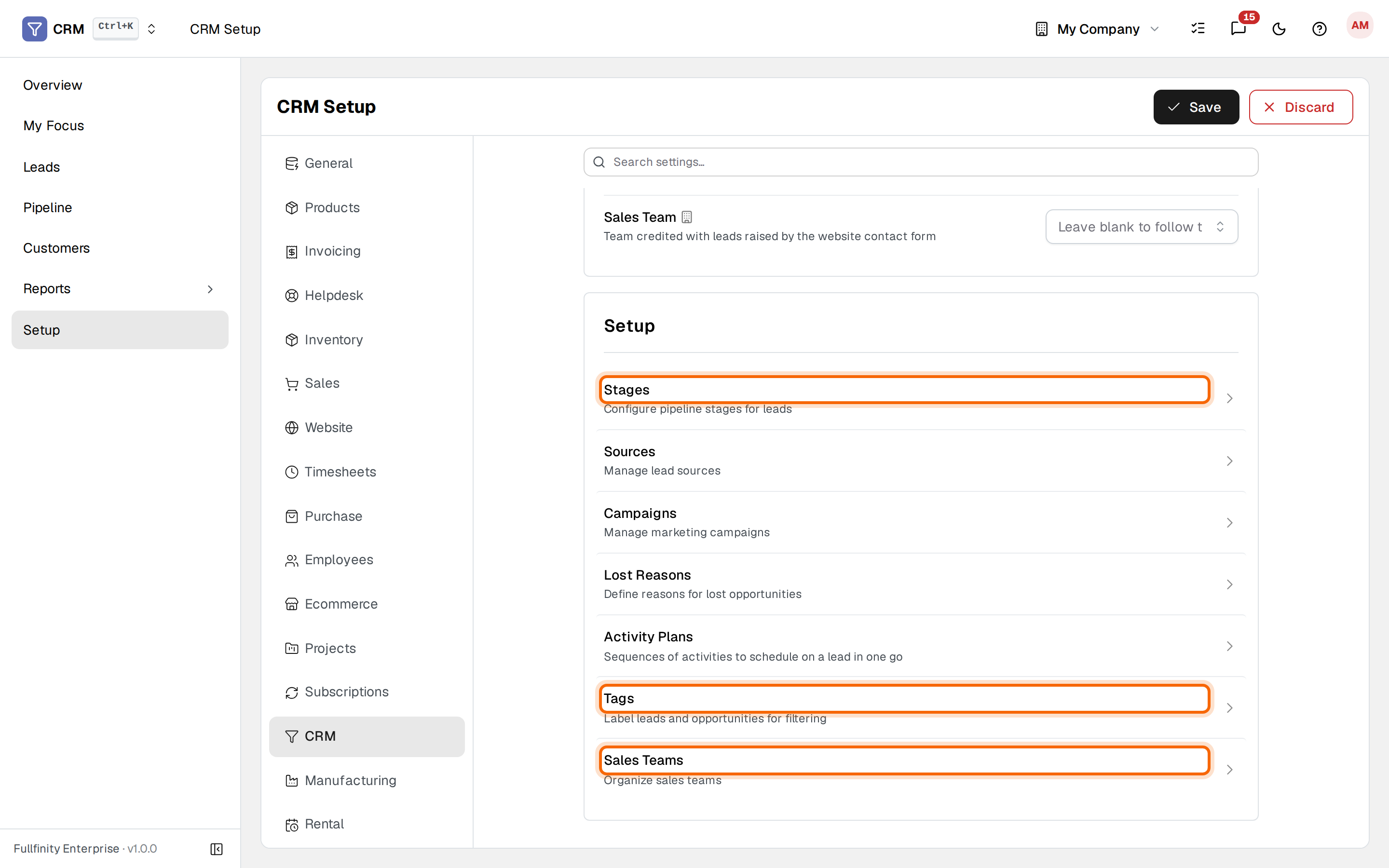
Stages
Click Stages. Each stage is a column on the pipeline board, in the order of this list — drag a row by its handle to reorder.
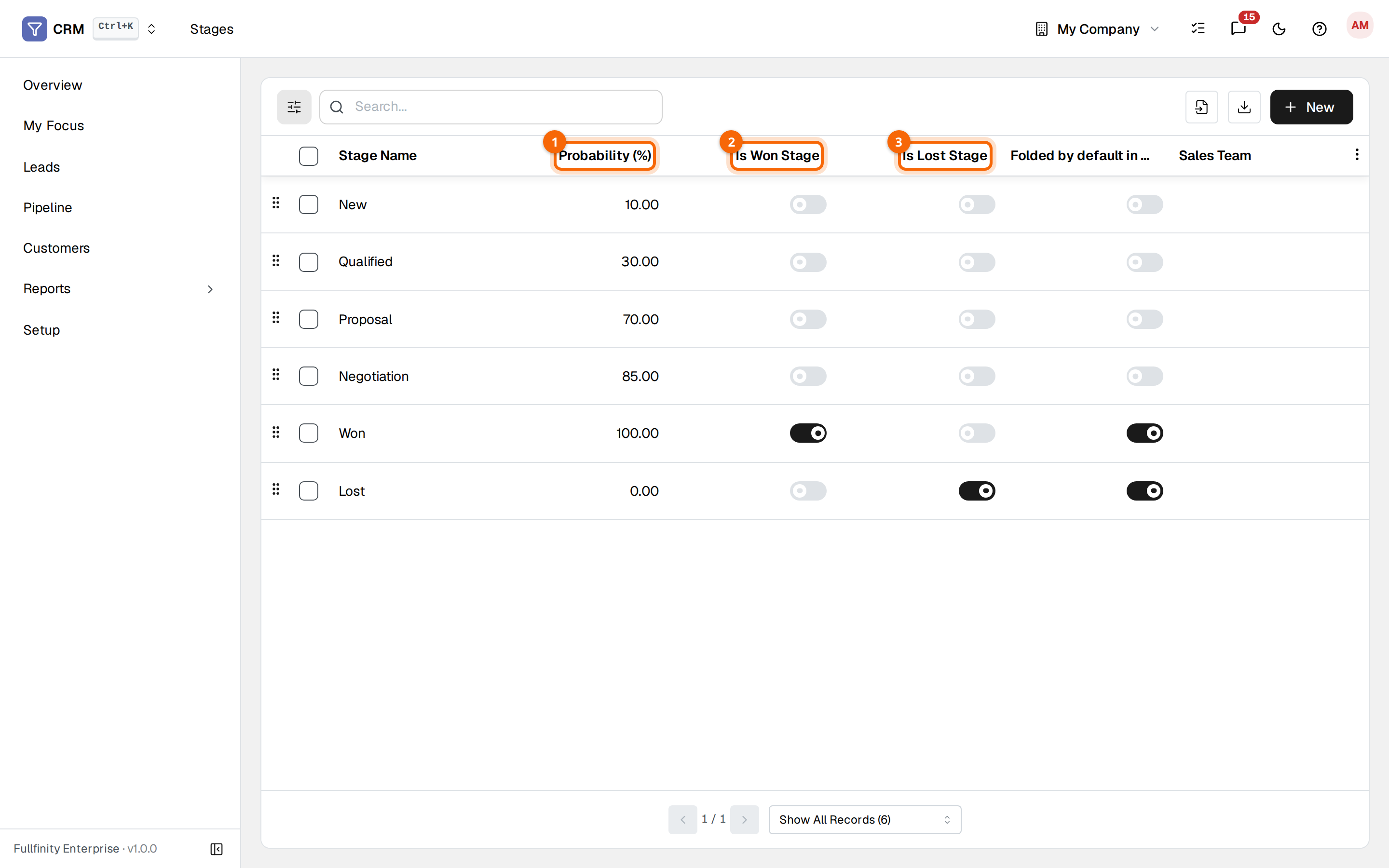
| Column | What it does |
|---|---|
| Stage Name | The column title on the board. |
| Probability (%) | How likely a deal in this stage is to close. Picking the stage on an opportunity sets its Probability to this figure. |
| Is Won Stage | Deals here count as won. Mark Won moves a deal to this stage, so you need one. |
| Is Lost Stage | Deals here count as lost. Mark Lost moves a deal to this stage. |
| Folded by default in Kanban | The column starts collapsed on the board — handy for Won and Lost. |
| Sales Team | Leave it blank to offer the stage to every team. Name a team and the stage appears only on that team's board. |
Fullfinity ships the stages New, Qualified, Proposal, Negotiation, Won and Lost. Rename them, add your own, or delete the ones you don't use.
Tags
Click Tags to create labels such as High Value or Urgent, each with a colour. Tags show at the top of every pipeline card and you can filter by them.
Sales teams
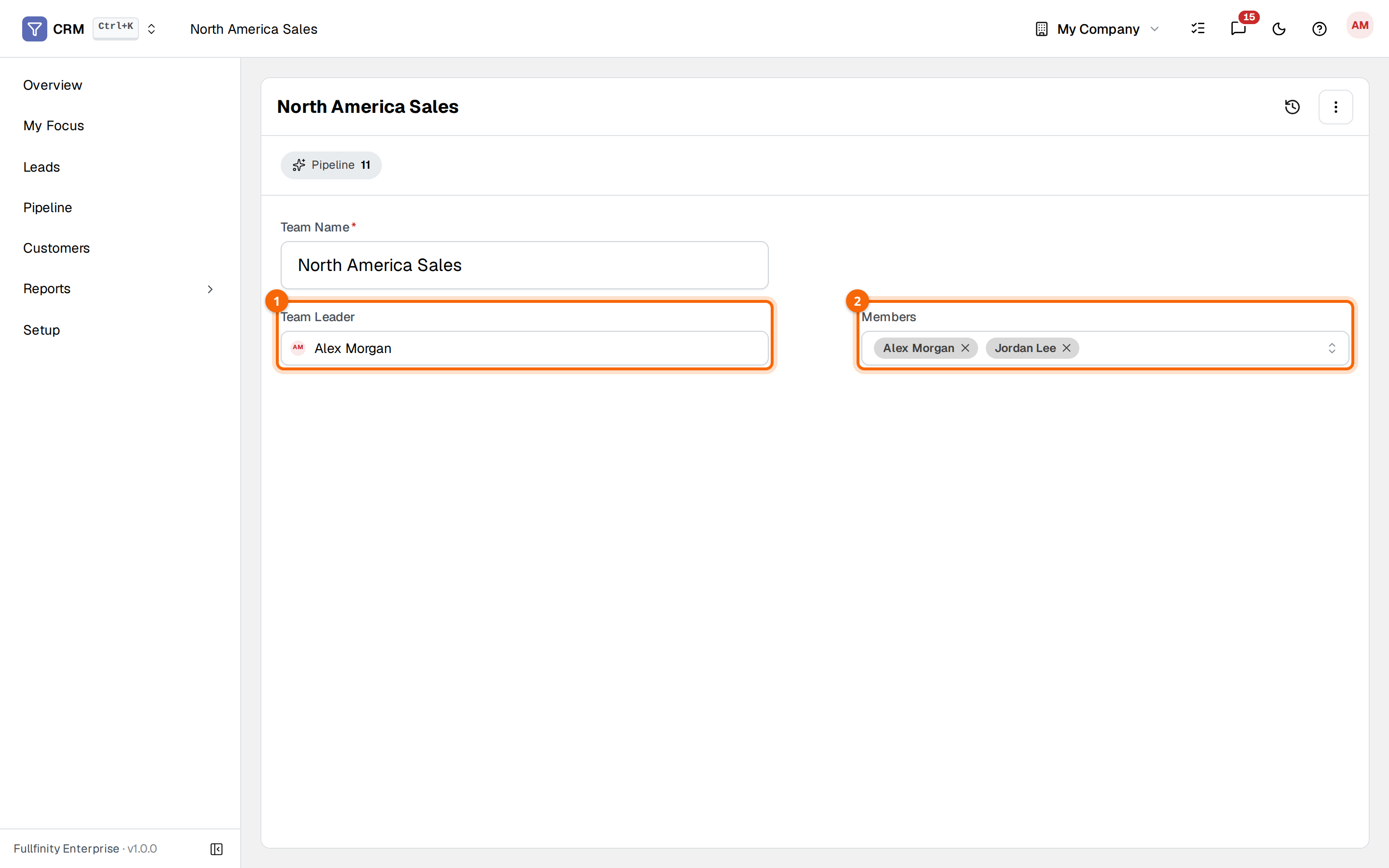
Click Sales Teams and open or create a team. Give it a Team Leader and add its Members — the people auto-assign shares leads between. The Pipeline button on a team opens that team's own board.
The Sources and Campaigns links hold the values you can pick under Attribution on a lead, so you can later see where your deals come from.
➡️ Next: How do I work my sales pipeline?