How do I turn website contact-form enquiries into leads?
Every message sent through your website's contact form becomes a CRM lead, assigned to a salesperson, with nothing typed twice.
When a visitor fills in a contact form on your website, Fullfinity emails the message to you and creates a lead in CRM, so no enquiry is lost in an inbox. It works for any page that has a Contact Form section.
1. Choose who picks up website leads
Open CRM → Setup and find the Website Leads panel:
- Salesperson — who gets every website lead. Leave it blank and the lead goes round your sales team in turn if Auto-Assign is on, or to your first salesperson if it is off.
- Sales Team — the team credited with the lead. Leave it blank to use the salesperson's own team.
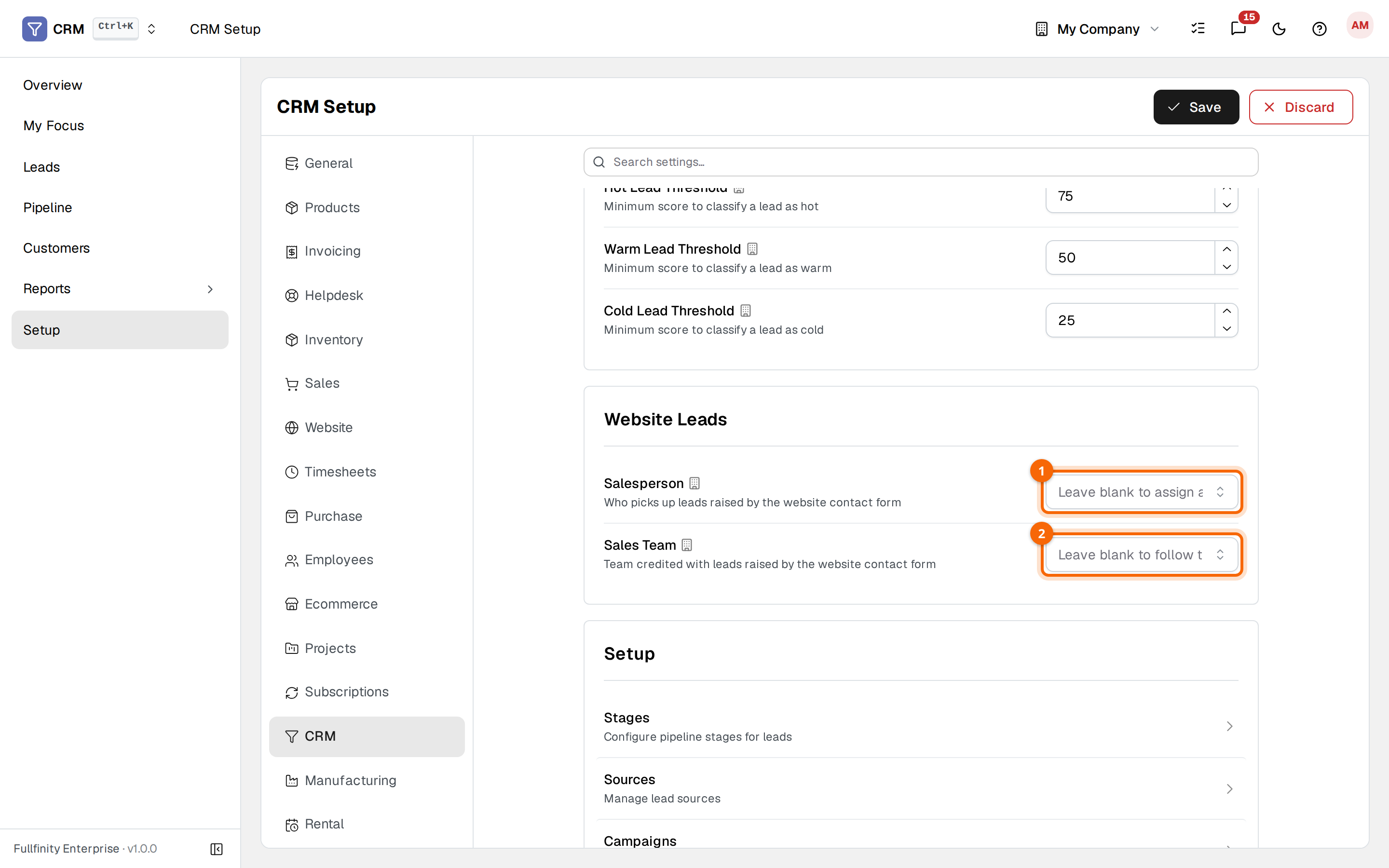
Click Save.
2. Map the form's fields to the lead
Open the page with the contact form in the website builder.
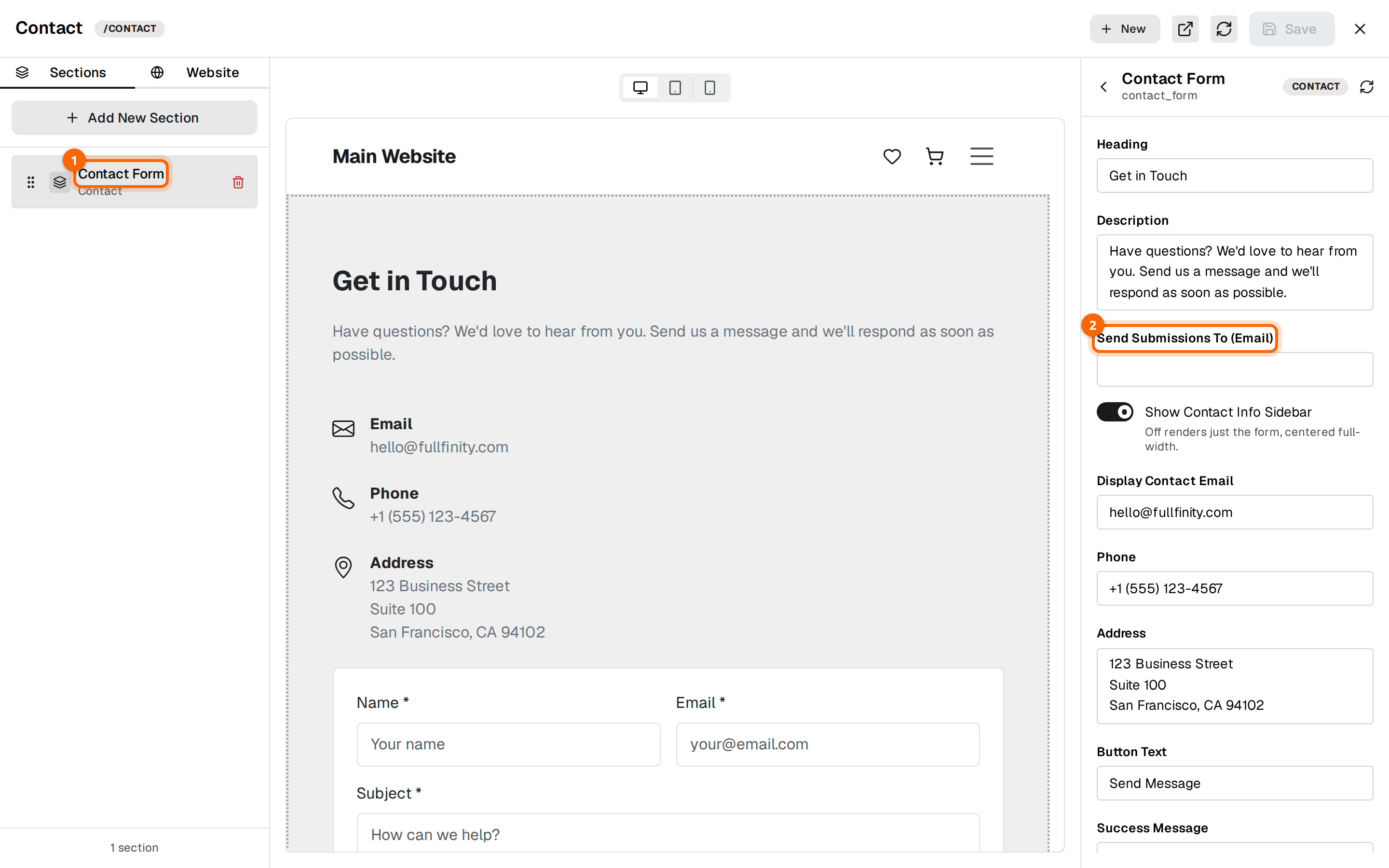
- Click the Contact Form section in the Sections list to open its settings.
- Fill in Send Submissions To (Email) if you also want every submission emailed to an address. The lead is created either way — with this left empty, or even if the email can't be sent.
Scroll down to Form Fields and click a field to open it. Its Map to CRM Field setting chooses the lead field its answer fills: Lead Title, Contact Name, Email, Phone, Mobile, Job Position, Website, Street, City, Zip / Postal Code or Notes / Message. Only fields of a matching type are offered (an email field can't fill Phone).
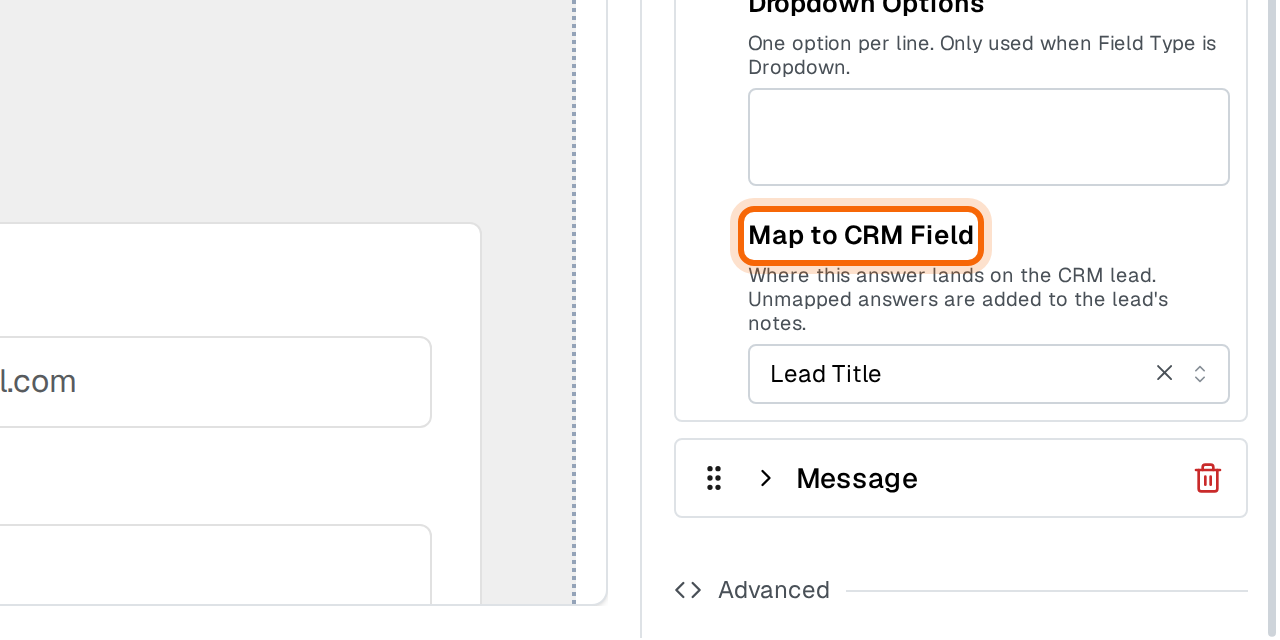
A new contact form already maps Name to the contact name, Email to the email and Subject to the lead title. Click Save in the builder when you've made your changes.
What arrives in CRM
- The lead's title is the visitor's subject, or Website enquiry from and their name when there is no subject.
- Answers that aren't mapped, and anything mapped to Notes / Message, are written into the lead's Description as Label: answer lines — nothing the visitor typed is lost.
- An email address that isn't a valid address goes into the description instead of the Email field.
- A submission with no name, email, phone or subject at all doesn't create a lead.
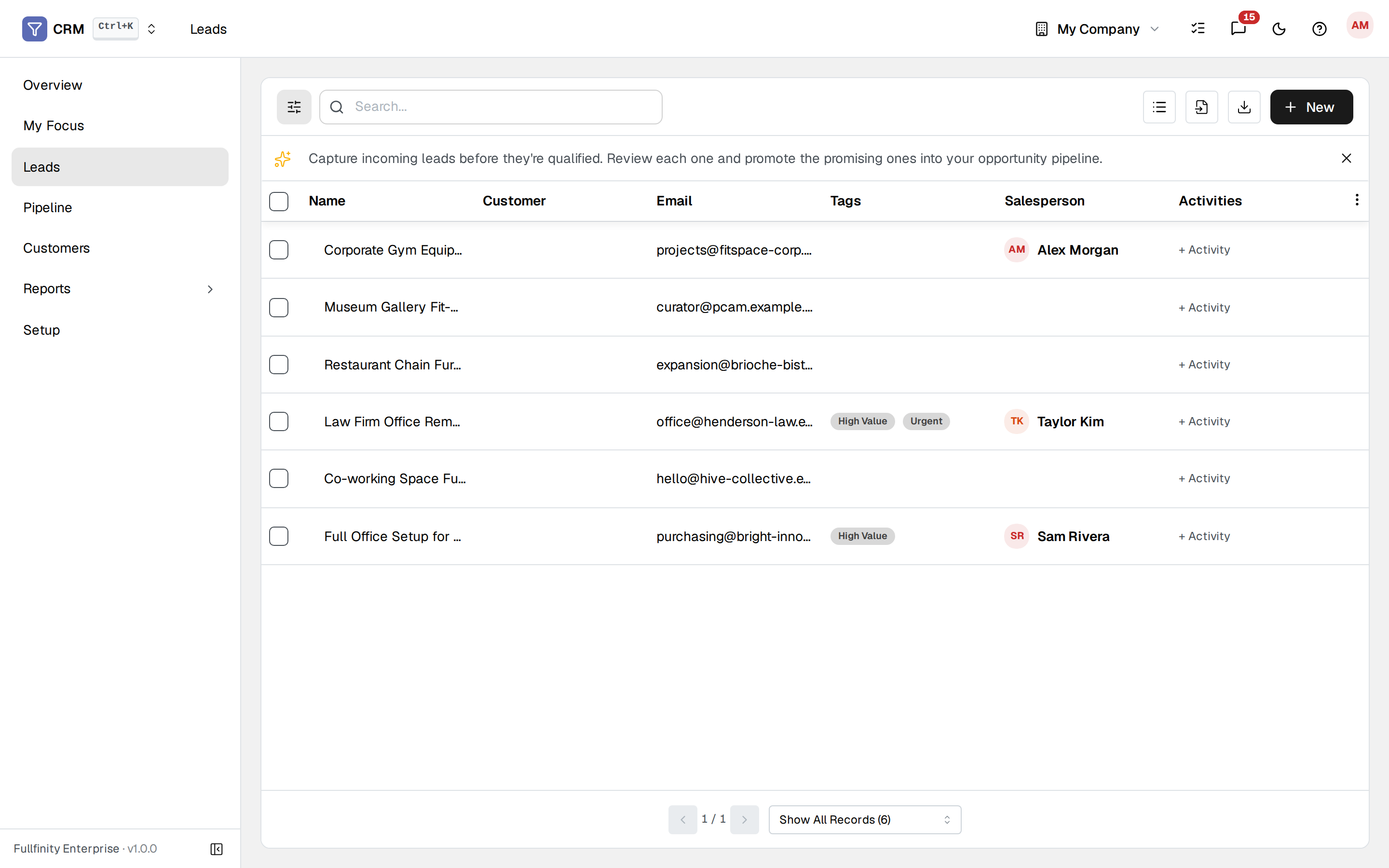
The new lead appears in CRM → Leads — or, with Use Leads off, in CRM → Pipeline as an opportunity — assigned as set above.