How do I return goods to a vendor, from shipment to debit note?
Register goods going back to a supplier, ship them out of stock, and post the debit note that reduces what you owe.
Sending damaged or wrong goods back to a vendor is registered once, on the purchase order. Fullfinity creates the outgoing shipment for the warehouse and a debit note for what the vendor had billed you.
1. Start the return from the purchase order
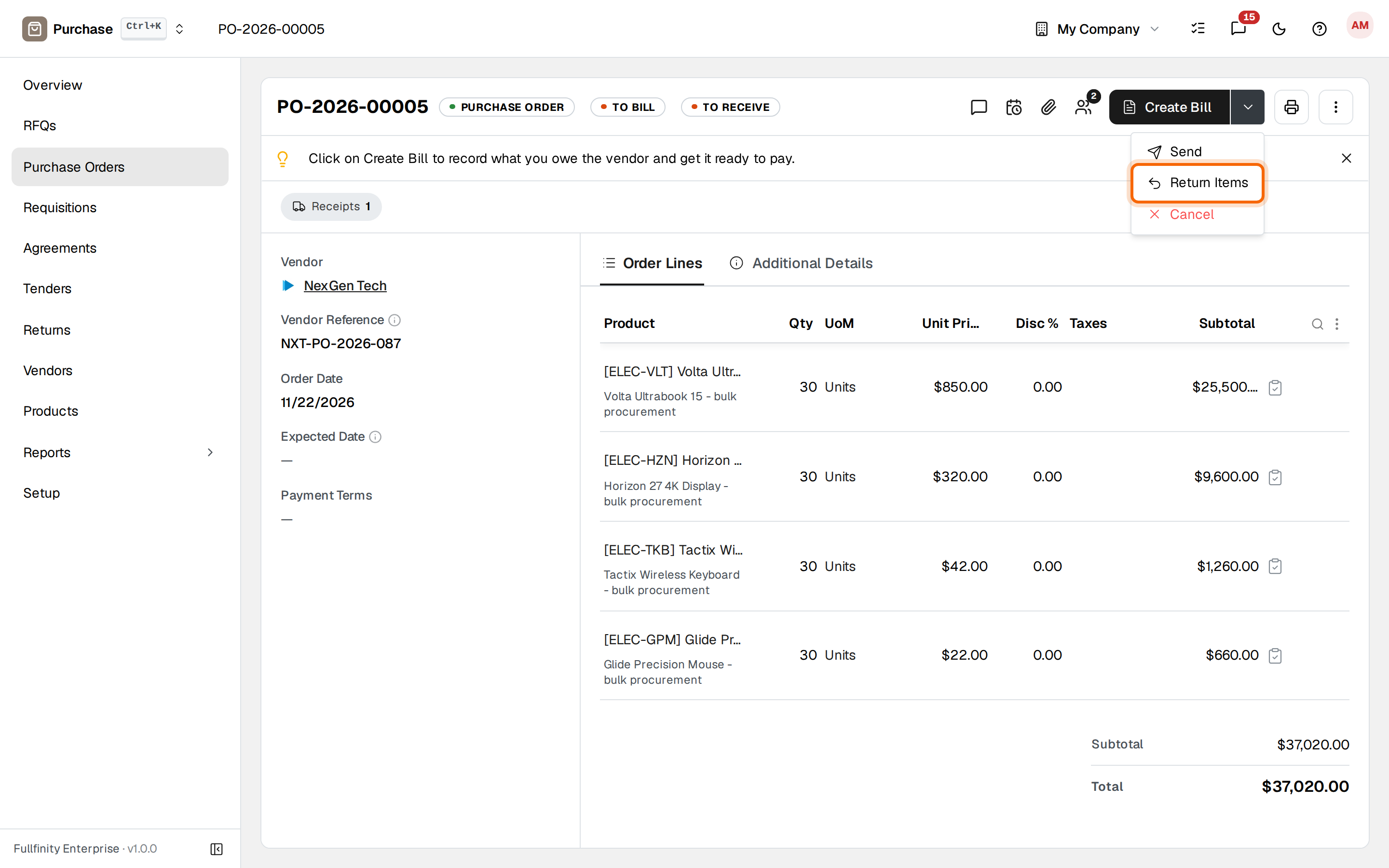
Open the purchase order, open the menu next to the main button and click Return Items.
Enter the Quantity going back for each line — at most what was received or billed, less earlier returns — and a Reason. Click Create & Confirm, or Save Draft to confirm it later from Purchase → Returns.
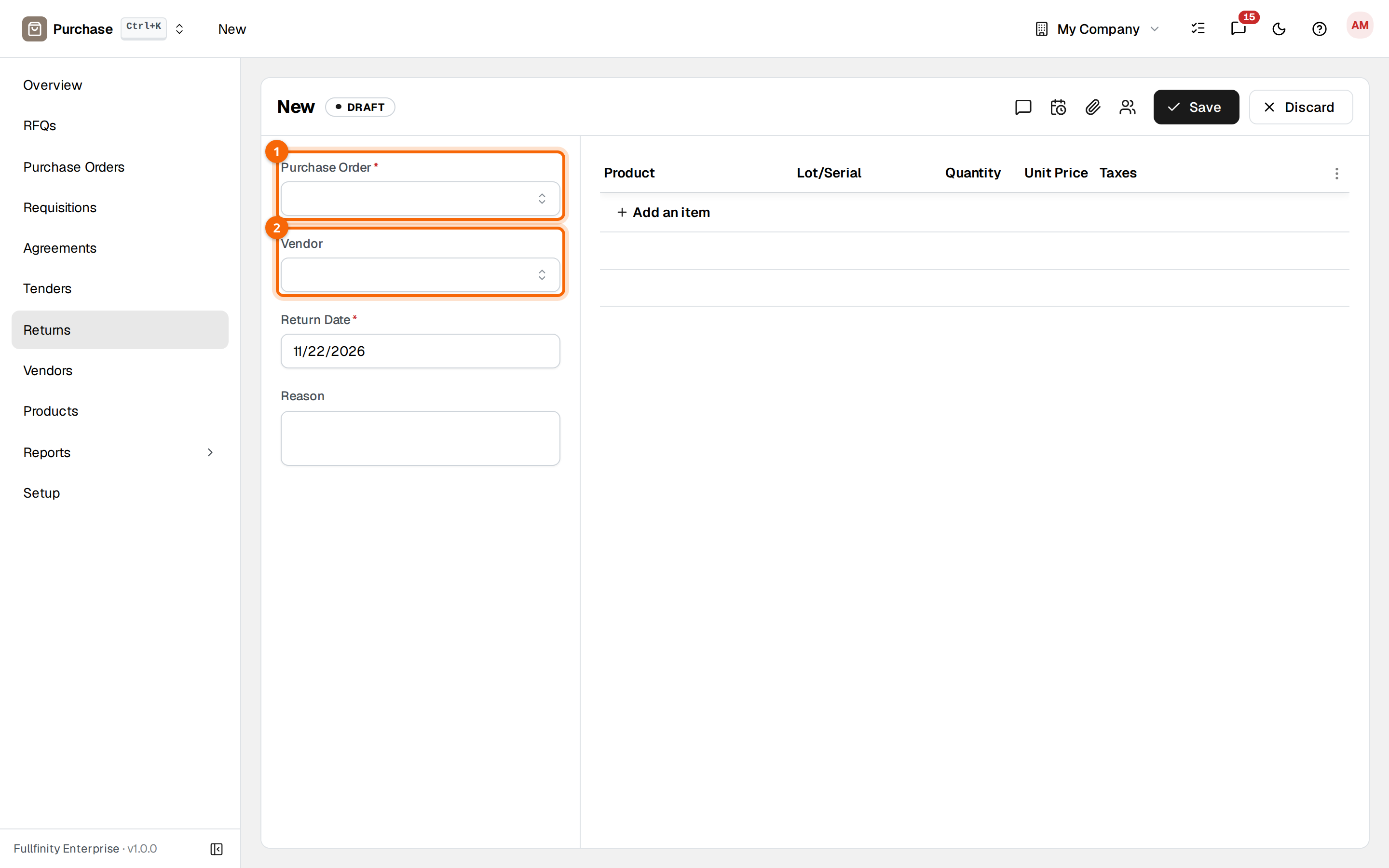
2. Confirm the return
On a draft return, click Confirm Return. The return moves to Done, and Fullfinity:
- Creates a shipment in Inventory, reserving the goods to send back. The return shows a Shipment button.
- Creates a debit note for the part of the returned goods the vendor had already billed, as a Draft. The return shows a Debit Note button. Goods that were never billed get no debit note — the return lowers what is left to bill instead.
3. Ship the goods back
Open the shipment from the return's Shipment button, pack the goods and click Mark Done when they leave. Stock goes down and the order's received quantity is reduced.
4. Post the debit note
Open the debit note from the return's Debit Note button, or Invoicing → Purchases → Debit Notes. Check it against the credit the vendor sends you, then click Post. Unlike a customer return's credit note, it is not posted for you — post it once the vendor has agreed the credit.
A posted debit note reduces what you owe that vendor: apply it against their next unpaid bill, or, if they refund you, record the incoming payment on the debit note with Record Payment.
Related
How do I return goods to a vendor? covers the return screen itself in more detail.