How do I return goods to a vendor?
Send received or billed goods back from the purchase order, which ships them out and raises a debit note for the refund.
When goods arrive damaged, wrong or surplus, return them from the purchase order they were bought on. The return knows what you received and paid for, ships the items back, and raises a debit note so the vendor's credit is on your books.
1. Start the return from the order
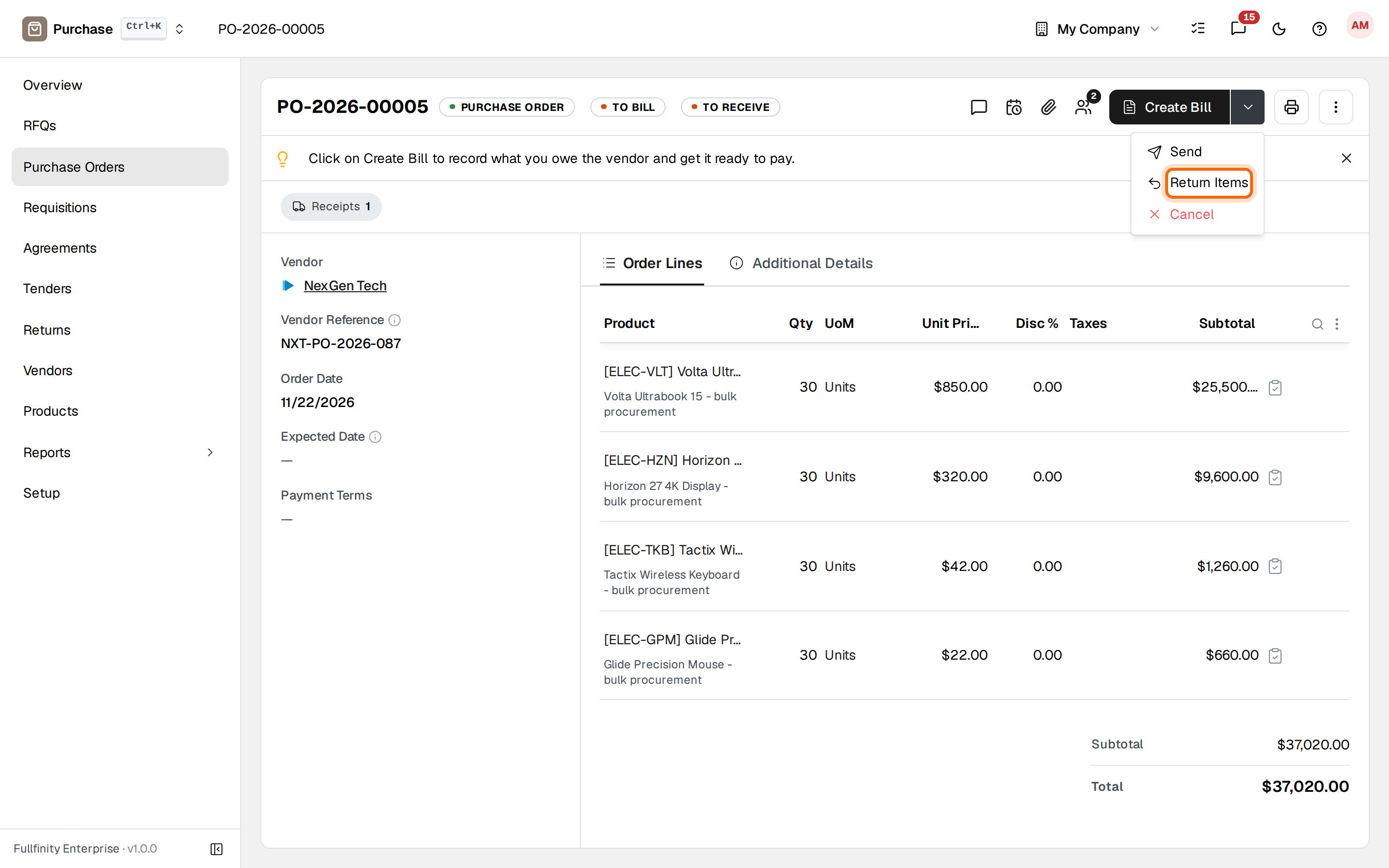
Open the order in Purchase → Purchase Orders. Open the arrow menu beside the main button and choose Return Items.
2. Choose what goes back
The Return Items panel lists each product with how much is Returnable. Enter the Return Qty for each line you're sending back (leave the others at zero) and a Reason.
For products tracked by lot or serial number, each received lot or serial has its own row with its Lot/Serial, so you say exactly which units go back. A serial-numbered item is ticked with Return rather than given a quantity.
Then pick one:
- Create & Confirm — creates the return and confirms it straight away.
- Save Draft — creates the return in Draft so you can check it first. Open it later from Purchase → Returns and click Confirm Return.
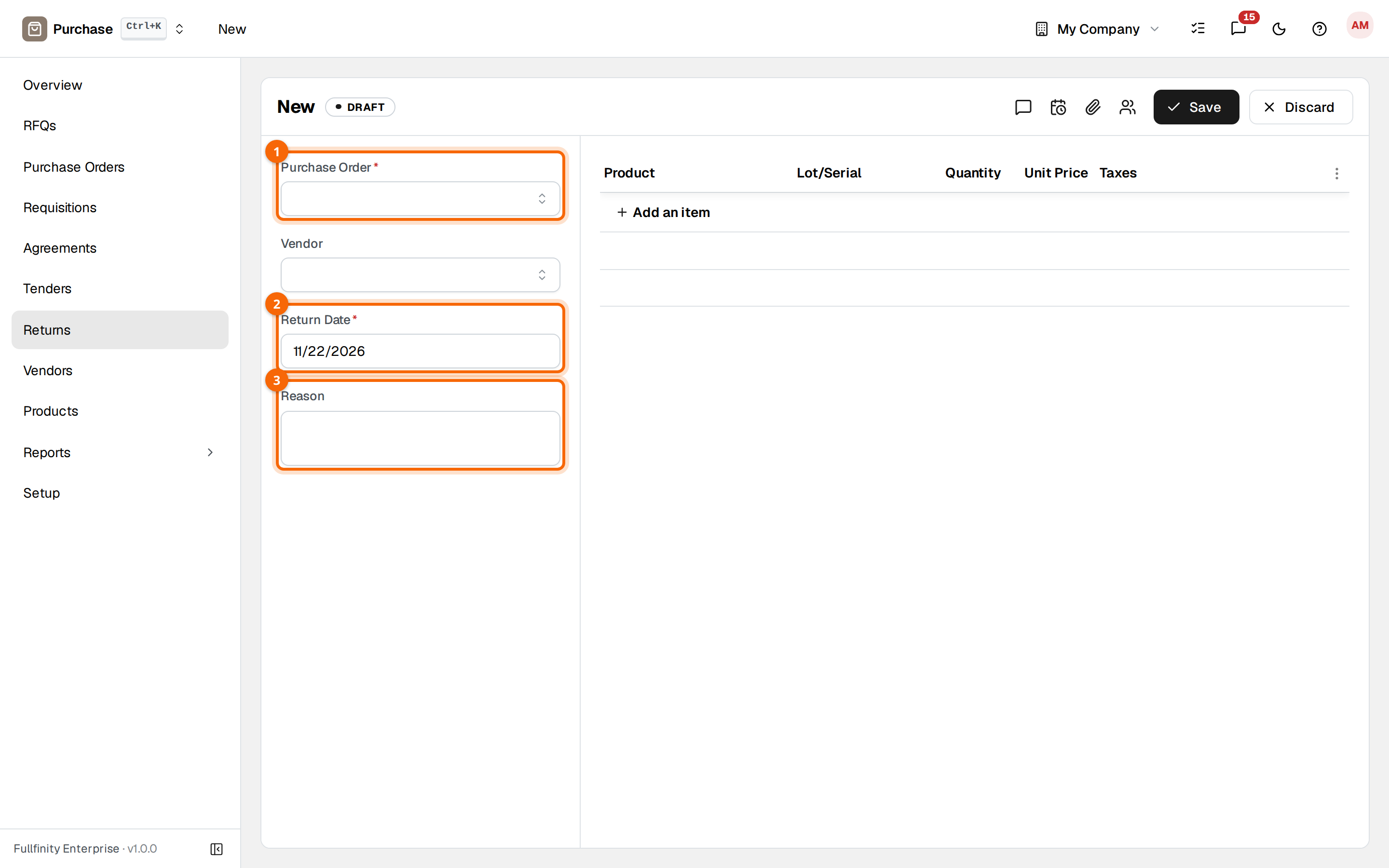
You can also start from Purchase → Returns with New: pick the Purchase Order, set the Return Date and Reason, and add the lines yourself.
3. What confirming does
- Creates a draft Debit Note to the vendor for the returned lines, at the prices and taxes you paid. Open it with the Debit Note button and post it in Invoicing.
- With Inventory, creates the outgoing Shipment that sends the goods back; your warehouse validates it when they leave.
- Sets the return to Done.