How do I set up Subscriptions?
Choose the journal subscription invoices go to, how mid-period changes are billed, how often failed payments are retried, and whether customers can manage their own subscription.
Subscriptions bills customers again and again on a schedule — every month, every quarter, every year — and keeps track of what each customer pays you each month. A few settings decide how that billing behaves for every subscription. Set them once before you start; you can change them at any time.
Go to Subscriptions → Setup. The Setup screen opens on the Subscriptions tab.
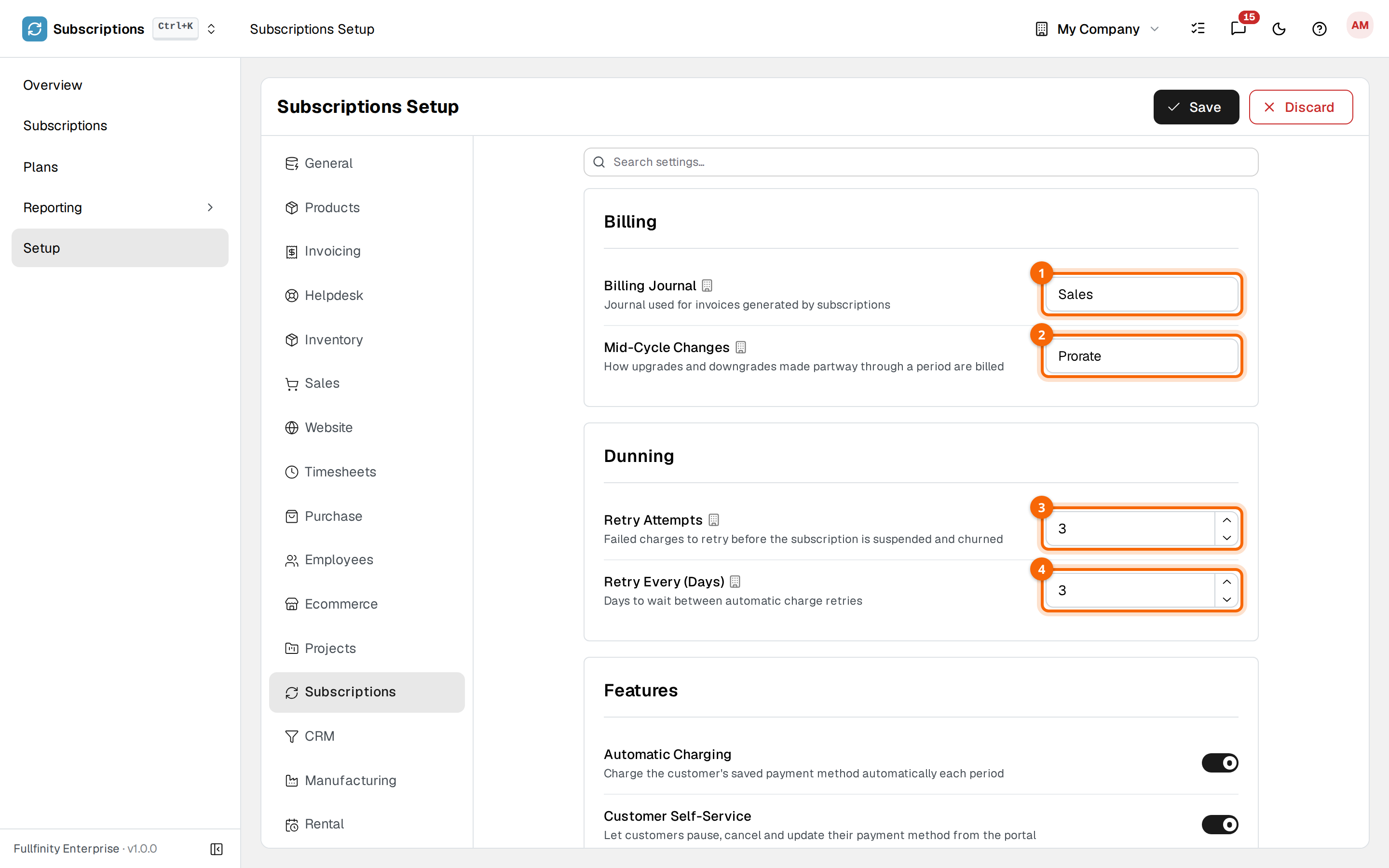
Billing
- Billing Journal — the journal every subscription invoice is recorded in. Leave it blank to use your company's sales journal. A subscription can still use another journal of its own.
- Mid-Cycle Changes — what happens when a subscription's price changes partway through a period, for example when a customer adds seats:
- Prorate — the customer is charged (or credited) for the rest of the current period straight away, with a separate invoice or credit note for just the difference.
- No Adjustment — nothing is billed now; the new price applies from the next invoice.
Dunning
When an automatic payment fails, Fullfinity tries again. These two settings decide how hard it tries:
- Retry Attempts — how many failed payments are allowed before the subscription is suspended and ended.
- Retry Every (Days) — how long to wait between attempts.
See What happens when a subscription payment fails?
Features
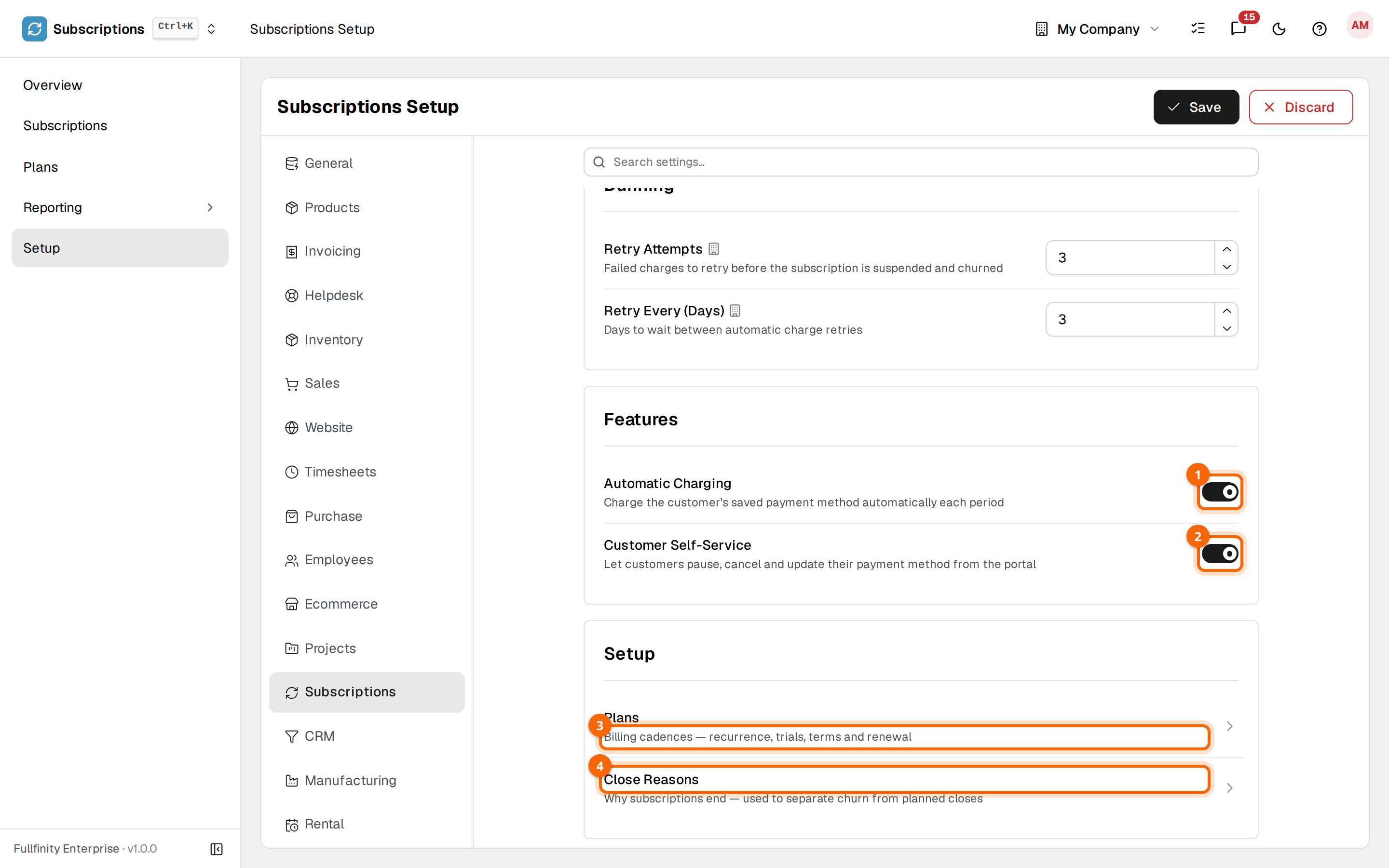
- Automatic Charging — charge each customer's saved card or bank account automatically when an invoice is raised. Turn it off if you would rather send invoices and let customers pay them.
- Customer Self-Service — let customers change their plan, update their payment method, pause or cancel from their online account. See How do customers manage their subscription online?
Click Save at the top when you're done.
The Setup section at the bottom links to:
- Plans — what you sell and how often it is billed. See How do I create a subscription plan?
- Close Reasons — the reasons you choose from when a subscription ends, such as Too Expensive or Non-Payment. They appear in your churn reports. Add your own with New.
➡️ Next: How do I create a subscription plan?