How do I upgrade, downgrade or change the number of seats?
Move a subscription to another plan, change its quantity, or edit its lines, and bill or credit the difference for the rest of the period.
Customers grow and shrink. You can move a subscription to another plan, change how many seats it has, or edit its lines, at any point in a period. With Mid-Cycle Changes set to Prorate (Subscriptions → Setup), the customer pays or is credited the difference for the days left in the current period.
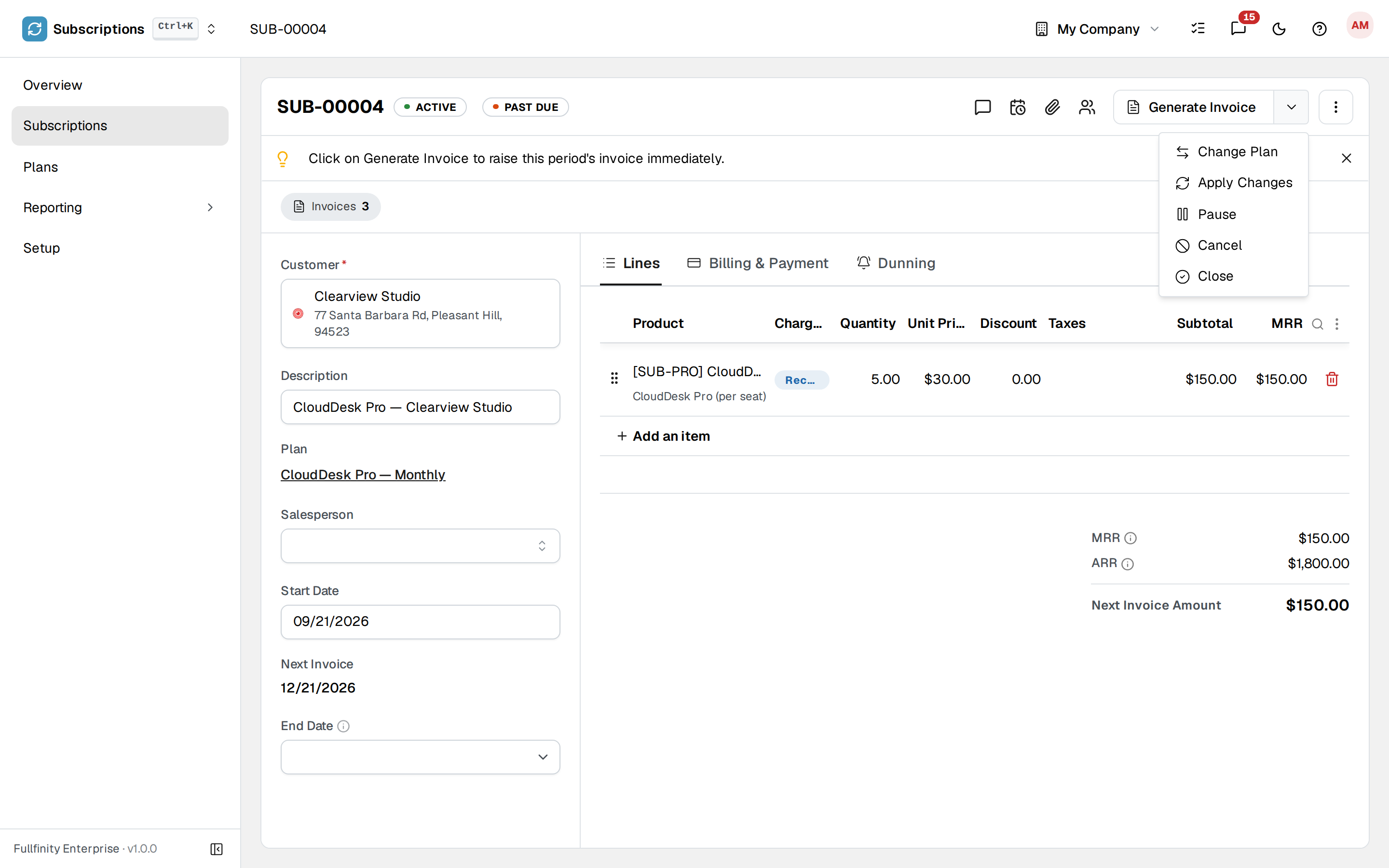
Open the subscription and click the arrow next to Generate Invoice to see the actions for changing it.
Move to another plan
Choose Change Plan.
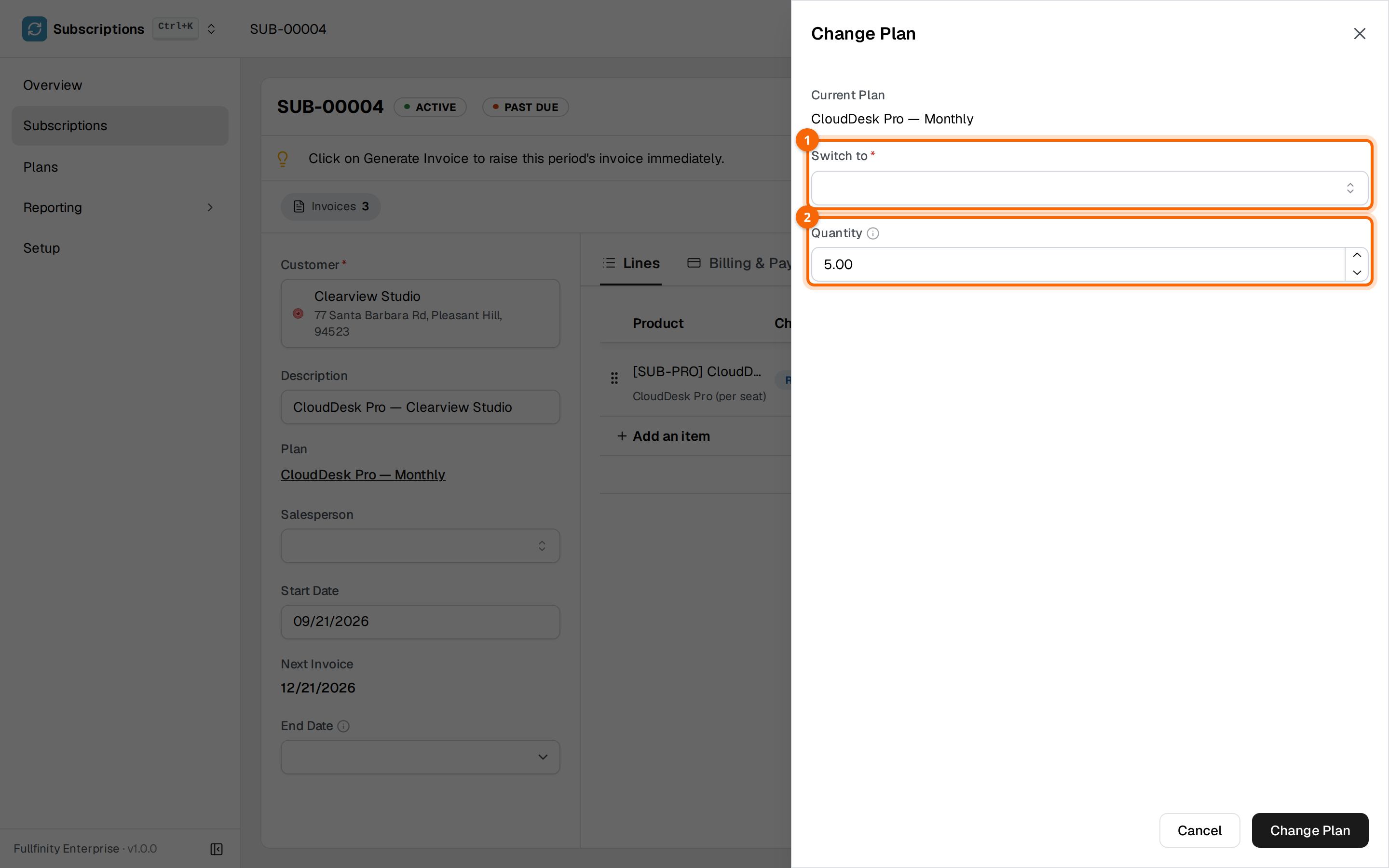
- Switch to — the new plan.
- Quantity — the number of seats on the new plan. It starts at the subscription's current quantity.
Click Change Plan. The subscription's lines are replaced with the new plan's lines and it adopts the new plan's billing schedule. On an Active subscription:
- An upgrade raises an invoice for the difference over the rest of the period, charged to the saved payment method if Auto-Charge is on.
- A downgrade raises a credit note for the difference, which reduces what the customer owes.
On a subscription in Trial or Paused, nothing is billed now: the new plan simply applies to the next invoice.
Change the lines yourself
To change a quantity or a price, or add an extra line, edit the Lines tab and save. Then open the arrow next to Generate Invoice and choose Apply Changes: the difference for the rest of the period is billed or credited in the same way. If you don't, the next invoice simply uses the new lines.
Each change is also recorded in MRR Movement as an Expansion or a Contraction — see How do I track MRR and churn?