How do I place the fields people fill in?
Use the field editor to add roles and drop signature, initials, text, date and checkbox fields onto the PDF.
Fields are the boxes on the PDF a signer fills in. Every field belongs to a role — Company, Customer, Witness — and the signer you give that role fills it.
Open a draft request and click Prepare. The editor shows the PDF's pages with a toolbar at the bottom.
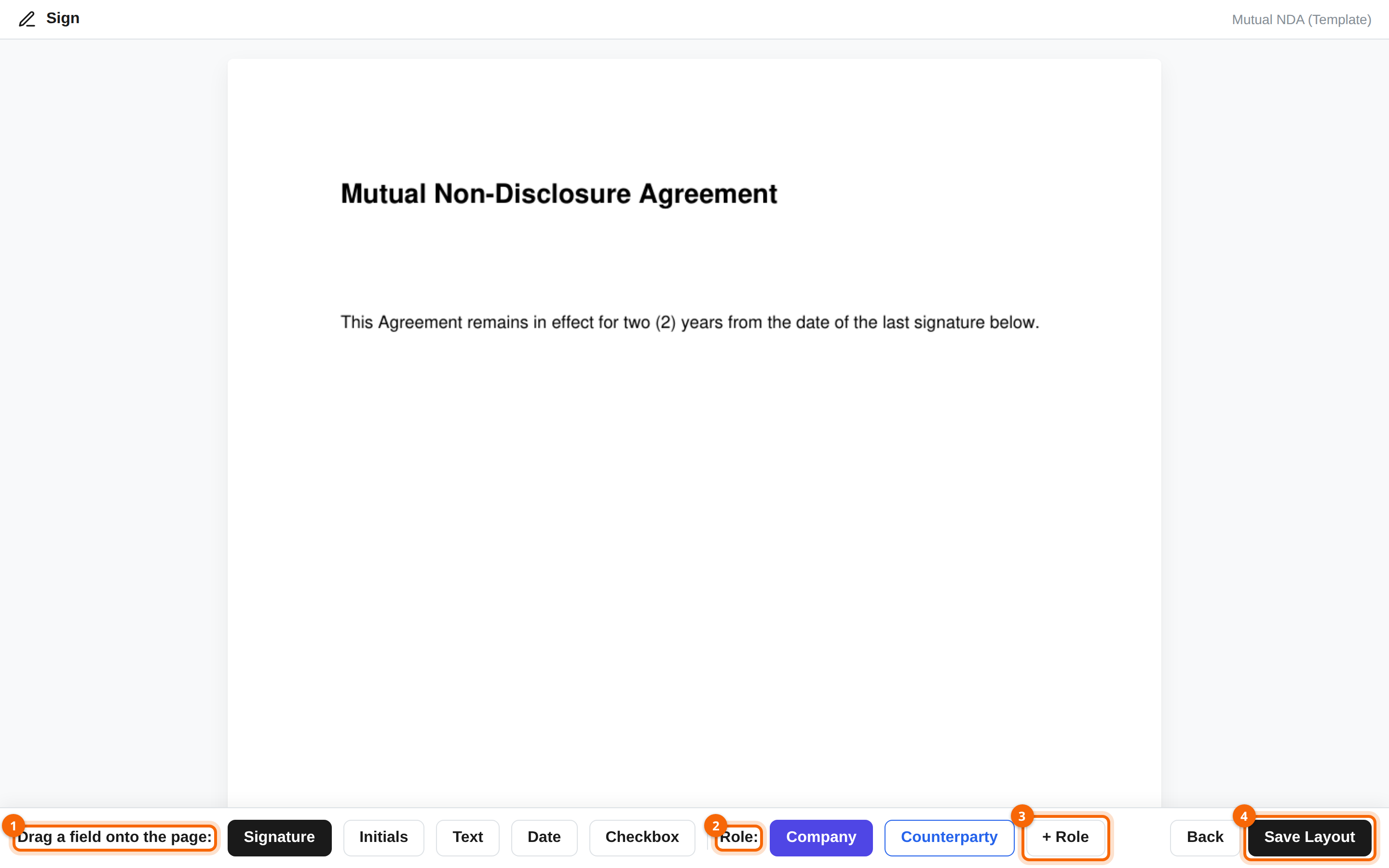
- Drag a field onto the page: pick Signature, Initials, Text, Date or Checkbox and drag it to where it belongs — or select it and click the spot on the page.
- Role: the field is given to the role selected here. Each role has its own colour, so you can see at a glance whose fields are whose.
- + Role adds a role. Type its name and click Add Role.
- Drag a field to move it, pull its corner to resize it, or remove it with the red × on its corner. Click Save Layout when you are done, then Back to return to the request.
Every field you place is required: a signer can't finish until they have filled all of theirs — so a checkbox they may leave unticked doesn't belong on the document.
Sending the same kind of document often? Save it as a template so the fields are already in place next time: How do I reuse a document as a template?
Was this article helpful?