How do I send a document for signature?
Upload a PDF, place the fields each person fills, add the signers and send them their signing links.
Sign sends a PDF to one or more people to sign online. Each signer gets an email with their own link — no account needed — and when everyone has signed you get one finished PDF with every signature stamped on it and a certificate of how it was signed.
1. Upload the PDF
- Go to Sign → Documents and click New.
- Type a title for the request (Employment Offer — Aurora Consulting).
- Drop the PDF onto PDF. Only PDF files are accepted. It appears on the right.
2. Place the fields
Click Prepare. The document opens in the field editor, where you decide what each person fills in and where: a signature, initials, their name, a date, a tick. See How do I place the fields people fill in? Click Save Layout, then Back.
3. Add the signers
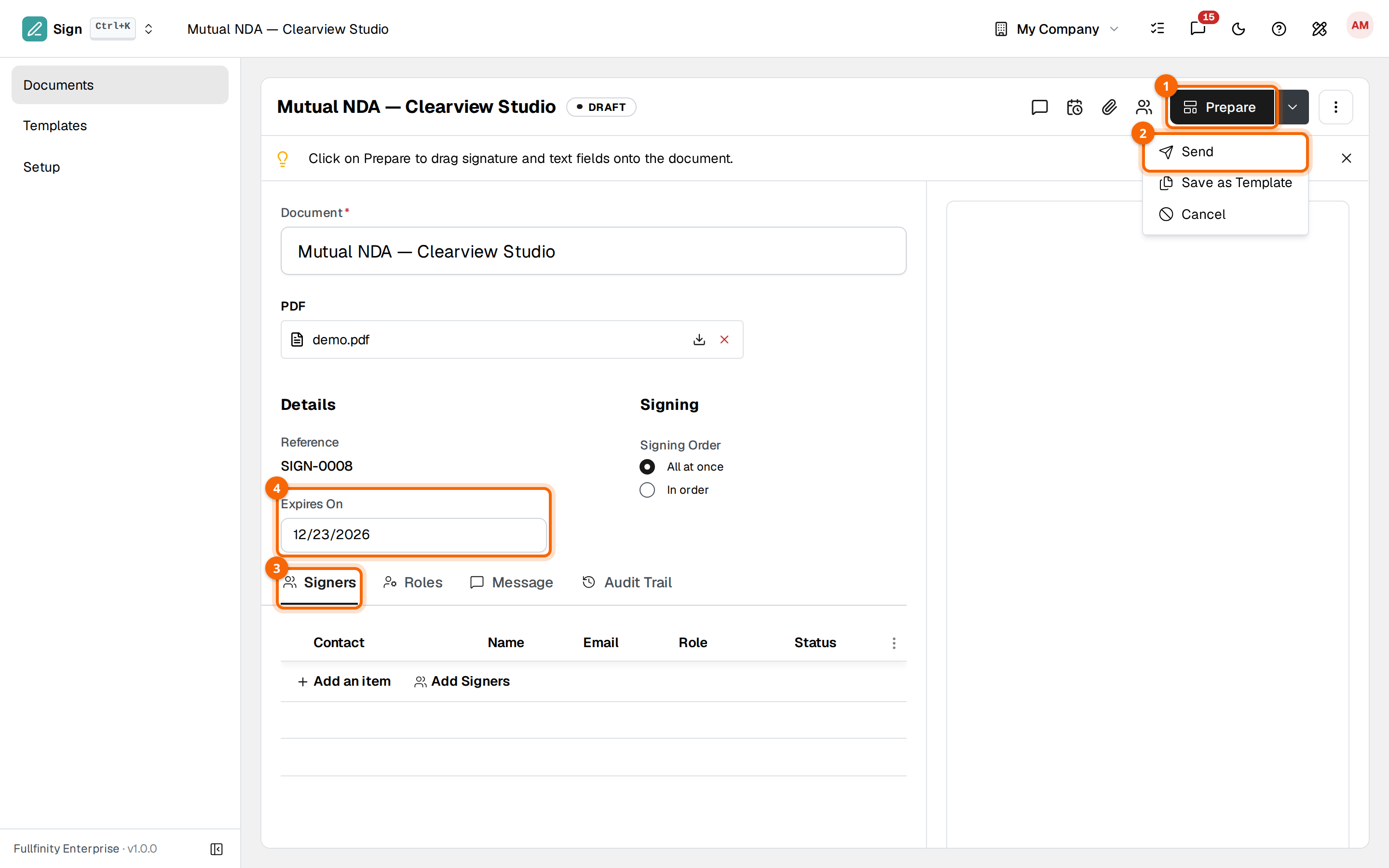
- On the Signers tab, click Add Signers and pick each person from your contacts, or add a line and type their Name and Email.
- Give each signer the Role whose fields they fill — the roles you created while placing fields (Employer, Candidate).
- Optionally write a Message to Signers on the Message tab; it is added to the email.
- Check Expires On. It is filled in from your company's default validity; after that date the request expires and can no longer be signed. Clear it for a request that never expires.
4. Send
Click Send. Each signer gets an email titled Signature requested with a button to review and sign. The request moves to Sent and can no longer be edited.
Fullfinity checks before sending, and tells you what is missing: no PDF, no signer, no field placed, a signer without an email address, or a role with required fields that nobody fills.
➡️ Related: What does a signer see? · How do I follow up a request?