What does a signer see when they sign?
The signing page your signers use, from the email link to the downloaded signed copy.
Your signers don't need a Fullfinity account. Everything happens on one page, opened from the link in their email. This is what they do — useful when someone asks you for help.
1. Open the link
The email Signature requested: (document) has a button to review and sign. If your company requires email verification, the page first asks them to Verify your email: they type the 6-digit code sent to them and click Verify & Continue. Resend Code sends a new one; a code lasts ten minutes.
2. Fill in the fields
The document opens with their fields highlighted — Signing as (name) at the top.
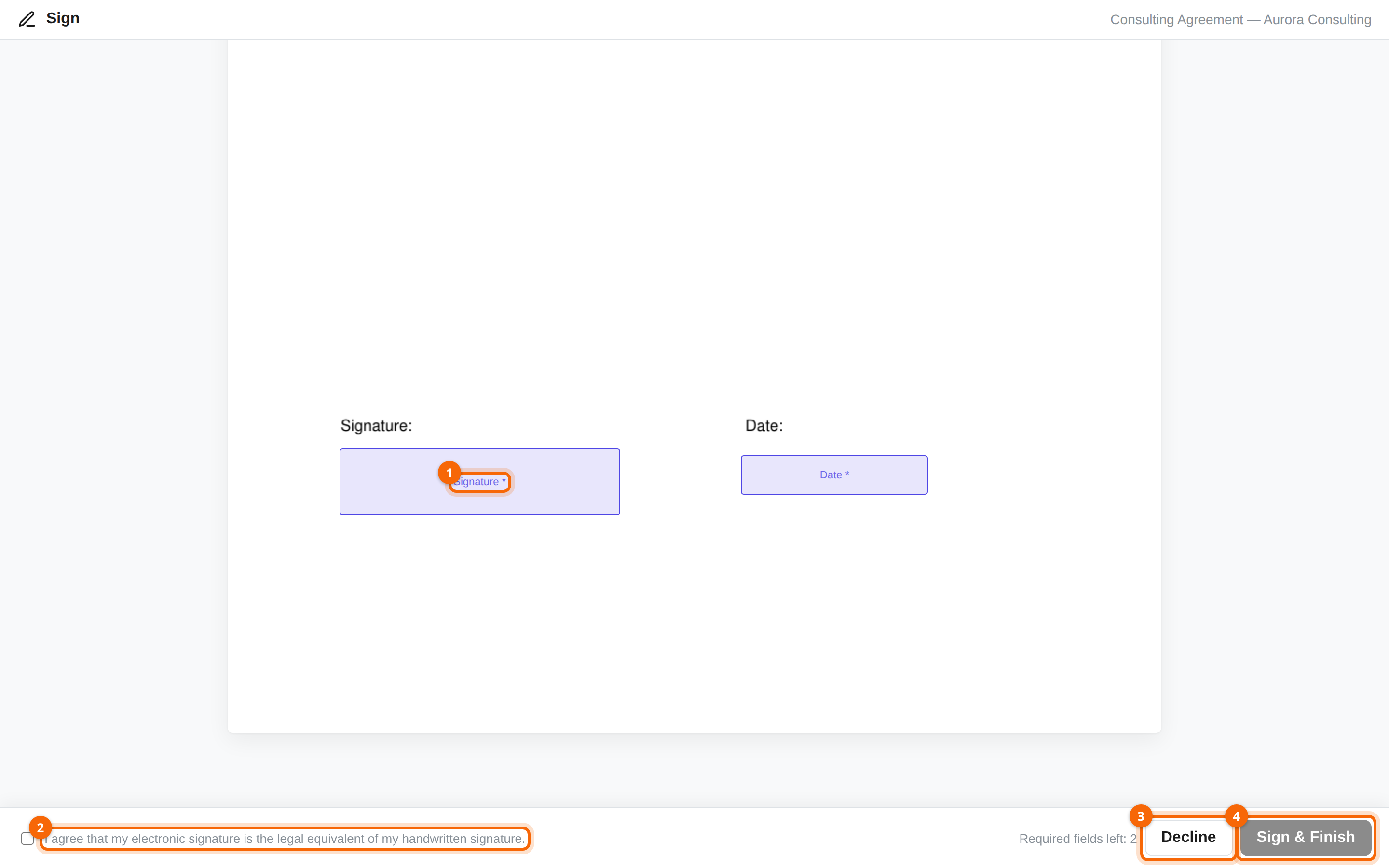
- Click a signature or initials field. They either Draw their signature with the mouse or a finger, or Type their name, then click Apply. A text or date field opens a box to type in; a checkbox ticks when clicked.
- Tick the consent statement — your company's wording that an electronic signature counts as a handwritten one.
- Decline refuses to sign. They are asked for a reason (optional), and the whole request becomes Declined.
- Sign & Finish becomes available once every required field is filled. The bar shows how many are left.
3. Afterwards
Their signature is recorded with the time, their IP address and their browser. When the last person signs, everyone gets an email with a link to the signed PDF; opening their own signing link again shows All done — thank you! and Download signed document.
A link to a request that was cancelled, declined or has expired shows that the document is no longer available for signature.