How do I sign in and turn on two-factor authentication?
Sign in, reset a forgotten password, protect your account with an authenticator app, and require it for everyone.
Two-factor authentication — two-step verification — asks for a 6-digit code from an app on your phone as well as your password. Someone who learns your password still can't sign in without your phone.
Signing in
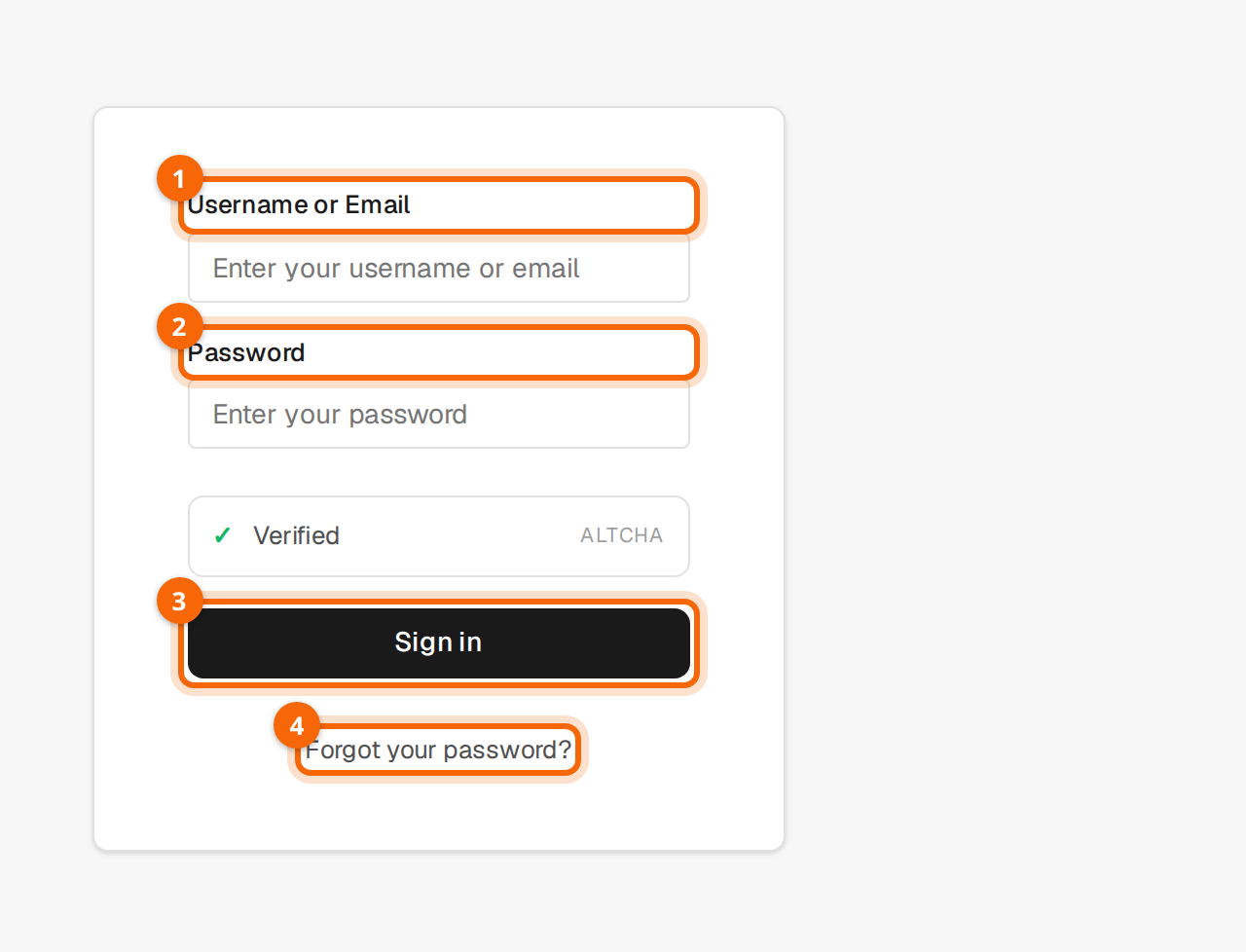
- Username or Email — the email address your user was created with.
- Password — your password.
- Click Sign in.
- Forgotten your password? Click Forgot your password? and follow the link in the email you receive.
New to Fullfinity? Your administrator sends you an invitation email with a link to set your password — see How do I add users and choose what they can access?
Turn on two-step verification for yourself
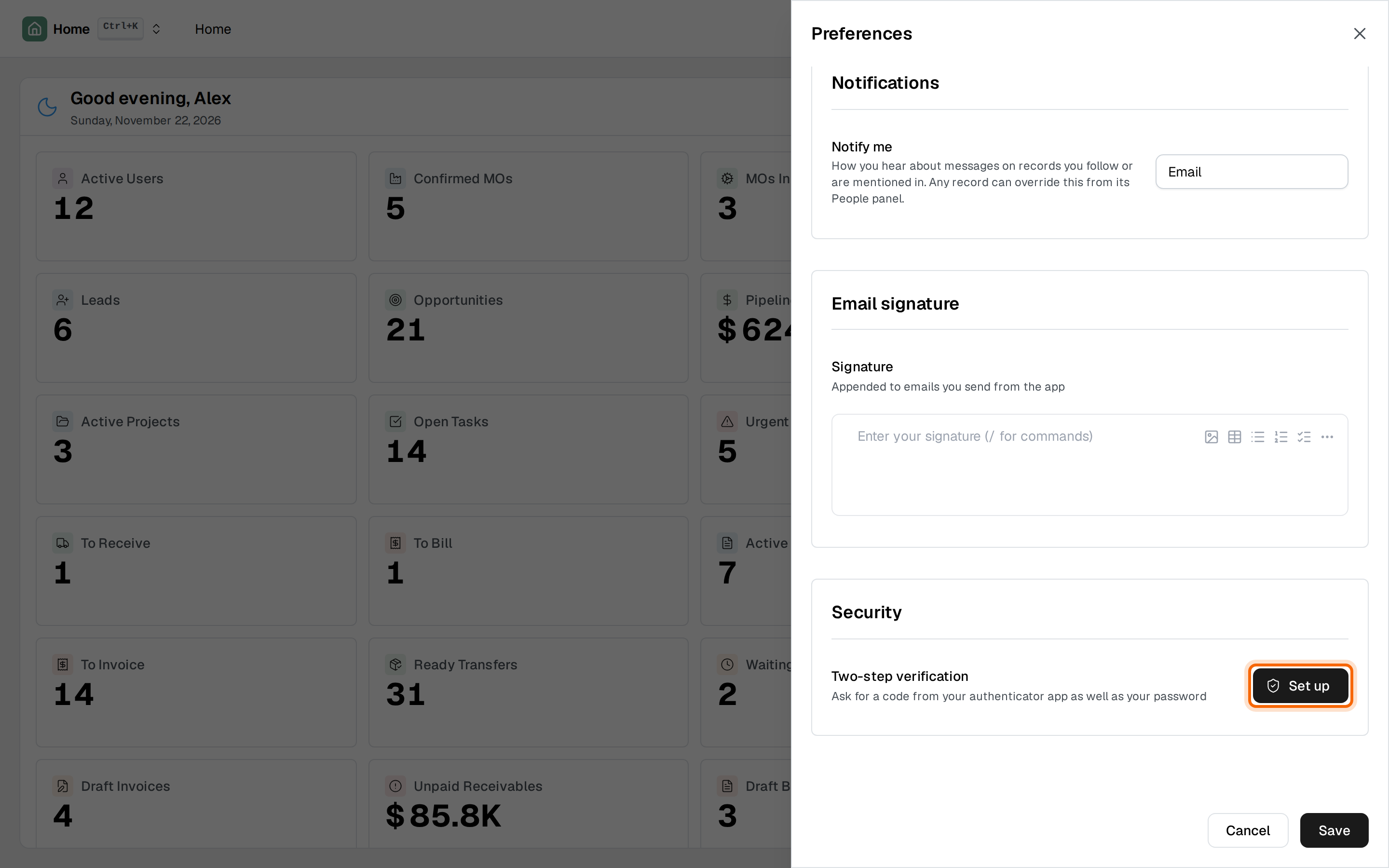
- Click your avatar at the top right and choose Preferences.
- Under Security, next to Two-step verification, click Set up.
- Scan the QR code with your authenticator app. (No camera? Type the key shown under Or enter this key manually into the app.)
- Enter the 6-digit code the app shows and click Verify and turn on.
- Fullfinity now shows your backup codes. Write them down or store them somewhere safe — each one signs you in once if you lose your phone, and this is the only time they are shown.
From now on, after your password Fullfinity asks for the code from your app. Lost your phone? Click Use a backup code instead on the sign-in screen and enter one of your backup codes.
To switch it off, go back to Preferences and click Turn off.
Require it for everyone
An administrator can make two-step verification compulsory for everyone in the company:
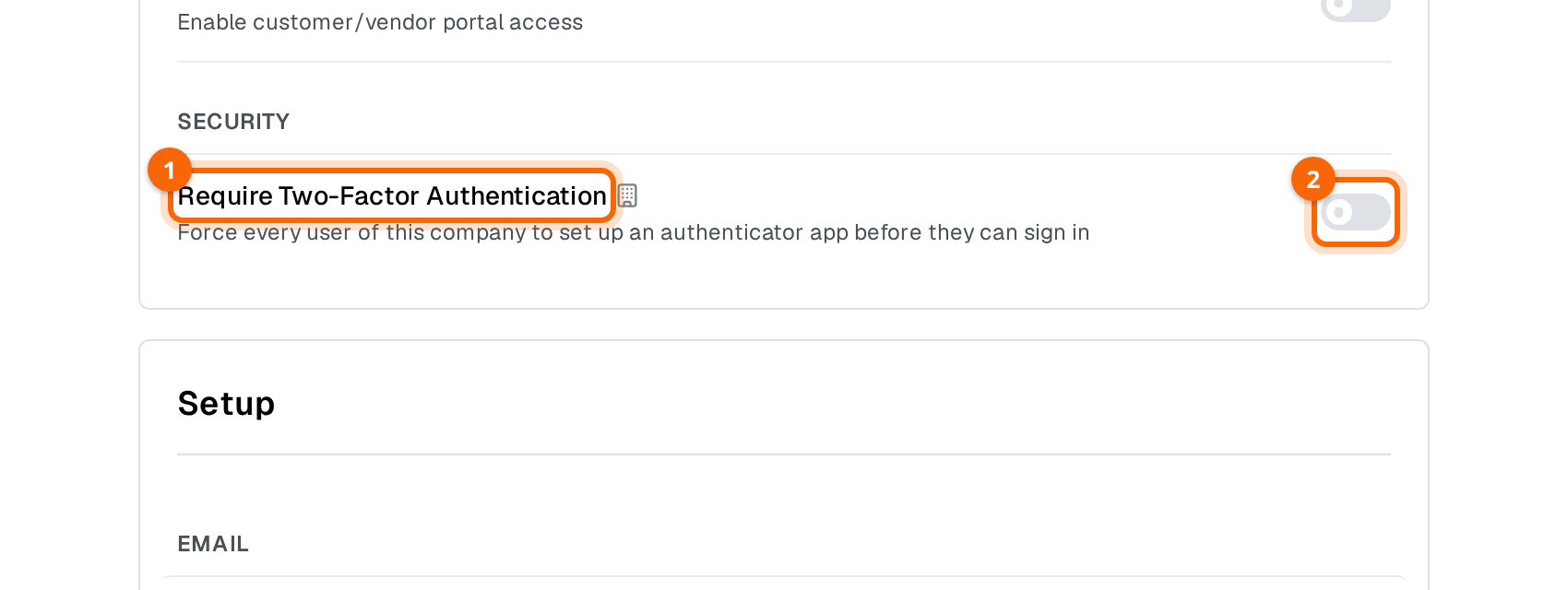
- Go to Settings → Setup and open the General tab.
- Under Security, switch on Require Two-Factor Authentication, then click Save.
Anyone who hasn't set it up yet is asked to scan a QR code with their authenticator app the next time they sign in, before they can continue.