How do I import records from a spreadsheet?
Bring contacts, products or any other records in from an Excel or CSV file, match its columns to fields, and test it before importing.
Moving from another system, or adding many records at once? Import them from a spreadsheet instead of typing them in. The same steps work on any list you can create records on — contacts, products, leads and more.
1. Open the import screen
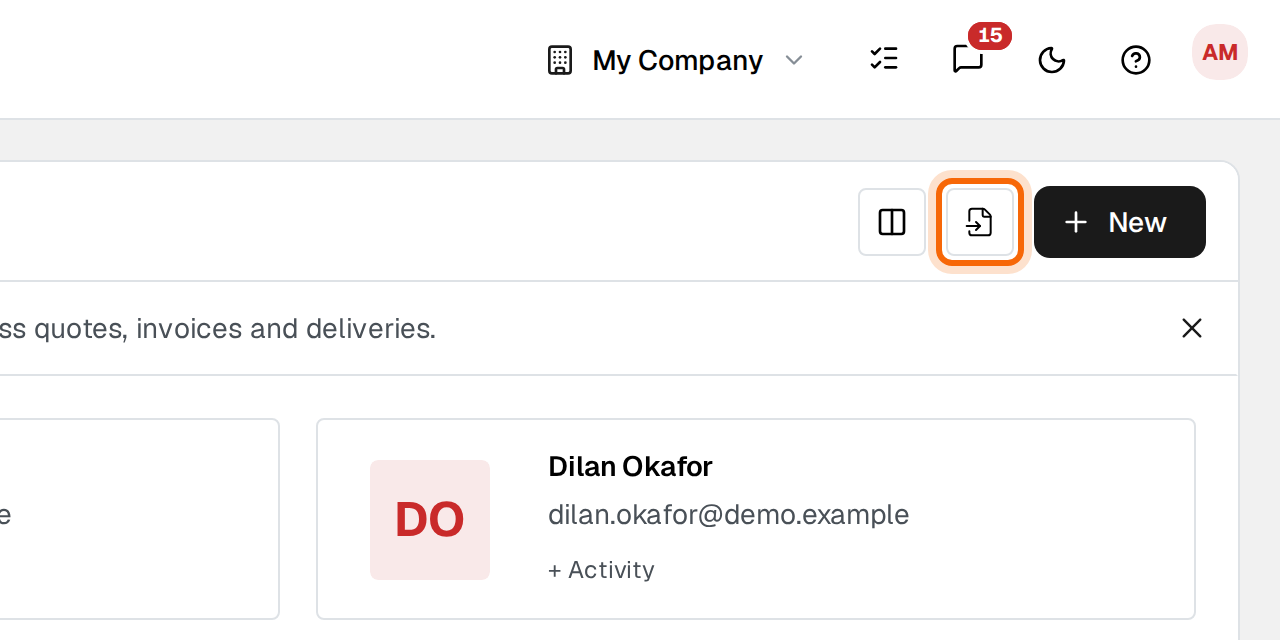
Open the list you want to fill — for example Address Book for contacts — and click the Import button beside New.
2. Upload your file
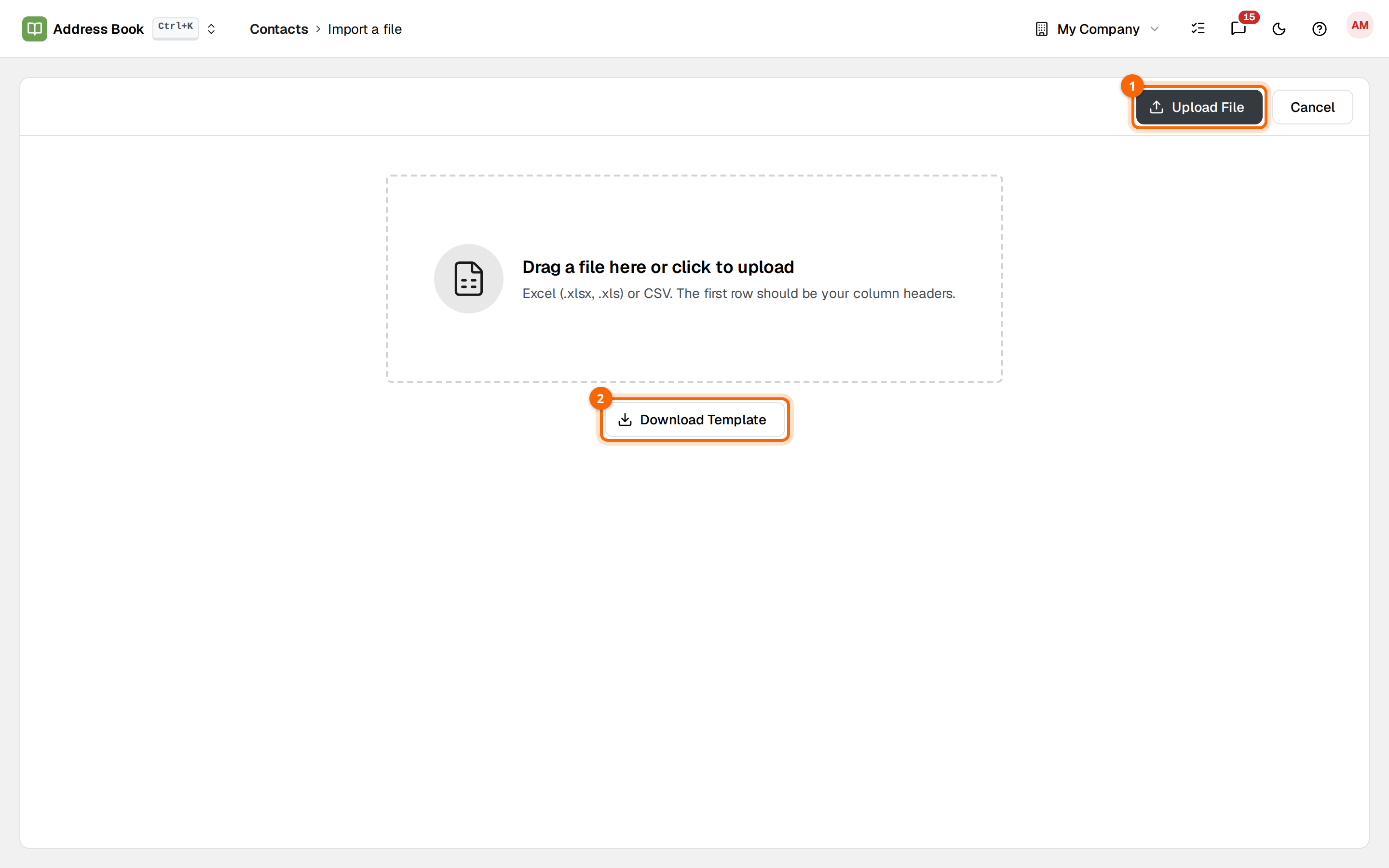
- Click Upload File, or drag your file onto the page.
- Not sure which columns to use? Click Download Template first for a spreadsheet with the right headers, fill it in, and upload that.
If your workbook has several sheets, choose the one to import under Sheet.
3. Map your columns
Under Map your columns, every column of your file is listed with the field it will fill. Fullfinity matches columns by their headers; check each one and use Select a field to change it, or leave a column unmapped to skip it. Auto-map columns matches again, and Clear Mapping starts over. Import the same file again later and your mapping is remembered.
For each column you can also tick:
- Match to update — find an existing record with the same value in this field and update it, instead of creating a new one. Tick it on a column that identifies a record, such as an email address or a product code.
- Create if not found — on a column that points to another record (a country, a category), create that record when no match exists, instead of reporting an error.
To put several values in one cell — several tags, say — separate them with a comma.
4. Check the settings and test the import
Under Settings, tell Fullfinity how your file writes dates (Date Format) and numbers (Number Format). Then switch on Dry Run (Preview Only) and click Import. Nothing is saved: the dry run reports how many records would be created and would be updated, and lists any rows with problems so you can fix the file first.
5. Import
Switch Dry Run (Preview Only) off and click Import. A progress bar shows the import running; when it finishes you see how many records were created and updated.
If some rows could not be imported, the rest still are. Click Download failed rows for a spreadsheet of just those rows with the reason for each, fix them, and import that file.