How do I export a list to a spreadsheet?
Download any list as an Excel file — the columns you see, or the fields you choose.
Any list can be downloaded as an Excel spreadsheet, to analyse it, share it or keep a copy.
1. Choose the records
Filter and search the list until it shows the records you want — the export follows the list. To export only some of them, tick their checkboxes; with any record ticked, only the ticked ones are exported.
2. Export
Click the Export button beside New.
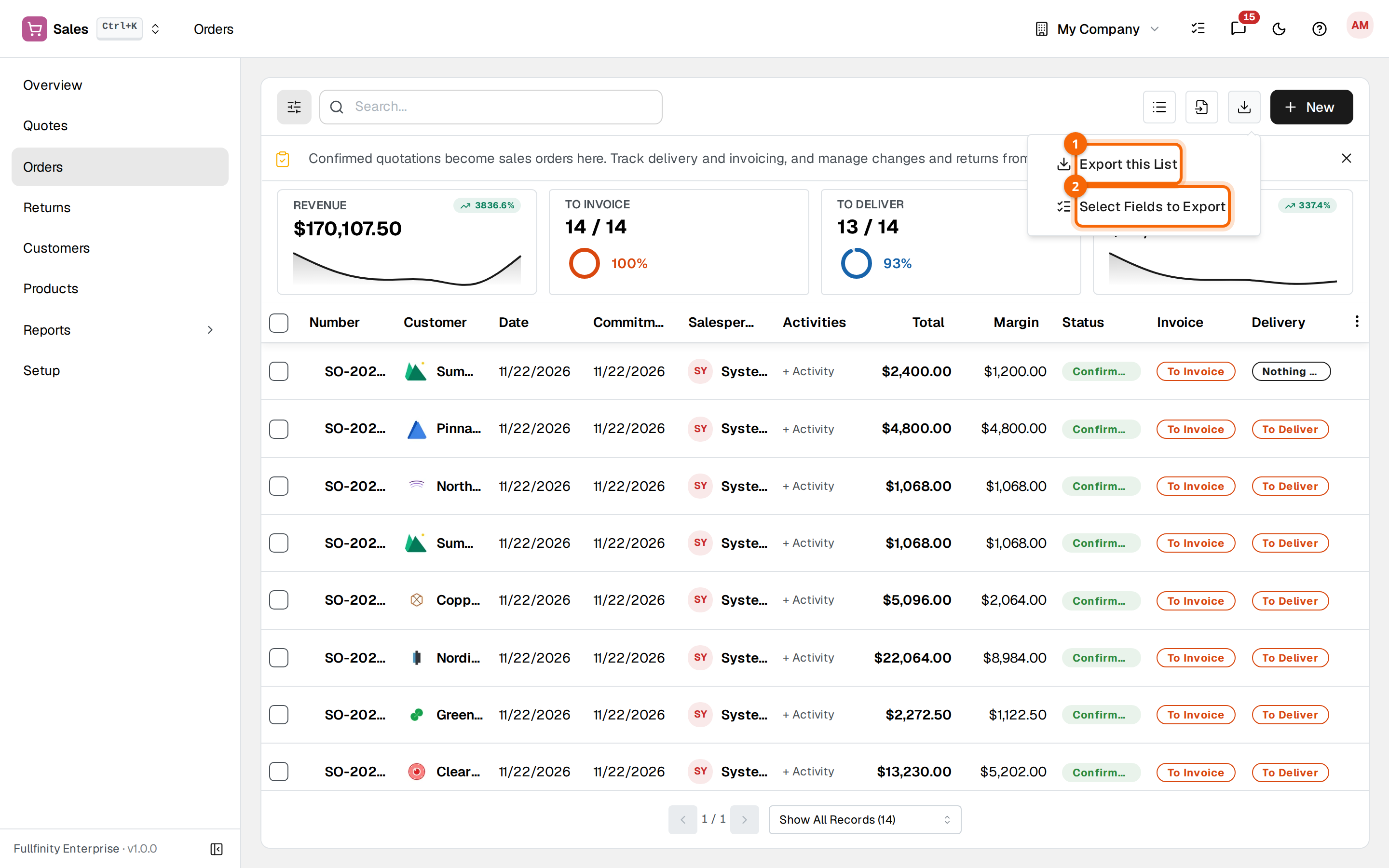
- Export this List — download the columns you can see, straight away.
- Select Fields to Export — choose exactly which fields go into the file.
The spreadsheet downloads when it is ready. A large list can take a moment; a message keeps you posted while it is prepared.
Choosing the fields
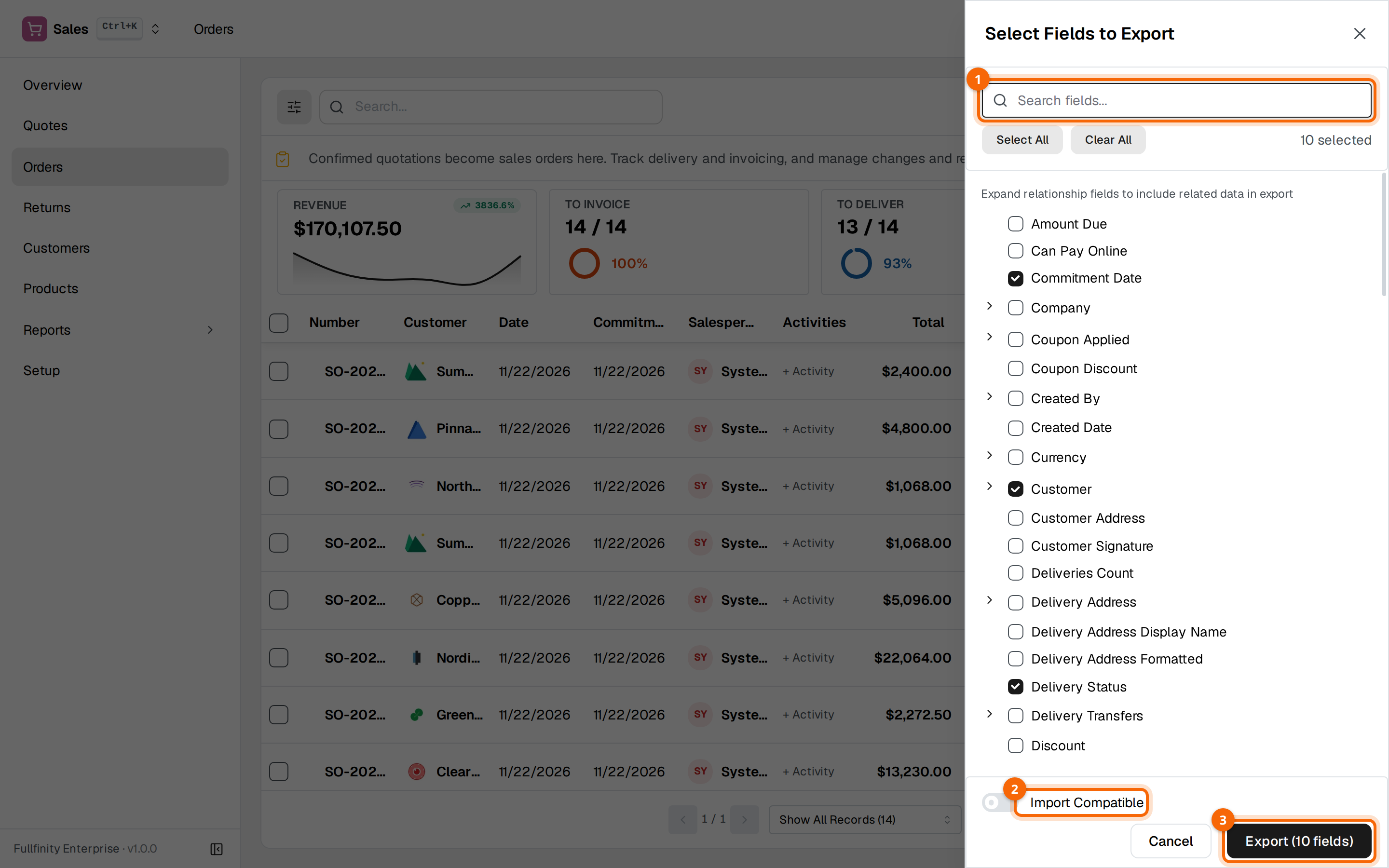
- Search for a field and tick it. Expand a field that points to other records to include their details too — a customer's country, an order's lines. Select All and Clear All tick or clear everything.
- Switch on Import Compatible if you will import the file again: it adds identifier columns so each row finds its record again on the way back in.
- Click Export at the bottom of the panel — it shows how many fields you have chosen.
➡️ Bringing data the other way? See How do I import records from a spreadsheet?
Was this article helpful?