How do I find my way around Fullfinity?
Switch between apps, use an app's menu, search and filter a list, and change how records are shown.
Every app in Fullfinity works the same way: you pick the app, pick a screen from its menu, and work with a list of records. Learn it once and you know your way around all of them.
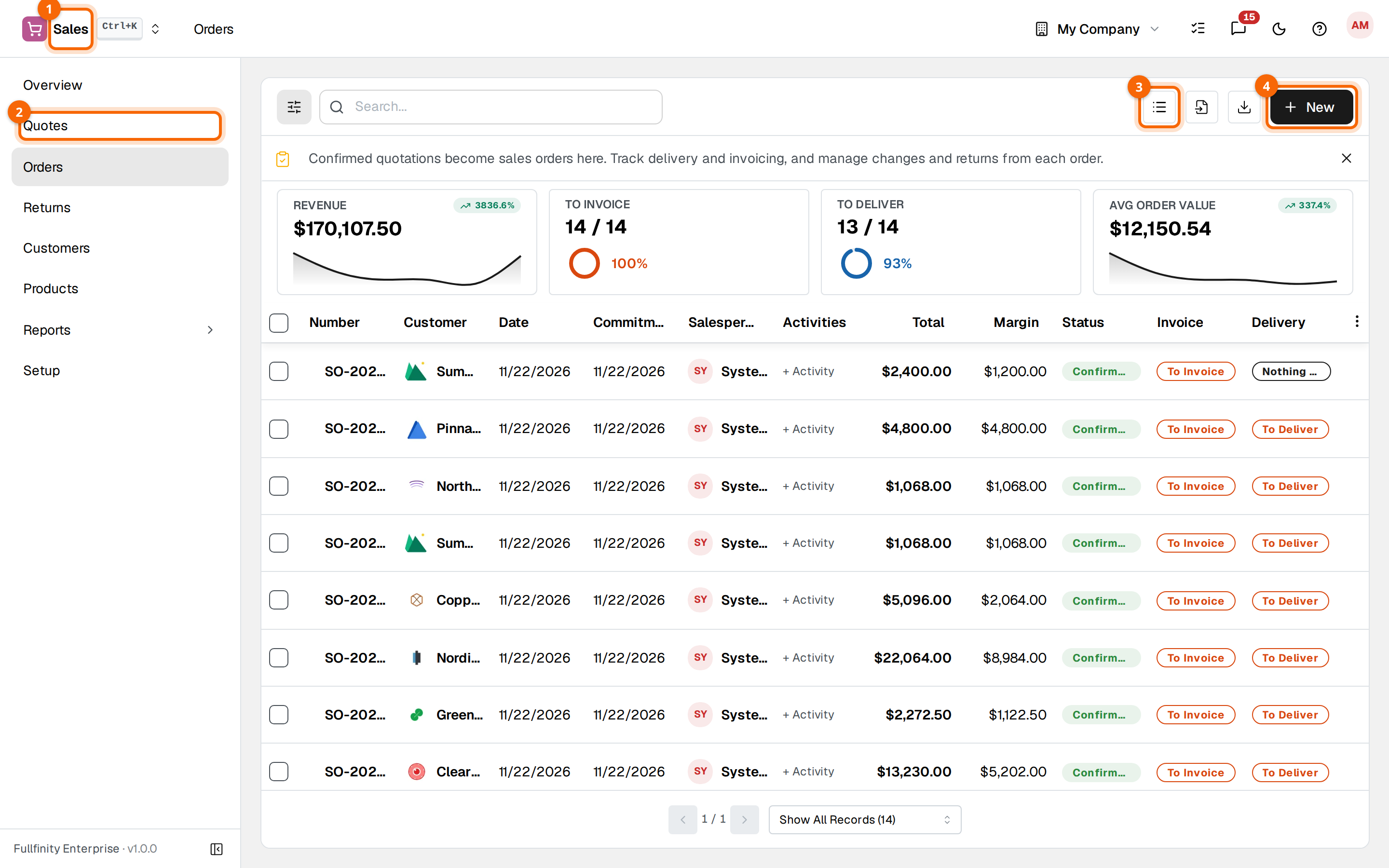
- The app you are in — its name sits at the top left (here Sales). Click it to switch to another app.
- The app's menu — the screens of this app, down the left side (Quotes, Orders, Customers…). An arrow means the item opens a sub-menu.
- The view switcher — show the same records another way, for example as cards instead of rows.
- New — create a record of the kind you are looking at.
Switch apps or jump straight to a record
Click the app name at the top left, or press Ctrl+K (Cmd+K on a Mac), to open the app launcher.
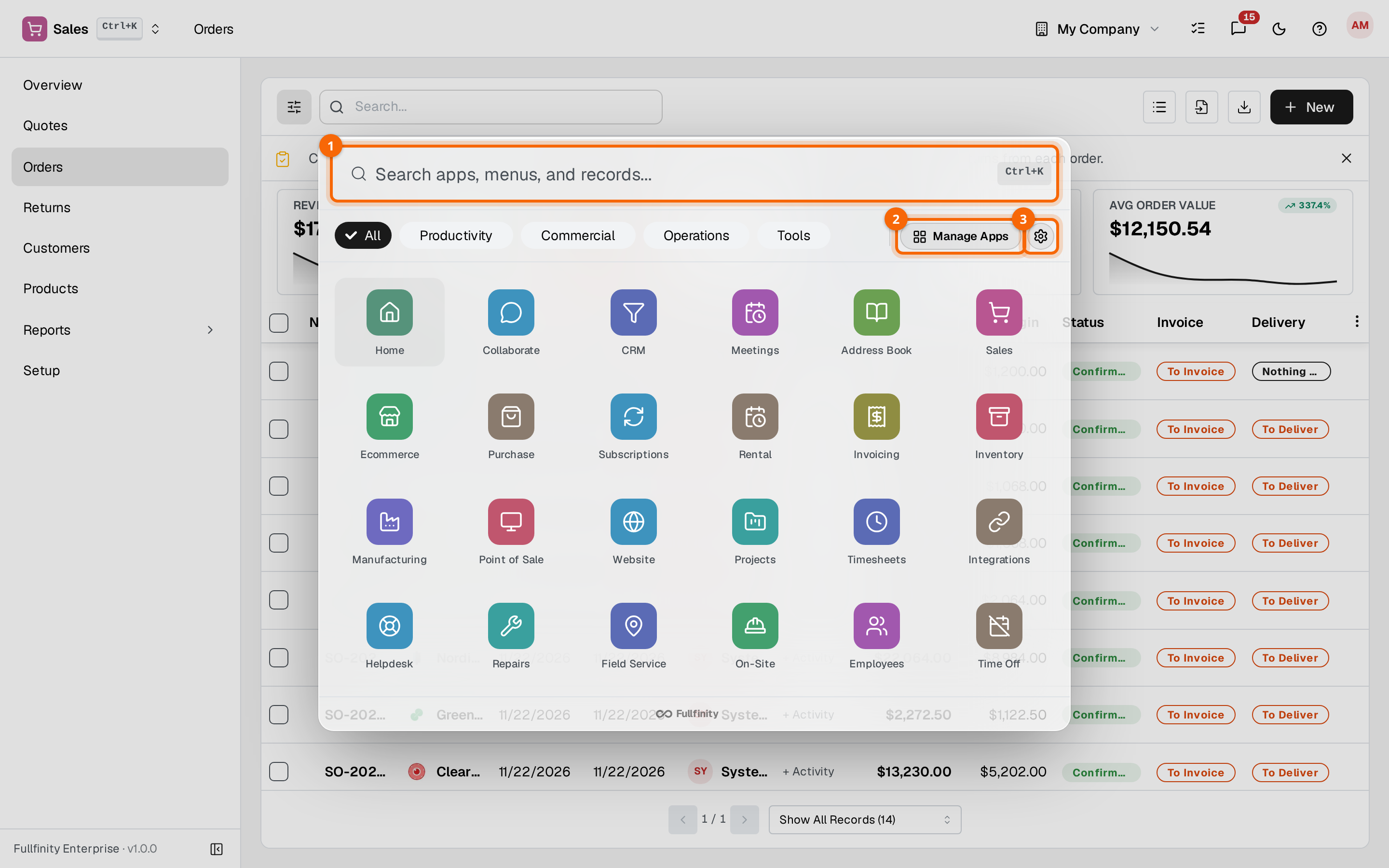
- Type in the search box to find an app, a menu or a record by name — a customer, an order number — and press Enter to open it.
- Manage Apps opens Apps, where an administrator adds or removes apps.
- The gear button opens Settings: users, companies and Setup.
The chips across the top (All, Productivity, Commercial…) narrow the grid to one kind of app.
Search, filter and group a list
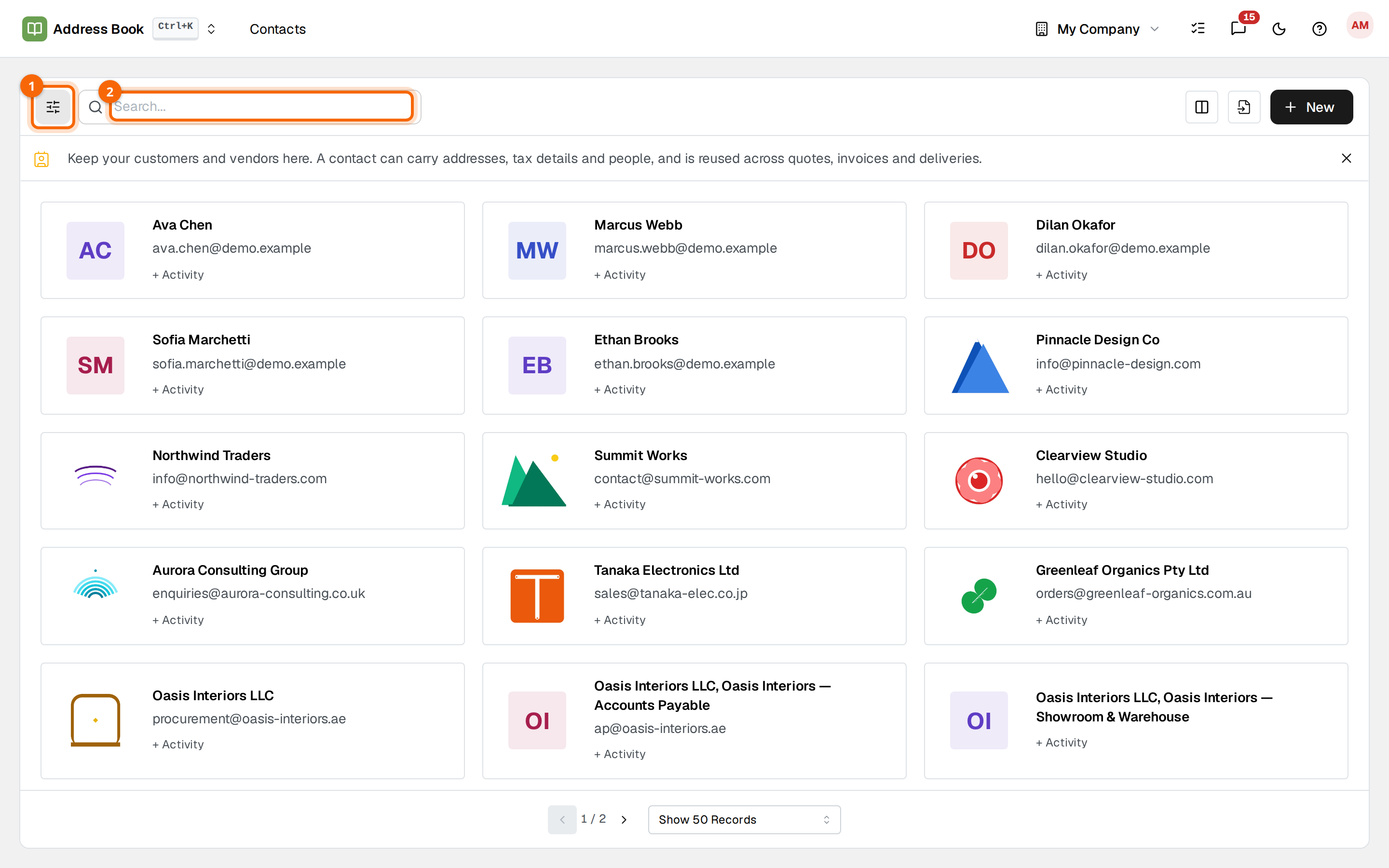
- Search — type in the search bar and press Enter. Your words become a chip in the bar; add several to find records matching any of them, and press Backspace in an empty bar to remove the last one.
- Browse — the button to the left of the search bar opens a panel of ready-made filters and groupings for this list.
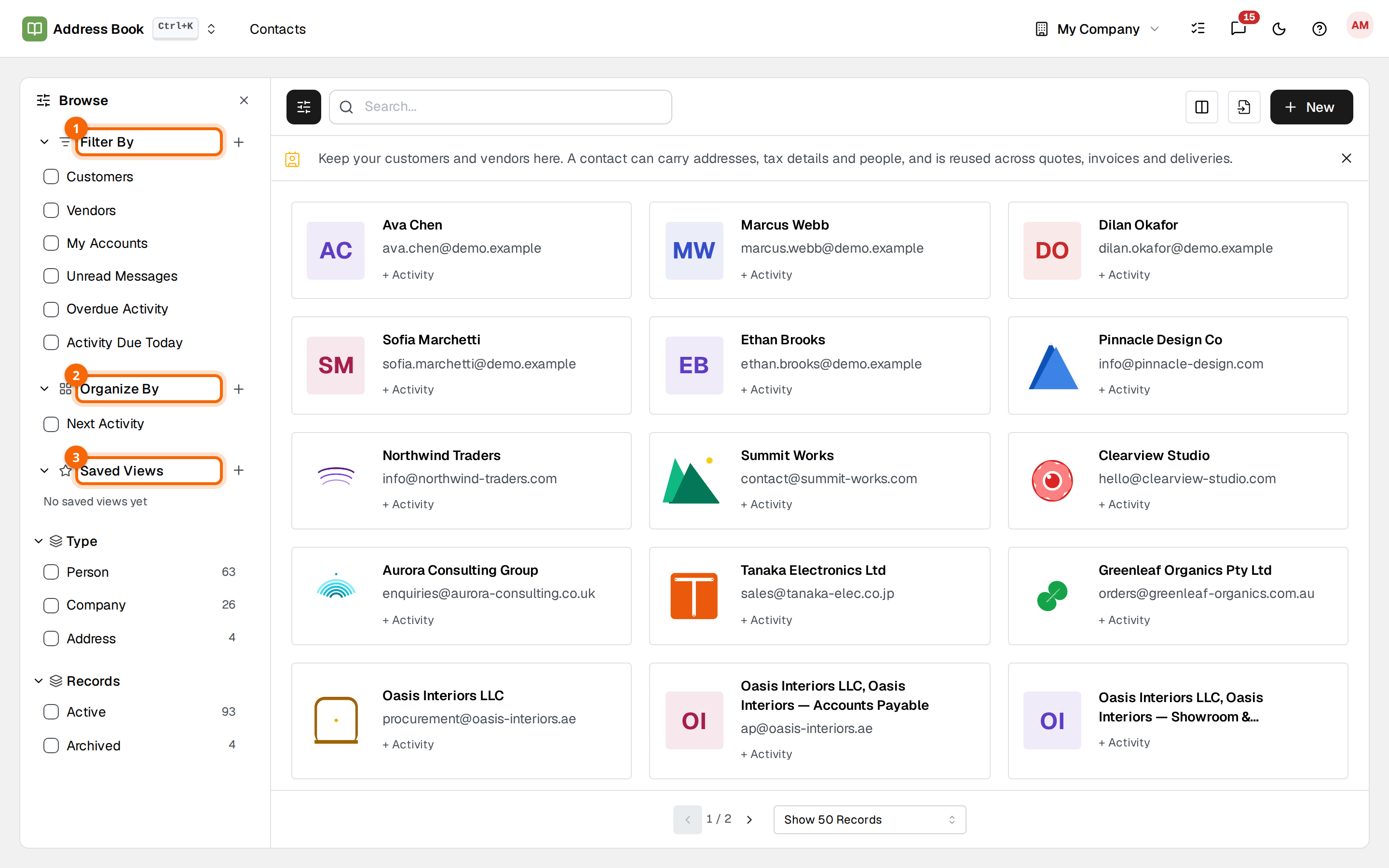
- Filter By — tick a filter to show only matching records (for example Customers). Click + beside the heading to build your own filter on any field.
- Organize By — tick a grouping to split the list into groups, each with its own count and totals. + groups by any field you choose.
- Saved Views — searches you or your colleagues have saved. See How do I save a search to use again?
Below these, the panel lists the values found in the records themselves (a type, a status, a salesperson) with how many records have each. Click one to filter by it. The Records section switches between Active and Archived records — archived ones are hidden until you tick it.
Close the panel with the X at its top, or the Browse button again. Fullfinity remembers whether you like it open.
The top bar
On the right of the top bar, on every screen:
- the company you are working in — see How do I work with more than one company?;
- Activities — your to-dos, see How do I plan follow-ups with activities?;
- Messages — unread messages and mentions;
- a moon button to switch between light and dark;
- your avatar — Preferences (your name, photo, language, time zone and sign-in security), Keyboard shortcuts and Logout.